






A link is a word, group of words, or image that you can click on to go to a new page. In WordPress, inserting and editing links is a key part of improving user experience and site navigation. Below are detailed steps and instructions on how to add links to posts, pages and widgets.
Adding links to articles, pages and widgets
There are several ways to add links to posts, pages, widgets and other locations where text is normally edited.
Method 1: Link button
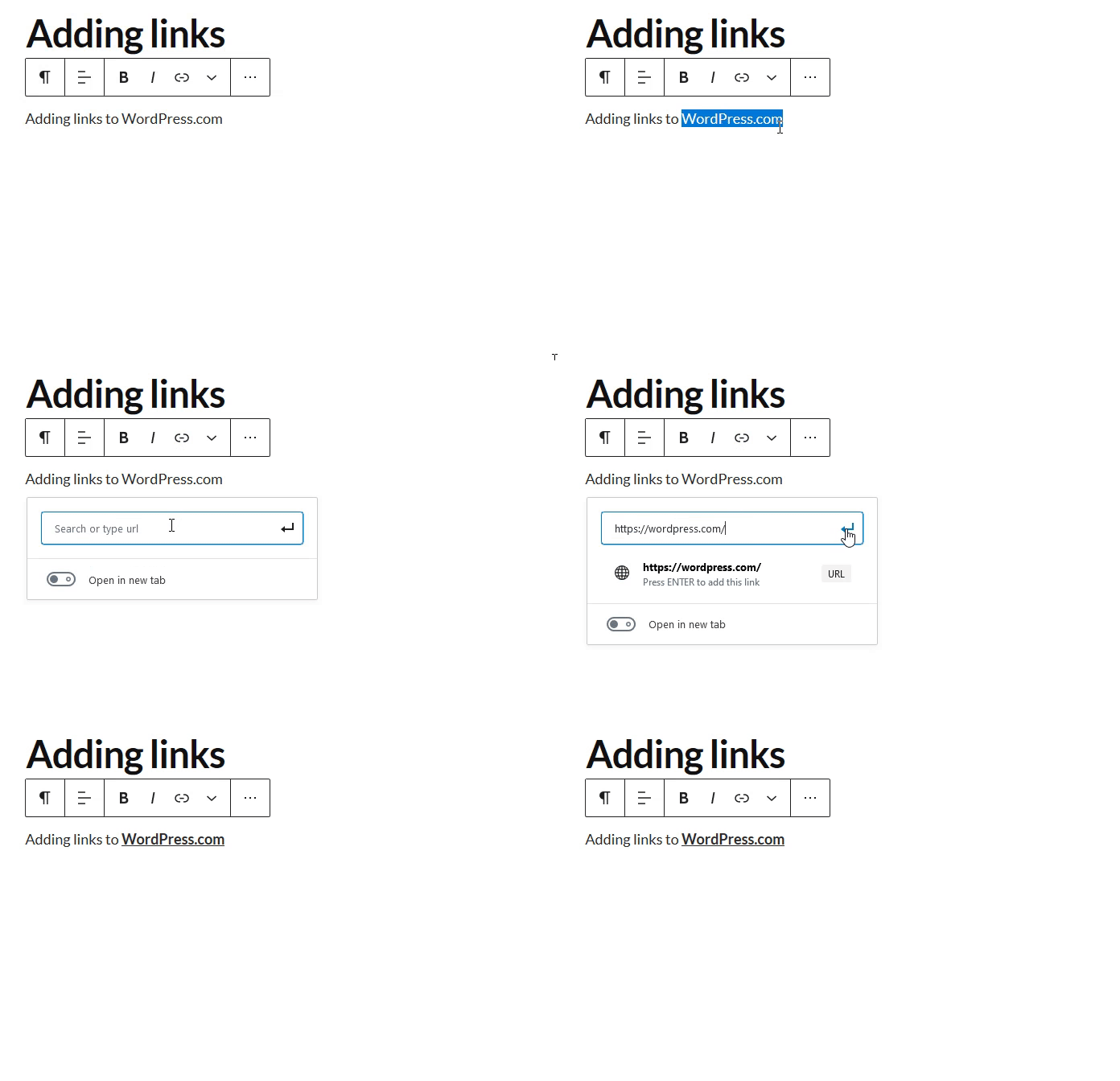
- Copy the URL you want to use to your computer's clipboard.
- To do this, highlight a URL, then right-click and selectmake a copy of, or use keyboard shortcuts such as
CTRL + C(PC) maybeCMD + C(Mac)The
- To do this, highlight a URL, then right-click and selectmake a copy of, or use keyboard shortcuts such as
- Highlight the text to be linked on a page or post.
- Click the link icon displayed in the block toolbar.
- Paste the URL into the displayed window and press Enter to save the link.
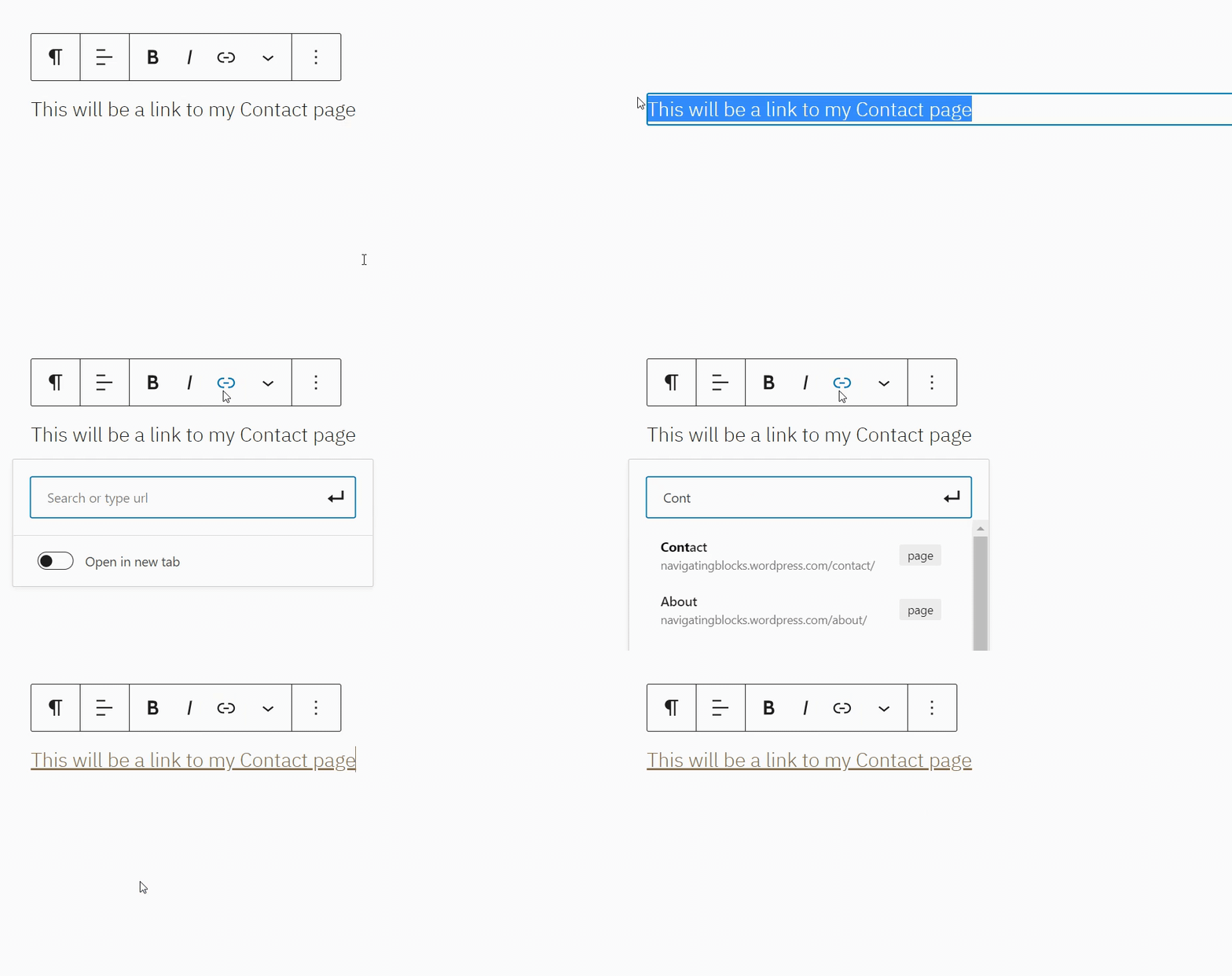
It is also possible to search for articles or pages on your site in the Link Search field by first entering the title of the page or article and then clicking on the page or article to insert the link:
Method 2: Copy and Paste
- Copy the URL to be linked to the clipboard of your computer.
- To do this, highlight a URL, then right-click and selectmake a copy of, or use keyboard shortcuts such as
CTRL + C(PC) orCMD + C(Mac).
- To do this, highlight a URL, then right-click and selectmake a copy of, or use keyboard shortcuts such as
- Highlight the text to be linked on a page or post.
- Paste the copied URL directly onto the highlighted text. To do this, highlight the text, then right-click and choosepaste (as in "copy and paste"), or use keyboard shortcuts such as
CTRL + V(PC) orCMD + V(Mac).

WordPress.com will automatically create the link. Highlighted text will now be underlined and displayed in blue.
Edit existing link
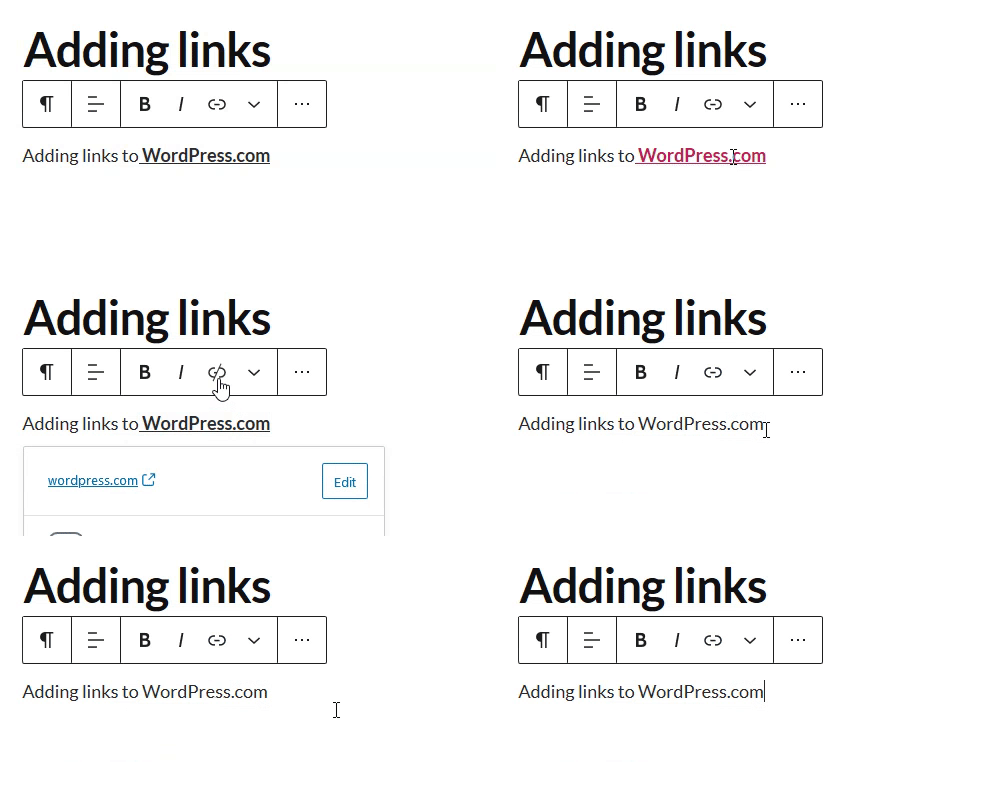
- Click on the link in the editor.
- Select the "Edit" button that pops up.
- Edit the URL and press Enter to save the changes.

Delete existing link
- Click on the link to be deleted.
- Click on the link icon on the toolbar (looks like a link in a chain) and the link will be removed immediately.
Open link in new tab
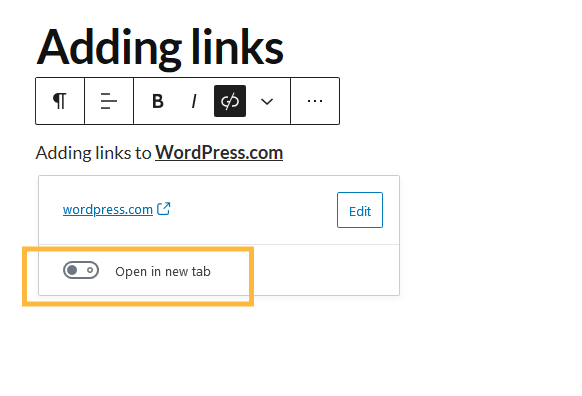
To set the link to open in a new browser tab, do the following:
- Add the link to your text as described above.
- Click on the link you added and enable "Open in the new tab"Button.
Adding links to images
If you want someone to click on an image and go to another page, perform the following steps:
- utilizationimage blockAdd an image to a post or page.
- Click on the image and select the link icon (looks like a link in a chain).
- A box will pop up where you can paste your link or search for existing site content.

- Once you have added a URL, you can set the link to open in a new tab by clicking on the Link Settings arrow and then enabling "Open in New Tab".
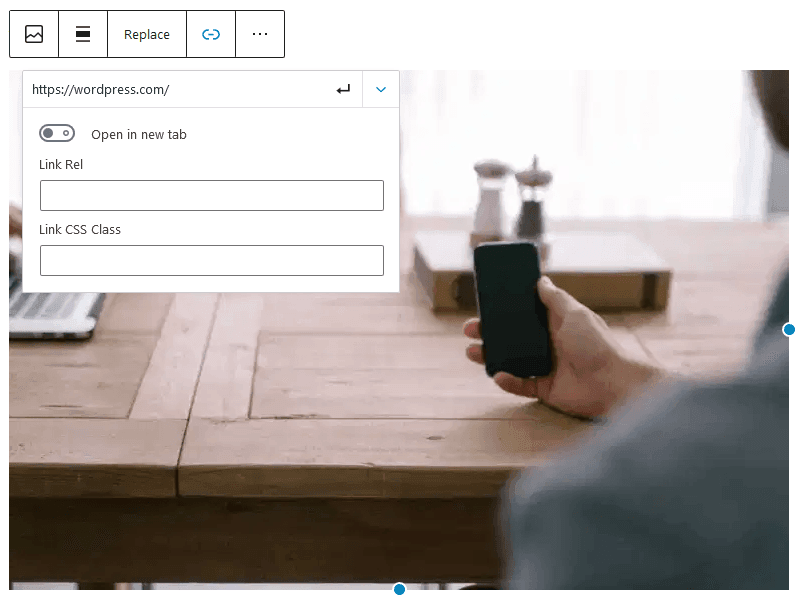
- After adding a link, you can click on the keyboard return/edit button is applied.
Links can only be added to individual images. It is not possible to link images in a gallery block. However, it is possible to add to masonry, stacked, offset, and collage gallery blocks (using the CoBlocks(You can use these blocks on your site).
Linking Images in the Classic Editor
To insert a link using an image from your computer, perform the following steps:
- In the page or post edit screen, click theAdd MediaButton.
- Upload a new imageor click onmedia librarytab and click on the image you want to use.
- Insert an image into your page or post.
- Click on the image and then click on the link icon in the toolbar (it looks like a link in a chain).

In the pop-up box that displays, enter the URL to link to:
![图片[10]-如何在 WordPress 内容编辑器中插入或编辑链接-光子波动网 | WordPress教程、Elementor教程与故障修复](https://www.361sale.com/wp-content/uploads/2024/07/2024071102145223.png)
You can search for existing content on the site or paste a URL in this box. if you click on the Gear Settings icon, you will be able to check the checkbox to open the link in a new tab when clicked.
Customized Link Styles
- Using CSS Style Links: Add unique styling to links by customizing the CSS. For example, you can add in the theme's stylesheet:
a.custom-link { color: #ff0000; text-decoration: underline; }- Application customization classes: When adding a link, the application
custom-linkclass for style customization.
![图片[11]-如何在 WordPress 内容编辑器中插入或编辑链接-光子波动网 | WordPress教程、Elementor教程与故障修复](https://www.361sale.com/wp-content/uploads/2024/07/2024071101544678.png)
Summary:
Inserting and editing links in WordPress, whether they are added to a post, page, or widget, is easy. This article details the many ways to add and edit links in WordPress, including using link buttons, copying and pasting URLs, editing and deleting existing links, adding links to images, and opening links in new tabs.

Link to this article:https://www.361sale.com/en/13244/The article is copyrighted and must be reproduced with attribution.












![表情[wozuimei]-光子波动网 | WordPress教程、Elementor教程与故障修复](https://www.361sale.com/wp-content/themes/zibll/img/smilies/wozuimei.gif)

![表情[baoquan]-光子波动网 | WordPress教程、Elementor教程与故障修复](https://www.361sale.com/wp-content/themes/zibll/img/smilies/baoquan.gif)


 简体中文
简体中文  English


No comments