




Many new users who are just starting out with WordPress choose WordPress.com. this is a lot more restrictive as opposed to the open version (WordPress.org), which has the advantage of being cheap, easy, and doesn't require a lot of skill. Due to the limitations of WordPress.com, it will be migrated to WordPress.org.
![Image [1] - How to Migrate from WordPress.com to WordPress.org - Photon Fluctuation Network | Professional WordPress Repair Service, Worldwide, Fast Response](https://www.361sale.com/wp-content/uploads/2024/08/2024080610104927.png)
Why migrate from WordPress.com to WordPress.org?
WordPress.com Anyone can blog by creating an account. However, newbies quickly discover that free WordPress.com blogs have many limitations, such as limited monetization, the inability to install plugins, displaying third-party advertisements to users, and more.
This is why users often turn to the more powerful and popular WordPress.org platform.
To learn the difference between the two, see our "WordPress.com vs WordPress.org: what's the difference?".
We recommend using WordPress.org as it is fully owned and has all control of the site.
Let's see how to properly migrate a website from WordPress.com to WordPress.org.
Note: Before you start the migration, you need to prepare a website running environment (we usually use a virtual server, which is more convenient and flexible) and a website domain name.
Step 1: Export Data from WordPress.com
First, you need to log in to your WordPress.com website and go to the account dashboard.
In the left column, click"Tools" "Export"menu, and then click "Export All"Button.
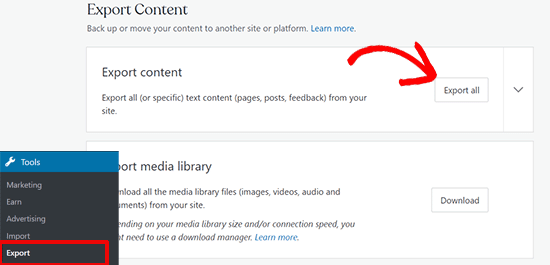
This exports your WordPress website. When the export file is ready, a download link will appear. You can click on it to download the zip file on your desktop.
WordPress.com will also email the link to your email address.
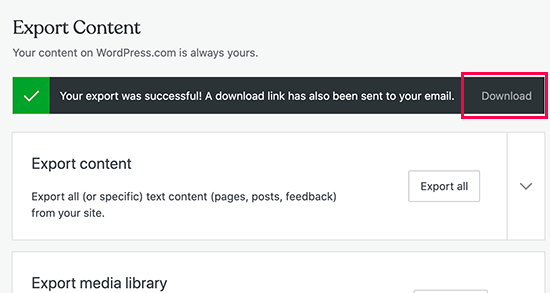
After downloading the file to your desktop, extract it.
In it, find XML fileThe following is a summary of the information contained in theAll posts, pages, images, comments, custom fields, categories, tags, navigation menus and other dataThe
Step 2: Setting up WordPress
With the WordPress.com data exported, the next step is to set up your site with a brand new WordPress InstallationThe
WordPress installation is very simple.See these articles of ours.
Step 3: Importing Content into a WordPress Site
To import the content of the old WordPress.com site into the new WordPress.org site, you need to log in to the admin backend of the newly installed WordPress site.
From here, it is necessary to access theTool "Importpage and click the "Install Now"Button.
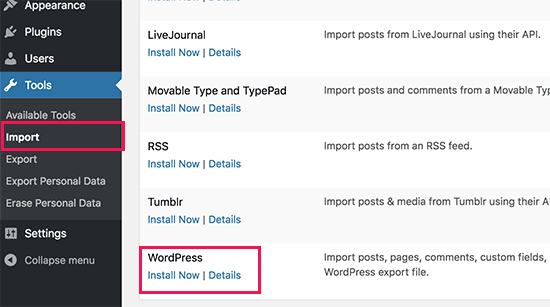
WordPress will now install the WordPress importer.
When finished, click "Run the importer"Link Continued.
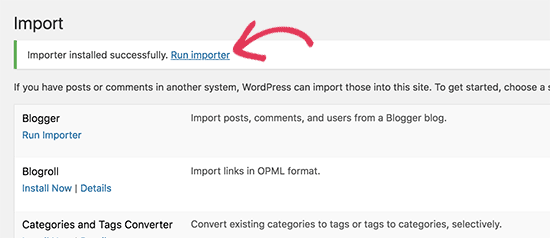
It will go to a screen that asks to upload the WordPress.com XML fileThe
Click on 'Select File' button to select the file and then click on the 'Upload a file and import it' button.
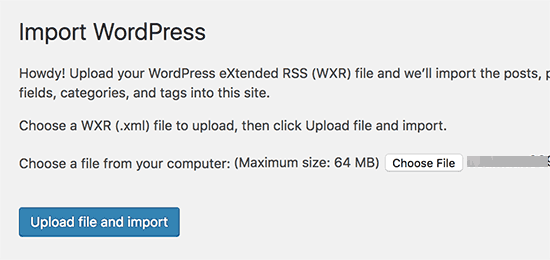
Attention:If the file size is larger than 2MB, there are two options. One is to temporarily increase that limit so that processing can continue. The other option is to use theWXR File SplitterSplit your file.
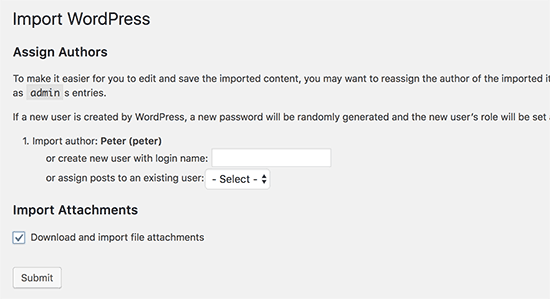
When starting an import, you can assign the import to existing users or create new users.
There is also an option to import file attachments. This box must be checked for the image file to be imported correctly.
Step 4: Importing Blog Links
If you've been using the "Links" feature on your WordPress.com blog to store blog links or other links, you'll need to follow the instructions below to import them. Users who are not using this feature can skip to step 5.
WordPress itself does not support the blog link feature. If you don't have too many links in your blog links.
However, if there are too many links or you want to keep the blogroll feature, let's move on.
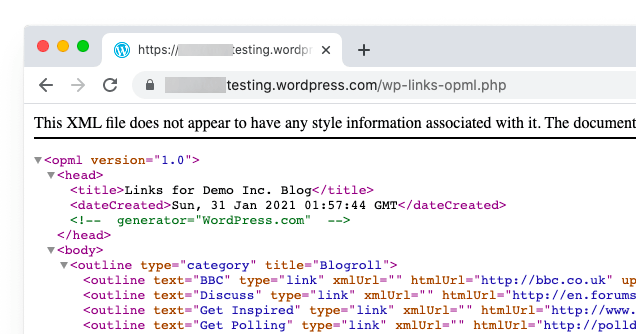
Blog links are exported in OPML format. This is an XML format for exporting and importing links and link categories.WordPress.com Links has an OPML file located at the following address:
http://example.wordpress.com/wp-links-opml.php
Replace the example with the subdomain of your WordPress.com blog.
If you are using a custom domain on the WordPress.com website, you can access your OPML file by visiting the following URL:
http://www.example.com/wp-links-opml.php
The OPML file will open in a browser window and needs to be saved to the desktop. Press CTRL+S (Command+S on Mac) to save the file to the desktop.
Now that you have backed up your WordPress.com links, the next step is to import them into WordPress. however, WordPress does not enable the link manager by default.
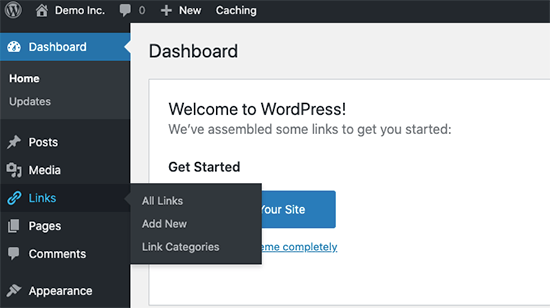
Requires installation and activationLink ManagerPlugin. The plugin's page shows that it hasn't been updated in many years. That's because it doesn't need to be updated and you can install this plugin with no worries.
Upon activation, the plugin will add a label to the WordPress admin bar as "Link"The new menu item for the
Next, install and activateOPML ImporterPlugin. This plugin enables a new import tool to import blog links.
After activation, you need to visit theTool "Importpage and click below the blogroll importer on the "Run the importer"Link.
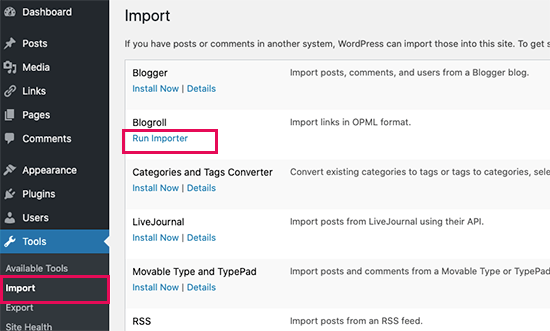
On the Blogroll importer page, you need to upload the OPML file that you saved earlier.
Click "Select File" button to select the file, and then click the "Importing OPML files"The button continues.
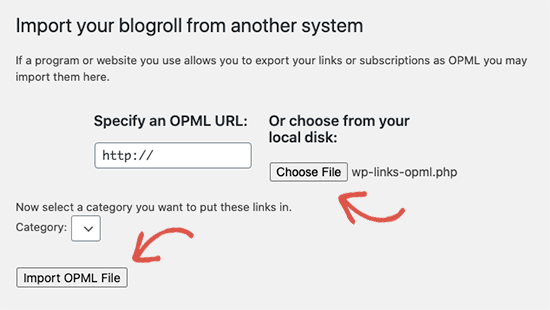
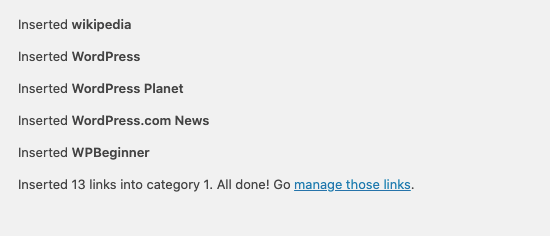
WordPress will now import links and link categories from OPML files.
Be able to see the progress, and when it's done, you'll see a success message.
Step 5: Set your WordPress.com blog as a private blog
Now, here's the final step if you don't want to redirect old users to the new site.
First, visit the WordPress.com dashboard on the old site. From the left menu, you need to click on"Settings" "General"menu, then scroll down to "private business"Part.
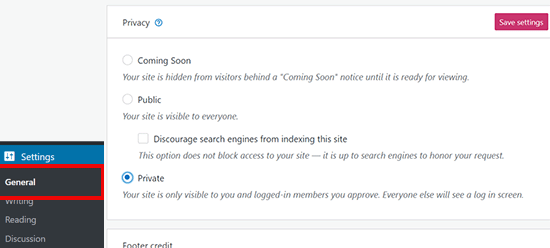
From here, one needs to select "sb. with whom one has a close personal relationship" option, and then click "Save Settings"Button.
This will make your old WordPress.com blog private and only you or other logged in users you approve will be able to see it.
Attention:If your blog has been around for a while, there's a good chance it's been indexed by Google and other search engines.
Following step 6 (which is recommended if the site is already set up) will retain all search engine rankings and easily redirect old users to your new blog site.
Step 6: Redirect Visitors and Retain SEO
Redirecting users to a new location using the 301 header is a standard solution for maintaining search rankings when moving a website from one location to another.
Due to lack of access to WordPress.com on the .htaccess file, so you are not able to make any changes to retain search engine rankings.
However, WordPress.com offers a program called "Site redirection"The paid upgrade feature is available for this feature.
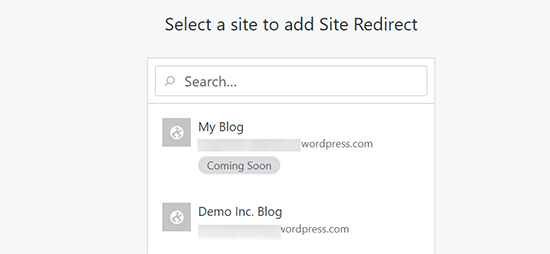
Just go toSite redirectionPage. If there is more than one site on WordPress.com, the system will ask which site to redirect to.
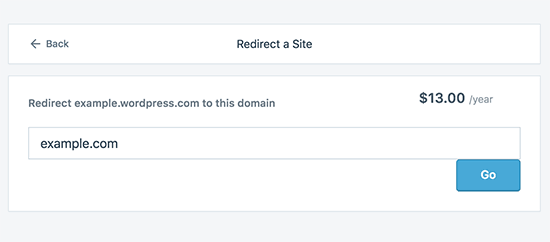
On the next screen, one will be asked to provide the desired redirection of the visitor to theDomain Name. Enter the domain name of your new WordPress.org website and click the Go button.
Attention:Website Redirection is a paid upgrade that costs $13 per year. It will add a 301 redirect that will redirect WordPress.com blog visitors and search engines to your new site.
If you want to change the domain name, then you will have to update all the URLs within the posts. if the posts were ever linked to each other, you will have to update these links.
If you have a custom domain on WordPress.com, you don't need to worry about anything. Simply change the DNS records to your server and retain all the SEO benefits.

Link to this article:https://www.361sale.com/en/15770The article is copyrighted and must be reproduced with attribution.






















![Emoji[wozuimei]-Photonflux.com | Professional WordPress repair service, worldwide, rapid response](https://www.361sale.com/wp-content/themes/zibll/img/smilies/wozuimei.gif)

![Emoticon[baoquan] - Photon Wave Network | Professional WordPress Repair Services, Worldwide Coverage, Rapid Response](https://www.361sale.com/wp-content/themes/zibll/img/smilies/baoquan.gif)


 简体中文
简体中文  English
  日本語
日本語  Français
  Español


No comments