




Ever encountered the error message of seeing memory size exhausted in WordPress? This is one of the most common WordPress errors!
It can be easily fixed by increasing the PHP memory limit in WordPress.
![Image [1] - How to Fix WordPress Memory Exhaustion Error - Increase PHP Memory - photonwave.com | Professional WordPress Repair Service, Worldwide, Fast Response](https://www.361sale.com/wp-content/uploads/2024/08/2024080812252571.jpg)
What is WordPress memory exhaustion error?
If the site is having difficulty running the task, it may see a message that says WordPress Memory Exhaustion ErrorThe
WordPress is the first web site to use thePHPPHP is a server-side programming language that requires memory to run. Just like any other computer, web servers have a limited amount of memory to run multiple applications at the same time.WordPress allocates specific memory sizes differently for different applications, including PHP.
This error message is seen when WordPress code requires more memory than is allocated by default:
Fatal error: /home4/xxx/public_html/wp-includes/plugin.php Allowed memory size 33554432 bytes exhausted in line xxx (attempted to allocate 2348617 bytes)
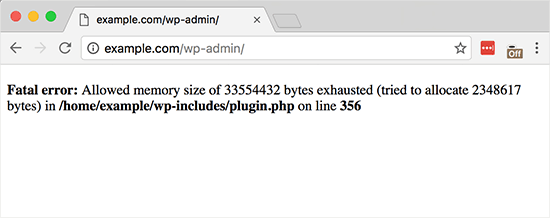
A WordPress site may be running out of memory on its servers if the following occurs
- Lots of images, videos and other types of media
- Lots of Unused WordPress Plugins
- Exceeded its hosting plan resources
By default, if the PHP memory limit is less than 64MB, WordPress will automatically try to increase it. However, 64MB is usually not high enough.
Let's see how easy it is to increase the PHP memory limit in WordPress to avoid memory exhaustion errors.
Note: Some of these methods require direct editing of the WordPress files. We recommend backing up your site first to avoid the site error again.
![Image [3] - How to Fix WordPress Memory Exhaustion Error - Increase PHP Memory - photonwave.com | Professional WordPress Repair Service, Worldwide, Fast Response](https://www.361sale.com/wp-content/uploads/2024/08/2024080812301981.png)
Option 1:Edit the wp-config.php file
The first step is to edit the WordPress site's wp-config.php file. This is one of the core WordPress files located in the root directory, usually named public_htmlThe
You can use an FTP client (e.g. FileZilla) or a file manager in the control panel.
The next step is to paste the following line of code into the wp-config.php filein it, just before the following line:That's all, stop editing! Happy blogging.
define( 'WP_MEMORY_LIMIT', '256M' );This line of code tells WordPress to increase the PHP memory limit to 256MBThe
Once done, you need to save the changes and upload the wp-config.php file back to your server.
You can now refresh your WordPress site and the memory exhaustion error should be gone.
Option 2:Editing .htaccess files
![Image [4] - How to Fix WordPress Memory Exhaustion Error - Increase PHP Memory - photonwave.com | Professional WordPress Repair Service, Worldwide, Fast Response](https://www.361sale.com/wp-content/uploads/2024/08/2024080812404530.png)
The next method is to edit the .htaccess file. This file is also located in the root folder of your WordPress site.
Here, the following code needs to be pasted before the line#END WORDPRESSThe
php_value memory_limit 256MSimilar to the previous code, it will tell WordPress to increase the PHP memory limit to 256MB.
After that, simply save the changes and upload the file back to your web server. You can now open the WordPress site again to see if the memory limit error is gone.
Option 3:Check the php.ini file
If the above doesn't work, you may need to look at your php.ini file.
php.ini is the file that controls PHP settings, including PHP version and PHP scripts. It is not a WordPress core file as it is usually provided by the server provider. Its code can be inspected to see your PHP memory usage limits.
However, this method requires a certain level of skill, and we recommend that you contact your server provider's technical team to see if they can manually increase the WordPress memory limit. Otherwise, this can lead to further errors.
Option 4: Upgrade the server where you installed WordPress
If you keep encountering memory exhaustion errors, it indicates that your website has outgrown the server's current configuration. As your site attracts more users and adds more content, it requires more resources to run smoothly. Upgrading to a server with a higher configuration may be the permanent solution.

Link to this article:https://www.361sale.com/en/16162The article is copyrighted and must be reproduced with attribution.






















![Emoji[wozuimei]-Photonflux.com | Professional WordPress repair service, worldwide, rapid response](https://www.361sale.com/wp-content/themes/zibll/img/smilies/wozuimei.gif)

![Emoticon[baoquan] - Photon Wave Network | Professional WordPress Repair Services, Worldwide Coverage, Rapid Response](https://www.361sale.com/wp-content/themes/zibll/img/smilies/baoquan.gif)


 简体中文
简体中文  English
  日本語
日本語  Français
  Español


No comments