







What should I do if I encounter an image upload error in my WordPress website? Especially for newbies, it's quite a head-scratcher when you encounter inability to upload images! But, there's no rush, follow our step-by-step guide that will teach you to troubleshoot the problem and fix it step by step.
![图片[1]-如何修复 WordPress 中的图片上传问题(7 个简单技巧)-光子波动网 | WordPress教程、Elementor教程与故障修复](https://www.361sale.com/wp-content/uploads/2024/08/2024081203354797.png)
What causes image upload issues in WordPress?
There are a few common reasons why you may be experiencing problems uploading images in WordPress.
First, cross-browser issues may be a contributing factor. Sometimes images will upload fine in one browser, but not in another. Different browsers handle file uploads differently and this can cause problems.
Invalid file names can also cause problems. If your image filename containsSpecial characters or spaces, WordPress may not accept it. That's why we recommend using simple filenames that contain letters, numbers, and dashes.
Cache can also affect image uploads. An outdated cache can lead to various problems, so clearing your website's cache can solve upload issues.
In addition, some plugins may conflict with the image upload process. Plug-ins may cause problems without your knowledge. For example, plug-in settings or features sometimes interfere with the upload function.
Or it could be a problem with your theme. Some themes are built incorrectly and can interfere with image uploads. Improperly coded themes can create conflicts and errors that can prevent images from uploading successfully.
It could also be due to incorrect file permissions. This means that WordPress can't write to your upload folder, and if the permissions aren't set correctly, you'll encounter errors during the upload process.
Finally, it could be a memory limit issue. If the site doesn't allocate enough memory, then it won't be able to handle large files. This can lead to upload errors or incomplete uploads.
There are 7 simple tips to fix image uploading issues in WordPress, let's take a look at them together!
Tip 1: Reload the page or test with another browser
First of all, reloading the page usually solves the problem. This is one of the simpler and more effective methods.
The image upload issue may be due to your login having expired. If this happens, reloading the page or navigating back from another tab will cause you to log out. A new login will be required.
This issue can also happen because WordPress is losing connection with your browser. This can happen due to a problem with your network or a temporary issue with your WordPress server. Reloading the page and re-uploading the image files can resolve this error.
Other times, image upload issues may be browser related. Try using a different web browser to upload images. This can help determine if the problem is a browser issue.
Tip 2: Re-uploading images through the media library
If the problem persists after reloading the page or switching to another browser, it may be necessary to try re-uploading the image via the media library.
So instead of uploading an image directly through a post or page, you need to go from the WordPress dashboard to theMedia" adds a new media file.
Then, simply click "Select File"And try to upload the image there.
![图片[2]-如何修复 WordPress 中的图片上传问题(7 个简单技巧)-光子波动网 | WordPress教程、Elementor教程与故障修复](https://www.361sale.com/wp-content/uploads/2024/08/2024081205444781.png)
The problem can be solved.
Tip 3: Renaming an Image File
WordPress may reject image file names if they contain spaces. In addition, you should avoid using special characters such as "#", "!" or "@". These characters can cause problems as they may not be supported by web servers and browsers.
Therefore, make sure you rename your image files to something simple and clear.classifier for birds and certain animals, one of a pair, some utensils, vessels etcLetters, numbers and dashes are required.
For example, it could be renamed to "my-image-1.jpg" instead of "my image #1!.jpg".
Tip 4: Clear your cache
Previous caching may cause different issues, including image upload issues.
The cache is used to store copies of content thatThis improves site speed, but can sometimes lead to conflicts. Outdated or corrupted caches may result in newly uploaded content not being recognized or processed correctlyThe
Refreshing the cache usually solves the problem and ensures that the site processes newly uploaded content without any interference from old, conflicting data.
Clearing your website cache is easy. This can usually be done with theCaching Plugin(e.g.WP Rocket) or the control panel to do so.
![图片[3]-如何修复 WordPress 中的图片上传问题(7 个简单技巧)-光子波动网 | WordPress教程、Elementor教程与故障修复](https://www.361sale.com/wp-content/uploads/2024/08/2024081205450589.png)
Then, there is also the need toClear Browser Cache. Browsers store copies of web pages (including images) so that the site loads faster the next time you visit. This is why a long browser cache can cause problems with new uploads.
To clear your browser cache, you usually need to go to your browser settings, find the option to clear browsing data or cache, and select it.
Tip 5: Check for plugin and theme issues
Sometimes, plugins or themes conflict with the image upload process. This happens due to the following reasonsCertain plug-insmaybeThemes are not fully compatible with the latest version of WordPress, or with each other.The
To diagnose and fix this issue, you need to follow some steps to troubleshoot the problem.
First, deactivate all plugins. Go to the WordPress dashboard under "plug-in (software component)" section and then select for each plugin "deactivate".
![图片[4]-如何修复 WordPress 中的图片上传问题(7 个简单技巧)-光子波动网 | WordPress教程、Elementor教程与故障修复](https://www.361sale.com/wp-content/uploads/2024/08/2024081205452548.png)
It is also possible to deactivate all these functions at once.
Next, switch to the default theme, for exampleTwenty Twenty-OneThe
This can be done by going to the WordPress dashboard in theAppearance" themeand activate the default theme to perform this action.
![图片[5]-如何修复 WordPress 中的图片上传问题(7 个简单技巧)-光子波动网 | WordPress教程、Elementor教程与故障修复](https://www.361sale.com/wp-content/uploads/2024/08/2024081205455077.png)
This step helps you determine if the question is relevant to the topic at hand.
Then, try to upload the image again. If the upload is successful, the problem is with your plugin or previous theme.
To find the exact cause, you can start reactivating the plugins one by one. After activating each plugin, try uploading the image again. This way, you can find the specific plugin that is causing the conflict.
If the problem reappears after activating a plugin, the problem is with the plugin.
If switching plugins does not solve the problem, it may be related to the theme used. You can contact the theme developer or consider using another WordPress theme.
Tip 6: Adjusting File Permissions
Image upload issues in WordPress can also occur due to incorrect file permissions. WordPress files are stored on the server and require specificFile and directory permissionsto be able to run.
Incorrect file permissions can prevent WordPress from reading or uploading files on the server. You may receive the following WordPress error when uploading image files:
"Unable to create directory wp-content/uploads/2019/04. is its parent directory writable by the server?"
![图片[6]-如何修复 WordPress 中的图片上传问题(7 个简单技巧)-光子波动网 | WordPress教程、Elementor教程与故障修复](https://www.361sale.com/wp-content/uploads/2024/08/2024081205460342.png)
Or you will see the following error:
"Unable to move uploaded file to wp-content/uploads/."
Another sign of this problem is the disappearance of images from the WordPress media library.

My site was working fine before. Who changed the file permissions?
This can happen for a number of reasons. Misconfigurations on the server can sometimes change these permissions without taking any action.
For example, a server upgrade that accidentally changes file permissions.
If everything else on the WordPress site is working fine, then simply applying the correct file permissions will fix the image upload issue.
Note: This method is quite challenging, so if you want support, you can contact us in the bottom right corner.
Changing file permissions
In order to change file permissions, you can use an FTP client.
First, let's connect to the site via FTP and switch to thefile/wp-content/double-layered. Inside, find theuploadsfile (paper)This is Where WordPress stores all your uploaded media (including images)The
Now right-click on theuploadsCatalog.Then select "file permissions".
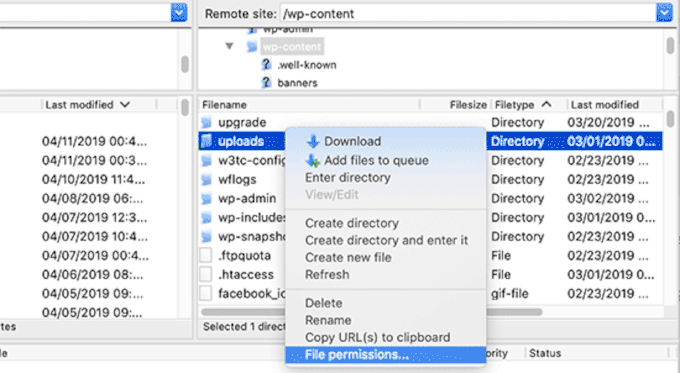
This opens the File Permissions dialog box.
From here, the file permissions for the upload directory and all subdirectories within it need to be set to"744".
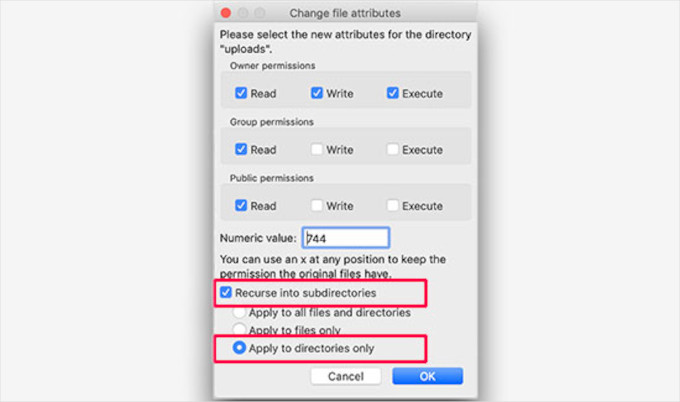
Enter 744 in the Value box and check the "Recursion to subdirectories" next to the box. Then, simply click the"Catalog only"Radio buttons are available.
Continue and click "recognize" button to apply the changes. The FTP client will now begin applying file permissions to directories.
Note: If setting the directory permissions to 744 does not solve the problem, try 755.
Next, set file permissions for all files in the upload directory.
right clickuploadscatalogsfurthermoreSelecting File Permissions. In the File Permissions dialog box, change the value to"644".
Then, you can check the "Recursion to subdirectories" next to the box and select"For documents only".
Finally, simply click "Determine."button to apply the changes.
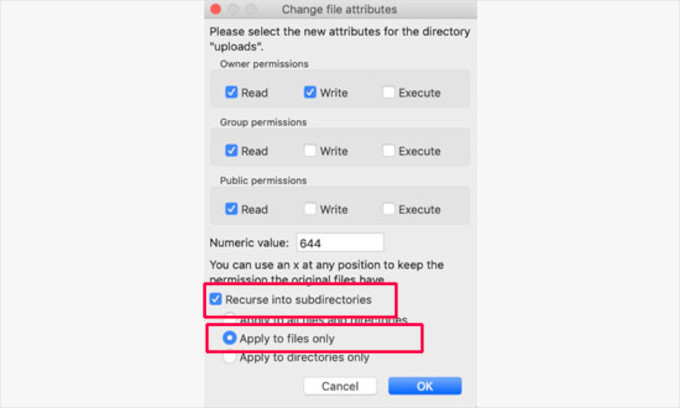
The FTP client will now change the permissions for all files in the upload folder. Once this is done, you can return to the WordPress admin area and try uploading images again.
Tip 7: Increase PHP memory limit
Sometimes, image upload issues occur because WordPress does not have enough memory to handle the upload. Increasing the PHP memory limit can help with this issue.
Usually, this can be done by editing the wp-config.php fileto perform this operation. However, the easiest way is to contact the server provider. They can increase the memory limit.
I hope this article will help you to solve the image uploading problem in WordPress.

Link to this article:https://www.361sale.com/en/16457/The article is copyrighted and must be reproduced with attribution.












![表情[wozuimei]-光子波动网 | WordPress教程、Elementor教程与故障修复](https://www.361sale.com/wp-content/themes/zibll/img/smilies/wozuimei.gif)

![表情[baoquan]-光子波动网 | WordPress教程、Elementor教程与故障修复](https://www.361sale.com/wp-content/themes/zibll/img/smilies/baoquan.gif)


 简体中文
简体中文  English


No comments