








When uploading files in WordPress, sometimes you see "Upload: Unable to write file to disk"Error. It's still a headache for newbies if they come across this, this error prevents you from uploading files to your WordPress site. Let's see how to fix this error you?
![图片[1]-如何修复 WordPress 中的“上传:无法将文件写入磁盘”错误-光子波动网 | WordPress教程、Elementor教程与故障修复](https://www.361sale.com/wp-content/uploads/2024/08/2024081701460385.png)
What causes the Unable to Write File to Disk error in WordPress?
This WordPress error can be caused by a number of reasons. The most common reason is incorrect folder permissions.
Each file and folder on your Web site has a set of permissions. Your Web server controls access to files based on these permissions.
Incorrect permissions on a folder may deprive you of the ability to write to files on the server. This means that the web server cannot create or add new files in that particular folder.
If one tries to upload an image or any other file from the WordPress admin backend, then one of the following error messages will be received:
- WordPress cannot write to disk.
- WordPress upload failed due to an error writing the file to disk.
- Unable to create directory wp-content/uploads/2016/03. is its parent directory writable by the server?
Let's see how we can fix the WordPress "Upload: Unable to write to disk"Error.
How to Fix Upload Cannot Write to Disk Error in WordPress
First, you need to connect to your WordPress site using an FTP client.
In this tutorial, we are using the freeFileZilla FTP Client. If you are using another FTP client, the interface may be different.
Once connected, right-click on thewp-contentfile (paper)and select "file permissions".
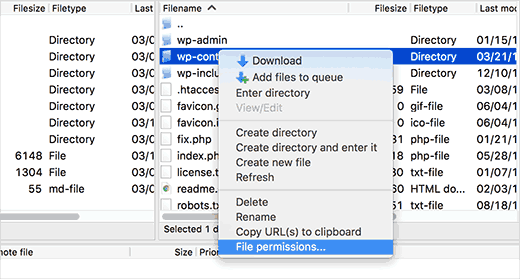
This will open the file permissions dialog in your FTP client.
It will show owner, group and public file permissions.
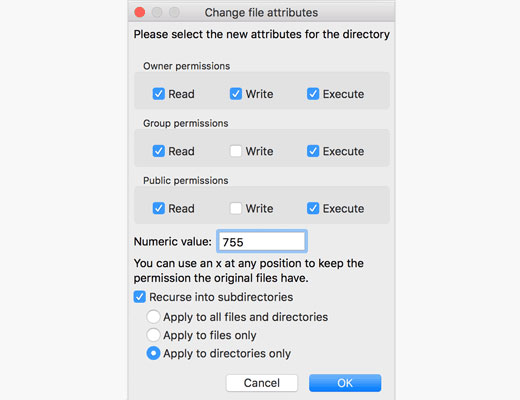
In the numeric value field, enter 755The
After that, you must check the "Recursion to subdirectories"side boxThe
Next, to click on the "Applies only to catalogs" option, and then click "recognize"The button continues.
The FTP client now sets the folder permissions to 755and applying it to all the subfile (paper)wp-content. This includes the upload folder where all images are stored.
There is also a need to ensure thatfilewp-contentdouble-layeredThe file permissions for each file in the
Right-click againwp-contentfolder and select "file permissions". This time, we will change the permissions of the file.
Enter 644 in the Numeric Value field and check the "Recursion to subdirectories"Next to the box.
Now, click on "Applies only to documents"Options.
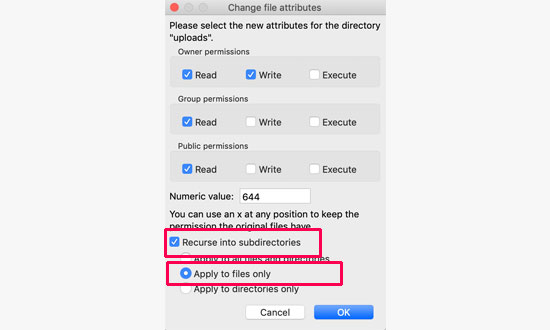
Click "recognize" button to continue.The FTP client will nowwp-contentThe file permissions for all files in the folder are set to 644.
You can now refresh your WordPress site and try to upload files.
WordPress uses PHP to upload your images, it first saves the uploaded images to a temporary directory on your web server. Then, it moves them to your WordPress upload folder.
If this temporary directory is full or not properly configured, then WordPress will not be able to write files to disk.
This temporary folder is located on the server and in most cases it is not possible to access it using FTP. You need to go to the server to empty it.
Hopefully this article will help you guys out with the WordPress "Upload: Unable to write file to disk"Error.

Link to this article:https://www.361sale.com/en/16977/The article is copyrighted and must be reproduced with attribution.













![表情[wozuimei]-光子波动网 | WordPress教程、Elementor教程与故障修复](https://www.361sale.com/wp-content/themes/zibll/img/smilies/wozuimei.gif)

![表情[baoquan]-光子波动网 | WordPress教程、Elementor教程与故障修复](https://www.361sale.com/wp-content/themes/zibll/img/smilies/baoquan.gif)


 简体中文
简体中文  English


No comments