








What are WordPress themes? Can I change the theme color?
WordPress Themescontrols the appearance of the website and the visual experience of the user during use. A typical WordPress theme is a set of pre-designed templates that can be installed on a website to change its appearance and layout.
Themes make websites more attractive and easier to use.
![图片[1]-如何自定义 WordPress 网站的颜色?-光子波动网 | WordPress教程、Elementor教程与故障修复](https://www.361sale.com/wp-content/uploads/2024/09/2024090203251221.png)
With WordPress, it's easy to customize your theme and change its background, fonts, buttons and link colors.
However, some themes come with predefined color choices, while others are more convenient to choose your own.
How to Customize Colors in WordPress
Colors in WordPress can be customized using a number of different methods, including the Theme Customizer, Full Site Editor, Custom CSS, Page Builder plugin, and more.
Changing colors with the Theme Customizer
Changing colors is easy with the built-in WordPress theme customizer.
First, access from the admin sidebarAppearance" customizes the page.
Attention:If the WordPress dashboard does not find "customizable" tab, then it means that it is using theblock theme. Scroll down to the next part of this tutorial to learn how to change the colors in the block theme.
In this tutorial, we will use the default Twenty Twenty-One theme.
Note: Theme customizer may vary depending on the theme used.
![图片[2]-如何自定义 WordPress 网站的颜色?-光子波动网 | WordPress教程、Elementor教程与故障修复](https://www.361sale.com/wp-content/uploads/2024/09/2024090203294976.png)
For example, the Twenty Twenty-One theme comes with "Color and dark mode" panel, which allows the user to select the background color and customize the dark mode.
Once the panel is open, simply click "Select Color"option is available. This will open the color picker where you can select the preferred background color.
When you're done, don't forget to click the top "post"Button.
![图片[3]-如何自定义 WordPress 网站的颜色?-光子波动网 | WordPress教程、Elementor教程与故障修复](https://www.361sale.com/wp-content/uploads/2024/09/2024090203310242.png)
Changing colors in the full site editor
If a block theme is used, then there is no access to the theme customizer. However, it is possible to change the colors on the site using the Full Site Editor (FSE).
First, go from the admin sidebar to theAppearance" editorscreen to launch the full site editor. Now, you must click on the top right corner of the screen "type"Icons.
![图片[4]-如何自定义 WordPress 网站的颜色?-光子波动网 | WordPress教程、Elementor教程与故障修复](https://www.361sale.com/wp-content/uploads/2024/09/2024090203314846.png)
This will open up."type"column, click "color"Panel.
The theme's background, text, links, titles and button colors can be changed from here.
![图片[5]-如何自定义 WordPress 网站的颜色?-光子波动网 | WordPress教程、Elementor教程与故障修复](https://www.361sale.com/wp-content/uploads/2024/09/2024090203321627.png)
When finished, click the Save button to store your settings.
Changing colors with custom CSS
CSS is a programming language that can be used to change the appearance of a website, including colors. It can be saved in the theme settingsCustom CSS, apply customization settings to the entire site.
However, if you switch themes on your site or update an existing theme, the custom CSS code will no longer apply.
That's why we recommend using theWPCodeThe reason for the plugin is that it is one of the better WordPress snippet plugins on the market today. It is the easiest way to add custom CSS code and it allows administrators to safely customize the colors on their WordPress site.
Still the same, you need to install and activate the WPCode plugin before you start.
Once activated, from the WordPress admin sidebar access theCode Snippet" + Add Code Snippet page.
From here, simply click "Add custom code (new code snippet))" under the option "Using code snippets"Button.
![图片[6]-如何自定义 WordPress 网站的颜色?-光子波动网 | WordPress教程、Elementor教程与故障修复](https://www.361sale.com/wp-content/uploads/2024/09/2024090203354079.png)
Go to "Creating custom code snippets" page, you can start entering the code name.
After that, from the drop-down menu, select "CSS Snippet"as"code type".
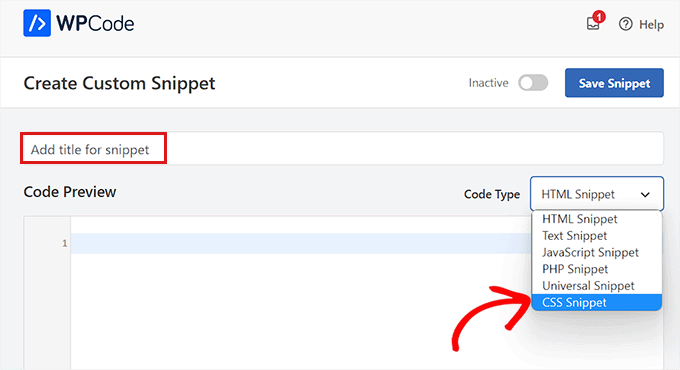
For this section, we add custom CSS code to change the color of the text on our website:
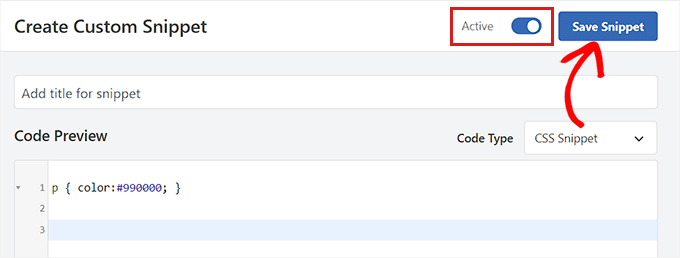
p { color:#990000; }Simply add the following to the "Code Preview" box to add custom CSS code.
![图片[8]-如何自定义 WordPress 网站的颜色?-光子波动网 | WordPress教程、Elementor教程与故障修复](https://www.361sale.com/wp-content/uploads/2024/09/2024090203370176.png)
When you're done, scroll down to "stick"Part.
Here, if you want the code to be executed automatically on activation, you can select "Auto-insertion"Options.
It is also possible to add short codes to specific WordPress pages or posts.
![图片[9]-如何自定义 WordPress 网站的颜色?-光子波动网 | WordPress教程、Elementor教程与故障修复](https://www.361sale.com/wp-content/uploads/2024/09/2024090203375872.png)
When you're done, scroll back to the top of the page and place the "inactive"The switch toggles to "maneuver".
Finally, click the "Save Code Snippet" button for the CSS code to take effect.
How to change the background color in WordPress
All WordPress themes come with a default background color. However, it can be changed to personalize the site.
If you are using theblock theme, then the background color must be changed using the full site editor.
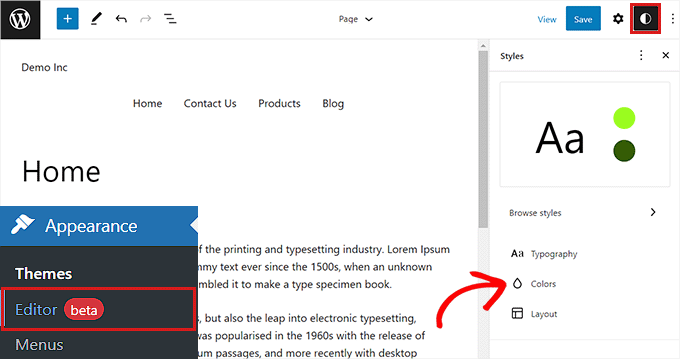
First, it must be accessed from the WordPress dashboardAppearance" editor screen.
This will launch the full site editor, which must be accessed by clicking on the top-right corner of the screen's"Style"Icons.
After that, just click on "color"Panel to open other settings
In this panel, it is now possible to manage the default colors of different elements on the site.
Here, it is necessary to click on "elemental"under the section"contexts"Options.
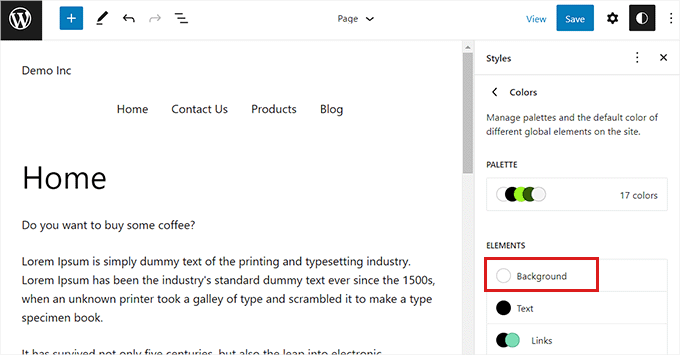
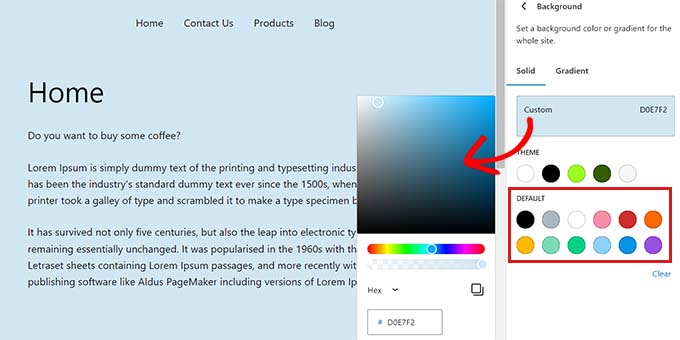
Once this panel is expanded, the site background color can be selected from here.
All WordPress themes offer a wide range of default site colors to choose from.
However, if you want to use a custom color, you need to click "Custom colors"Tool. This will open the color picker where you can select the desired color.
Gradient colors can also be used as a website background.
First one must switch to the top "gradual change"Tab.
Next, you can select the default gradient from the theme or choose your own gradient color with the help of the color picker tool.
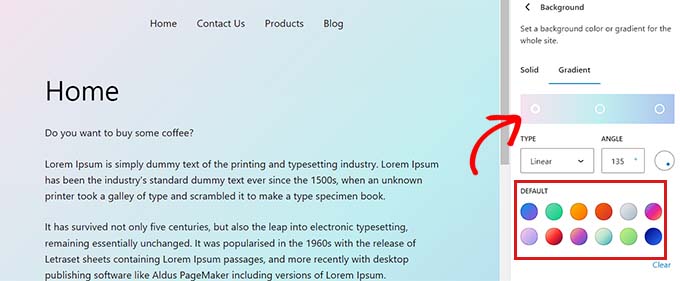
When you're done, remember to click "save (a file etc) (computing)"Button.
It is also possible to change the background of your website using the Theme Customizer, SeedProd and custom CSS.
How to Change Header Colors in WordPress
Many WordPress themes come with a built-in header at the top of the page. It usually contains important page links, social icons, CTAs, etc.
![图片[15]-如何自定义 WordPress 网站的颜色?-光子波动网 | WordPress教程、Elementor教程与故障修复](https://www.361sale.com/wp-content/uploads/2024/09/2024090205553010.png)
If using a block theme, the WordPress title can be easily customized using the full site editor.
First, access from the admin sidebar"Appearance" editor"screen to launch the full site editor. Once there, double-click the top "caption"Template for selection.
This will open the title settings in the block panel on the right. From here, one must scroll down to "color"section and click on "contexts"Options.
![图片[16]-如何自定义 WordPress 网站的颜色?-光子波动网 | WordPress教程、Elementor教程与故障修复](https://www.361sale.com/wp-content/uploads/2024/09/2024090205564256.png)
This will open a pop-up window where you can select the default color for the title.
It can also be selected by opening the color picker toolCustom colorsThe
![图片[17]-如何自定义 WordPress 网站的颜色?-光子波动网 | WordPress教程、Elementor教程与故障修复](https://www.361sale.com/wp-content/uploads/2024/09/2024090205571545.png)
To customize the title with a color gradient, you need to switch to "gradual change"Tab.
After that, you can choose the default gradient options or customize the gradient options using the color picker.
![图片[18]-如何自定义 WordPress 网站的颜色?-光子波动网 | WordPress教程、Elementor教程与故障修复](https://www.361sale.com/wp-content/uploads/2024/09/2024090205583694.png)
Finally, click "save (a file etc) (computing)" button takes effect.
How to Change Text Color in WordPress
Changing the text color helps to improve the readability of your WordPress blog.
If a block theme is used, then the text color must be changed using the full site editor.
It can be accessed first from the WordPress admin areaAppearance " EditorScreen. This will launch the full site editor, click on the top right corner of the "type"Icons.
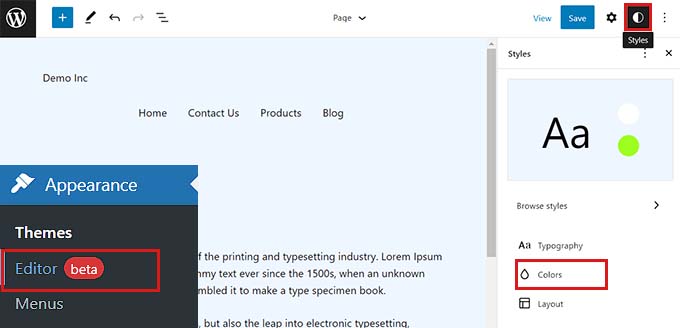
Next, click "color" panel to access additional settings.
Once you get there, continue and click "elemental"under the section"copies"Options.
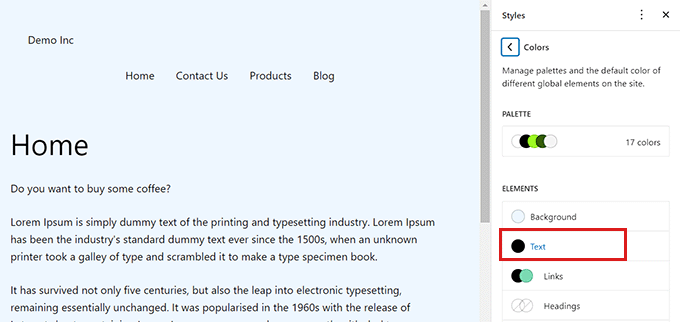
After opening the text color settings, you will be able to set the text color in the "default (setting)"Multiple text colors are seen under the section.
Alternatively, custom text colors can be used by clicking the Custom Color tool and opening the color picker.
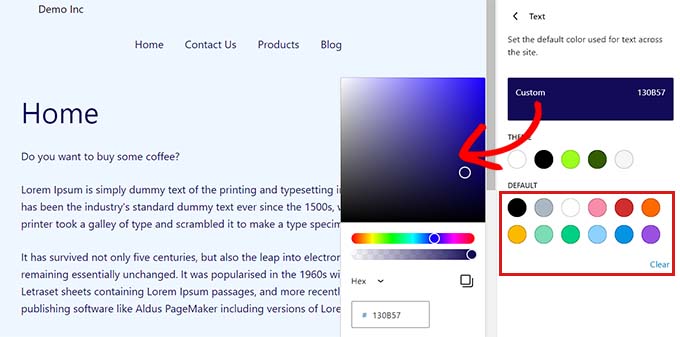
Once selected, simply click the "Save" button.
How to Change Link Colors in WordPress
Easily change link colors in WordPress using the full site editor or custom CSS.
If using the block theme, go from the admin sidebar to theAppearance" editor screen.
With the full site editor open, click on the top right corner of the "type"Icons.
Next, click on "color" panel to view additional settings.
Once you get there, simply click "link (on a website)" tab is sufficient.
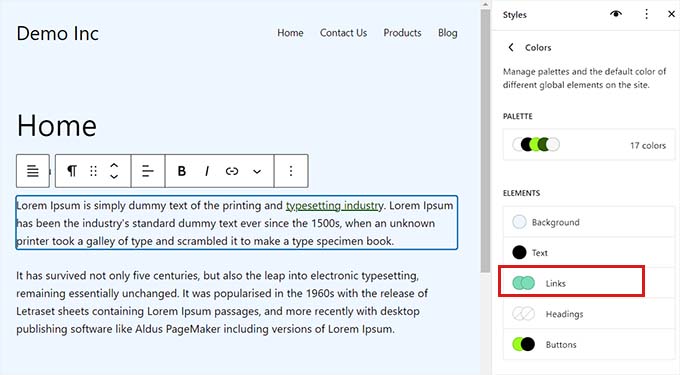
This will launch the link color settings and will see multiple default link colors displayed in the right column.
However, custom link colors can also be used by clicking the Custom Color tool to open the color picker.

The hover link color can also be changed using FSE. This means that when someone hovers over a link, the link color will change.
First, you need to switch from the top to "hover"Tab.
Once you get there, you can change the hover link color by selecting either the default or custom color.
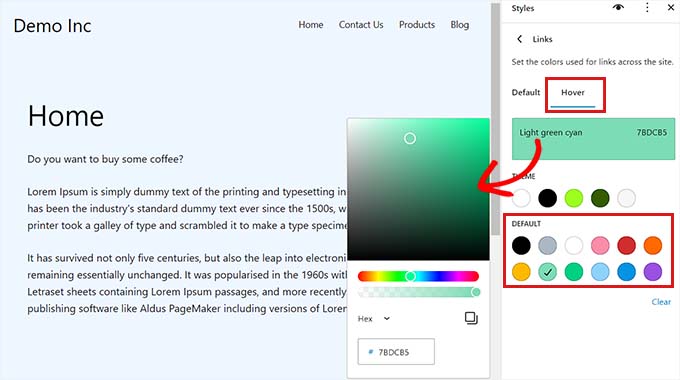
Finally, click the Save button.
what wayChanging the admin color scheme in WordPress
The admin color scheme in WordPress can also be changed if desired. This is useful if you want the admin dashboard to match your website branding or use a favorite color.
However, changing the color scheme of the WordPress dashboard will not affect the visible parts of the site.
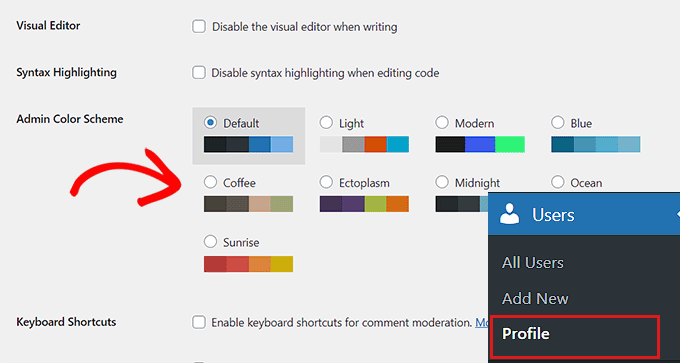
To change the admin color scheme, simply visit the WordPress dashboard on theThe "Users" profile page.
Here, multiple color schemes will be seen next to the 'Manage Color Schemes' option.
Select the one you like and click on the bottom of the page "Updating personal data" button to save the changes.

Link to this article:https://www.361sale.com/en/18416/The article is copyrighted and must be reproduced with attribution.













![表情[wozuimei]-光子波动网 | WordPress教程、Elementor教程与故障修复](https://www.361sale.com/wp-content/themes/zibll/img/smilies/wozuimei.gif)

![表情[baoquan]-光子波动网 | WordPress教程、Elementor教程与故障修复](https://www.361sale.com/wp-content/themes/zibll/img/smilies/baoquan.gif)


 简体中文
简体中文  English


No comments