





An effective product catalog needs to be intuitive and easy to navigate, yet informative and able to guide potential customers to make quick purchasing decisions. This article details how to create an effective product catalog in WooCommerce.
![Image [1] - WooCommerce Product Catalog Creation and Optimization: A Complete Guide to Boosting Conversions](https://www.361sale.com/wp-content/uploads/2024/11/20241113221040383-image.png)
I. Planning the WooCommerce Product Catalog
A detailed planning is required before actually setting up a WooCommerce catalog. An unplanned product catalog can be confusing for users, which can reduce conversions. Good planning not only improves the user experience, but also helps you to have better control over how your products are displayed, ultimately increasing sales.
1. Know your target audience
When creating a product catalog, it's important to understand who your customers are. Consider the following questions:
- Characteristics of the target customer group in terms of age, gender, geographic location, interests, etc.
- What are their shopping habits? What features of the product do they care about?
- How do they find your store? Search engines, social media or other channels?
Knowing this information, the structure of the catalog, the product range and the presentation can be designed according to the needs of the target audience.
![Image [2] - WooCommerce Product Catalog Creation and Optimization: A Complete Guide to Boosting Conversions](https://www.361sale.com/wp-content/uploads/2024/11/20241113221432988-image.png)
2. Defining product range and categories
When determining your product assortment, it needs to match your brand positioning and market needs. If your store specializes in a particular area, you can meet the needs of different customer groups by enriching the types of products in that area. For example, if your store specializes in electronics, you can offer a diverse selection of smart home devices, electronic accessories, personal electronics, and more.
You also need to make timely adjustments to your product range based on seasons, promotions or trends. Make sure that your product assortment is of interest to your customers and keeps them engaged in the store for the long haul.
3. Planning the directory structure
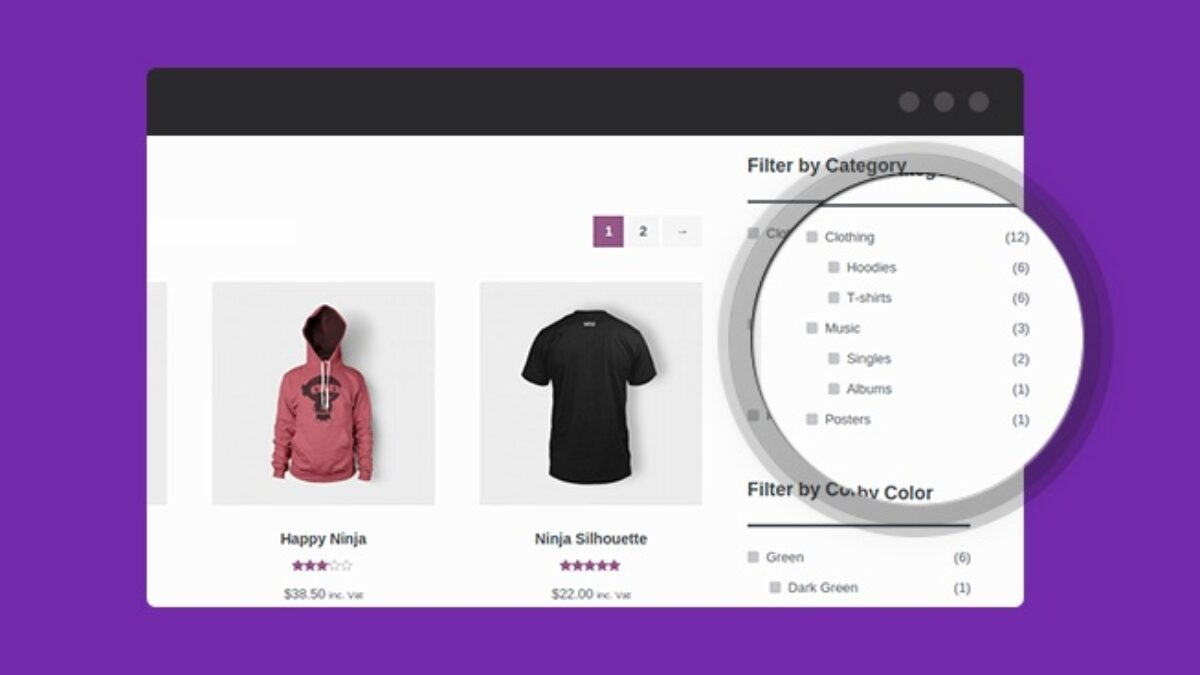
The structure of your catalog should be intuitive and easy to understand, and help customers quickly find the items they are interested in. A clear catalog structure not only improves user experience, but also helps search engines better crawl and index page content, thus improving your SEO ranking.
4. Determination of presentation
The following factors need to be taken into consideration when choosing the way to display your products:
- Product Pictures: High-quality, clear images can greatly improve thePurchase intentThe
- Product Description: Not only describe the basic function of the product, but also highlight its value in use and show the benefits the product can bring to the customer.
- Filtering and Sorting Functions: Customers' ability to easily and quickly filter products and sort them by need determines their shopping experience.
Setting up a WooCommerce store and product catalog
1. Installation and setup of WooCommerce
To create a WooCommerce store, you first need to install the WooCommerce plugin on your WordPress website. The steps are as follows:
- In the WordPress dashboard, click "plug-in (software component)" → "Add New Plugin", search for "WooCommerce", click on "Installation", and then activate the plugin.
![Image [3] - WooCommerce Product Catalog Creation and Optimization: A Complete Guide to Boosting Conversions](https://www.361sale.com/wp-content/uploads/2024/11/20241114171147119-微信截图_20241114170632.png)
- After activating the plugin, WooCommerce launches a setup wizard that will help you with the basic configuration of your store, such as currency, payment gateways, delivery options, tax settings, and more.
2. Configure store settings
WooCommerce supports a variety of payment methods to provide customers with a convenient payment experience, here are the detailed steps on how to set up and optimize the payment gateway:
Go to Payment Settings:
- Log in to your WordPress backend.
- Navigate to WooCommerce > Settings > PaymentsThe
- Under the "Payments" tab, you can see the enabled payment gateways and available options.
![Image [4] - WooCommerce Product Catalog Creation and Optimization: A Complete Guide to Boosting Conversions](https://www.361sale.com/wp-content/uploads/2024/11/20241116164823206-image.png)
Introduction and setup of common payment gateways:
- PayPal::
- Click Manage to configure PayPal.
- Enter your PayPal merchant account and make sure it is properly connected.
- Set up Webhooks to receive real-time transaction updates.
![Image [5] - WooCommerce Product Catalog Creation and Optimization: A Complete Guide to Boosting Conversions](https://www.361sale.com/wp-content/uploads/2024/11/20241116165010717-image.png)
![Image [6] - WooCommerce Product Catalog Creation and Optimization: A Complete Guide to Boosting Conversions](https://www.361sale.com/wp-content/uploads/2024/11/20241116165623353-image.png)
- bank transfer::
- Enable "Direct Bank Transfer".
- Add account information to the description (e.g. bank name, account number, SWIFT code, etc.).
- Remind customers of the need to upload payment vouchers after completing payment.
![Image [7] - WooCommerce Product Catalog Creation and Optimization: A Complete Guide to Boosting Conversions](https://www.361sale.com/wp-content/uploads/2024/11/20241116170039739-image.png)
- Cash on Delivery (COD)::
- Suitable for local delivery services.
- Ensure that the approach is enabled only in specific regions to avoid non-target market selection.
![Image [8] - WooCommerce Product Catalog Creation and Optimization: A Complete Guide to Boosting Conversions](https://www.361sale.com/wp-content/uploads/2024/11/20241116170208453-image.png)
Go to Transportation Settings:
- Navigate to WooCommerce > Settings > ShippingThe
- Create shipping zones (e.g., by country, city, or zip code).
![Image [9] - WooCommerce Product Catalog Creation and Optimization: A Complete Guide to Boosting Conversions](https://www.361sale.com/wp-content/uploads/2024/11/20241116170526268-image.png)
- Add shipping methods for each region (e.g., standard shipping, express shipping, or free shipping).
![Image [10]-WooCommerce Product Catalog Creation and Optimization: A Complete Guide to Boosting Conversions](https://www.361sale.com/wp-content/uploads/2024/11/20241116170725887-image.png)
Transportation mode configuration:
- Standard Transportation::
- Set shipping rules by order weight, quantity or total price.
- Example: Set up automatic free shipping for orders over $50.
![Image [11] - WooCommerce Product Catalog Creation and Optimization: A Complete Guide to Boosting Conversions](https://www.361sale.com/wp-content/uploads/2024/11/20241116171457852-image.png)
- local delivery::
- Set a fixed fee for small deliveries.
- Local pickup options are available to save on transportation costs.
![Image [12]-WooCommerce Product Catalog Creation and Optimization: A Complete Guide to Boosting Conversions](https://www.361sale.com/wp-content/uploads/2024/11/20241116171721559-image.png)
Turn on the tax function:
- Navigate to WooCommerce > Settings > GeneralThe
- Check the "Enable tax function" box and save the changes.
![Image [13] - WooCommerce Product Catalog Creation and Optimization: A Complete Guide to Boosting Conversions](https://www.361sale.com/wp-content/uploads/2024/11/20241116171845262-image.png)
Setting up tax rules:
- switch to WooCommerce > Settings > TaxesThe
![Image [14] - WooCommerce Product Catalog Creation and Optimization: A Complete Guide to Boosting Conversions](https://www.361sale.com/wp-content/uploads/2024/11/20241116172029636-image.png)
- Add a tax category (e.g., standard rate, zero rate, or reduced rate).
![Image [15] - WooCommerce Product Catalog Creation and Optimization: A Complete Guide to Boosting Conversions](https://www.361sale.com/wp-content/uploads/2024/11/20241116172308587-image.png)
- Enter specific rules in the standard tax rate categories:
- duty rate: e.g. 10%, 15%, etc.
- area code: Configuration by country or state.
- Zip code range: Setting different tax rates for specific regions.
![Image [16]-WooCommerce Product Catalog Creation and Optimization: A Complete Guide to Boosting Conversions](https://www.361sale.com/wp-content/uploads/2024/11/20241116172522857-image.png)
3. Add your first product
- Navigate to WooCommerce > Products > Add New ProductThe
- Or, in the case of offerings Click at the top of the page "Add new" Button.
![Image [17] - WooCommerce Product Catalog Creation and Optimization: A Complete Guide to Boosting Conversions](https://www.361sale.com/wp-content/uploads/2024/11/20241116173027724-image.png)
Diethylammonium chloride
- Concise and descriptive::
- Example:
Organic Cotton T-Shirt - Soft and BreathableThe - Avoid excessively long or unnecessary modifiers, but highlight key selling points.
- Example:
![Image [18] - WooCommerce Product Catalog Creation and Optimization: A Complete Guide to Boosting Conversions](https://www.361sale.com/wp-content/uploads/2024/11/20241116173427388-image.png)
product category
- On the right sidebar find the "Product category"The
- If there is no appropriate category, click "Add new category"For example, "Men's Clothing", "Accessories" or "Promotional Products".
- significance: Clear categorization helps customers find products quickly and improves your site's SEO performance.
![Image [19] - WooCommerce Product Catalog Creation and Optimization: A Complete Guide to Boosting Conversions](https://www.361sale.com/wp-content/uploads/2024/11/20241116173847847-image.png)
Product Labeling
- On the right sidebar find the "Product Labeling"The
- Add relevant tags such as "eco-friendly", "new for spring", "limited edition".
- use: Tags are used to associate related products together, making it easy for customers to browse similar products.
![Image [20] - WooCommerce Product Catalog Creation and Optimization: A Complete Guide to Boosting Conversions](https://www.361sale.com/wp-content/uploads/2024/11/20241116174003112-image.png)
Main Product Pictures
- In the right sidebar click on "Setting Product Images", select or upload a picture.
- Recommended Specifications::
800×800 pixels or higher resolution. - Picture Requirements::
- Clear, high quality.
- Showcase the main appearance of the product.
- The background should preferably be a solid color (white or light) to highlight the main body of the product.
- Recommended Specifications::
![Image [21] - WooCommerce Product Catalog Creation and Optimization: A Complete Guide to Boosting Conversions](https://www.361sale.com/wp-content/uploads/2024/11/20241116174125713-image.png)
![Image [22]-WooCommerce Product Catalog Creation and Optimization: A Complete Guide to Boosting Conversions](https://www.361sale.com/wp-content/uploads/2024/11/20241116174259397-image.png)
Product Gallery
- strike (on the keyboard) "Add product gallery image", upload more pictures to show the details or different angles of the product.
- Examples: front, back, detail close-ups, scene applications, etc.
brief description
- Find it at the bottom of the page "Short description of the product"This will be displayed at the top of the product page.
- writing skill::
- 1-2 sentences summarize the core selling point of the product.
- Example:
Made from 100% natural material, this organic cotton t-shirt is lightweight and breathable for sensitive skin.
- writing skill::
![Image [24]-WooCommerce Product Catalog Creation and Optimization: A Complete Guide to Boosting Conversions](https://www.361sale.com/wp-content/uploads/2024/11/20241116174510832-image.png)
Full Description
- In the main edit box, detail product information:
- Product Features::
- Material: e.g. "100% organic cotton".
- Size: Provide a specific size chart.
- Color/style: lists available options.
- Solving user pain points::
- Example:
This t-shirt is breathable and helps you say goodbye to the sweltering heat of the summer.
- Example:
- Usage Scenarios::
- Example:
Ideal for everyday wear, sports or casual vacations.
- Example:
- Additional Information::
- Washing instructions, warranty policy, etc.
- Product Features::
![Image [25] - WooCommerce Product Catalog Creation and Optimization: The Complete Guide to Boosting Conversions](https://www.361sale.com/wp-content/uploads/2024/11/20241116174843875-image.png)
In the middle of the product edit page find "Product data" Block. Configured according to product type:
Select Product Type
- Simple Products::
- Single SKU, no variants.
- Example: a book or a cup.
![Image [26] - WooCommerce Product Catalog Creation and Optimization: A Complete Guide to Boosting Conversions](https://www.361sale.com/wp-content/uploads/2024/11/20241116175120848-image.png)
- Variable Products::
- There are different options (e.g.sizes,color).
- Example: red size S T-shirt, blue size L T-shirt.
![Image [27] - WooCommerce Product Catalog Creation and Optimization: A Complete Guide to Boosting Conversions](https://www.361sale.com/wp-content/uploads/2024/11/20241116175430860-image.png)
Fill in the important fields
- conventional (weapons)(Simple products):
- Regular Price: Sets the regular price.
- Promotional Price (Sale Price): Set the promotional price and can set the promotional time period.
![Image [28] - WooCommerce Product Catalog Creation and Optimization: A Complete Guide to Boosting Conversions](https://www.361sale.com/wp-content/uploads/2024/11/20241116175657586-image.png)
- stockpiles::
- Enable Inventory Management and enter the quantity of the product in stock.
- Settings"in-store"or"no inventory"Status.
![Image [29] - WooCommerce Product Catalog Creation and Optimization: The Complete Guide to Boosting Conversions](https://www.361sale.com/wp-content/uploads/2024/11/20241116175850929-image.png)
- haulage::
- Enter the weight (e.g. 0.5 kg) and dimensions (e.g. 10x20x5 cm) to calculate the shipping cost.
![Image [30]-WooCommerce Product Catalog Creation and Optimization: The Complete Guide to Boosting Conversions](https://www.361sale.com/wp-content/uploads/2024/11/20241116180019515-image.png)
- causality(in the case of variable products):
- Add attributes (e.g. "color", "size") and create specific values for each attribute.
- Example:
- Attribute name: color.
- Values: red, blue, green.
- Check the box "For variants" and save.
![Image [31] - WooCommerce Product Catalog Creation and Optimization: A Complete Guide to Boosting Conversions](https://www.361sale.com/wp-content/uploads/2024/11/20241116180151171-image.png)
- morph::
- Setting a separate value for each variant based on the attributeprices,photographrespond in singingstockpilesThe
![Image [32]-WooCommerce Product Catalog Creation and Optimization: The Complete Guide to Boosting Conversions](https://www.361sale.com/wp-content/uploads/2024/11/20241116180519916-image.png)
III. Summary
You can significantly improve the attractiveness of your store by understanding your target audience, planning your product range and catalog structure wisely, and setting up your product presentation carefully. In WooCommerce, you can easily complete the basic settings of your store, including payment gateways, shipping methods and tax configurations, etc., and create professional product pages with high-quality images, detailed product descriptions and clear categories. Meanwhile, enabling filtering and sorting features, combined with seasonal adjustments and promotions, can further optimize the usefulness and user experience of your catalog.

Link to this article:https://www.361sale.com/en/26693The article is copyrighted and must be reproduced with attribution.
















![Emoji[wozuimei]-Photonflux.com | Professional WordPress repair service, worldwide, rapid response](https://www.361sale.com/wp-content/themes/zibll/img/smilies/wozuimei.gif)

![Emoticon[baoquan] - Photon Wave Network | Professional WordPress Repair Services, Worldwide Coverage, Rapid Response](https://www.361sale.com/wp-content/themes/zibll/img/smilies/baoquan.gif)


 简体中文
简体中文  English
  日本語
日本語  Français
  Español


No comments