




in use WordPress When building a website, the text is customized to select colors that are more coordinated with or stand out from the overall color scheme of the website. This not only improves the visual appearance of the site, but also enhances the user experience.
![Image [1] - How to Easily Change WordPress Default Text Selection Color | Full Tutorial](https://www.361sale.com/wp-content/uploads/2024/11/20241120114100883-image.png)
Why should I change the default text selection color?
The text selection color is the background color and text color that is displayed when a user selects text in a web page. Below is an example of the default text selection color:
typical example: The default text selection color may be light blue or gray, and these colors may not match the overall design of the site.
![Image [2] - How to Easily Change WordPress Default Text Selection Color | Full Tutorial](https://www.361sale.com/wp-content/uploads/2024/11/20241120111331997-image.png)
Benefits of changing the default text selection color:
- Enhancement of visual effects: Consistency with the theme colors of the site allows for a more aesthetically pleasing page design.
- Enhanced user experience: A more eye-catching text selection color can help users identify their selections more easily.
- brand consistency: If the site has a branded color scheme, modifying the text selection color can make the site more uniform.
Method 1: Using WordPress Theme Settings (simple)
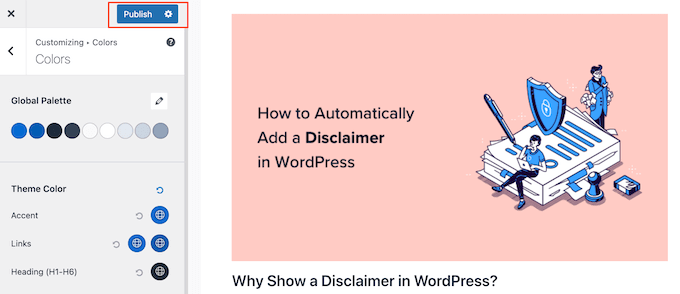
Some WordPress themes have the ability to change typography and font settings, including the default text selection color. To check if a theme has this feature, go toAppearance" customizationThe
Attention:If you are using a block theme, then this option is not available and you must go to Method 2 to change the text selection color.
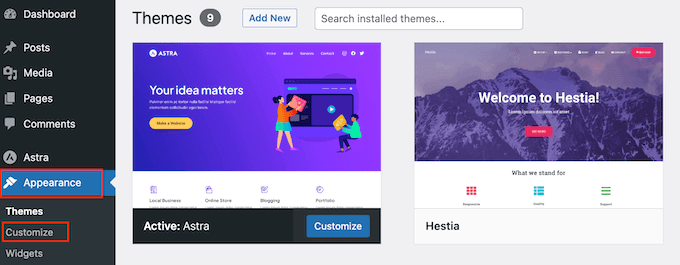
Here, look for the labeled "color"Any setting of the
If you see "conventional (weapons)","security situation" or similar tab, then this usually contains the color settings for the theme.
For example, if you use the popularAstra WordPress ThemeThen you need to select "security situation"Tab.
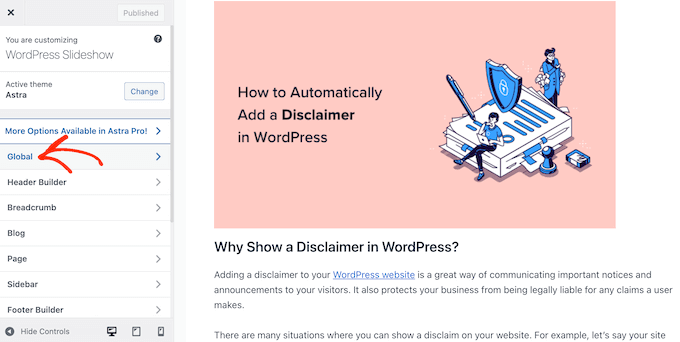
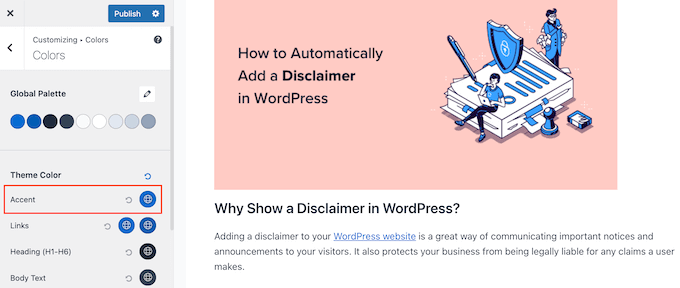
Then, click "color"See all the different colors that make up this WordPress theme.
Next, you must click on "Accent".
A color picker will open where you can select a new text selection color.
The live preview will automatically update when changes are made. So, try different settings and see which one works best for your WordPress site.
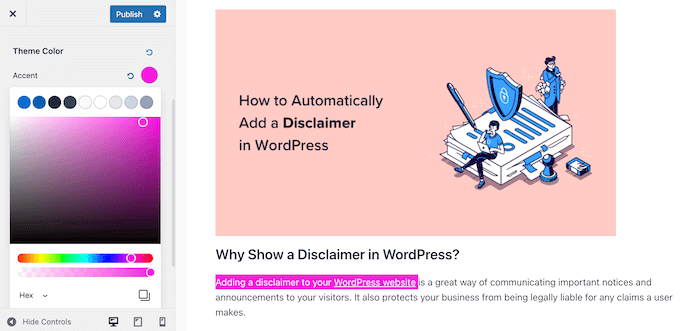
If you are satisfied with the changes, click "post"Just do it.
After that, you will see the new text selection color on your WordPress blog or website.
Even if you don't see any color settings in the WordPress theme customizer, it's still worth checking the theme's documentation to see if there's a way to change the default text selection color.
You can even contact the theme developers for help.
Method 2: Change text selection color using code (works with all themes)
If you can't find a way to change the text selection color in the theme customizer, another option is to use CSS code.
Usually, CSS code snippets are found in WordPress tutorials with instructions for adding them to the theme's functions.php fileThe description.
The biggest problem is that even a small error in a code snippet can completely break a WordPress website. Not to mention, when updating a WordPress theme, all custom code is overwritten.
That's why we recommend using WPCode This plugin. This code snippet plugin adds custom code to WordPress without causing any errors.

First install and activate the free WPCode plugin.
Once activated, go to the WordPress Admin Dashboard in theCode Snippet" adds a code snippet.
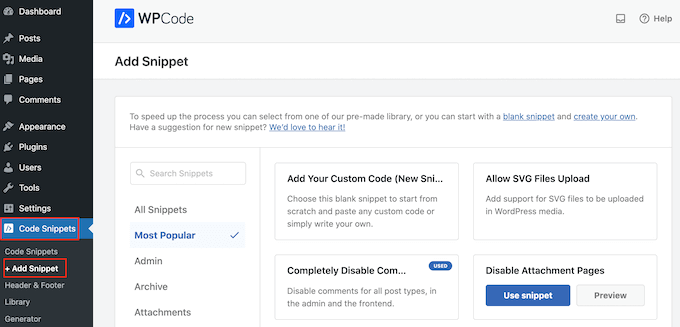
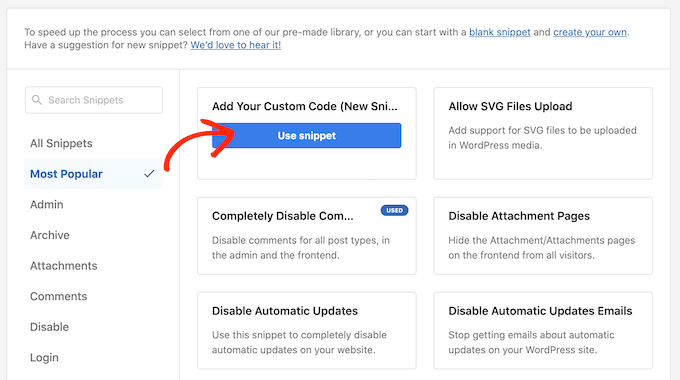
Here, hover over the "Add your custom code"Up.
When it appears, click "Using code snippets"Button.
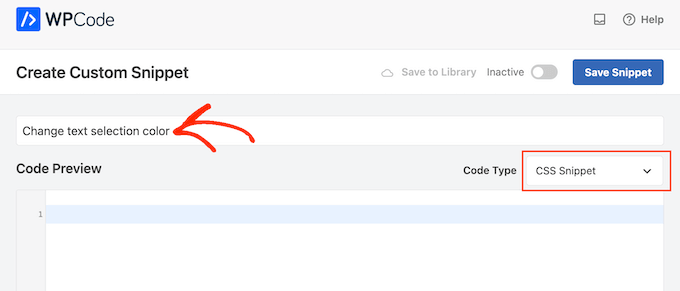
First, enter the title of the custom code snippet. The title can be anything that will help identify the code snippet later in the WordPress dashboard, such as "Changing the text selection color".
After that, open "code type"drop-down menu and select "CSS Code Snippets".
The following CSS can then be added to the code preview box:
/* Customizing text selection for Firefox */
::-moz-selection {
    /* Background color when text is selected in Firefox */
    background-color: #008000; /* Green color */
    /* Text color when text is selected in Firefox */ background-color: #008000; /* Green color */
    color: #fff; /* Green color */ /* Text color when text is selected in Firefox */
}

/* Customizing text selection for other browsers */
::selection {
    /* Background color when text is selected in other browsers */
    background-color: #008000; /* Green color */ /* Customizing text selection for other browsers */ ::selection { /* Background color when text is selected in other browsers */
    /* Text color when text is selected in other browsers */ background-color: #008000; /* Green color */
    color: #fff; /* Green color */ /* Text color when text is selected in other browsers */ /* Text color.
}
take note of: We have added two styles. css::moz-selectionselector for the Firefox browser.::selectionCSS selectors are available for other popular browsers such as Google Chrome.
In the example above, the # hex code changes the link color to green, so it needs to be changed background-color: #008000 is the color to be used to highlight the text.
If you are not sure what hexadecimal code to use, then explore the different colors and get their codes at the HTML Color Codes website.
If you are satisfied with the appearance of the code, click "inactive"Toggle button to display"maneuver".
Then, click on "Saving code snippets" CSS code snippet takes effect.
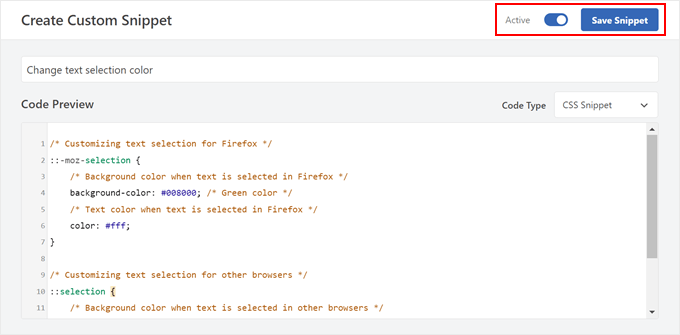
You can now visit the front end of the site to see the actual changes that have taken place.
This is what it looks like on our demo site.
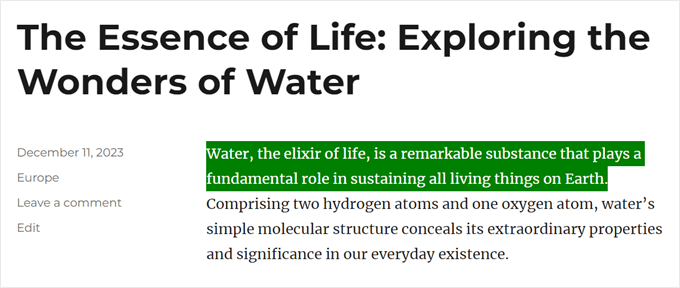
With the above methods, you can easily change the text selection color of your WordPress website to improve the overall design consistency and user experience.

Link to this article:https://www.361sale.com/en/27216The article is copyrighted and must be reproduced with attribution.






















![Emoji[wozuimei]-Photonflux.com | Professional WordPress repair service, worldwide, rapid response](https://www.361sale.com/wp-content/themes/zibll/img/smilies/wozuimei.gif)

![Emoticon[baoquan] - Photon Wave Network | Professional WordPress Repair Services, Worldwide Coverage, Rapid Response](https://www.361sale.com/wp-content/themes/zibll/img/smilies/baoquan.gif)


 简体中文
简体中文  English
  日本語
日本語  Français
  Español


No comments