




Magento 2 In-store pickup functionwas introduced in Magento version 2.4, which allows customers to purchase items online and then select the nearest store for pickup. This feature allows physical stores to become an extension of the online store business, providing customers with a more flexible shopping experience, especially for those who want quick delivery delays.
For merchants, in-store pickup not only reduces transportation costs, but also increases store visits and even drives customers to the store to consume other goods.
![Image [1] - How to setup and configure store self-service in Magento 2: a detailed how-to guide](https://www.361sale.com/wp-content/uploads/2024/11/20241129115251420-image.png)
What is Magento 2 In-Store Pickup?
Magento 2 In-Store Pickup is a feature introduced in Magento version 2.4 that transforms brick-and-mortar stores into part of an online business. This feature allows customers to purchase items online and then choose to pick them up in person at a nearby physical store.
The in-store pickup feature is part of the Magento Order Management System (OMS) and is designed for customers who prefer to shop in a physical store but want to minimize contact (The overall shopping process is widely used in our country. The short version is, order and pay online, then pick up in store). In addition, it helps to save distribution costs, especially for fragile goods, and can effectively avoid damage during the distribution process.
How does it work?
![Image [2]-How to setup and configure in-store pickup in Magento 2: a detailed how-to guide](https://www.361sale.com/wp-content/uploads/2024/11/20241129110404330-image.png)
- Customer Experience: Customers can enjoy the convenience of online shopping while getting their products immediately to fulfill immediate shopping needs.
- Merchant Revenue: For merchants, in-store pickup capabilities lead to more sales opportunities, reduced delivery costs, and potentially increased brick-and-mortar traffic.
With Magento 2 in-store pickup, you can increase customer satisfaction and optimize store operations to improve overall performance.
Magento 2 Benefits of In-Store Pickup
There are many benefits of implementing Magento 2 In-Store Pickup in your online store. Here are some of the major benefits:
Benefits to the customer:
- Faster Product Acquisition: Customers can complete their purchases quickly and easily without having to wait for delivery.
- Convenience and flexibility: Customers can choose a pickup method that suits their schedule, adding flexibility to their shopping.
- Reduction of distribution costs: Customers save money by avoiding additional costs associated with delivery.
- Enhancement of satisfaction: A smooth shopping experience helps increase customer favorability and repeat business with the brand.
Benefits to merchants:
- Enhance Sales: Increase traffic to your brick-and-mortar store and convert online customers to offline customers.
- Reduction of distribution costs: Savings in packaging, fulfillment and transportation costs.
- Improved inventory management: Optimize inventory levels based on in-store pickup demand and reduce inventory backlogs.
- Valuable customer data: Collect customer preferences and buying habits to help optimize marketing strategies.
Setting up Magento 2 In-Store Pickup
Now that we've covered the basic concepts of the Magento 2 In-Store Pickup feature, including its functionality, benefits, and features, let's take a look at how to set it up. There are two main ways to look at it:default methodrespond in singingBy extending the pluginThe methodology.
Before we begin.suppose that... The Magento 2 store is already set up. If not, you can create a Magento 2 store locally. Take a look at our Magento 2 setup guide.
How to Install and Configure Magento 2 Locally with XAMPP
Method 1: Magento 2 default method
Navigate to Store → Settings → Configuration → Sales → Delivery Methods. FindIn-store deliveryoption, set it toEnabled.Then fill in the required fields.
Step 1: Uncheck "Use system values".
- enabled
- Method name
- caption
- Price (optional)
- search radius
- Error messages displayed (optional)
![Image [3] - How to Setup and Configure Store Capture in Magento 2: A Detailed How-To Guide](https://www.361sale.com/wp-content/uploads/2024/11/20241129111900373-image.png)
Step 2: Configure Settings
- commander-in-chief (military)"Enable"Set to"Yes"to activate store pickup.
- Enter what the customer will see at checkoutMethod nameThe
- Create a descriptive for the item delivery methodTitle.
- Set up in-store pickup if neededprices(Free if left blank).
- definesearch radiusto show nearby stores at checkout.
- Or, customize the display to show when in-store pickup is not possibleThe error message.
Step 3: Verify Information and Save
- Double-check all input details.
- click (using a mouse or other pointing device)"Save Configuration"button to complete the setup.
![Image [4] - How to setup and configure in-store pickup in Magento 2: a detailed how-to guide](https://www.361sale.com/wp-content/uploads/2024/11/20241129112038102-image.png)
Method 2: Using the Magento 2 In-Store Customization Plugin
Next, let's take a look at how to implement the in-store self-service feature by way of a plugin.Mageplaza The Magento 2 In-Store Pickup plugin offered enables online shoppers to conveniently pick up orders from physical stores, providing features such as store selection, pickup scheduling, and detailed store information.
The plugin has Community respond in singing Enterprise Two versions, priced at $199 respond in singing $399The company also offers a 60-day money back guarantee.
Magento 2 In-Store Pickup Plugin Features
Here are the main features and benefits of the plugin:
- Nearby Stores: Provide customers with the convenience of choosing nearby stores to enhance the shopping experience.
- Distances and routes: Easy for customers to choose a closer pickup location.
- Order Notification: Improve customer understanding and feedback on order status.
- Multi-store support: Improve operational efficiency and support multiple brick-and-mortar stores.
- Schedule a pickup: Streamline the order fulfillment process by allowing customers to choose their pickup time.
- Pickup Information: Provide detailed pickup information to enhance the customer experience.
- flexi-time: Improve merchant and customer adaptability and support pickup at different times.
- Order Monitoring: Facilitates merchants to manage workflow and process orders in a timely manner.
- Distance range: Meet the needs of different customers and provide services according to the distance range.
- Product and Store Affiliations: Efficient order fulfillment and merchandise delivery.
- Accurate distance calculation: Ensure accurate distance measurement to avoid customers choosing stores that are too far away.
- offline mode: It works even when there is no network connection, ensuring that functionality is not compromised.
Installing the Magento 2 In-Store Pickup Plugin
Step 1: Get Mageplaza Access Key
1. Log in to your Mageplaza account.
2. Go to My Account → My Access KeyThe
3. Create a new access key.
- Publish Key It's your username.
- Private Key It's your password.
With this, you can start installing and configuring the Magento 2 Store Self-Capture plugin for Mageplaza.
![Image [5]-How to setup and configure in-store pickup in Magento 2: a detailed how-to guide](https://www.361sale.com/wp-content/uploads/2024/11/20241129112630628-image.png)
Remember to save the created access key for use in step 2.
Step 2: Install Magento 2 In-Store Pickup Extension
This section will show you how to add the Store Pickup extension with Composer. If this is the first time you are installing the Mageplaza module with Composer, you will need to run this command.
composer config repositories.mageplaza composer https://repo.mageplaza.com
![Image [6] - How to Setup and Configure Store Capture in Magento 2: A Detailed How-To Guide](https://www.361sale.com/wp-content/uploads/2024/11/20241129113218498-image.png)
If you have already done this before, you can ignore the next step. Then, another command needs to be run.
composer require mageplaza/module-store-locatorThe following message will be received:
![Image [7] - How to setup and configure in-store pickup in Magento 2: a detailed how-to guide](https://www.361sale.com/wp-content/uploads/2024/11/20241129113327877-image.png)
Next, the access key from Step 1 must be entered. Specifically, the username is the release key and the password is the private key.
Then, you will be asked to verify your store credentials. Press "Y "Save these credentials for future use.
![Image [8]-How to setup and configure in-store pickup in Magento 2: a detailed how-to guide](https://www.361sale.com/wp-content/uploads/2024/11/20241129113643266-image.png)
Press "Y" and you will see the results. All the files required to install Store Pickup will start downloading.
![Image [9]-How to setup and configure in-store pickup in Magento 2: a detailed how-to guide](https://www.361sale.com/wp-content/uploads/2024/11/20241129113716607-image.png)
Next, you need to run these commands to complete the extension installation:
php bin/magento setup:upgrade
php bin/magento setup:static-content:deploy
That's it! The plugin is installed. Now, head over to the Magento admin panel to configure options such as store location and availability.
Configuring Magento 2 In-Store Pickup
Access to the back office: In the Magento backend panel, select the Mageplaza → Store LocatorThe
![Image [10]-How to setup and configure in-store pickup in Magento 2: a detailed how-to guide](https://www.361sale.com/wp-content/uploads/2024/11/20241129114113737-image.png)
Here, the settings can be adjusted as needed. Let's start with the basic settings!
![Image [11]-How to setup and configure in-store pickup in Magento 2: a detailed how-to guide](https://www.361sale.com/wp-content/uploads/2024/11/20241129114217820-image.png)
![Image [12]-How to setup and configure in-store pickup in Magento 2: a detailed how-to guide](https://www.361sale.com/wp-content/uploads/2024/11/20241129114231265-image.png)
![Image [13]-How to setup and configure in-store pickup in Magento 2: a detailed how-to guide](https://www.361sale.com/wp-content/uploads/2024/11/20241129114239247-image.png)
- will"Enable Store Locator"Switch to"be".
- Add a title to the page (optional, default is "Find a Store").
- Add a short page description (optional).
- Enter the full URL of the site (e.g., https. //www.yourwebsite.com).
- Upload a background image and icon (optional).
- Set the URL (optional, default is "find-a-store").
- Choose where to display the link (e.g., top menu, footer).
- Enable"Favorite Store Bookmarks" (showing the star icon).
- Change the icon in "Pictures" to your own picture.
- Use "Show Product Count..." to display the inventory in the store.
- Enable store locator for out-of-stock products.
Using Magento 2 In-Store Pickup
- Customers can view a list of addresses for all store branches and easily select the nearest store for pickup.
![Image [14]-How to setup and configure in-store pickup in Magento 2: a detailed how-to guide](https://www.361sale.com/wp-content/uploads/2024/11/20241129114414203-image.png)
- Customers can quickly find all stores in a specific area. For example, when a customer types "Los Angeles" into the search box, all stores in Los Angeles will be displayed.
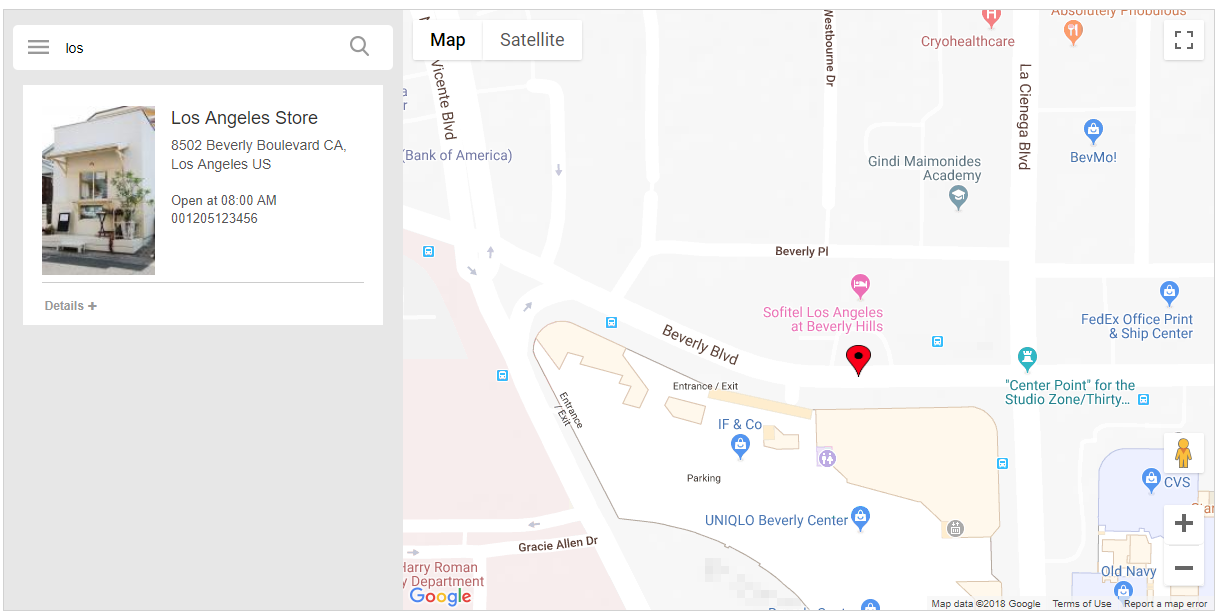
- Customers can zoom in and out of the map and change the store search radius just like with Google Maps.

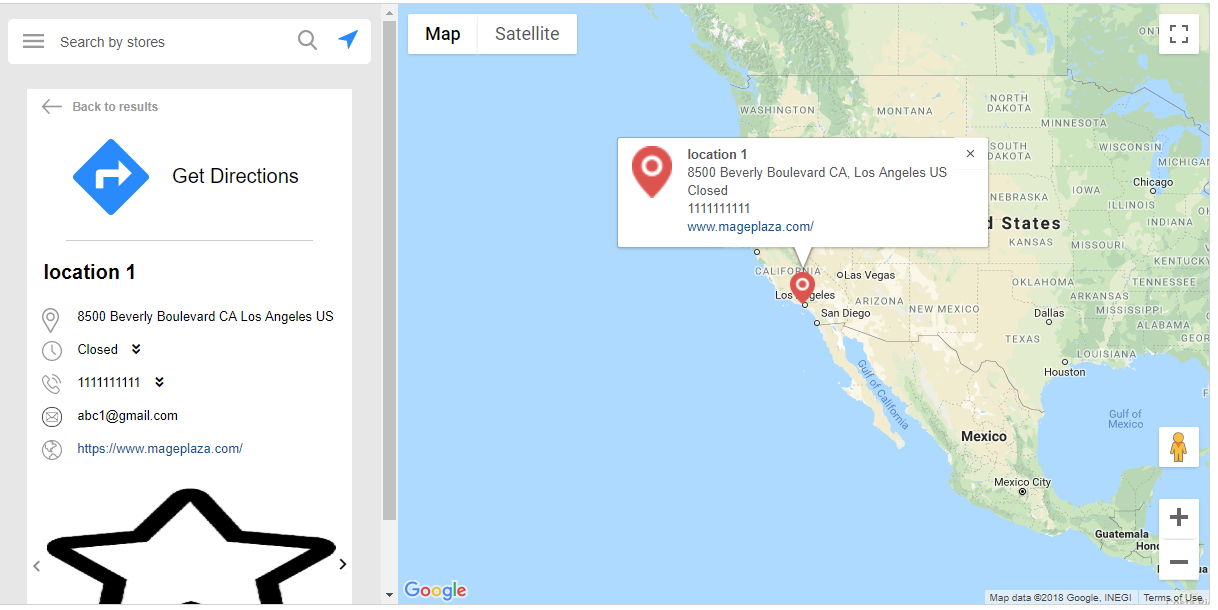
- By clicking on the"Detailed information"The customer can view specific information about the store and get directions to the selected store.
- Checkout page: displays detailed information including store location, shipping costs, and pickup time.
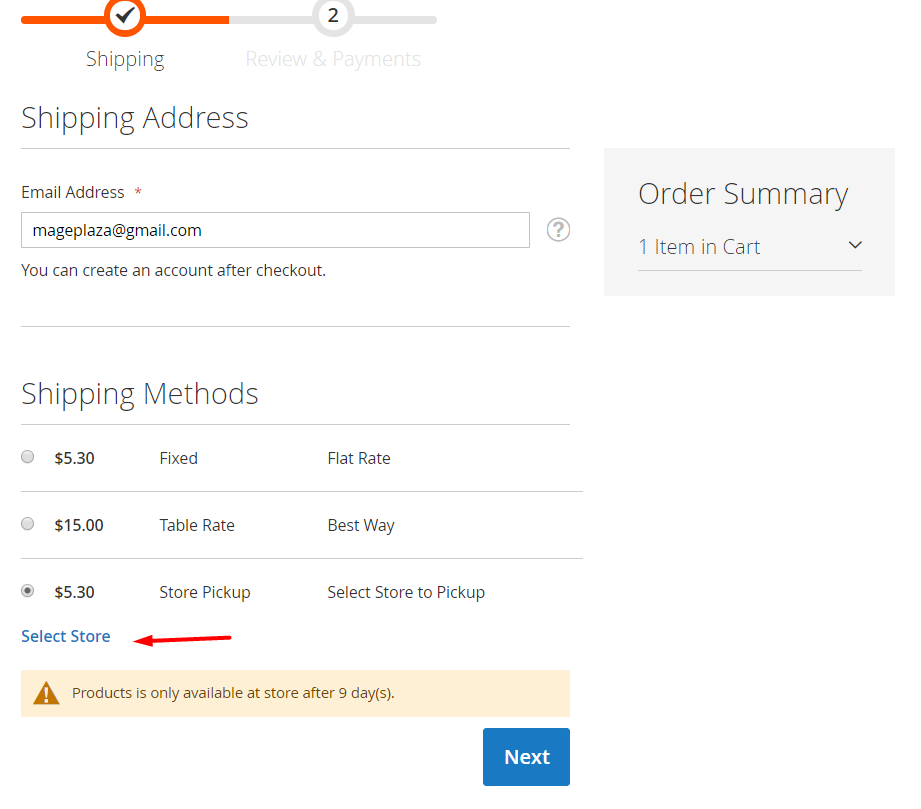
- click (using a mouse or other pointing device)"Select Store".A pop-up window will appear for the customer to select the store and pickup time they want.
Magento In-Store Pickup Implementation Guide
After activating the in-store pickup feature, consider the following to ensure that the in-store pickup service works smoothly and provides a better experience for both the business and the customer:
1. Store Location
You'll need at least one brick-and-mortar store so that customers can pick up their orders in-store.
2. Order processing
Check that you have enough space to store and process orders, especially when demand for orders increases, to ensure that they can be processed in a timely manner.
3. Staff and systems
Make sure you have a team as well as the right systems in place to process in-store pick-up orders. Staff should be trained to prepare orders quickly and accurately.
4. Inventory management
Real-time tracking of inventory in all stores ensures that customers can pick up their items in-store the same day, avoiding out-of-stocks or inventory errors.
5. Payment options
Since customers use different online payment methods, make sure your payment system is compatible with the in-store pickup feature to avoid problems with the payment process.
concluding remarks
Magento 2 In-Store Pickup provides a more convenient shopping experience for customers, and also helps merchants reduce shipping costs and increase sales. With the right setup and configuration, you can make it easy for customers to choose a pickup location at checkout, further increasing repeat business.

Link to this article:https://www.361sale.com/en/28281The article is copyrighted and must be reproduced with attribution.






















![Emoji[wozuimei]-Photonflux.com | Professional WordPress repair service, worldwide, rapid response](https://www.361sale.com/wp-content/themes/zibll/img/smilies/wozuimei.gif)

![Emoticon[baoquan] - Photon Wave Network | Professional WordPress Repair Services, Worldwide Coverage, Rapid Response](https://www.361sale.com/wp-content/themes/zibll/img/smilies/baoquan.gif)


 简体中文
简体中文  English
  日本語
日本語  Français
  Español


No comments