






in usingWooCommerce The plug-in works when theProduct search function sometimes does not work properly. In this paper, we will look at theBasic problem troubleshooting to advancedmake superiorWe provide you with comprehensive solutions to help you fix the WooCommerce Product SearchQuestion.
I. Why is WooCommerce product search important?
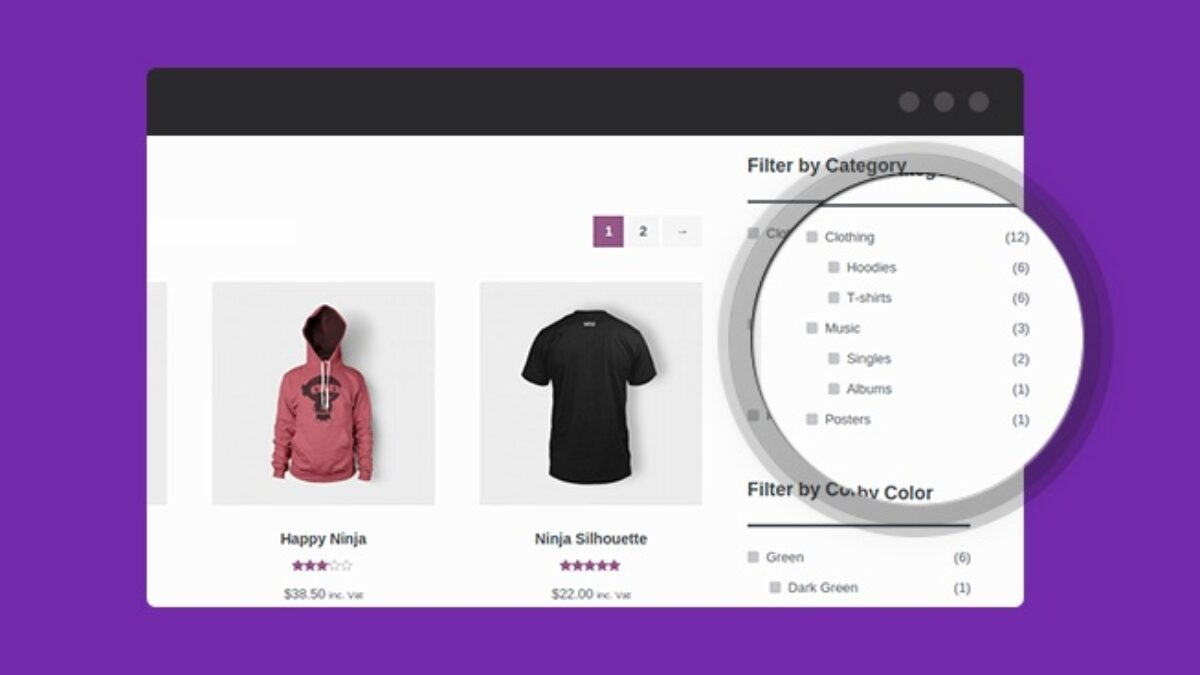
WooCommerce The product search function is a key component of an e-commerce website that directly impacts user experience and conversion rates. Below are WooCommerce The importance of the search function:
- Helps you find products quickly: A powerful search feature allows users to quickly find the products they need, rather than rummaging through a multitude of items.
- Reduce bounce rate: When the search function is working properly, users can easily browse the catalog, reducing the number of times they leave the site because they can't find an item.
![图片[1]-如何修复 WooCommerce 产品搜索问题并提升功能搜索?](https://www.361sale.com/wp-content/uploads/2024/12/20241222211859183-image.png)
Common reasons why WooCommerce product search doesn't work
Before fixing the problem, you need to know WooCommerce Common reasons why the search function fails:
- Trusteeship issues: Insufficient server resources to handle large volumes of products.
- Plugin Conflicts: Outdated or incompatible plugins cause errors.
- Database corruption: The product index in the database is incomplete or corrupt.
![图片[2]-如何修复 WooCommerce 产品搜索问题并提升功能搜索?](https://www.361sale.com/wp-content/uploads/2024/12/20241222212016132-image.png)
How to fix WooCommerce product search not working issue
Below is a detailed step-by-step solution to troubleshoot and fix the problem step-by-step.
Step 1: Consult your hosting provider
If WooCommerce Product Search is not working, you first need to check if your server has enough resources.
- Problem Analysis:
- Check if the server has enough memory and processing power to support WooCommerce.
- If you have a large number of products in your store, you may need a more robust hosting solution.
![图片[3]-如何修复 WooCommerce 产品搜索问题并提升功能搜索?](https://www.361sale.com/wp-content/uploads/2024/12/20241222212312132-image.png)
- Solution:
- Contact the hosting provider's support team to confirm if the problem is due to insufficient server resources.
- Consider switching to a higher performance WooCommerce dedicated hosting service.
Step 2: Deactivate the plug-in
Plugin conflicts are a common reason why the search function fails. Below is the troubleshooting method:
Deactivate all plugins:
- Log in to the WordPress backend and navigate to "Plugins → Installed Plugins"The
![图片[4]-如何修复 WooCommerce 产品搜索问题并提升功能搜索?](https://www.361sale.com/wp-content/uploads/2024/12/20241221160218340-image.png)
- Select all activated plug-ins except WooCommerce.
![图片[5]-如何修复 WooCommerce 产品搜索问题并提升功能搜索?](https://www.361sale.com/wp-content/uploads/2024/12/20241221161923830-image.png)
- Select from the Batch Operation menu "Deactivate."and then click "Applications"The
![图片[6]-如何修复 WooCommerce 产品搜索问题并提升功能搜索?](https://www.361sale.com/wp-content/uploads/2024/12/20241222212747346-image.png)
Activate the plug-ins one by one:
- Enable plugins one by one and test the search function after each enable.
![图片[7]-如何修复 WooCommerce 产品搜索问题并提升功能搜索?](https://www.361sale.com/wp-content/uploads/2024/12/20241222212941373-image.png)
- Once you have found the conflicting plugin, you can contact the plugin developer for support or find a replacement plugin.
Step 3: Update WooCommerce Database
Errors or corruption in the database may cause the search function to fail. Updating the database usually solves the problem.
Backup website:
- Backup website with UpdraftPlus plugin
- Installation and activation of plug-ins:
- Log in to the WordPress backend.
- leave for Plugins > Install Plugins, search for "UpdraftPlus".
- Click "Install" and activate the plugin.
![图片[8]-如何修复 WooCommerce 产品搜索问题并提升功能搜索?](https://www.361sale.com/wp-content/uploads/2024/12/20241222214039916-image.png)
- Configure backup settings:
- In the WordPress backend, go to Settings > UpdraftPlus BackupThe
- strike (on the keyboard) set up tab, select the backup storage location (e.g. Google Drive, Dropbox, FTP, or local server).
- Configure a cloud storage account (e.g. Google Drive) to complete authorization.
![图片[9]-如何修复 WooCommerce 产品搜索问题并提升功能搜索?](https://www.361sale.com/wp-content/uploads/2024/12/20241222214553176-image.png)
- Create a backup:
- On the main UpdraftPlus page, click the Instant Backup Button.
- Tick what needs to be backed up (e.g. files and databases) and then confirm the backup.
- Wait for the backup to complete and then download the backup file locally.
![图片[10]-如何修复 WooCommerce 产品搜索问题并提升功能搜索?](https://www.361sale.com/wp-content/uploads/2024/12/20241222220449221-image.png)
![图片[11]-如何修复 WooCommerce 产品搜索问题并提升功能搜索?](https://www.361sale.com/wp-content/uploads/2024/12/20241222220807232-image.png)
- Regenerate the product lookup table:
- Go to the WordPress backend WooCommerce → Status → ToolsThe
- Locate the "Product Lookup Table" option and click the "Re-generation" Button.
![图片[12]-如何修复 WooCommerce 产品搜索问题并提升功能搜索?](https://www.361sale.com/wp-content/uploads/2024/12/20241224184553242-image.png)
- Update the WooCommerce database:
- On the same page, find the "Database Update" option and click on the Update button.
![图片[13]-如何修复 WooCommerce 产品搜索问题并提升功能搜索?](https://www.361sale.com/wp-content/uploads/2024/12/20241224184709148-image.png)
When you're done, visit your store to test if the search function is back to normal.
Step 4: Check Catalog Visibility Settings
Incorrectly set catalog visibility settings for a product may result in the product not being displayed in search results.
Check catalog visibility:
- switch to "Products → All products" Page.
- Find a product and click "Edit."The
![图片[14]-如何修复 WooCommerce 产品搜索问题并提升功能搜索?](https://www.361sale.com/wp-content/uploads/2024/12/20241222224328300-image.png)
- In the "Publishing" section on the right, make sure "Catalog Visibility" is set to "Stores and search results"The
![图片[15]-如何修复 WooCommerce 产品搜索问题并提升功能搜索?](https://www.361sale.com/wp-content/uploads/2024/12/20241222224822146-image.png)
Batch adjustment settings:
- If there are multiple products that need to be changed, they can be changed via the "Batch Edit" Function to quickly update catalog visibility.
![图片[16]-如何修复 WooCommerce 产品搜索问题并提升功能搜索?](https://www.361sale.com/wp-content/uploads/2024/12/20241222225938928-image.png)
Step 5: Reindexing WooCommerce Products
Products that are not properly indexed can cause the search function to not work properly. Re-indexing products is a critical step in resolving the problem.
Batch edit all products:
- switch to "Products → All products" Page.
- Check all products by checking the selection box at the top of the page.
- Select from the Batch Operation menu "Edit."and then click "Applications"The
![图片[17]-如何修复 WooCommerce 产品搜索问题并提升功能搜索?](https://www.361sale.com/wp-content/uploads/2024/12/20241222230134276-image.png)
- In the Bulk Edit option, click "Renewal"The
![图片[18]-如何修复 WooCommerce 产品搜索问题并提升功能搜索?](https://www.361sale.com/wp-content/uploads/2024/12/20241222230216998-image.png)
This will force WooCommerce to re-index all products.
IV. Summary
WooCommerce The product search function directly affectsuser experiencerespond in singingSales Conversion. When the search function is abnormal, you can fix the problem by checking server resources, troubleshooting plugin conflicts, updating databases, adjusting directory visibility and reindexing products to improve the performance of your website and users, and with the methods in this article, you can fix it step by stepProduct SearchProblems that don't work.

Link to this article:https://www.361sale.com/en/31508/The article is copyrighted and must be reproduced with attribution.














![表情[wozuimei]-光子波动网 | WordPress教程、Elementor教程与故障修复](https://www.361sale.com/wp-content/themes/zibll/img/smilies/wozuimei.gif)

![表情[baoquan]-光子波动网 | WordPress教程、Elementor教程与故障修复](https://www.361sale.com/wp-content/themes/zibll/img/smilies/baoquan.gif)


 简体中文
简体中文  English


No comments