






WordPress websites sometimes run with the "Fatal error: Allowed memory size exhausted" (Fatal Error: Allowed Memory Size Exhausted) problem. This is usually due to WordPress The default memory limit (typically 32MB) is not enough to support the operation of the website.
Especially if your site uses complex plugins, themes, or needs to handle a lot of database queries and upload large files, memory requirements can increase significantly. To solve this problem, you can use theAdjusting WordPress profile or server settingsnextIncrease memory limitsThe
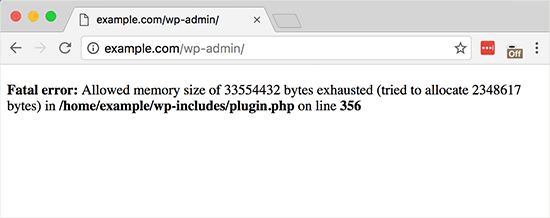
Why does WordPress get memory limit errors?
WordPress relies on the server's PHP runtime environment, and PHP runs on a limited amount of memory. If your WordPress site uses more memory than the maximum memory limit allowed by the server, "Allowed memory size exhausted" Error.
Common causes of insufficient memory:
- Complex database queries: Some plugins or themes may run a lot of queries, causing the server to take up too much memory.
- Inefficient PHP versions: Using an older version (e.g. PHP 5.x) will result in lower memory utilization. Recommendationsescalate (in intensity)until (a time) PHP 8.x and above.
- Plugins and themes take up a lot of resources: Highly resource-intensiveThemes and Pluginswill increase memory usage.
- high visitor volume: WordPress requires dynamic generation of pages, and increased traffic can lead to increased server load.
- Large file upload: A memory limit error may be triggered when uploading large images, videos, or other media files.
- Automatic data loading: Some plugins may load a lot of data in the background, increasing memory consumption.
How do I check the current WordPress memory limit?
Check the current memory limit before increasing the WordPress memory limit.
Method 1: Check through WordPress backend
- Log in to the WordPress backend.
- switch to Tools > Site HealthThe
![图片[2]-如何修复 WordPress 内存耗尽错误?提高 PHP 内存限制的 5 种方法](https://www.361sale.com/wp-content/uploads/2025/02/20250227100203998-image.png)
- strike (on the keyboard) text Options.
- Scroll down to server (computer) section, find the PHP Memory LimitThe
![图片[3]-如何修复 WordPress 内存耗尽错误?提高 PHP 内存限制的 5 种方法](https://www.361sale.com/wp-content/uploads/2025/02/20250227100318168-image.png)
This displays the PHP memory limit for the current site, for example 32M, 64M or 128MThe
Method 2: Checking with PHP files
If you can't access the WordPress backend, you can create a PHP file to check.
- Open a text editor (e.g. JetBrains PhpStorm, VS Code).
![图片[4]-如何修复 WordPress 内存耗尽错误?提高 PHP 内存限制的 5 种方法](https://www.361sale.com/wp-content/uploads/2025/02/20250227111733777-1740626247020.png)
- Create a file named phpinfo.php file and add the following code:
<?php phpinfo(); ?> - Upload this file to
public_htmlCatalog. - Access in browser
http://yourdomain.com/phpinfo.phpThen look for memory_limit Value.
How to increase WordPress memory limit?
Method 1: Edit the wp-config.php file
wp-config.php is a core WordPress configuration file that allows you to adjust memory limits directly.
Steps:
- Use an FTP client (such as FileZilla) or atrusteeshippanel's file manager, find the
wp-config.phpfile (located in the WordPress root directory)public_html).
![图片[5]-如何修复 WordPress 内存耗尽错误?提高 PHP 内存限制的 5 种方法](https://www.361sale.com/wp-content/uploads/2025/02/20250227102053543-1740622846861.png)
- Open the file in the /* That's all, stop editing! Happy publishing. */ Add the following code before:
define('WP_MEMORY_LIMIT', '256M');
![图片[6]-如何修复 WordPress 内存耗尽错误?提高 PHP 内存限制的 5 种方法](https://www.361sale.com/wp-content/uploads/2025/02/20250227102337283-image.png)
- Save the file and upload it.
- Clear your cache and refresh your website.
take note of::
- If you are using shared hosting, you may not be able to modify this value.
- Some hosts will cover
wp-config.phpThe settings.
Method 2: Modify the PHP.ini file
If you modify the wp-config.php method does not work, try modifying the PHP.ini Documentation.
Steps:
- Log in to your hosting control panel (e.g. cPanel, Plesk, Pagoda).
- locate
PHP SettingsmaybePHP ConfigurationOptions.
![图片[7]-如何修复 WordPress 内存耗尽错误?提高 PHP 内存限制的 5 种方法](https://www.361sale.com/wp-content/uploads/2025/02/20250227102751750-1740623197509.png)
- exist
PHP.iniThe following lines are added or modified in the file:
memory_limit = 256M upload_max_filesize = 64M post_max_size = 64M max_execution_time = 300 max_input_time = 300- Save the settings and restart the server.
Method 3: Modify the .htaccess file
If you modify the php.ini The file has no effect, try adjusting the .htaccess file to solve the problem.
Steps:
- Connect via FTP to the
public_htmldirectory, find the .htaccess Documentation.
![图片[8]-如何修复 WordPress 内存耗尽错误?提高 PHP 内存限制的 5 种方法](https://www.361sale.com/wp-content/uploads/2025/02/20250227103244549-1740623550624.png)
- exist
.htaccessAdd at the end:php_value memory_limit 256M php_value upload_max_filesize 64M php_value post_max_size 64M php_value max_execution_time 300
![图片[9]-如何修复 WordPress 内存耗尽错误?提高 PHP 内存限制的 5 种方法](https://www.361sale.com/wp-content/uploads/2025/02/20250227103143895-image.png)
- Save and upload.
take note of::
- in the event that .htaccess The file is not visible, you need to enable the "Show hidden files".
- If the code is added and the 500 Internal Server ErrorPlease resume immediately.
.htaccessBackup.
Method 4: Adjust PHP settings in the server panel
Some hosting providers offer the option to adjust PHP memory limits directly.
Steps:
- Log in to the hosting control panel (e.g. cPanel).
- locate Select PHP Version Options.
- go into PHP Options maybe PHP ConfigurationThe
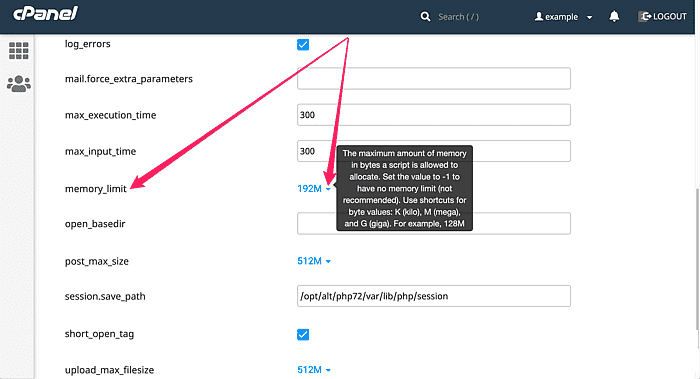
- locate
memory_limitoption, adjust to the256Mmaybe512MThe - Save the settings.
Method 5: Use WordPress Plugin
If you don't want to modify the file, you can use theplug-in (software component)Adjust memory limits.
Recommended Plugins:
- WP Memory Usage: Visualize the current WordPress memory usage.
- Increase PHP Memory Limit: Automatically adjusts PHP memory limits.
Verify that the PHP memory limit has been increased
Back again. WordPress Dashboard, Tools → Site HealthPartially, in the "text" under the tabserver (computer)Conducting inspections.
summarize
Adding a WordPress memory limit can be an effective solution "out of memory" errors and improve site performance. This article describes five possible ways to do this:
- modifications
wp-config.php(Recommended) - compiler
PHP.ini(Recommended) - adapt
.htaccess - Using the Hosting Control Panel
- Adjustment through plug-ins
If you're still experiencing problems, tryOptimization of databasesThe following are some of the most important things you need to know about PHP.

Link to this article:https://www.361sale.com/en/34841/The article is copyrighted and must be reproduced with attribution.












![表情[wozuimei]-光子波动网 | WordPress教程、Elementor教程与故障修复](https://www.361sale.com/wp-content/themes/zibll/img/smilies/wozuimei.gif)

![表情[baoquan]-光子波动网 | WordPress教程、Elementor教程与故障修复](https://www.361sale.com/wp-content/themes/zibll/img/smilies/baoquan.gif)


 简体中文
简体中文  English


No comments