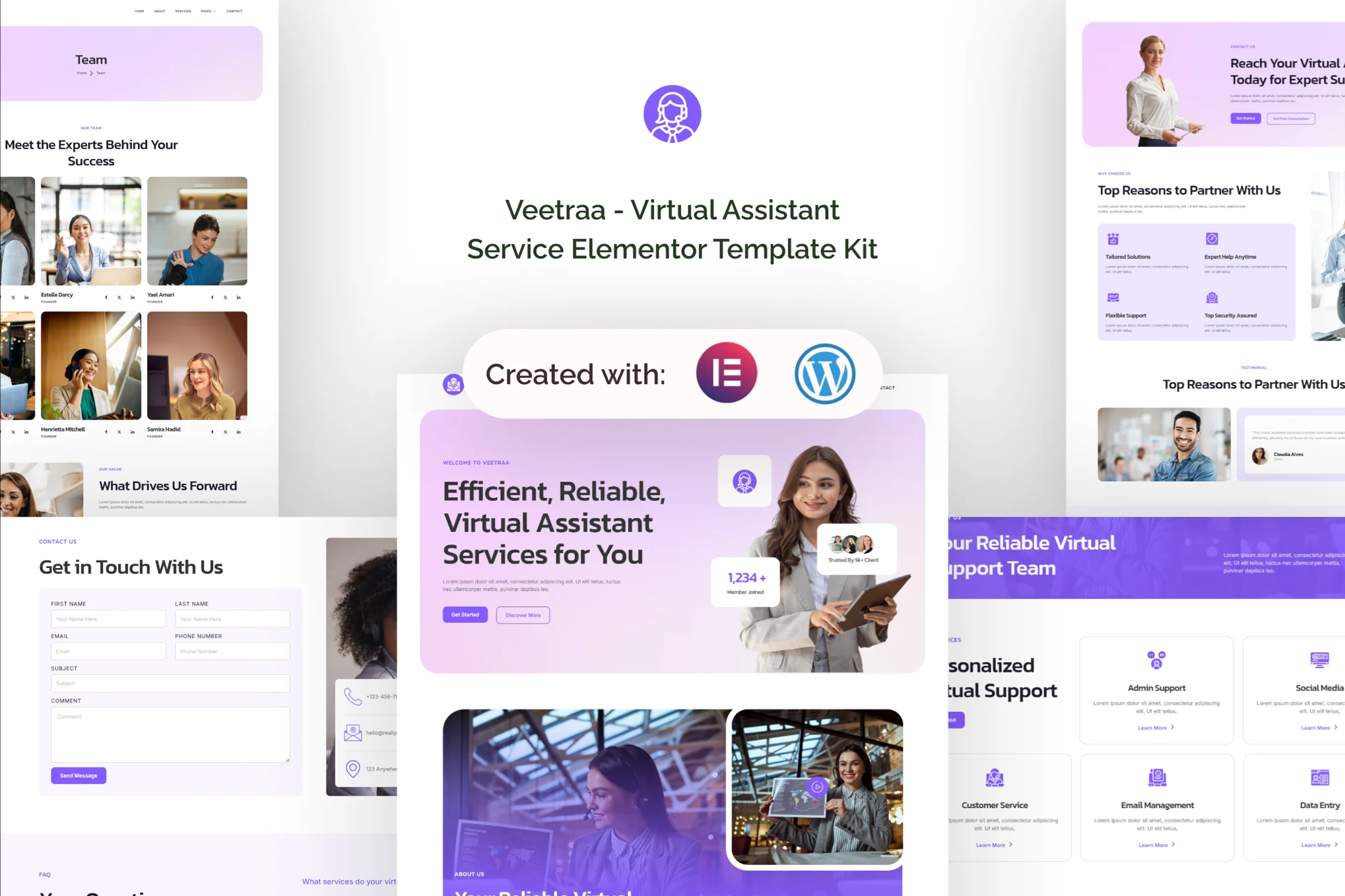






descriptive
Introducing Veetraa, a comprehensive template suite designed for virtual assistant services, available only for WordPress.Through careful design and the use of free plugins, Veetraa helps virtual assistants and service providers build a strong online presence without complex development. It is tailored for virtual assistant agencies, remote service providers and freelancers.
![图片[1]-Veetraa – 虚拟助手服务 Elementor 模板套件-光子波动网 | WordPress教程、Elementor教程与故障修复](https://www.361sale.com/wp-content/uploads/2025/03/20250319110114581-1742353143231.png)
![图片[2]-Veetraa – 虚拟助手服务 Elementor 模板套件-光子波动网 | WordPress教程、Elementor教程与故障修复](https://www.361sale.com/wp-content/uploads/2025/03/20250319110124927-1742353157601.png)
![图片[3]-Veetraa – 虚拟助手服务 Elementor 模板套件-光子波动网 | WordPress教程、Elementor教程与故障修复](https://www.361sale.com/wp-content/uploads/2025/03/20250319110128799-1742353163962.png)
take note of: Veetraa is not a traditional WordPress theme, but a complete template suite with all the necessary page content for the Elementor page builder, which users are free to design. Although it is optimized for the free version of the Hello Elementor theme, Veetraa is compatible with most themes that support Elementor.
Applicable objects::
- Virtual Assistant Organization
- Remote service providers
- freelancer
specificities::
- Using the free version of Elementor (without Elementor Pro)
- Unique and simple design
- contemporary design
- Building with Containers
- 13 ready-made pages
- Unlimited colors
- Over 900 ready-to-use fonts
- Fully responsive layout
- Fully customizable
- Cross-browser compatibility: Chrome, Firefox, Safari, Opera
Included Templates::
- Global Theme Styles
- fig. beginning
- with respect to
- service
- set a price
- teams
- Testimonials
- common problems
- 404 error
- Blog Posts
- single article
- Contact Us
- footer
- footers
Required plug-ins::
- Elementor
- ElementsKit Lite
- MetForm
- Gum Elementor Addon
- Elementor Header & Footer Builder
How to import Metforms: If you have Elementor Pro, you can skip installing Metform and form blocks.
- Importing metform block templates
- Import the page template containing the form and right-click to enable the navigator
- Locate and select the Metform widget and click Edit Form. Select New and then Edit Form. The builder will appear
- Click on the gray folder icon for "Add Template".
- Click on the "My Templates" tab
- Select the imported metform template and click "Insert" (click No to skip the page setup)
- Once the template is loaded, make the desired customizations and click "Update and Close", the form will appear in the template
- Click on "Update"

Link to this article:https://www.361sale.com/en/45610/The article is copyrighted and must be reproduced with attribution.


















![表情[wozuimei]-光子波动网 | WordPress教程、Elementor教程与故障修复](https://www.361sale.com/wp-content/themes/zibll/img/smilies/wozuimei.gif)

![表情[baoquan]-光子波动网 | WordPress教程、Elementor教程与故障修复](https://www.361sale.com/wp-content/themes/zibll/img/smilies/baoquan.gif)


 简体中文
简体中文  English


No comments