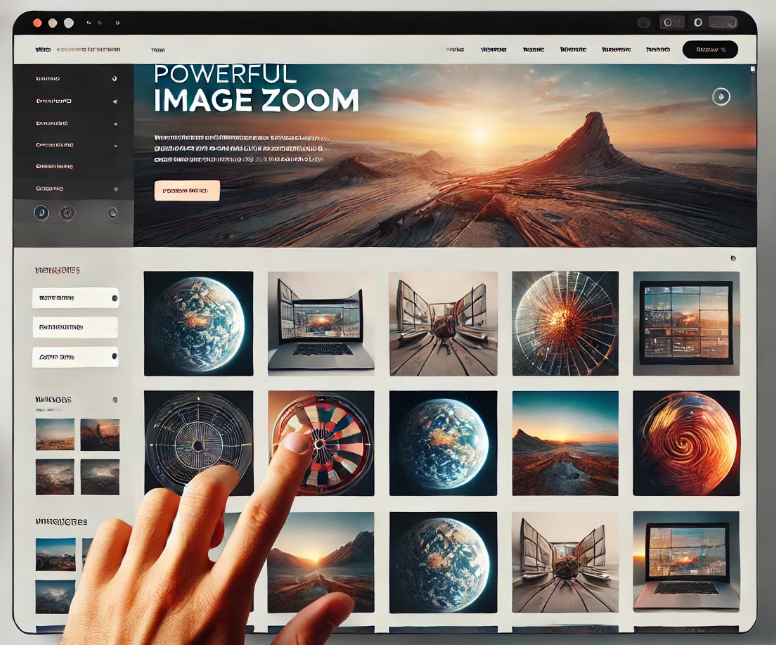






When operating a WordPress website, especially when the website contains high-quality product images or photos, the image zoom feature becomes especially important. With the image zoom feature, users can see the details of the images more clearly, which improves the interactivity and user experience of the website.WordPress does not support this feature by default, but with the help of plugins, we can easily add the image zoom effect to our website. We will show you how to useWP Image Zoom pluginAdd image zoom in WordPress.
![Images[1] - Simple settings to give your WordPress site powerful image scaling](https://www.361sale.com/wp-content/uploads/2025/04/20250426143230718-image.png)
Install WP Image Zoom plugin
We need to install and activate the WP Image Zoom plugin. Follow the steps below:
- Log in to your WordPress backend.
- In the left menu click on plug-in (software component) → Installation of plug-insThe
- Type in the search box WP Image ZoomThe
- strike (on the keyboard) mountingWhen the installation is complete, click start using Activate the plug-in.
![Images [2] - Simple settings for powerful image zoom on your WordPress website](https://www.361sale.com/wp-content/uploads/2025/04/20250426141937756-image.png)
Once the installation is complete, you can start customizing the image scaling settings.
Configuring plug-in settings
- After activating the plugin, find the settings option for WP Image Zoom and click on it.
![Images [3] - Simple settings for powerful image zoom on your WordPress website](https://www.361sale.com/wp-content/uploads/2025/04/20250426142044326-image.png)
- In the plugin settings screen, you will see two main setting options:General Settingsrespond in singingZoom settings. We will focus on aligningZoom settingsThe
![Images [4] - Simple settings for powerful image zoom on your WordPress website](https://www.361sale.com/wp-content/uploads/2025/04/20250426142224717-image.png)
Selecting Lens Shape
WP Image Zoom offers four different lens shapes to choose from depending on your personal preferences:
- camera-less: This option will automatically zoom in when the mouse pointer hovers over the picture.
- round lens: A circular lens similar to that of a camera.
- rectangular lens: Square lens for sharper magnification.
- Zoom Window: This option uses a zoom window to see the effect of zooming in.
![Images [5] - Simple settings for powerful image zoom on your WordPress website](https://www.361sale.com/wp-content/uploads/2025/04/20250426142316323-image.png)
After selecting your favorite lens shape, you can view the lens effect by hovering over the image at the bottom of the page.
Customizing the zoom effect
The WP Image Zoom plugin offers detailed customization options to adjust the following:
- Lens size and transparency: Adjust the size of the lens, the thickness of the border, the color of the border, the transparency, and so on.
- animation effect: Set the way the zoom effect is animated to enhance the visual effect.
- Zoom Window: If the Zoom Window option is selected, you can also adjust the width, height, border thickness, and shadow effects of the window.
![Images [6] - Simple settings for powerful image zoom on your WordPress website](https://www.361sale.com/wp-content/uploads/2025/04/20250426142640490-image.png)
These settings allow you to precisely adjust the zoom effect according to the design style of your website.
Setting Up Zoom Effects in WordPress Posts
- In the WordPress backend, create a new post and upload an image.
![Images [7] - Simple settings for powerful image zoom on your WordPress website](https://www.361sale.com/wp-content/uploads/2025/04/20250426142754492-image.png)
- After selecting the image, on the right side of theblock settingpanel, find thetypeOptions.
![Images [8] - Simple settings for powerful image zoom on your WordPress website](https://www.361sale.com/wp-content/uploads/2025/04/20250426142826440-image.png)
- In the style settings, check the Enable zoom effect Options.
![Images [9] - Simple settings for powerful image zoom on your WordPress website](https://www.361sale.com/wp-content/uploads/2025/04/20250426142848769-image.png)
- When you're done, click postThe
After publishing, visit the article and you will see that the image zoom effect has been successfully applied.
summarize
With the WP Image Zoom plugin, you can easily add image zoom functionality to your WordPress website, allowing users to view image details in greater detail and improve the overall user experience. Whether it's an e-commerce site or a content display site, the image zoom feature is a great way to enhance the interactivity of your website.
For more WordPress related tutorials and information, please follow thePhoton fluctuation network, has the most comprehensive WordPress tutorials and the most activeWordPress Exchange CommunityThe

Link to this article:https://www.361sale.com/en/52265The article is copyrighted and must be reproduced with attribution.

















![Emoji[wozuimei]-Photonflux.com | Professional WordPress repair service, worldwide, rapid response](https://www.361sale.com/wp-content/themes/zibll/img/smilies/wozuimei.gif)

![Emoticon[baoquan] - Photon Wave Network | Professional WordPress Repair Services, Worldwide Coverage, Rapid Response](https://www.361sale.com/wp-content/themes/zibll/img/smilies/baoquan.gif)


 简体中文
简体中文  English
  日本語
日本語  Français
  Español


No comments