




Backup is a crucial task for every WordPress website administrator. Especially the database, which holds your site's content, settings, comments, and user information. Ifcomprehensive databaseLose or corrupt it, and your website's data goes with it. For this reason, backing up and restoring your database regularly can help you avoid disastrous consequences. Here's an easy-to-follow tutorial that teaches you how to backup and restore your WordPress database.
![Image [1] - How to Backup and Restore WordPress Database: Graphic Tutorials](https://www.361sale.com/wp-content/uploads/2025/05/20250519134739694-image.png)
Backup WordPress Database
Backup DatabaseThere are a variety of ways to do this, the two most common ways are to use the phpMyAdmin respond in singing plug-in (software component). Here we will describe the two methods separately.
Method 1: Manual backup using phpMyAdmin
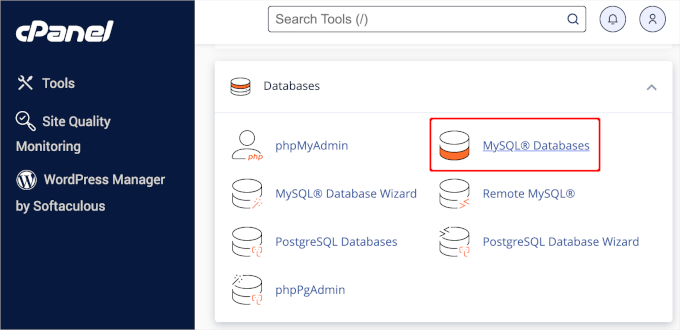
First, you need to create a newcomprehensive databaseLog in to your cPanel account and click "MySQL Database" under the "Database" section. Log in to your cPanel account and click on "MySQL Database" under the "Databases" section.
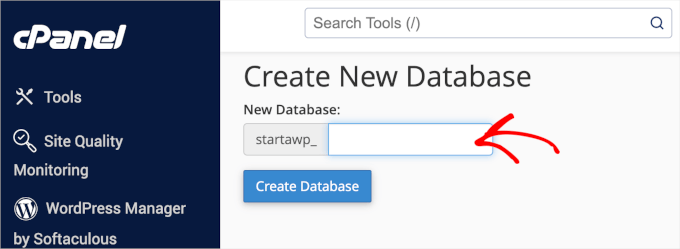
Next, create a new database. You can provide a name for the database and click the Create Database button.
Now that you have created a database, you will need a MySQL user that will be assigned all privileges to work with your newly created database.
within the same MySQL On the Database page, scroll down to the "MySQL User Add New User" section and fill in the fields.
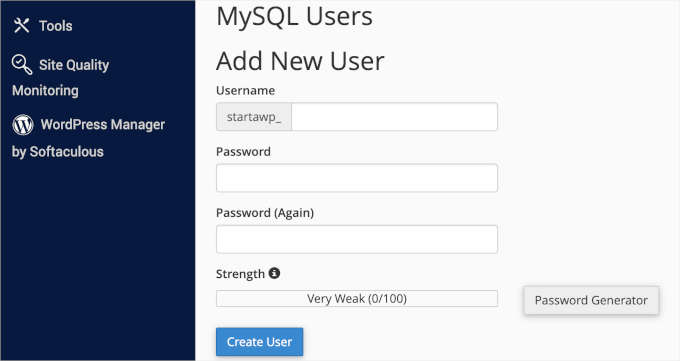
Make sure your database users have a strong username and password combination. Then, continue and click "Create User".
Next, you need to add the user to the MySQL database. Scroll down to the Add User to Database section, select the user and database from the drop-down menus, and then click the Add button.
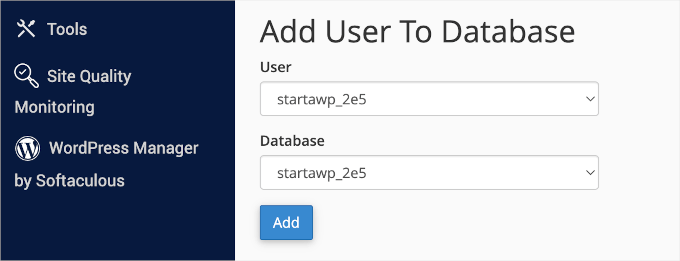
At this point, your new database should be ready.
Import WordPress Database Backup
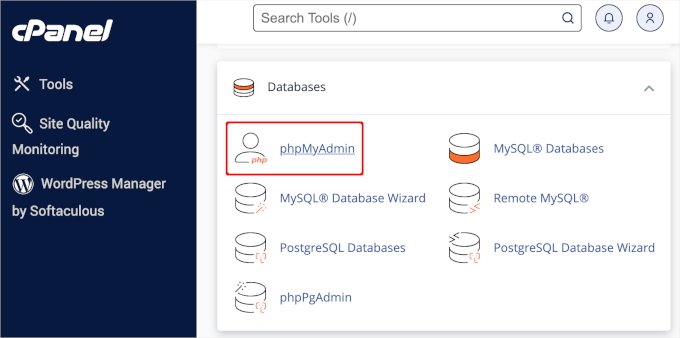
The next step is to import a new WordPress database. Return to the cPanel dashboard. Under the "Databases" section, click "phpMyAdmin".
After that, you can select the database you created on the phpMyAdmin page and click the "Import" button. Click "Select File" to upload WordPress database backup file. Simply click the "Start" button at the bottom of the page to begin the import.
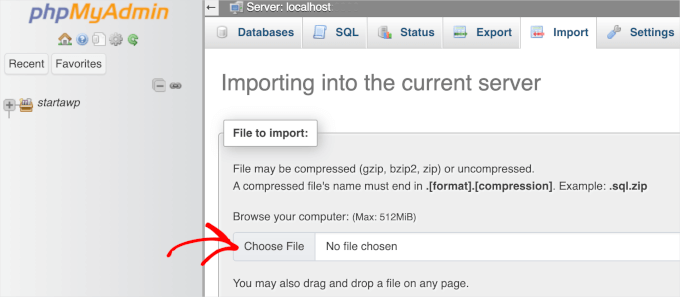
You will see a success message when the import assignment is complete.
Method 2: Use the plug-in to backup the database
If you don't want to do this manually, you can use some backup plugins to simplify the process. Some popular plugins include UpdraftPlus,BackupBuddy respond in singing WP Database Backup. Below we take UpdraftPlus As an example, how to use the plug-in to backup the database.
- Install the UpdraftPlus plugin
Log in to the WordPress backend, go to the Plugins page, click on "Install Plugin", search for UpdraftPlus, then install and enable it.
![Image [8] - How to Backup and Restore WordPress Database: Graphic Tutorials](https://www.361sale.com/wp-content/uploads/2025/05/20250519113958541-image.png)
- Configure backup settings
In the backend menu, find the Settings > UpdraftPlus Backups, go to the plugin's settings page. Here, you can set the backup frequency and backup storage location, such as to Google Drive, Dropbox, or Amazon S3.
![Image [9] - How to Backup and Restore WordPress Database: Graphic Tutorials](https://www.361sale.com/wp-content/uploads/2025/05/20250519114021660-image.png)
- Instant Backup
After configuring the plugin, you can choose to backup manually. Click the "Backup Now" button and the plugin will automatically backup your database and files.
The advantage of using a plugin backup is that it provides more automated options for regular backups to avoid forgetting operations.
![Image [10] - How to Backup and Restore WordPress Database: Graphic Tutorials](https://www.361sale.com/wp-content/uploads/2025/05/20250519114106617-image.png)
Recover WordPress Database
Database recovery is a relatively simple process. You can use phpMyAdmin or a plugin to restore backups.
Method 1: Recover the database using phpMyAdmin
To restore WordPress manually, you need to install it manually on your server. During the installation process, when you reach the "Create Profile" step, enter the name and user of the database you created earlier.
![Image [11] - How to backup and restore WordPress database: graphic tutorials](https://www.361sale.com/wp-content/uploads/2025/05/20250519113139945-image.png)
Clicking the Install button will display the message "Installed".
Go ahead and click the Login button to access the WordPress admin area.
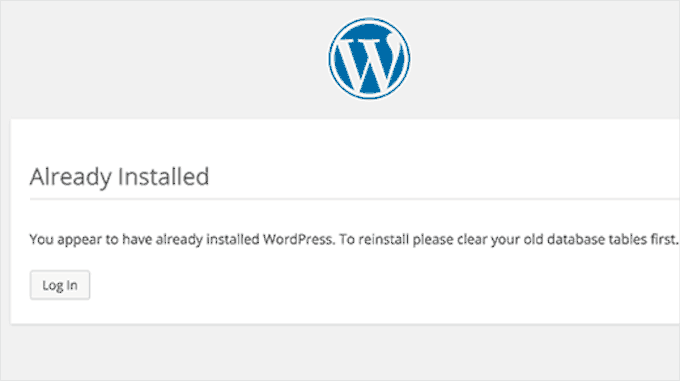
These are the basic steps to restore a database via phpMyAdmin. It is worth noting that the original data in the database will be replaced during the recovery process, so make sure that you have a full backup before restoring.
Method 2: Use the plug-in to restore the database
Restoring your database is even easier if you've used UpdraftPlus or another plugin to backup your database.
- Go to the UpdraftPlus settings page
In the WordPress backend, go to Settings > UpdraftPlus BackupsThe - Select Recovery
In the plugin settings, click on the "Restore" option. The plugin will list your previous backup files. Select the backup you want to restore and click the Restore button.
![Image [13] - How to Backup and Restore WordPress Database: Graphic Tutorials](https://www.361sale.com/wp-content/uploads/2025/05/20250519114200850-image.png)
- Completion of recovery
The plugin automatically restores the database content, including all settings, posts and comments of the site. Once the restoration is complete, the site will return to the state it was in when it was backed up.
wrap-up
Regularly backing up and restoring your WordPress database is a basic operation for securing your website. Using phpMyAdmin or a plugin, you can easily back up and restore your database to avoid a situation where your website cannot be recovered due to lost or corrupted data. It is recommended that you make a backup every time you make updates to your website so that you can quickly restore your database if something goes wrong.Restoration of the websiteThe

Link to this article:https://www.361sale.com/en/55128The article is copyrighted and must be reproduced with attribution.











![Emoji[wozuimei]-Photonflux.com | Professional WordPress repair service, worldwide, rapid response](https://www.361sale.com/wp-content/themes/zibll/img/smilies/wozuimei.gif)

![Emoticon[baoquan] - Photon Wave Network | Professional WordPress Repair Services, Worldwide Coverage, Rapid Response](https://www.361sale.com/wp-content/themes/zibll/img/smilies/baoquan.gif)


 简体中文
简体中文  English
  日本語
日本語  Français
  Español


No comments