




Rogient Block It's a sans-serif font with a very personalized, geometric structure and bold lines, which is especially suitable for websites with a strong sense of technology and trendiness. If your website needs this kind of hard and modern style, you may want to add Rogient Block to the WordPress Try it in.
This post will talk about how Rogient Block fonts work in WordPress, including the complete process of uploading, introducing and displaying them on the page.
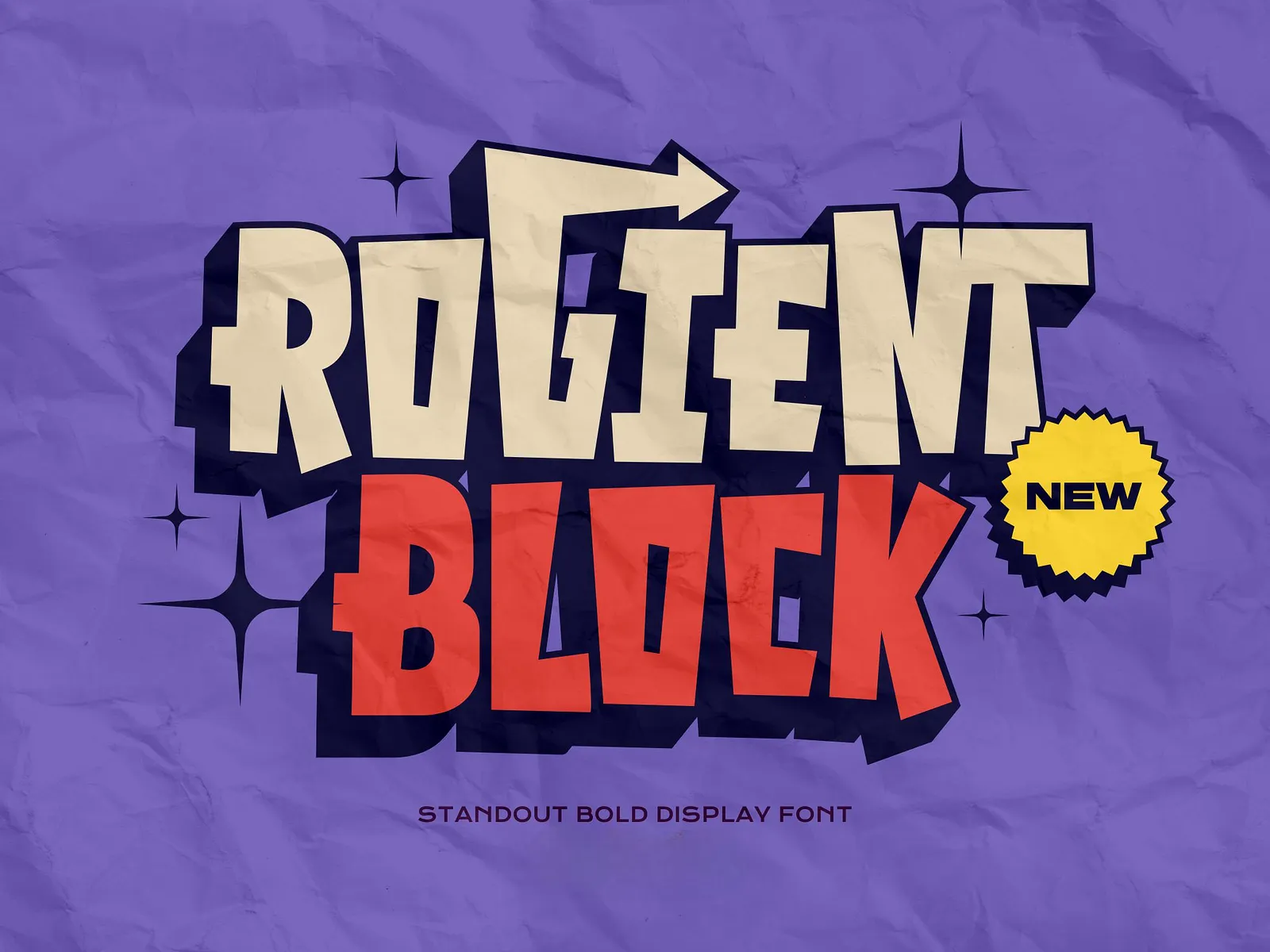
I. Preparing font files
First, you have to download the Rogient Block font, the general file format is .ttf maybe .otfAnd sometimes there's .woff maybe .woff2The
![Image [2]-Rogient Block Fonts in WordPress with Loading Tips](https://www.361sale.com/wp-content/uploads/2025/05/20250521172135489-image.png)
If the goal is to load fonts on a web page, it is recommended to use the .woff maybe .woff2, they are smaller, faster loading and more browser friendly.
Unzip the downloaded file and put it away, you'll need it later.
Second, upload fonts to the WordPress site
To use custom fonts in WordPress, it is recommended to use a plugin for this. The most commonly used ones are:
Custom Fonts plugin
- Go to Backstage → Plugins → Install Plugin
- Search for "Custom Fonts", click on Install and Activate
- Once installed, go to Backstage → Appearance → Custom Fonts
- Add a new font named "Rogient Block"
- Upload font files (recommended)
.woffrespond in singing.woff2) - Save Settings
![Image [3]-Rogient Block Fonts in WordPress with Loading Tips](https://www.361sale.com/wp-content/uploads/2025/05/20250521170158597-image.png)
This way you have successfully added the fonts to your WordPress system.
Third, with the theme of the use of fonts
Different themes support custom fonts in different ways, but as long as you're using something like the Astra, Blocksy, GeneratePress,Kadence These themes that support custom fonts will be able to call the font you just uploaded directly in the theme settings.
Take Astra, for example:
- Go to Backstage → Dashboard → Typography
![Image [4]-Rogient Block Fonts in WordPress with Loading Tips](https://www.361sale.com/wp-content/uploads/2025/05/20250521170816562-image.png)
- In the font options, find the "Rogient Block" you just added.
![Image [5]-Rogient Block Fonts in WordPress with Loading Tips](https://www.361sale.com/wp-content/uploads/2025/05/20250521171138101-image.png)
- Apply to headers, body text, buttons, and other areas that need to be used
- Publish Save
If you are using the Elementor ProYou can also select this font directly in Elementor's "Site Settings → Typography".
Fourth, do not use plug-ins, directly with the introduction of the code is fine
If you don't want to use a plugin, you can also manually upload the font files to the theme directory and then pass the CSS Introduced. For example:
- classifier for objects with a handle
.woff2The file is uploaded to the current topic'sfonts/file (paper) - Edit the theme of the
style.cssDocumentation, plus:
@font-face {
  font-family: 'Rogient Block';
  src: url('fonts/rogient-block.woff2') format('woff2');
  font-weight: normal;
  font-style: normal; }
}
- Then specify page elements to use this font, for example:
h1, h2, .site-title {
  font-family: 'Rogient Block', sans-serif;
}
Once saved, refresh the page to see the new font take effect.
V. Font compatibility and loading recommendations
Rogient Block fonts, although unique in style, are not supported by default on all systems, so the(of cargo etc) loadThe approach needs to be reliable.
Recommendation:
- Provides multiple font formats (e.g.
.woff2respond in singing.ttf) - Plus alternate fonts, for example:
font-family: 'Rogient Block', 'Arial', sans-serif;
- Preloaded fonts for faster display (available in the
<head>Add preloaded link in)
summarize
If you want to use Rogient Block font on your WordPress website, you can either upload it with the help of a plugin or write CSS for it manually. Set it up with a theme or page editor, and it will show up perfectly on your page.

Link to this article:https://www.361sale.com/en/55589The article is copyrighted and must be reproduced with attribution.










![Emoji[wozuimei]-Photonflux.com | Professional WordPress repair service, worldwide, rapid response](https://www.361sale.com/wp-content/themes/zibll/img/smilies/wozuimei.gif)

![Emoticon[baoquan] - Photon Wave Network | Professional WordPress Repair Services, Worldwide Coverage, Rapid Response](https://www.361sale.com/wp-content/themes/zibll/img/smilies/baoquan.gif)


 简体中文
简体中文  English
  日本語
日本語  Français
  Español


No comments