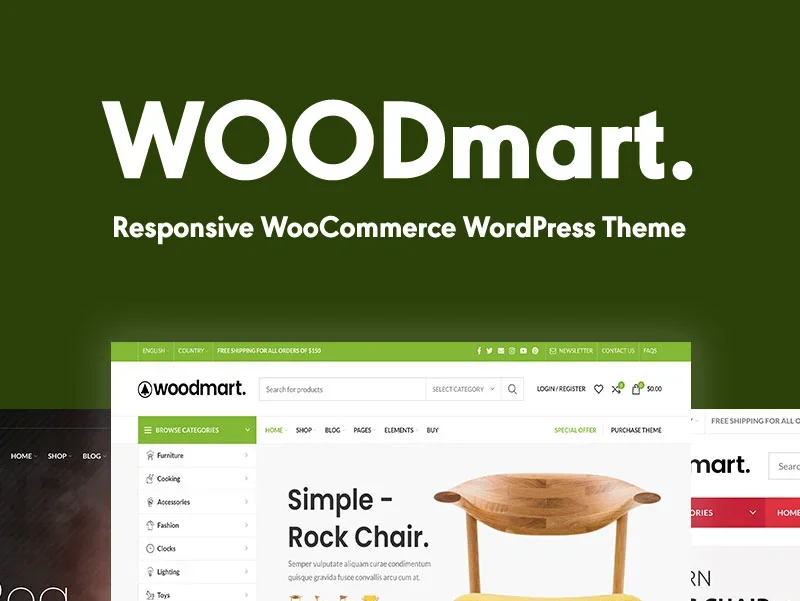





If you want to expand your e-commerce website to overseas markets, multi-language support is an inescapable step.WoodMart As a high-end WooCommerce theme, andWPML Plugin with very mature, no development experience can also successfully complete the multi-language setup. Below is a complete guide for those who are ready to use WPML to build English, Japanese, French and other versions of the mall site.
![Image [1]- WoodMart Configuration WPML Multilingual Full Tutorial](https://www.361sale.com/wp-content/uploads/2025/06/20250603113508778-image.png)
Step 1: Install and activate the WPML plugin
Go to the WPML website to register an account and purchase the plugin.
![Image [2]- WoodMart Configuration WPML Multilingual Full Tutorial](https://www.361sale.com/wp-content/uploads/2025/06/20250603105216936-image.png)
Download the following core components:
- WPML Multilingual CMS
- WPML String Translation
- WPML Translation Management
- WooCommerce Multilingual & Multicurrency
log in WordPress Backend, upload and activate these plugins. After successful activation, WPML will automatically pop up the initial setup wizard.
Step 2: Setting up the language structure
Once you are in the wizard, configure it in the following order:
- Website default language: Select the currently used language, e.g. English.
- Add new language: Check the languages that need to be supported, such as English, Japanese, French, and so on.
![Image [3]- WoodMart Configuration WPML Multilingual Full Tutorial](https://www.361sale.com/wp-content/uploads/2025/06/20250603110002794-image.png)
- Language switching method: Choose whether to add a language switcher to the menu and customize the style and location.WoodMart supports placing the language switcher in the header, sidebar, or mobile menu in a style that is consistent with the theme.
- URL format: It is recommended to use directory mode, such as
/en/,/ja/The language versions are more easily recognized by search engines.
After finishing the settings and saving them, you can see the WPML menu when you enter the backend.
Step 3: Translate the page and product content
WPML provides independent language version management for each page, article and product. When you open any page or product editing interface, you can see the "plus" icon of the corresponding language.
![Image [4]- WoodMart Configuration WPML Multilingual Full Tutorial](https://www.361sale.com/wp-content/uploads/2025/06/20250603110314786-image.png)
Click on "+" to add a translated version of the content. wpml supports the use of manual input, as well as the import of automatically translated content (requires connection to Deepl or Google Translate).
If you use the Elementor or the WPBakery page builder, WPML automatically loads the content of each module, making it easier for you to translate the text content one by one.
For product content, the following fields can be set up for independent translation:
- Product Name
- Short description vs. full description
- Price, currency display (if multi-currency is enabled)
- Product classification, labeling, attributes
- Product images (can be shared or replaced)
Step 4: Translate the global elements of the website
Go to the WPML → String Translation menu, where you can translate text content that does not appear in a post or page site-wide, for example:
- Header menu text
- Footer links
- Button prompts, shopping cart, checkout page prompts
- Customizing text fields in widgets
![Image [5]- WoodMart Configuration WPML Multilingual Full Tutorial](https://www.361sale.com/wp-content/uploads/2025/06/20250603110455594-image.png)
It is recommended to focus on this part of the translation after setting up the theme and adding the base page.
Step 5: Set up multi-currency support (optional)
If your site plans to target users in different countries, you can also enable the multi-currency feature that comes with WPML.
Go to the WooCommerce Multilingual module and add the requiredcurrency, such as USD, JPY, EUR, and configure the conversion rates and symbols for each currency.
![Image [6]- WoodMart Configuration WPML Multilingual Full Tutorial](https://www.361sale.com/wp-content/uploads/2025/06/20250603111131527-image.png)
The system supports automatic switching of currencies based on the user's IP, as well as providing a currency selector in the frontend.
Step 6: Check translation status and link structure
Open any page and check if the language switcher is working properly. Each language should have a corresponding URL Paths, for example:
- Chinese version:
https://example.com/ - English version:
https://example.com/en/ - Japanese version:
https://example.com/ja/
Menu bar,footer,cartcomponents should display the corresponding content correctly when switching languages. In case of garbled code or unloaded styles, theChecking the cacheStatus with WPML plugin
Step 7: SEO Plugin Compatibility Settings
If you use Rank Math maybe Yoast SEO plugin, WPML provides native support. Turn on multi-language support in Rank Math → General Settings → Others and make sure that the title and description fields are filled out separately for each language.
It is recommended to set separate SEO keywords and descriptions for each language version to help Google index different versions of the page by country.
summarize
utilization WPML Building a multilingual e-commerce website with WoodMart is an efficient and stable way, WPML enables complete translation and display in different languages. Just set up the structure at the initial stage, and the content management will be very smooth at a later stage.

Link to this article:https://www.361sale.com/en/57100The article is copyrighted and must be reproduced with attribution.











![Emoji[wozuimei]-Photonflux.com | Professional WordPress repair service, worldwide, rapid response](https://www.361sale.com/wp-content/themes/zibll/img/smilies/wozuimei.gif)

![Emoticon[baoquan] - Photon Wave Network | Professional WordPress Repair Services, Worldwide Coverage, Rapid Response](https://www.361sale.com/wp-content/themes/zibll/img/smilies/baoquan.gif)


 简体中文
简体中文  English
  日本語
日本語  Français
  Español


No comments