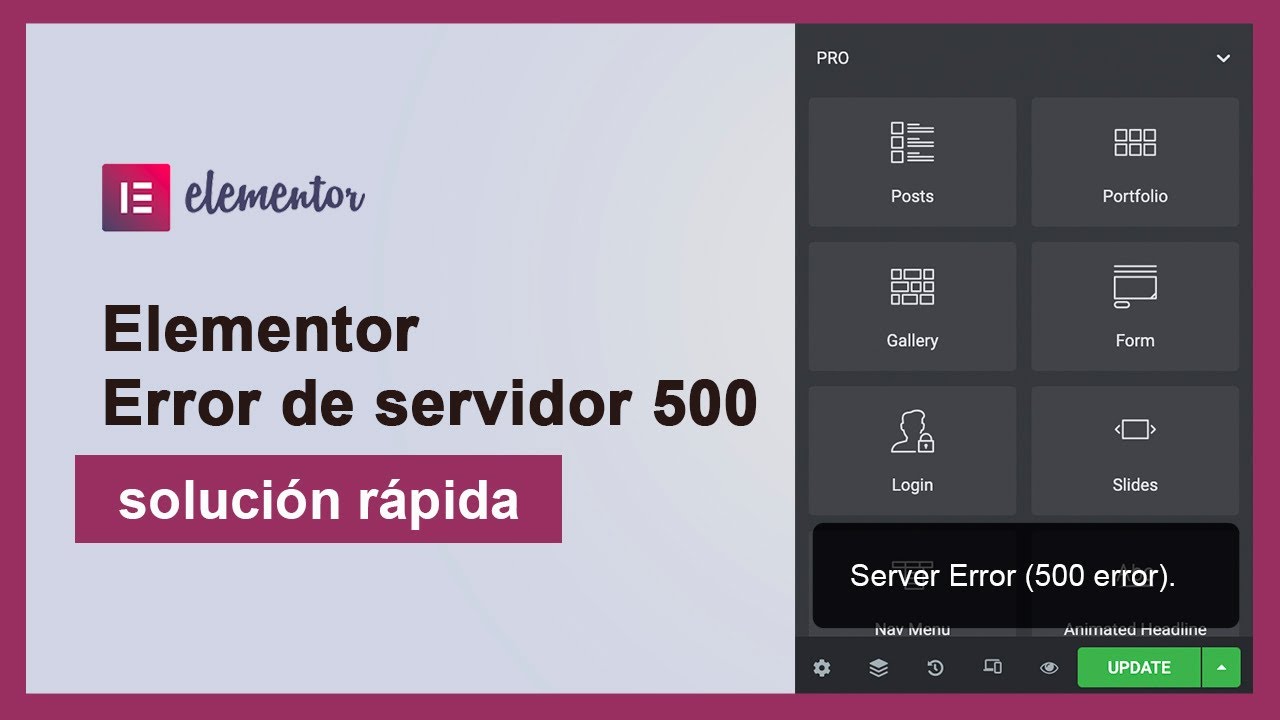





When building a page with Elementor, if the editor suddenly fails to load and displays the 500 Errorpage, many people's first reaction is "plug-in broken" or "site crash". In fact, in most cases, the problem is not serious, and with a clear direction of troubleshooting, you can quickly return to normal. Here are a few common causes and practical ways to deal with them.
![Image [1]-Elementor Editor Error 500 Troubleshooting and Repair Guide](https://www.361sale.com/wp-content/uploads/2025/07/20250708095154304-image.png)
Common Causes and Solutions
1. Plug-in conflicts are the main culprits
WordPress Websites often have a lot of plugins installed, and if there is a conflict between them, it may cause Elementor to not work properly, especially when editing pages. It is recommended to go to FTP or hosting file manager and rename the wp-content/plugins The folder is plugins_oldThis will temporarily disable all plugins. Then refresh the Elementor editor page, and if it loads properly, that means it is indeed theplug-in conflictThe
![Image [2]-Elementor Editor Error 500 Troubleshooting and Repair Guide](https://www.361sale.com/wp-content/uploads/2025/07/20250708100329599-image.png)
Next, change the folder name back to pluginsThen enable the plug-ins one by one, find the one that "messes up" and replace or uninstall it.
2. Insufficient PHP memory can also crash the editor
Elementor is a front-end real-time visual editing tool with relatively high server resource requirements. If the server allocates too little memory to PHP, it may cause a 500 error when loading a large page. The solution is to modify the wp-config.php file, add the following code:
define( 'WP_MEMORY_LIMIT', '256M' );
![Image [3]-Elementor Editor Error 500 Troubleshooting and Repair Guide](https://www.361sale.com/wp-content/uploads/2025/07/20250708100004525-image.png)
Save and refresh the page after making the changes and many times the problem is solved.
3. Theme code errors can also be a culprit
If you are using a third-party theme or have made changes to the theme files, certain irregularities in the code may also cause the editor to fail to load. It is recommended to first switch to the WordPress Official Default Theme(e.g. Twenty Twenty-Three) and see if the editor opens properly.
![Image [4]-Elementor Editor Error 500 Troubleshooting and Repair Guide](https://www.361sale.com/wp-content/uploads/2025/07/20250708100536375-image.png)
If it returns to normal after switching, it means the problem is with the original theme, you can contact the theme author or check if there is a PHP error.
4. Enable debug mode for error messages
WordPress provides a debugging feature that outputs specific information about what went wrong. There is a debugging feature in the wp-config.php The following is added to the file:
define( 'WP_DEBUG', true );
define( 'WP_DEBUG_LOG', true ).
![Image [5]-Elementor Editor Error 500 Troubleshooting and Repair Guide](https://www.361sale.com/wp-content/uploads/2025/07/20250708102935698-image.png)
Once open, load the Elementor editor again and go to the wp-content/debug.log File to view the recorded error message, from which you can directly see which code or which plug-in caused the problem, more targeted processing.
![Image [6]-Elementor Editor Error 500 Troubleshooting and Repair Guide](https://www.361sale.com/wp-content/uploads/2025/07/20250708103049340-image.png)
5. PHP version too low or incompatible
Elementor recommends using PHP 7.4 or higher. Using a lower version of PHP (e.g. 5.6 or 7.0) may cause some of Elementor's functions to fail or even report errors. You can contact your hosting provider to upgrade PHP, or log into your hosting panel to switch the PHP version yourself.
![Image [7]-Elementor Editor Error 500 Troubleshooting and Fixing Guide](https://www.361sale.com/wp-content/uploads/2025/07/20250708103148164-image.png)
6. Caching mechanisms interfere with front-end loading
![Image [8]-Elementor Editor Error 500 Troubleshooting and Repair Guide](https://www.361sale.com/wp-content/uploads/2025/07/20250708104429598-image.png)
7. Firewalls or security plug-ins blocking some requests
a fewSecurity Plug-insor the host's own firewall settings may have misjudged the Elementor editor's Ajax request as suspicious, causing the request to fail with a 500 error. You can tryTemporarily disable security plug-insOr contact server support to troubleshoot server-level limitations.
8. Elementor or WordPress is not updated to the latest version
Older versions of Elementor may not be compatible in some WordPress environments, so it is recommended that both the WordPress core and the Elementor plugin are up to date. Recommendations before updatingBackup Sitesto prevent other accidents.
summarize
(coll.) fail (a student) Elementor editor failed to loadWhen you get 500 error, don't panic, first exclude plugin conflicts, then confirm the memory and server environment, check one by one, basically all can be solved. If it still doesn't work, you can contact your hosting provider's technical support, or search for similar problems in Elementor's official forums.
If you still want to know more WordPress technical details, you can also follow the Photon fluctuation networkWe will continue to update practical tutorials and website optimization experience to help you make your site more stable, faster and more professional.

Link to this article:https://www.361sale.com/en/66158The article is copyrighted and must be reproduced with attribution.










![Emoji[wozuimei]-Photonflux.com | Professional WordPress repair service, worldwide, rapid response](https://www.361sale.com/wp-content/themes/zibll/img/smilies/wozuimei.gif)

![Emoticon[baoquan] - Photon Wave Network | Professional WordPress Repair Services, Worldwide Coverage, Rapid Response](https://www.361sale.com/wp-content/themes/zibll/img/smilies/baoquan.gif)


 简体中文
简体中文  English
  日本語
日本語  Français
  Español


No comments