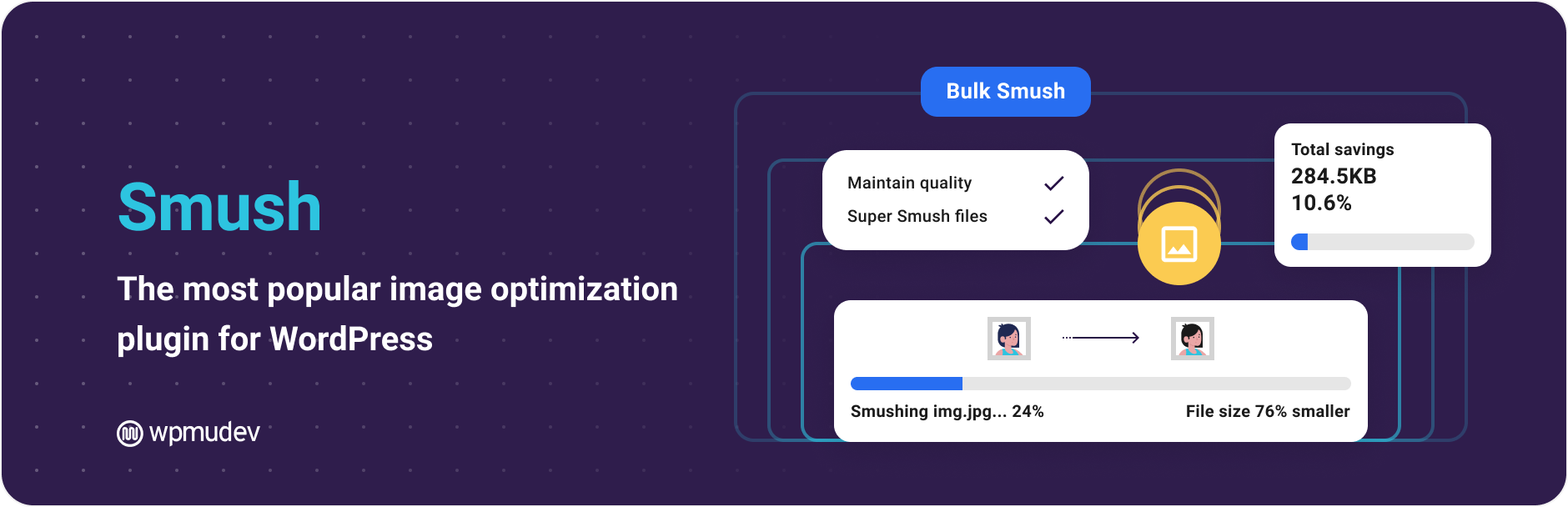





Smush act as WordPress One of the most popular image optimization plugins in
![Image [1] - Complete setup guide for Smush plugin to enable WebP support](https://www.361sale.com/wp-content/uploads/2025/07/20250719195702670-image.png)
Why choose Smush plugin to support WebP?
Smush Developed by WPMU DEV team, the plugin has good stability and usability. It supports image compression, image delayed loading (Lazy Load), resizing, directory scanning optimization and other features, without complex configuration can effectively improve the performance of image loading.
For WebP format support, the
![Image [2]-Complete setup guide to enable WebP support for Smush plugin](https://www.361sale.com/wp-content/uploads/2025/07/20250719135050312-image.png)
Preparation conditions before enabling the WebP function
Before setting up WebP support, you need to verify that the following conditions are met:
- Your WordPress version needs to be 5.8 or above to ensure that your system has basic support for WebP.
- Install and activate the latest version of the Smush plugin. To use the WebP conversion feature.
Pro subscription required The - Smush. CDN feature is enabled because WebP images are dynamically generated and distributed via CDN.
- Browsers and servers should support WebP MIME types (modern browsers are basically fully compatible).
How to Enable WebP Support in Smush
1. Open the plug-in settings interface
Log in to the WordPress backend and click Smush > CDN in the left menu to enter the plugin's content distribution settings panel. If you haven't enabled CDN, the page will prompt to activate the service.
![Image [3] - Complete setup guide to enable WebP support for Smush plugin](https://www.361sale.com/wp-content/uploads/2025/07/20250719140159355-image.png)
2. Enable WebP format option
Scroll down to WebP Conversion in the CDN settings and enable it.Smush's CDN will dynamically return WebP image versions for WebP-enabled browsers.
![Image [4] - Complete setup guide to enable WebP support for Smush plugin](https://www.361sale.com/wp-content/uploads/2025/07/20250719142131377-image.png)
Note: When this option is enabled, the CDN will automatically replace the <img> The path to the image in the tag is in WebP format, but the original image remains for compatibility with devices that do not support WebP.
3. Save and clear the cache
After saving the settings, it is recommended to clear the site cache, browser cache, and CDN cache to ensure that the new settings take effect immediately. You can use your browser's "No Trace Mode" or Ctrl+F5 to force a page refresh to validate the changes.
How to verify whether WebP is successfully enabled
Verifying that WebP support is enabled can be done in several ways:
- Using your browser's developer tools, check if the image address suffix is
.webpThe
![Image [5] - Complete setup guide to enable WebP support for Smush plugin](https://www.361sale.com/wp-content/uploads/2025/07/20250719192710742-image.png)
- Use PageSpeed Insights to analyze page performance, and if the tool suggests that a WebP image has been loaded, the setup is successful.
- Directly right-click to save the webpage image and view the format, you can also indirectly verify whether it is loaded or not WebP Format.
The difference between the free version of Smush and the Pro version of WebP support
The free version of Smush, while offering image compression andlazy loading (computing)WebP support is only available in Smush Pro via a CDN.
Pro version benefits include:
- CDN support for global distribution and automatic WebP switching
- Dynamic conditional loading (returns WebP when supported by the browser)
- Higher compression ratio and lossless compression options
- Auto Scaling and Retina Support
![Image [6] - Complete setup guide to enable WebP support for Smush plugin](https://www.361sale.com/wp-content/uploads/2025/07/20250719131247608-image.png)
If you need a performance boost for commercial sites, content-intensive platforms, or image-heavy blogs, you can
![Image [7] - Complete setup guide to enable WebP support for Smush plugin](https://www.361sale.com/wp-content/uploads/2025/07/20250719134649942-image.png)
summarize
Enabling the WebP format is a great way to improve the loading speed of images on WordPress sites, optimize the user experience andImprove SEO PerformanceThe Smush plugin makes enabling WebP support simple and efficient by integrating CDN dynamic transitions, especially for users who don't have server access or don't want to deal with complex image processes.
With these settings, you can easily enable WebP support in Smush Pro to automate image compression and modern format distribution. It is also recommended to combine lazy loading, caching plugins and CDN services to build a more comprehensive image optimization system.

Link to this article:https://www.361sale.com/en/68619The article is copyrighted and must be reproduced with attribution.











![Emoji[wozuimei]-Photonflux.com | Professional WordPress repair service, worldwide, rapid response](https://www.361sale.com/wp-content/themes/zibll/img/smilies/wozuimei.gif)

![Emoticon[baoquan] - Photon Wave Network | Professional WordPress Repair Services, Worldwide Coverage, Rapid Response](https://www.361sale.com/wp-content/themes/zibll/img/smilies/baoquan.gif)


 简体中文
简体中文  English
  日本語
日本語  Français
  Español


No comments