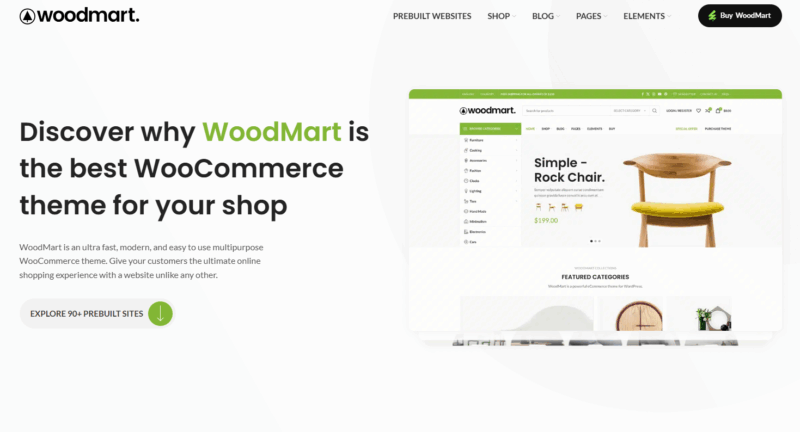







Woodmart Theme BuildingWooCommerceWhen shopping mall, checkout page is a key part for users to complete the shopping process. In order to improve user experience or meet business needs, many webmasters want to customize the checkout page. In this article, we will introduce how to customize the checkout page inWoodmart ThemeThere are several common ways to modify the Checkout page under.
![Image [1] - Save sales with one change! Woodmart checkout page optimization full strategy revealed!](https://www.361sale.com/wp-content/uploads/2025/07/20250728091121540-image.png)
I. Modification of closing fields
WooCommerce's default checkout fields may not be suitable for all business scenarios, such as removing the "Company Name" field or adding an "ID Number" field. You can customize the fields in the following way:
Method 1: Using plug-ins
Recommended Plugins:Checkout Field Editor (by ThemeHigh)
![Image [2] - Save sales with one change! Woodmart checkout page optimization full strategy revealed!](https://www.361sale.com/wp-content/uploads/2025/07/20250728091426681-image.png)
Operational Steps:
- Install and enable the plugin in the backend
![Image [3] - Save sales with one change! Woodmart checkout page optimization full strategy revealed!](https://www.361sale.com/wp-content/uploads/2025/07/20250728091615329-image.png)
- go into WooCommerce > Checkout Form
- Visualize adding, deleting, sorting and modifying fields
- Save settings for immediate effect
![Image [4] - Save sales with one change! Woodmart checkout page optimization full strategy revealed!](https://www.361sale.com/wp-content/uploads/2025/07/20250728092304967-image.png)
Method 2: Use code
Add the following code to the child theme's functions.php file, for exampleHide "Company Name" field:
add_filter('woocommerce_checkout_fields', 'custom_override_checkout_fields');
function custom_override_checkout_fields($fields) {
    unset($fields['billing']['billing_company']);
    return $fields;
}
![Image [5] - Save sales with one change! Woodmart checkout page optimization full strategy revealed!](https://www.361sale.com/wp-content/uploads/2025/07/20250728092856976-image.png)
II. Customizing the checkout page layout
Woodmart themes use Elementor orWPBakeryThe page builder works with the theme template system. By default, the checkout page is controlled by WooCommerce and its layout can be customized in the following way:
Using Elementor Pro's "WooCommerce Checkout" widget
- Install and enable Elementor Pro
- Create a new page and drag in the "Checkout" widget.
![Image [6] - Save sales with one change! Woodmart checkout page optimization full strategy revealed!](https://www.361sale.com/wp-content/uploads/2025/07/20250728100534641-image.png)
- existWooCommerce > Settings > Advanced > Checkout Page, select your newly created page as the checkout page
![Image [7] - Save sales with one change! Woodmart checkout page optimization full strategy revealed!](https://www.361sale.com/wp-content/uploads/2025/07/20250728102505557-image.png)
III. Modifying the text and style of the checkout button
If you want to change the "Order" button to "Confirm Payment" or adjust the color of the button, you can do it in the following way:
Modify button text
Add code to functions.php::
add_filter( 'woocommerce_order_button_text', 'custom_order_button_text' );
function custom_order_button_text() {
    return 'Confirm Payment';
}
![Image [8] - Save sales with one change! Woodmart checkout page optimization full strategy revealed!](https://www.361sale.com/wp-content/uploads/2025/07/20250728103619680-image.png)
Modify the button style
go intoAppearance > Customization > Extra CSS, add:
.woocommerce #place_order {
    background-color: #000.
    color: #fff;
    border-radius: 5px;
}
![Image [9] - Save sales with one change! Woodmart checkout page optimization full strategy revealed!](https://www.361sale.com/wp-content/uploads/2025/07/20250728103756318-image.png)
IV. Frequently Asked Questions and Points to Note
- Please backup your website or use a child theme before modifying the checkout pageIn order to prevent errors from affecting the ordering process
- If a caching plugin is used orCDNPlease clear the cache after modification and test again.
- Some changes may conflict with third-party payment plug-ins (e.g. PayPal, Stripe) and need to be tested on a case-by-case basis.
V. Summary
With a plugin, page editor, or code, theWoodmart Modify the checkout page in the theme. Adjusting fields, layout or button styles to optimize the checkout process can help improve conversion rates and user experience. Choose the right method for the situation and take care of testing and backups. More complex features, such as dynamically displaying fields based on user selections, can also be implemented using advanced plugins such as Checkout Field EditorThe

Link to this article:https://www.361sale.com/en/70427/The article is copyrighted and must be reproduced with attribution.










![Emoji[wozuimei]-Photonflux.com | Professional WordPress repair service, worldwide, rapid response](https://www.361sale.com/wp-content/themes/zibll/img/smilies/wozuimei.gif)

![Emoticon[baoquan] - Photon Wave Network | Professional WordPress Repair Services, Worldwide Coverage, Rapid Response](https://www.361sale.com/wp-content/themes/zibll/img/smilies/baoquan.gif)


 简体中文
简体中文  English
  日本語
日本語  Français
  Español


No comments