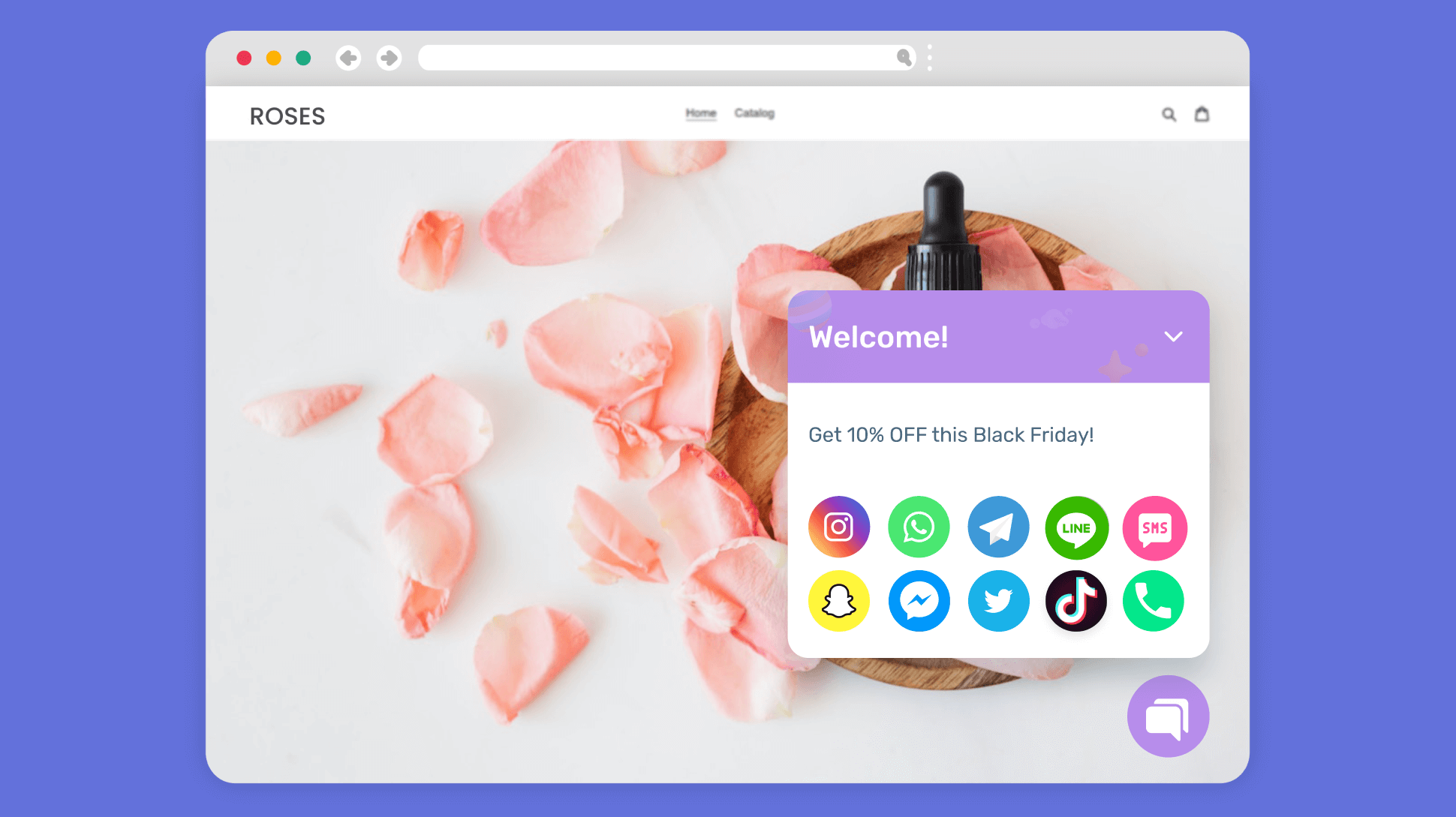





The Chaty plugin can provide a 20-40% reduction in communication costs for websites.WordPress PluginThe ability to add beautiful and functional multi-channel contact buttons to your website in as little as 5 minutes. This guide will take you through the features of the Chaty plugin and how to configure it.
![Image [1]-5 Minutes to Configure Chaty Plugin: A Complete Guide to WordPress Multi-Channel Contact Buttons](https://www.361sale.com/wp-content/uploads/2025/08/20250807151932545-image.png)
First, Chaty plug-in introduction and core advantages
1.1 What is a Chaty plugin
Chaty is an online chat WordPress plugin for adding customizable communication channel buttons to the bottom or side of your website. These buttons can be linked to a variety of popular communication platforms, including WhatsApp, Facebook Messenger, WeChat, phone, email, and more than two dozen other social platforms.
1.2 Chaty's core strengths
- Multi-Platform IntegrationSupports more than 20 major communication and social platforms.
- Height can be customized: Button style, position, color, etc. can be freely adjusted.
- responsive design: Perfectly adapts to various device screen sizes
- Lightweight and efficient: does not affect site loading speed
- Multi-language support: Suitable for globalized business needs
Second, Chaty plug-in installation and basic settings
- log inWordPress Backend
- Navigate to "Plugins" > "Add New Plugin".
- Type "Chaty" in the search box.
- Find the Chaty plugin and click "Install Now".
- Click on "Activate" when the installation is complete.
![Image [2]-5 Minutes to Configure Chaty Plugin: A Complete Guide to WordPress Multi-Channel Contact Buttons](https://www.361sale.com/wp-content/uploads/2025/08/20250807140655399-8afd90cd-ef7c-49d9-836d-5897c61f6fac.png)
III. Detailed configuration guide
3.1 Add and manage communication channels
Once activated, go to the Chaty settings page and you will see the "Channels" tab:
- Add new channels: In accordance with Chaty The setup steps for the plugin are described in the Chat channels Setting Options.
- Select platform type: Select from the menu (WhatsApp(e.g., microsite, etc.)
- Fill in the contact information::
- Phone number (for WhatsApp, phone calls, etc.)
- Social Media Links
- e-mail address
- Customize chat button styles: Click on the Settings button to change the icon color.
![Image [3]-5 Minutes to Configure Chaty Plugin: A Complete Guide to WordPress Multi-Channel Contact Buttons](https://www.361sale.com/wp-content/uploads/2025/08/20250807142548215-image.png)
3.2 Appearance Customization
Next customize the widget button style:
- button position: Bottom left/bottom right/customized position
- Button Size: Resize the home button and channel buttons
- Use catchy call-to-action texte.g. "Ask Now", "Quick Answers".
- spacing: Adjust the spacing between buttons
- Channel Icons: Option to use the default icon or upload a customized icon
![Image [4]-5 Minutes to Configure Chaty Plugin: A Complete Guide to WordPress Multi-Channel Contact Buttons](https://www.361sale.com/wp-content/uploads/2025/08/20250807151157287-image.png)
3.3 Display Rule Setting
The "Display Rules" tab allows you to control the display conditions of the Chaty button:
- Equipment type: Option to display on desktop, mobile or all devices
- Page rules::
- Site-wide Display
- Display only on specific pages
- Exclude specific pages
- user state::
- Show to all visitors
- Displayed only for logged in users
- Displayed only for non-logged-in users
- timing: Setting the time period for button display
![Image [5]-5 Minutes to Configure Chaty Plugin: A Complete Guide to WordPress Multi-Channel Contact Buttons](https://www.361sale.com/wp-content/uploads/2025/08/20250807143709945-image.png)
IV. Frequently asked questions
4.1 Does Chaty affect site speed?
Chaty is highly optimized to load only 2-5KB of additional resources on average, which has a negligible impact on the site's speed.
4.2 Why doesn't my WhatsApp button work?
Make sure:
- A full international format phone number has been entered
- Country code in front of the number
- Saved settings and cleared cache test
4.3 How do I get technical support?
You can pass:
- official document
- WordPress Supportforum (for discussion)
- Contact the plugin developer directly
V. Summary
With this guide, the configuration and use of the Chaty plugin has been fully mastered. From basic installation to customization, Chaty provides you with a complete website communication solution. In just 5 minutes, you can add professional multi-channel contact buttons to your website, significantly increasing user interaction rates and business conversion opportunities.

Link to this article:https://www.361sale.com/en/73468The article is copyrighted and must be reproduced with attribution.











![Emoji[wozuimei]-Photonflux.com | Professional WordPress repair service, worldwide, rapid response](https://www.361sale.com/wp-content/themes/zibll/img/smilies/wozuimei.gif)

![Emoticon[baoquan] - Photon Wave Network | Professional WordPress Repair Services, Worldwide Coverage, Rapid Response](https://www.361sale.com/wp-content/themes/zibll/img/smilies/baoquan.gif)


 简体中文
简体中文  English
  日本語
日本語  Français
  Español


No comments