




The checkout page is the necessary step from "putting things into the shopping cart" to "final payment", WooCommerce is the most commonly used e-commerce plugin in WordPress, which comes with checkout function. However, for newbies, this page often looks complicated and messy, and they don't know where to start to change it. Don't worry, this article will teach you, take you step by step to set up a good! WooCommerce Checkout Page , make your customers buy more smoothly and your order conversion rate can be higher.
![Image [1] - WooCommerce checkout page optimization tips: a must-see for newbies and soaring conversions!](https://www.361sale.com/wp-content/uploads/2025/09/20250901164540729-image.png)
I. Why checkout page settings are important
- Determines whether the user completes the purchase
The clearer the checkout page is and the fewer steps there are, the more willing users are to complete their order. - affect (usually adversely)Search Engine Optimization (SEO)
An optimized checkout page reduces bounce rates and improves overall site quality. - Enhance customer trust
Displaying a secure payment icon at checkout and simplifying form fields all increase purchase confidence.
II. Default structure of the WooCommerce checkout page
mounting WooCommerce After that, the system will automatically generate several core pages:
- Shopping Cart (Cart): Displays the product selected by the user.
- Checkout: Fill in the receipt information, choose the payment method.
- My Account: The user registers or logs into the account.
The newbie focuses on the Checkout page and shopping cartIt directly determines whether the order is successful or not.
Basic settings of WooCommerce checkout page
1. Find the checkout page setup
- Log in to the WordPress backend.
- go into WooCommerce → Settings → AdvancedThe
- exist Page Setup In the checkout page, verify that the checkout page is correctly assigned to the
CheckoutThe
![Image [2] - WooCommerce checkout page optimization tips: a must-see for newbies and soaring conversions!](https://www.361sale.com/wp-content/uploads/2025/09/20250901170728637-image.png)
2. Modify the URL of the checkout page
- The default URL is usually
yourstore.com/woocommerce-checkout/The - Suggested change to concise
/checkout/, better for SEO and user memory. - Operation: Enter Pages → Edit Checkout Page → Fixed LinksThe Slug is modified to allow for the use of the Slug.
![Image [3] - WooCommerce checkout page optimization tips: a must-see for newbies and soaring conversions!](https://www.361sale.com/wp-content/uploads/2025/09/20250901171016635-image.png)
IV. Content optimization of the checkout page
1. Simplification of form fields
- go into WooCommerce → Settings → Payments → Checkout OptionsThe
- Turn off some unnecessary fields (such as "Company Name" or "Second Address").WooCommerce Default Back OfficeIt doesn't give you a direct "close field" button, so you'll have to use the plug-in (software component) maybe coding to realize.
- Retain the most core name, address, contact information, and payment method to reduce user steps.
![Image [4] - WooCommerce checkout page optimization tips: a must-see for newbies and soaring conversions!](https://www.361sale.com/wp-content/uploads/2025/09/20250901171152145-image.png)
2. Adding payment methods
WooCommerce supports bank transfer and cash on delivery by default. Newbies can:
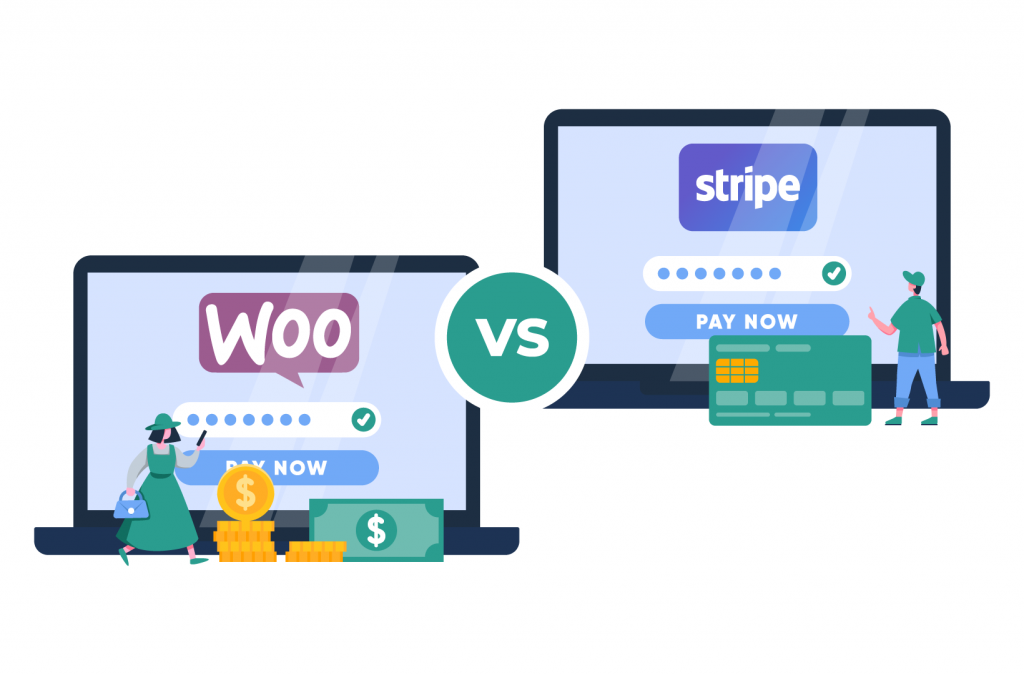
- Install PayPal, Stripe or Alipay, WeChat payment plugin.
- exist WooCommerce → Settings → Payment Enabled and configured in the
![Image [5] - WooCommerce checkout page optimization tips: a must-see for newbies and soaring conversions!](https://www.361sale.com/wp-content/uploads/2025/09/20250901171253447-image.png)
3. Customize checkout page styles
- Beautify the checkout process with page editors such as Elementor, Divi, and more.
- Keep the page simple and avoid too many ads or distracting elements.
V. SEO Optimization and User Experience
- Add a separate title and description
- Title Example:
Checkout - Secure Payment, Easy Ordering | YourStore - Describe the example:
Fill in the receipt information, choose the payment method, complete the payment with confidence, YourStore provides you with a safe and convenient shopping experience.
- Title Example:
- Adding structured data (Schema)
- utilization AIOSEO or Yoast SEO Plugin to add for checkout page Breadcrumb SchemaThe
![Image [6] - WooCommerce checkout page optimization tips: a must-see for newbies and soaring conversions!](https://www.361sale.com/wp-content/uploads/2025/09/20250901171643922-image.png)
- This way a clear navigation path is displayed in the search results.
- Improved loading speed
- Install a caching plug-in (e.g. W3 Total Cache).
- Enable Lazy Load.
- Choose a host with better performance.
- Enhanced Security
- Enable SSL (https) to display the lock security symbol on the page.
- Use the Payment Gateway's secure authentication icon for added peace of mind.
VI. Summary
![Image [7] - WooCommerce checkout page optimization tips: a must-see for newbies and soaring conversions!](https://www.361sale.com/wp-content/uploads/2025/09/20250901172007776-image.png)
WooCommerce Checkout PageAlthough the basic functions are already available by default, novices still need to optimize it for their actual needs:
- Basic settings: Make sure that the page assignment is correct and that the URL is clear and concise.
- Form Optimization: Reduce redundant fields and simplify the process.
- payment method: Integrate mainstream payment gateways to meet different customer needs.
- SEO and User Experience: Set independent title, description, add Schema to ensure loading speed and security.
By doing this, you can create a checkout page that is both SEO compliant and dramatically increases conversions, taking users all the way from search to payment!

Link to this article:https://www.361sale.com/en/75564The article is copyrighted and must be reproduced with attribution.


















![Emoji[wozuimei]-Photonflux.com | Professional WordPress repair service, worldwide, rapid response](https://www.361sale.com/wp-content/themes/zibll/img/smilies/wozuimei.gif)

![Emoticon[baoquan] - Photon Wave Network | Professional WordPress Repair Services, Worldwide Coverage, Rapid Response](https://www.361sale.com/wp-content/themes/zibll/img/smilies/baoquan.gif)


 简体中文
简体中文  English
  日本語
日本語  Français
  Español


No comments