






Many people who are new to WordPress of newbies like to install various plugins to add functionality. For example, add a beautification plug-in, add another SEO plug-in, and then install a security plug-in. But sometimes, after the installation of the site suddenly become slow, reporting errors, and even can not open. This is actually "plug-in incompatibility" caused. Here we use a simple way to talk about why plug-in compatibility is so important.
![Image [1]-WordPress Plugin Compatibility: A Guide to Improving Performance and Security](https://www.361sale.com/wp-content/uploads/2025/10/20251024181134820-image.png)
I. What isPlugin compatibility
You can think of a website as a machine, with the theme being the shell, plugins being the parts, and the PHP version being the drive system.
If a part (plugin) is not suitable for the current machine (theme or PHP version), it can cause the machine to lag or malfunction.
For example, if an old plugin is still using outdated PHP syntax and a new system can't read it, it will just report an error.
Second, the impact of plug-in incompatibility on performance
1. Slower loading of the website
Some plugins load too many scripts or style files, or even duplicate them with other plugins. As a result the page takes longer to open.
2. Increased memory footprint
Conflicts between plugins can make theserver (computer)Non-stop double counting. For example, if both plugins are counting visits, the backend will be slowed down.
3. Cache problems
If the caching plugin fights with the image compression or security plugin, the caching function may not work and the access speed will naturally decrease.
4. Incorrectly styled pages
Commonly seen in page builder type plugins and theme conflicts, buttons, images or text may be misplaced and look cluttered.
III. Impact of plug-in incompatibility on security
![Image [2]-WordPress Plugin Compatibility: A Guide to Improving Performance and Security](https://www.361sale.com/wp-content/uploads/2025/10/20251024181328207-image.png)
1. Older plug-ins have more vulnerabilities
Some plugins that have not been updated for a long time have security holes that hackers can easily exploit to gain access to websites.
2. Conflict of authority
Different plugins are prone to errors when manipulating backend permissions, such as aForms pluginSetting it up improperly could allow visitors to gain backend access.
3. Vulnerabilities arising from code conflicts
The authentication mechanisms are not the same between plug-ins and can be easily exploited to launch attacks, such as cross-site scripting attacks (XSS).
4. Tampering with documents
Installation of incompatible plug-ins may change file permissions and leave a backdoor for attackers.
Fourth, how to avoid plug-in incompatibility problems
1. Do not install too many plug-ins
Every additional plugin is an additional conflict risk. Commonly used features (e.g. caching, security,SEO) One plugin is enough.
2. Select plug-ins that are updated frequently
Look at the plugin update date, if it hasn't been updated in a year, it means that the developer may have given up on maintaining it. Try to pick the ones that have been updated within the last three months.
3. Try it in a test environment first
Install the plugin in the test site to see if it affects the theme display or background operation. No problem then use it on the official site.
4. View compatibility information
The WordPress plugin page usually displays "Tested to version 6.x" or "Requires PHP 8.0 or higher", which can help you determine whether the environment is suitable.
5. Use of detection tools
Can be installed PHP Compatibility Checker maybe Health Check plugins, which help you scan for potential conflicts.
![Image [3]-WordPress Plugin Compatibility: A Guide to Improving Performance and Security](https://www.361sale.com/wp-content/uploads/2025/10/20251024181516716-image.png)
Fifth, if the plug-in problem what to do
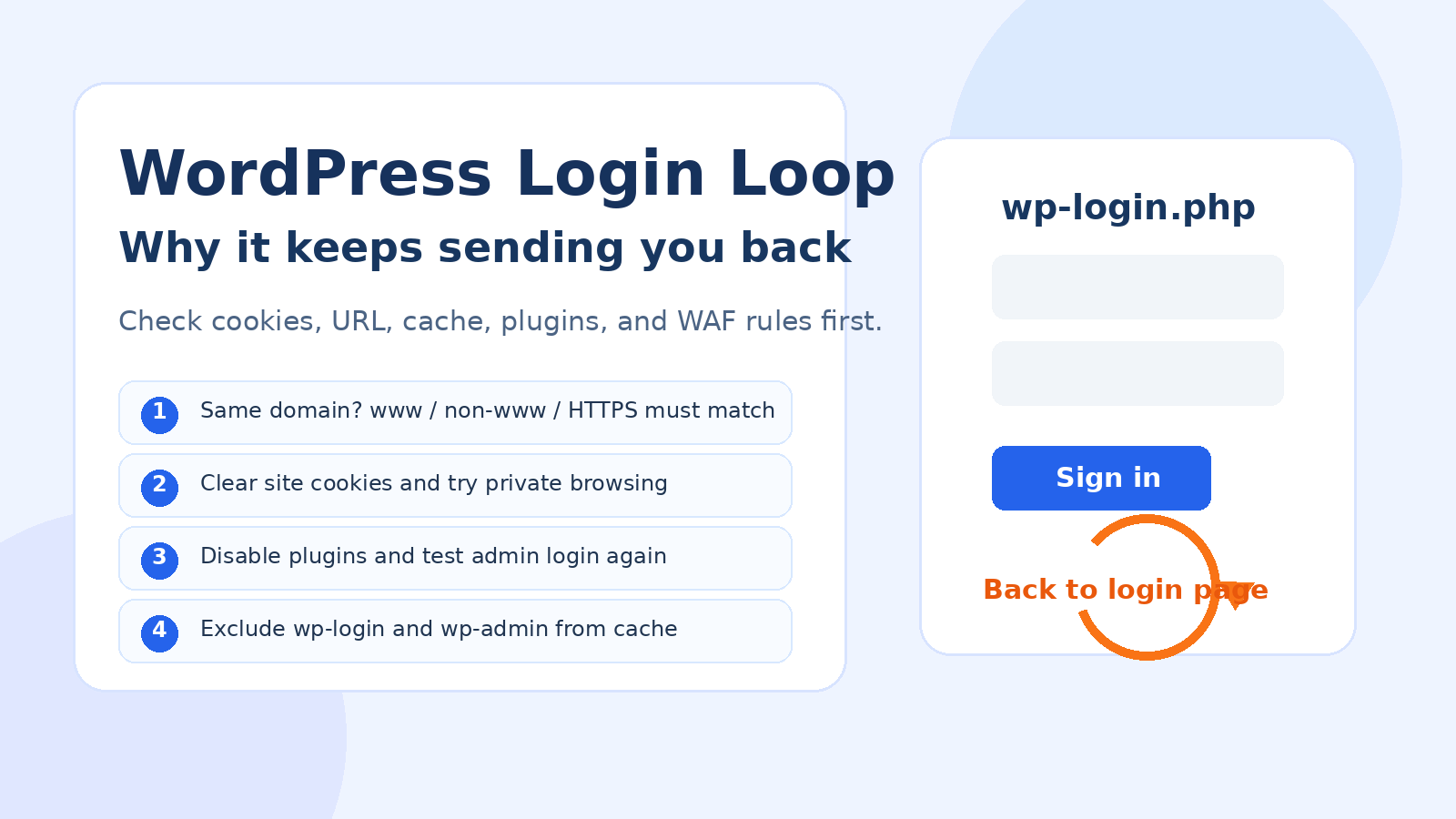
- Go to the "Plug-ins" page in the backend, and deactivate the recently installed plug-ins one by one.
- Refresh the site and see if it's back to normal.
- After finding the problematic plugin, check the official website or forum for the solution.
- If you can't fix it, you can replace it with a plugin with similar functionality.
- If the backend doesn't open, use theFTPDeleting the plugin folder in question also restores it.
VI. Real cases
A webmaster installed two different security plug-ins, and as a result, they scanned the website files at the same time, the server CPU usage soared, and the page loading was super slow. Later, he only retained one plug-in, the site immediately returned to normal.
This example shows that plug-ins with similar functionality should not coexist, otherwise they will not only fail to improve security, but also affect performance.
VII. Summary
Plug-ins can enhance WordPress functionality, but incompatibility can slow down the site or cause errors. Check version support before installing and choose plug-ins with frequent updates and good reputation for being safer. Newbies should install fewer plug-ins, keep the system simple and stable, and let the site run smoothly like a well-maintained machine.

Link to this article:https://www.361sale.com/en/79156/The article is copyrighted and must be reproduced with attribution.














![Emoji[wozuimei]-Photonflux.com | Professional WordPress repair service, worldwide, rapid response](https://www.361sale.com/wp-content/themes/zibll/img/smilies/wozuimei.gif)

![Emoticon[baoquan] - Photon Wave Network | Professional WordPress Repair Services, Worldwide Coverage, Rapid Response](https://www.361sale.com/wp-content/themes/zibll/img/smilies/baoquan.gif)


 简体中文
简体中文  English
  日本語
日本語  Français
  Español


No comments