






You know what?WooPayments The plugin has become the preferred payment solution for more and more webmasters, because it can help you easily realize credit card, Apple Pay, Google Pay and other payment methods in your website, supporting multi-currency settlement and automatic reconciliation. This article will take you from scratch, explain in detail WooPayments installation, activation and configuration of the whole process, and introduce the solution to common problems.
![Image [1] - 3 Minutes to WooPayments! Make your WooCommerce collections faster and more secure!](https://www.361sale.com/wp-content/uploads/2025/10/20251030181810359-image.png)
What is WooPayments?
WooPayments is WooCommerce An officially developed all-in-one payment system, maintained by the Automattic team. Its goal is to allow WordPress users to pay, reconcile and settle payments directly in the backend of the site without having to rely on a third-party payment gateway such as Stripe or PayPal.
Its main advantages include:
- official integration: No additional plug-ins or complex APIs are required;
- Support multi-currency and cross-border payments.;
- Automatic billing and refund function.;
- Safety Compliance: PCI DSS compliant and supports dual authentication.
WooPayments is currently supported in Europe, America and some Asian countries, and will continue to expand to more regions in the future.
II. Preparation before installation
Before starting the installation, please confirm the following conditions:
- Website Operating Environment
- WordPress version ≥ 6.0
- WooCommerce version ≥ 8.0
- PHP version ≥ 7.4
- HTTPS enabled (SSL certificate)
- Account requirements
- You need one. WordPress.com Account.;
- The store must be set to support WooPayments countries and currencies (e.g., the U.S. dollar, the euro, the British pound, etc.).
- Plugin Conflict Checking
- Make sure that no older versions of Stripe or PayPal plug-ins related to payments are installed;
- It is recommended to operate in a test environment to avoid affecting existing orders.
How to install the WooPayments plugin
1. Direct installation through the backend
- Log in to your WordPress Backend.;
- Go to the left menu bar Plugins → Install Plugins.;
- Type "WooPayments" in the search bar;
- strike (on the keyboard) Installationand then select start usingThe
![Image [2]-3 Minutes to WooPayments! Make your WooCommerce collections faster and more secure!](https://www.361sale.com/wp-content/uploads/2025/10/20251030182114473-image.png)
2. Installation by manual upload
If your site cannot access the WordPress plugin directory, you can:
- leave for WooCommerce Official Plugin Library Download the latest version of
.zipDocumentation; - in the background Plugins → Install Plugin → Upload Plugin.;
- After uploading the file click Installation and enabled.
![Image [3]-3 minutes to WooPayments! Make your WooCommerce collections faster and more secure!](https://www.361sale.com/wp-content/uploads/2025/10/20251030182246417-image.png)
After the installation is complete, you'll find the WooCommerce → Settings → Payments See the "WooPayments" option in the tab.
Configuration flow of WooPayments
1. Connected accounts
- After enabling WooPayments, you will be prompted to sign in or register for a WordPress.com account.
- Click "linked account"button and follow the wizard steps to complete the authorization process. After authorization, WooPayments will automatically connect to WooCommerce.com and create a merchant account.
![Image [4] - 3 Minutes to WooPayments! Make your WooCommerce collections faster and more secure!](https://www.361sale.com/wp-content/uploads/2025/10/20251030182528520-image.png)
2. Merchant profile validation
WooPayments needs to verify your merchant status to comply with payment regulations. Please make sure when filling out the information:
- The company name and address are consistent with the bank account information;
- The tax identification number (e.g. VAT or EIN) is accurate;
- Email is used to receive settlement notifications.
Validation is usually completed within minutes to 1 business day.
3. Adding payment methods
On the WooPayments settings page, you can enable or disable the following payment channels:
![Image [5]-3 Minutes to WooPayments! Make your WooCommerce collections faster and more secure!](https://www.361sale.com/wp-content/uploads/2025/10/20251030184244869-image.png)
- Credit / Debit Cards(Visa, MasterCard, American Express);
- Apple Pay / Google Pay(HTTPS support required);
- Local Payment Methods(e.g. SEPA, iDEAL, etc.);
- Saved customer card payments(Facilitates quick checkout for returning customers).
4. Currency allocation and settlement
WooPayments supports multi-currency payments, you can change the default currency in WooCommerce → Settings → General → Currency.
Settlement cycle is optional Daily, weekly or monthly Automatic transfer to your bank account.
![Image [6] - 3 Minutes to WooPayments! Make your WooCommerce collections faster and more secure!](https://www.361sale.com/wp-content/uploads/2025/10/20251030184628840-image.png)
V. Testing and Go-live
1. Enabling test mode
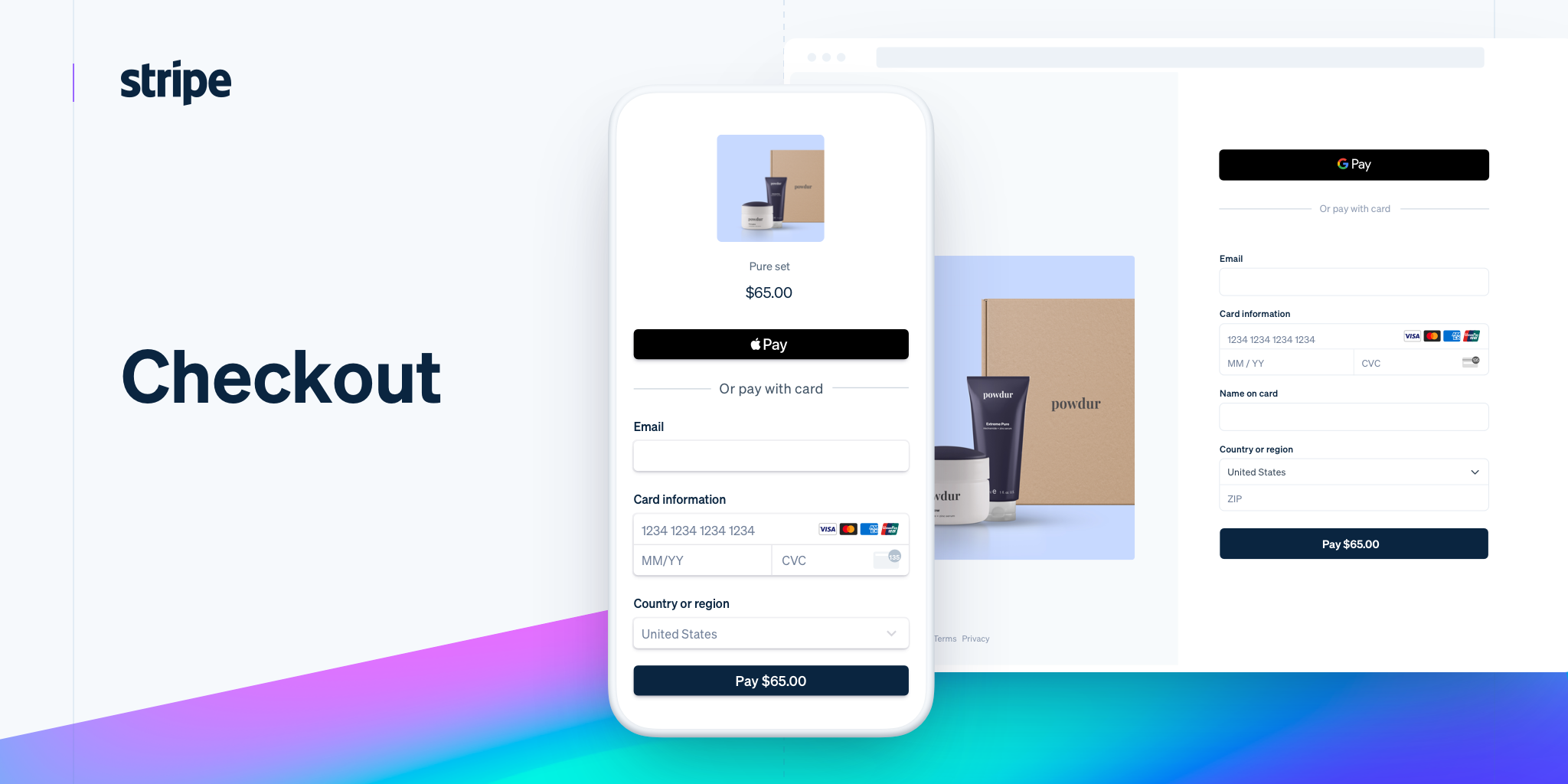
Check the box in the WooPayments Settings "Test Mode", the system will use a sandbox environment to simulate the payment and no actual debit will be made. You can use the test card number (e.g. 4242 4242 4242 4242) Complete the transaction and check that the checkout process is working properly.
![Image [7] - 3 Minutes to WooPayments! Make your WooCommerce collections faster and more secure!](https://www.361sale.com/wp-content/uploads/2025/10/20251030184836326-image.png)
2. Checkout page
Confirm the checkout page URL (usually /checkoutIf you see an exception in the display, please click on the "WooPayments" tab in the WooCommerce → Status → Logs to view the error message in the
3. Switching to the production environment
After testing, close the test mode and WooPayments will automatically switch to the official collection mode. It is recommended to double-check the tax rate, currency and bank account before going live.
VI. Common problems and solutions
- Can't enable WooPayments?
- Check if the site is using HTTPS;
- Confirm that your country is in the supported list;
- Check the PHP version against the WooCommerce Compatibility.
- Payment page loading slowly?
- Use the latest version of the plugin;
- Enable WooCommerce Cache Optimization or WP Rocket;
- Disable conflicting plugins (especially other payment plugins).
- Settlement amount does not match?
- Check the WooPayments fee settings;
- Verify that the currency conversion rules are correct;
- View exchange rate timestamps in reports.
VII. Summary
WooPayments is WooCommerce Officially launched powerful payment solution that enables your store to complete payment, settlement and reconciliation in a single system, avoiding complex configuration issues brought by third-party plugins. It is suitable for e-commerce websites that want to improve payment experience and support multi-currency and multi-end payment.
With the installation and configuration tutorials in this article, you can easily enable WooPayments to create a smoother, more secure checkout process for your customers and make your WooCommerce store truly global!

Link to this article:https://www.361sale.com/en/79501/The article is copyrighted and must be reproduced with attribution.














![Emoji[wozuimei]-Photonflux.com | Professional WordPress repair service, worldwide, rapid response](https://www.361sale.com/wp-content/themes/zibll/img/smilies/wozuimei.gif)

![Emoticon[baoquan] - Photon Wave Network | Professional WordPress Repair Services, Worldwide Coverage, Rapid Response](https://www.361sale.com/wp-content/themes/zibll/img/smilies/baoquan.gif)


 简体中文
简体中文  English
  日本語
日本語  Français
  Español


No comments