





in operation WordPress The process of setting up an e-commerce websiteMulti-size and multi-attribute products, which is directly related to the customer's shopping experience. Especially when selling a wide variety of products, good specification and attribute settings can not only improve user experience, but also help stores optimize sales. Next, we will explain in detail how to set up multiple specifications and attributes for your store on WordPress, making sure every step is clear and easy to understand.
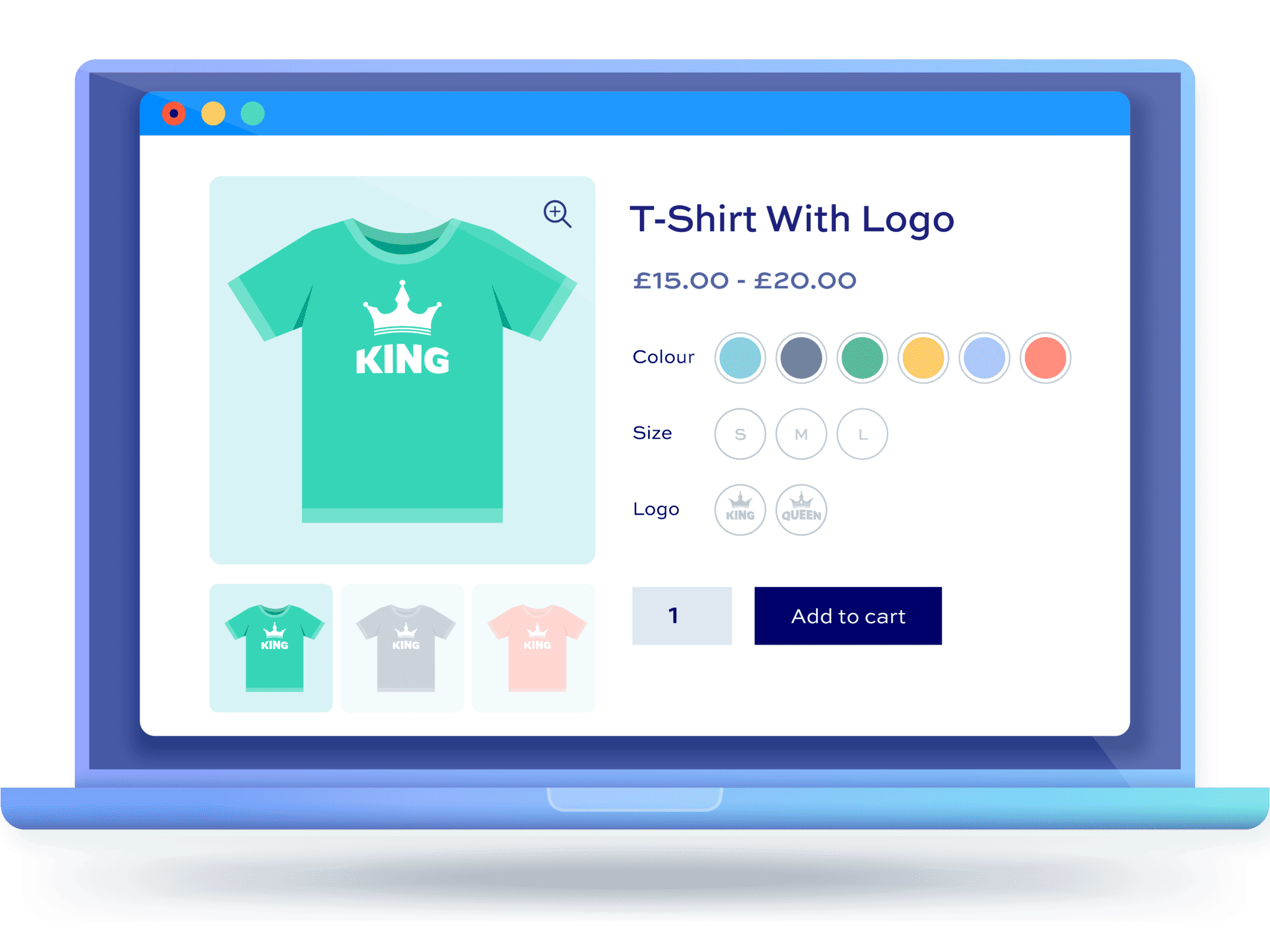
Understand the difference between multiple specifications and multiple attributes
What is a multi-size product?
Multi-size products refer to an item that has multiple options, commonly including size, color, and style. For example, a T-shirt may come in multiple sizes (S, M, L, XL) and different colors (red, blue, black). These options are the "specifications" that allow the customer to freely choose the right style for their needs.
![图片[2]-如何在 WordPress 店铺中设置多规格与多属性产品:详细指南](https://www.361sale.com/wp-content/uploads/2026/01/20260116100852868-image.png)
What is a multi-attribute product?
Multi-attribute products are more complex, involving multiple dimensions of the item, such as function, material, and brand. For example, the multi-attribute settings for a watch may include color, material, dial style, and so on. Through multi-attribute settings, customers are able to more accurately select products that meet their needs.
Setting Up Multi-Spec and Multi-Attribute Products with the WooCommerce Plugin
Installing and Configuring the WooCommerce Plugin
First, make sure your WordPress site is installed and activated! WooCommerce Plugin.WooCommerce is a powerful e-commerce plugin that helps you manage your products easily. All you need to do is search for and install the plugin through your backend, and perform basic configuration after installation.
- Log in to the WordPress backend.
- strike (on the keyboard) Plugins > Install PluginsThe
- Search for WooCommerce, click Install and Activate.
Add products and set properties
Adding multi-specification and multi-attribute products is very easy in WooCommerce. Follow the steps below and you'll be able to set it up easily:
- Click in the background Products > Add New ProductsThe
- Fill in basic information about the product, such as name, description, price, etc.
- exist Product Data section, select Variable Products(Variable product). This setting allows you to add multiple specifications and attributes to an item.
![图片[3]-如何在 WordPress 店铺中设置多规格与多属性产品:详细指南](https://www.361sale.com/wp-content/uploads/2026/01/20260116101223393-image.gif)
- strike (on the keyboard) causality tab, select increase, and set the desired attributes, such as color, size, material, and so on. Each attribute can have multiple options.
![图片[4]-如何在 WordPress 店铺中设置多规格与多属性产品:详细指南](https://www.361sale.com/wp-content/uploads/2026/01/20260116101223436-image.png)
- After completing the property settings, click morph tab to set up variants for each combination of specifications (e.g., different sizes and color combinations).
Configuration Variant Pricing & Inventory
exist morph In the settings, you can set the price, stock level and other information for each variant individually. This way, customers are able to see accurate price and stock information when choosing different specifications.
- strike (on the keyboard) increasemorphThe individual variants are generated according to the set combination of attributes (or using batch generation).
- Set pricing, inventory, weight, size, etc. for each variant.
- Save and update products to ensure all variant information is accurate.
![图片[5]-如何在 WordPress 店铺中设置多规格与多属性产品:详细指南](https://www.361sale.com/wp-content/uploads/2026/01/20260116101225139-image.png)
![图片[6]-如何在 WordPress 店铺中设置多规格与多属性产品:详细指南](https://www.361sale.com/wp-content/uploads/2026/01/20260116102108374-image.gif)
Other tips to enhance your shopping experience
Enhancing Product Presentation with Plugins
In addition to the functionality of WooCommerce itself, you can also enhance your product display with other plugins. For example, the Product Add-Ons plugin allows you to add more customization options to each product so that customers can enjoy a more personalized shopping experience.
Setting images and thumbnails for products
Each variant can be set up with a unique image or thumbnail to help customers visualize the difference between different sizes and styles when making their selection. You can set up a unique image or thumbnail on the Product Data hit the nail on the head morph Set up the page and upload images for each variant.
Add filters and search function
If your store has a wide range of products, installing the WooCommerce Product Filter plugin (or similar such as WOOF, YITH WooCommerce Ajax Product Filter, etc.) can provide customers with convenient filtering options. Customers can quickly filter out the products they want based on specifications and attributes, thus improving shopping efficiency and experience.
![图片[7]-如何在 WordPress 店铺中设置多规格与多属性产品:详细指南](https://www.361sale.com/wp-content/uploads/2026/01/20260116101318216-image.png)
wrap-up
With the WooCommerce plugin, you can easily set up your WordPress store forMulti-specification and multi-attributeproducts. This not only allows customers to find what they need more quickly, but also improves the shopping experience and optimizes the sales conversion rate. When setting up, please make sure to set accurate price and inventory information according to different specifications and attributes, and at the same time, use plugins and images to optimize the product display effect to make your store more professional.

Link to this article:https://www.361sale.com/en/85914/The article is copyrighted and must be reproduced with attribution.














![表情[wozuimei]-光子波动网 | WordPress教程、Elementor教程与故障修复](https://www.361sale.com/wp-content/themes/zibll/img/smilies/wozuimei.gif)

![表情[baoquan]-光子波动网 | WordPress教程、Elementor教程与故障修复](https://www.361sale.com/wp-content/themes/zibll/img/smilies/baoquan.gif)





No comments