







Cloudflare 报错页面一出现,很多站长第一反应就是“服务器挂了”或“SSL 坏了”。但真正排查时,error 1016、error code 521、cloudflare error 1000、cloudflare 403、cloudflare ssl handshake failed 和 cloudflare error 500 分别指向不同层面:有的是 DNS 写错,有的是源站拒绝连接,有的是安全规则拦截,有的才是 WordPress 或服务器程序本身报错。
这篇文章按普通 WordPress 站长能执行的顺序来写:先判断错误来自哪一层,再给出每个代码的具体处理步骤。你不需要一次性改完所有设置,反而应该一次只改一个变量,记录修改时间,再用无痕窗口、手机网络和在线检测工具复测。
先做 3 个判断:别一上来就重装插件
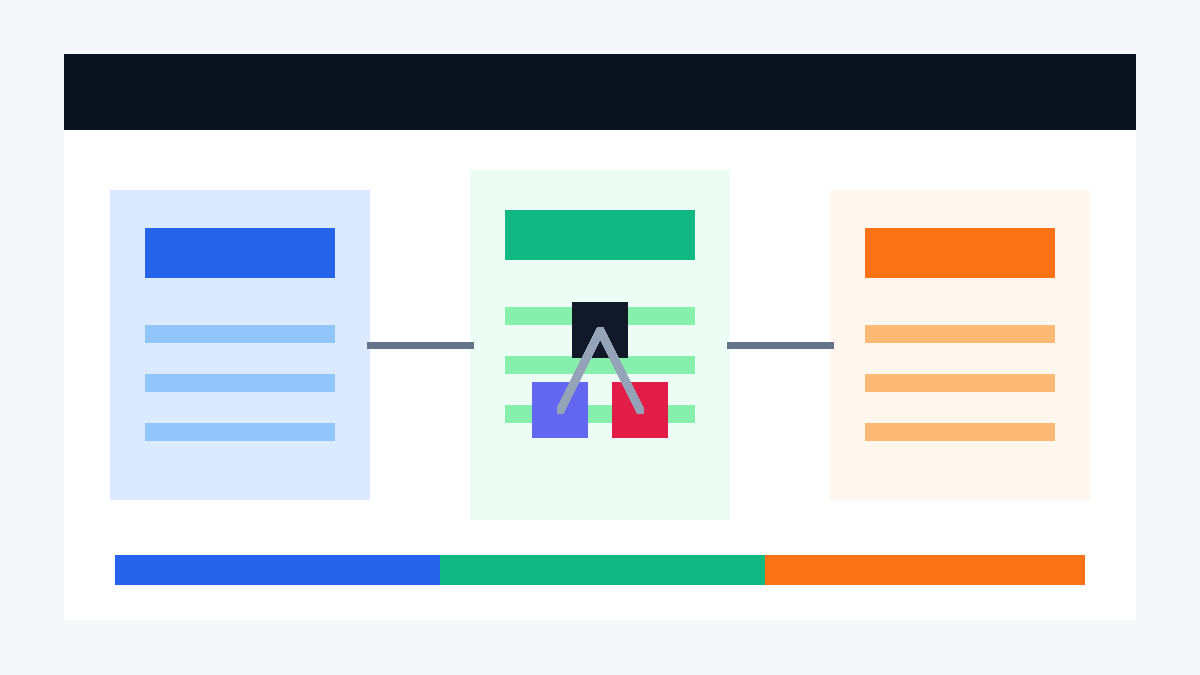
Cloudflare 位于访客和源站之间。浏览器访问域名时,请求先到 Cloudflare,再由 Cloudflare 回源到你的服务器。因此,同样是“打不开网站”,可能卡在浏览器到 Cloudflare、Cloudflare 到源站、源站程序处理请求这三段中的任意一段。
- 看错误页是否有 Cloudflare Ray ID。如果有,说明请求已经到达 Cloudflare;如果没有,可能是本地网络、DNS 传播或源站直接返回。
- 看关键词:Origin DNS、web server is down、SSL handshake、WAF blocked、Internal Server Error 分别对应 DNS、连接、证书、安全规则、源站程序。
- 先保存截图、Ray ID、访问 URL、发生时间和访客地区。后面查 Cloudflare Security Events、主机日志和 PHP error_log 时,这些信息非常关键。
如果你使用 WordPress,建议同时打开主机面板、Cloudflare DNS 页面、SSL/TLS 页面和站点日志。不要在问题未定位前同时切换 SSL 模式、删除 DNS 记录、停用所有插件、关闭 WAF,这样只会让问题更难复盘。
快速对照表:常见代码该先查哪里
| error code | 最可能的问题层 | 优先检查项 |
|---|---|---|
| error 1016 | DNS / 源站主机名 | A、AAAA、CNAME 是否存在,CNAME 目标是否能公开解析 |
| error code 521 | Cloudflare 回源连接 | Web 服务、80/443 端口、防火墙、Cloudflare IP 白名单 |
| cloudflare error 1000 | DNS 指向违规地址 | 是否指向 Cloudflare IP、内网 IP、回环地址或形成 CNAME 循环 |
| cloudflare 403 | WAF 或源站权限 | Security Events、IP Access Rules、WordPress 安全插件、Nginx/Apache deny |
| SSL handshake failed | 证书 / TLS | SSL 模式、源站证书、证书链、SNI、TLS 1.2/1.3 |
| cloudflare error 500 | 源站应用或平台异常 | PHP fatal error、插件冲突、数据库、.htaccess、服务器错误日志 |
Error 1016:Origin DNS error 怎么修?
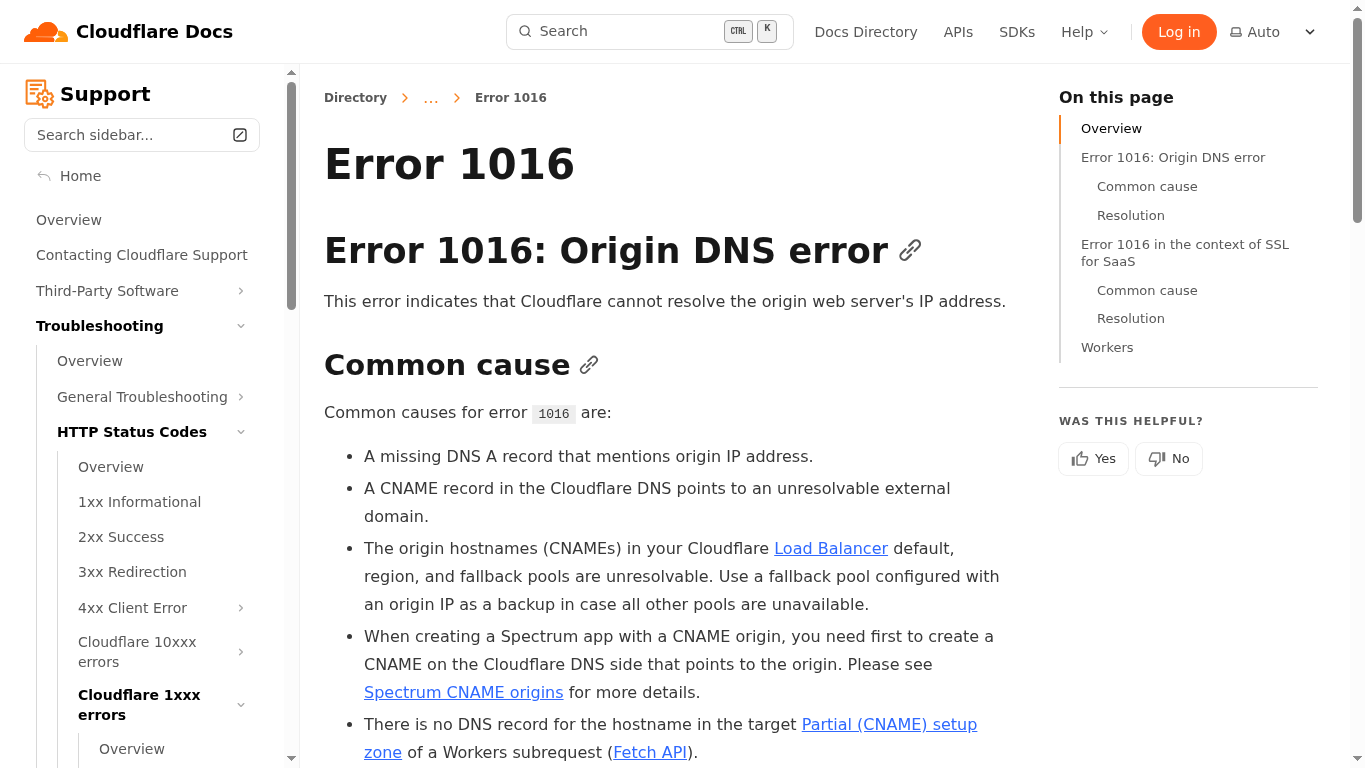
error 1016 的核心含义是 Cloudflare 找不到可用的源站地址。它不是 WordPress 插件错误,也不是缓存问题,而是 Cloudflare 在回源之前就无法把你填写的主机名解析到有效 IP。最常见情况是 A 记录被删、CNAME 写错、CNAME 指向的域名过期,或者负载均衡里的 origin hostname 无法公开解析。
排查步骤
- 进入 Cloudflare → DNS,找到出错的主机名,例如 @、www、blog 或 api。
- 根域名通常使用 A/AAAA 记录指向源站 IP;www 可以 CNAME 到根域名,也可以按主机商要求 CNAME 到指定目标。
- 如果你使用 CNAME,复制目标域名后用 dig、nslookup 或 DNS Checker 检查它能否在公网解析。
- 不要把 CNAME 指向内网主机名、拼写错误的域名、已删除的临时域名或只在主机商内部可见的地址。
- 使用 Cloudflare Load Balancing 时,逐个检查 origin hostname 和健康检查地址,确保不是某个池里的地址失效。
如果只遇到 1016,可以继续看站内的 Cloudflare Error 1016 怎么解决?DNS Origin Error 排查教程,里面有更细的 DNS 指向案例。
Error code 521:源站拒绝了 Cloudflare
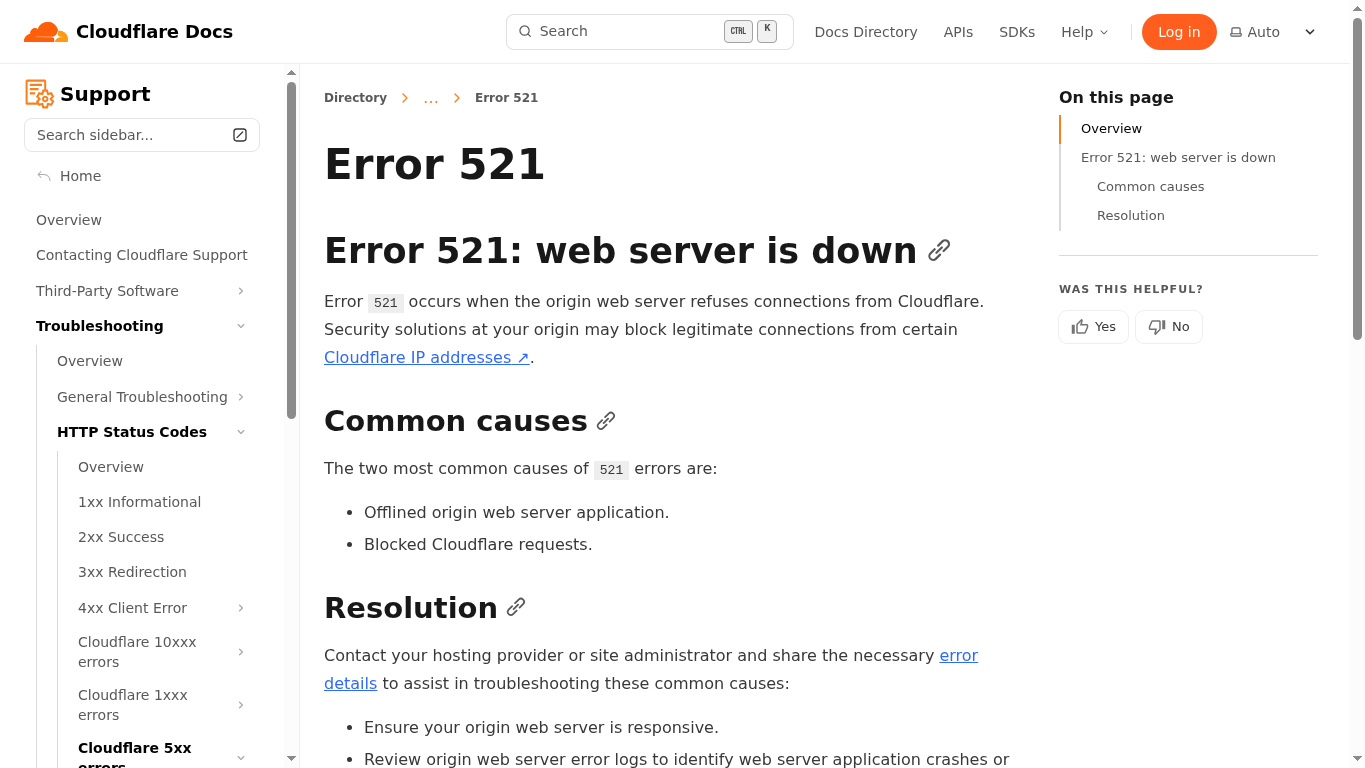
error code 521 页面经常显示 Web server is down,但它并不等于服务器一定宕机。更准确地说,是 Cloudflare 连接源站时被拒绝了。源站可能仍然能在本机访问,只是 80/443 端口没有对公网开放,或防火墙、主机 WAF、宝塔安全规则、Fail2ban 把 Cloudflare 节点当成异常流量拦截了。
排查步骤
- 临时把该 DNS 记录从橙云切到灰云,或通过 hosts 指向源站 IP,确认源站本身能否直接返回页面。测试完记得恢复代理。
- 在服务器检查 Nginx、Apache、LiteSpeed 是否运行,例如 systemctl status nginx 或 systemctl status apache2。
- 确认 80 和 443 端口对公网开放,云服务器安全组、主机防火墙和面板防火墙都要检查。
- 把 Cloudflare 官方 IP 段加入允许列表,尤其是开启了 WAF、Fail2ban、CSF、宝塔防火墙的站点。
- 查看 access log:如果完全没有 Cloudflare 请求,多半是网络或防火墙;如果有请求但返回异常,再继续查站点配置。
521 与 502、503、504 很容易混淆。站内这篇 Cloudflare 500/502/503 真相 可以帮助你先分清“Cloudflare 连不上源站”和“源站返回了错误”之间的区别。
Cloudflare Error 1000:DNS 指到了禁止 IP
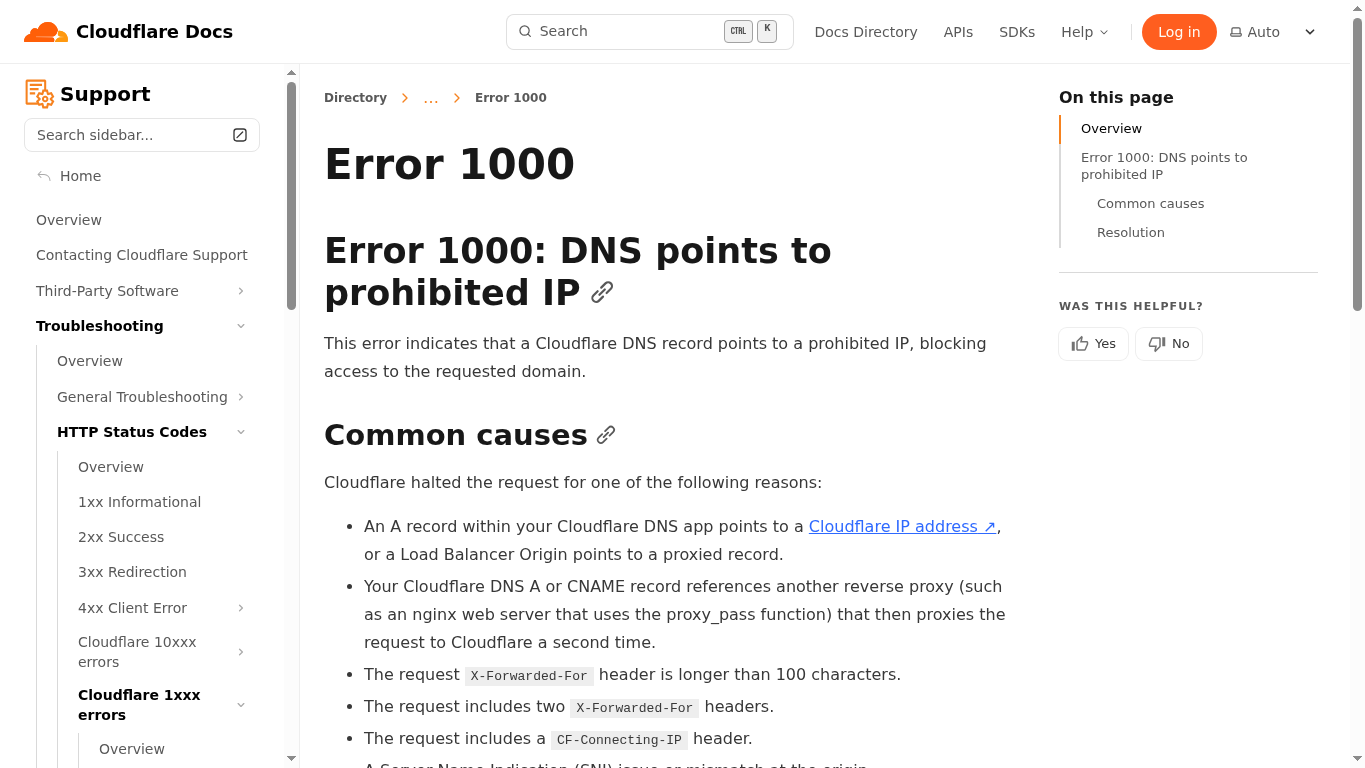
cloudflare error 1000 通常是 DNS 记录指向了 Cloudflare 不允许代理的地址,例如 Cloudflare 自己的边缘节点 IP、127.0.0.1、10.x、192.168.x 等内网地址,或者配置形成了回环。它和 1016 都与 DNS 有关,但 1016 是“找不到源站”,1000 是“找到了不该指向的地址”。
排查步骤
- 检查 A/AAAA 记录,确保填写的是主机商给你的真实源站 IP,而不是 Cloudflare 代理后的 IP。
- 删除重复冲突的记录。同一个主机名不要同时保留多条来源不明的 A、AAAA、CNAME。
- 如果主机商要求使用 CNAME,就按文档填写 CNAME,不要把中间解析出来的 IP 复制回来。
- 检查根域名和 www 是否互相 CNAME,避免形成循环。
- 改完后等待 DNS 生效,并清理 Cloudflare 缓存再复测。
Cloudflare 403:先确认是谁拦截的
cloudflare 403 的关键不是立刻关闭所有安全功能,而是判断 403 来自 Cloudflare 还是源站。如果 Cloudflare Security Events 里能看到同一时间、同一 IP、同一路径的记录,通常是 WAF、Bot Fight Mode、IP Access Rules、Rate Limiting 或托管规则误拦。如果 Security Events 没有记录,问题更可能来自源站:WordPress 安全插件、Nginx deny、Apache .htaccess、文件权限或主机 WAF。
排查步骤
- 进入 Cloudflare → Security → Events,按 Ray ID、IP、路径和时间筛选。
- 如果是 WAF 误拦 wp-admin、wp-json、支付回调、登录接口,不要全站关闭 WAF,而是为特定 URI、IP 或 User-Agent 建立 Skip 规则。
- 检查 IP Access Rules 是否误封了管理员 IP、支付网关 IP 或监控服务 IP。
- 如果 Cloudflare 没有拦截记录,去源站查 Nginx/Apache 日志,以及 Wordfence、iThemes Security 等插件日志。
- 修复后用退出登录、无痕窗口、手机 4G/5G 和不同地区节点复测,避免只有管理员环境正常。
如果 403 和 WordPress 安全插件有关,可以参考 Wordfence Security 插件安装配置指南,并检查是否对 wp-json、xmlrpc.php、上传目录设置了过度限制。
Cloudflare SSL handshake failed:重点看源站证书
很多人搜索 cloudflare ssl handshake failed,实际页面可能是 525 SSL handshake failed 或 526 Invalid SSL certificate。这类问题发生在 Cloudflare 与源站建立 HTTPS 连接时。常见原因包括源站没有安装证书、证书过期、证书域名不匹配、证书链不完整、服务器只支持过旧 TLS,或者 Cloudflare SSL 模式与源站配置不一致。
排查步骤
- Cloudflare SSL/TLS 模式建议使用 Full (strict),前提是源站证书有效、域名匹配、证书链完整。
- 检查证书是否同时覆盖 example.com 和 www.example.com,尤其是迁站或换主机后。
- 如果使用 Cloudflare Origin Certificate,确认服务器已绑定正确证书和私钥,而不是只在 Cloudflare 后台点了生成。
- 检查服务器 TLS 配置,至少支持 TLS 1.2,优先启用 TLS 1.3。
- 如果刚改过 DNS,确认 Cloudflare 回源到的是新服务器 IP,而不是旧服务器上已经过期的证书。
SSL 模式还可能引发循环跳转。遇到 ERR_TOO_MANY_REDIRECTS 时,可以看 Flexible SSL 模式的致命误区 respond in singing Solution for Cloudflare SSL Settings that Raise TOO_MANY_REDIRECTSThe
Cloudflare Error 500:多数要回到 WordPress 和服务器日志
cloudflare error 500 是最容易误判的一类。很多站长看到 Cloudflare 页面就以为 CDN 出问题,但真正的 500 往往来自源站应用:WordPress 插件冲突、主题 PHP fatal error、PHP 版本不兼容、内存不足、数据库连接异常、.htaccess 写错、Nginx rewrite 错误、文件权限异常等。Cloudflare 只是把源站返回的 500 展示给访客。
排查步骤
- 临时灰云或 hosts 直连源站,如果绕过 Cloudflare 仍然 500,基本就是源站问题。
- 打开 WordPress debug log 或主机 PHP error_log,搜索 fatal error、memory exhausted、database、permission denied。
- 回滚最近更新的插件、主题和 PHP 版本,优先检查缓存、安全、页面构建器、支付、SMTP 插件。
- 检查 PHP memory_limit、max_execution_time、max_input_vars 是否满足主题和插件要求。
- 恢复 WordPress 默认伪静态规则,确认 .htaccess 或 Nginx rewrite 没有语法错误。
通用恢复顺序:从最小改动开始
Cloudflare 报错排查的原则是:一次只改一个变量,复测后再继续。不要同时改 DNS、SSL、防火墙和插件,否则很难知道到底是哪一步修好的。
- 先记录错误代码、Ray ID、URL、时间、地区和截图。
- 查 DNS:记录是否存在、是否重复、是否指向真实源站。
- 查源站连接:Web 服务、端口、安全组、防火墙、Cloudflare IP 白名单。
- 查 SSL:模式、证书有效期、证书链、TLS 协议和 SNI。
- 查安全规则:Cloudflare Security Events、WAF、Bot、Rate Limiting、源站安全插件。
- 查 WordPress:PHP 错误日志、插件冲突、主题错误、缓存和重定向规则。
- 恢复后再逐步开启缓存、WAF 和优化规则,不要把安全功能永久关闭。
summarize
Cloudflare 常见错误代码并不需要靠猜。error 1016 先查 DNS 是否能解析源站;error code 521 先查源站是否拒绝 Cloudflare 连接;cloudflare error 1000 先查 DNS 是否指向了禁止地址;cloudflare 403 先分清 Cloudflare WAF 和源站权限;cloudflare ssl handshake failed 重点看源站证书、SSL 模式和 TLS;cloudflare error 500 则优先回到 WordPress、PHP 和服务器日志。按“DNS—连接—SSL—安全规则—程序日志”的顺序排查,通常比反复重启服务器、重装插件更快,也更安全。
延伸阅读
- Cloudflare Error 1016 怎么解决?DNS Origin Error 排查教程
- SSL证书握手失败:深入解决 Cloudflare 525 错误
- Cloudflare 500/502/503 真相:一文理清本质区别
- 常见 WordPress 故障修复

Link to this article:https://www.361sale.com/en/87793/The article is copyrighted and must be reproduced with attribution.





 简体中文
简体中文  English
  日本語
日本語  Français
  Español


0
Now definitely still do SEO, just play changed. Previously rely on heaps of content, heaps of keywords can have traffic, and now pay more attention to the quality of content + brand trust + user experience. In addition to relying solely on SEO is actually more and more difficult, a lot of good basically SEO + social media + content marketing + private domain conversion to do together. SEO is still a long-term customer acquisition channel, but can no longer be taken as the only channel.Hehe is working.
March 11, 10:540
Normal, included only on behalf of Google to see the page, does not mean that the ranking immediately, "has been included but not ranked" usually because: Keyword competition, page weight is low, the content is not strong enough, the page is relatively new. Continue to optimize the long-tail keywords, content quality and internal chain, usually takes a little time, the ranking will slowly come out!Amelia Foster March 6, 16:200
Do you have a screenshot?lit. even a son who is not a fish knows the joy of fish March 6, 09:230
Don't pile on the optimization plugins first, locate the bottlenecks first: Use Query Monitor to see slow SQL, slow hooks. Pause all plugins for comparison, then turn them on one by one. Check autoload is too big (options table). Check database indexes with large table queries. Tackle host/database performance first if server TTFB is high.Hehe is working.
March 3, 16:470
Hi Windjammer, there's really no need to mess with complicated local environments, regular people follow these steps and the update basically won't crash the site 👇 First, backup the whole site, files + database are prepared, this is the bottom line, out of the problem can be a key to go back. Don't change the whole thing in one click, change it in batches, change the unimportant plug-ins first, and then change the core ones. Immediately after the update, clear the cache, go to the foreground to check the home page, article page, buttons, forms, these key positions. It is best to install a plug-in that supports version rollback, in case of a crash, cut back to the old version in a second. To summarize: backup first, change in batches, check after changing, leave a way back, stable ✅😎 Hope this helps!bugbang March 2, 09:550
Usually it's not that the payment didn't work, but that the callback (webhook) didn't write back the order status. Troubleshooting steps: WooCommerce → Status → Logs: see if the payment gateway has webhook error / signature error / timeout Check if the site is blocked by WAF (Cloudflare, Pagoda Firewall, security plugins) Check if "Cache checkout pages/interface paths" is enabled (checkout pages and callback interfaces should not be cached) Look at the server error logs for 500/fatal errors that interrupt the callback execution. Solution: Release wp-json, wc-api, payment gateway callback URLs (configure as per gateway documentation) Disable cache and JS merge compression test on checkout page once If using Cloudflare: set no-challenge, no-block rules for callback URLsUlla Nala Zhenhuan (18嬛嬛嬛) January 31st, 09:360
1) Determine whether it is "Normal Waiting" or "Abnormally Stuck". You can first look at 3 signals: whether the page release time is within 7-14 days, whether there are only a small number of pages with this status, and whether the page has appeared in the XML Sitemap. If all three are satisfied, most likely belong to the normal crawling and evaluation stage, do not need to do it immediately. 2) Under what circumstances is it useless to "wait"? The following cases will not be solved automatically by time: the page has almost no internal links (isolated page), the content is highly similar to the existing pages on the site, canonical points to other URLs, and too many similar articles are published on the same topic for a short period of time. In this case, Google has been crawled, but judged that "it is not worth entering the index". 3) The most effective way of manual intervention (no tossing) Prioritize these 3 things: add internal links, link to the page from related old articles or columns, and enhance the density of information on the first screen. The first 2-3 paragraphs directly answer the user's question, avoid too much padding, confirm canonical as self-referential, avoid being judged as a duplicate page, and then go to GSC to request reindexing after doing so. 4) What "intervention actions" are counterproductive? It is not recommended: frequent deletion and reposting, clicking "request to index" several times in a row, forcing keywords to be stacked for indexing, changing URLs or titles arbitrarily. These operations will allow Google to reassess the stability of the page, but slow down the inclusion. 5) a practical judgment standard If an article: has been crawled, there is no noindex / robots problem, there are at least 1-2 related internal links, the content obviously solves an independent problem, then it is included, just a matter of time, not a plug-in problem.Post Porter January 30th 10:000
The new station does not do external links can be completely, the first content and station structure to do a good job more stable. Only rely on the content can generally get included and part of the long-tail word rankings, but the amount of high competition will be slow. It is recommended to wait for the site stable inclusion, 30-50 quality content, keywords began to enter the top 20/30, and then a small amount of external links, priority brand words/naked chain/citation type, do not come up to chase the number. 👍