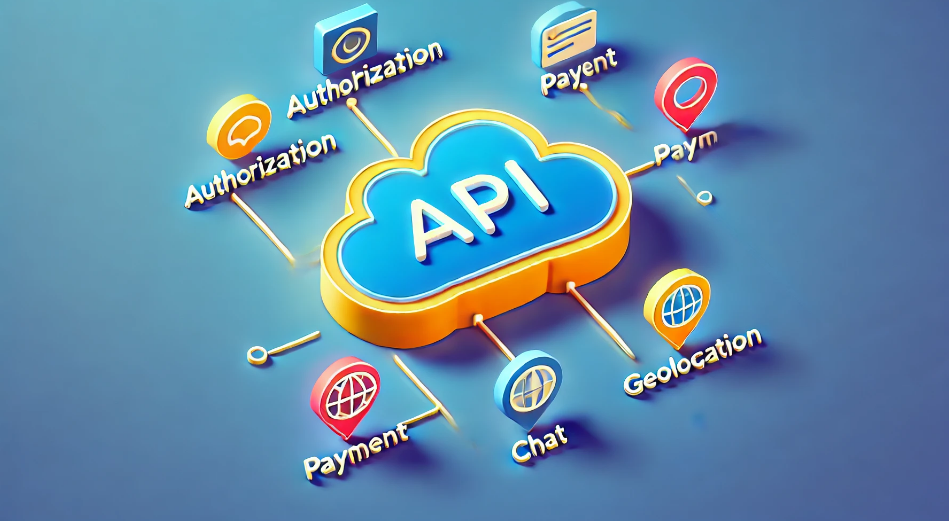





Third-party APIs (Application Programming Interfaces)is a set of protocols, routines, and tools provided by external services or platforms that enable your WordPress website to interact with these external systems. This functionality allows a website to access and utilize the functionality or data of an external service without having to build the corresponding functionality from scratch yourself.
![Image[1]-Seamless Third-Party API Integration: A Detailed Guide to Enhancing the Functionality of Your WordPress Website - Photon Fluctuation Network | Professional WordPress Repair Service, Global Reach, Fast Response](https://www.361sale.com/wp-content/uploads/2024/09/2024090402253559.png)
Why you need a third-party API
1. Enhancements
A third-party API allows you to send a WordPress website to theAdd features not available nativelyAPIs enable you to quickly integrate advanced payment processing systems, connect to social media platforms, or enable real-time data capture and display. For example, using APIs, you can integrate advanced payment processing systems, connect to social media platforms, or enable real-time data capture and presentation.APIs enable you to quicklyExpanded websitefunctionality, enhance the user experience.
2. Savings in time and resources
Building complex functionality often requires significant time and resources, and with third-party APIs, you can quickly leverage existing solutions, saving development time and costs. This means you can focus on more important business goals rather than developing every feature from scratch.
3. Real-time data access
APIs enable your website to fetch and display data in real time from external sources, such as stock prices, weather data or news updates. This real-time data can provide your users with the most up-to-date information, thus increasing the value and attractiveness of your website.
4. Improving the user experience
By integrating external services that users are familiar with, such as social logins or payment platforms, a more seamless and convenient experience can be provided to users. This integration not only improves user satisfaction, but also potentially increases user engagement and loyalty.
5. Scalability
APIs are often handled by third-party servers for computational tasks, which reduces the server load on your own site. By using APIs, it is possible to extend the functionality and performance of your website without increasing the strain on your own servers, resulting in better scalability.
Ways to Integrate APIs in WordPress
![Image[2]-Seamless Integration of Third-Party APIs: A Detailed Guide to Enhancing the Functionality of Your WordPress Website - Photon Fluctuation Network | Professional WordPress Repair Service, Global Reach, Fast Response](https://www.361sale.com/wp-content/uploads/2024/09/2024090402310459.png)
In WordPress, third-party APIs can be integrated in a number of ways, as followsThree main approaches::
1. Utilization wp_remote_get() function (math.)
WordPress built-in wp_remote_get() function is a simple and effective way to issue APIs with HTTP GET Requests. This approach is suitable for basic API calls with no additional dependencies and is relatively easy to implement for developers familiar with WordPress.
- Pros:
- Multiple HTTP request methods (e.g. GET, POST, etc.) are supported.
- Response parsing and error checking can be handled.
- Drawbacks:
- Only synchronization requests are supported, which may affect multiple orSlow API callsThe performance of the
2. Use of plug-ins
Using plug-ins is a very user-friendly approach for non-developers or those who want to implement API integrations quickly. Plug-ins often provide a graphical interface that makes API configuration and management much easier.
- Pros:
- Provides a graphical interface for API configuration and management.
- Pre-built integrations with popular services are usually included.
- Additional features such as caching or request logging can be provided.
- Drawbacks:
- If you use theToo many plug-ins, which may slow down the site.
- Customization may have limitations.
3. Use of customized code
Writing custom PHP or JavaScript code to interact directly with the API provides maximum flexibility and control over the integration process. This approach is suitable for projects that require a high degree of customization.
- Pros:
- Allows the creation of customized solutions based on specific project needs.
- It can be optimized for performance and efficiency.
- Provides complete control over error handling and data processing.
- Drawbacks:
- Requires more development time and expertise.
- Ongoing maintenance may be required to ensure that thecompatibilityThe
How to integrate third-party APIs with the WPGetAPI plugin
utilization WPGetAPI The Plugin Integration API is an effective way to extend the functionality of your website without complex coding. Below is a detailed step-by-step guide:
Step 1: Install and activate the WPGetAPI plug-in
First, search for and install the WPGetAPI plugin in your WordPress dashboard. Once installed, activate the plugin.
- Search for and install the WPGetAPI plugin in your WordPress dashboard.
- Activate the plugin after installation is complete.
- on demandChoose between the free version or the professional versionThe
- Familiarize yourself with the plugin's interface and options.
![Image [3] - Seamless Integration of Third Party APIs: A Detailed Guide to Enhancing the Functionality of Your WordPress Website - Photon Fluctuation Network | Professional WordPress Repair Service, Global Reach, Fast Response](https://www.361sale.com/wp-content/uploads/2024/09/2024090402343639.png)
Step 2: Set up and verify third-party APIs
After activating the plugin, navigate to the WPGetAPI settings in the WordPress dashboard. Here, theEnter basic information about the APIe.g. API name, unique ID, and base URL. This information will be used to communicate with external services.
![Image[4]-Seamless Integration of Third-Party APIs: A Detailed Guide to Enhancing the Functionality of Your WordPress Website - Photon Fluctuation Network | Professional WordPress Repair Service, Global Reach, Fast Response](https://www.361sale.com/wp-content/uploads/2024/09/2024090402351624.png)
- Enter the API name for easy identification.
- Create a unique ID for internal reference.
- Provides the base URL in the API documentation.
- Save the configuration to consolidate the connection.
Step 3: Configure API Endpoint Settings
![Image [5] - Seamless Integration of Third Party APIs: A Detailed Guide to Enhancing the Functionality of Your WordPress Website - Photon Fluctuation Network | Professional WordPress Repair Service, Global Reach, Fast Response](https://www.361sale.com/wp-content/uploads/2024/09/2024090402371324.png)
Configuring an API endpoint is a critical step in ensuring that your WordPress site communicates correctly with the API. At this stage, you need to specify the endpoint URL, request method, and result format.
- Create a unique ID for the endpoint reference.
- Enter a specific endpoint URL from the API documentation.
- Select the appropriate method (e.g., GET, POST) for data retrieval.
- Select a JSON string or PHP array as the result format.
- Save the settings in preparation for testing.
Step 4: Test the API Configuration
![Image [6] - Seamless Integration of Third Party APIs: A Detailed Guide to Enhancing the Functionality of Your WordPress Website - Photon Fluctuation Network | Professional WordPress Repair Service, Global Reach, Fast Response](https://www.361sale.com/wp-content/uploads/2024/09/2024090402323447.png)
It is important to test the configuration of an API before relying on it for actual functionality, and the WPGetAPI plugin provides built-in tests that make it easy to verify the functionality of an API connection.
- exist WPGetAPI Find and click on the "test endpoint"Button.
- Review the test results to confirm that the API is retrieving the expected data in the correct format.
- If the test is unsuccessful, make the necessary adjustments and retest.
Step 5: Displaying Data Received via the API
Finally, the data retrieved through the API needs to be presented on the website. the WPGetAPI plugin provides two main display methods:Template tags and short codesThe
- Template labeling method: Suitable for developers who are familiar with PHP and have fine control over the presentation of data.
- Short code method: Suitable for users who do not have coding skills and can easily display data by inserting short codes.
typical example
Insert short code
![Image [7] - Seamless Integration of Third Party APIs: A Detailed Guide to Enhancing the Functionality of Your WordPress Website - Photon Fluctuation Network | Professional WordPress Repair Service, Global Reach, Fast Response](https://www.361sale.com/wp-content/uploads/2024/09/2024090402462366.png)
On the page or post where you want the data to be displayed, insert the following short code: plaintextCopy code
[wpgetapi endpoint="current_weather"]Parameter Explanation:
endpoint: Points to your location in theThe unique ID of the endpoint configured in step 3.
Customized display templates
If you need to customize how the data is displayed, you can use the template parameter: plaintextCopy code
[wpgetapi endpoint="current_weather" template="weather_template.php"]]Template file: create a template file named "weather_template.php" file, placed in your theme directory, write custom PHP code to format and display the data.
Basic Template Tag Usage
In the theme's PHP file, add the following code: phpCopy code
<?php $data = wpgetapi_endpoint( 'weather_api', 'current_weather' ); echo ''; print_r( $data ); echo '
'; ? >Parameter Explanation:
'weather_api': API unique ID.
'current_weather': unique ID of the endpoint.
Customized data processing and display
Process and format data as needed: phpCopy code
echo 'name . ''; echo '<Temperature: ' .
echo 'main->temp . '°C'; echo '<Weather Condition: ' .
echo 'weather[0]->description . '';
} else {
echo '}![Image [8] - Seamless Integration of Third Party APIs: A Detailed Guide to Enhancing the Functionality of Your WordPress Website - Photon Fluctuation Network | Professional WordPress Repair Service, Global Reach, Fast Response](https://www.361sale.com/wp-content/uploads/2024/08/2024082905542559.jpg)
summarize
Third-party API integration can significantly enhance the functionality of your WordPress site, improve user experience, and streamline business processes. By WP self-taught website builder Whether using WordPress' built-in features, plugins, or custom code, API integration opens up endless possibilities for website owners and developers. By following the step-by-step guide above, organizations can effectively connect their websites to external services, create dynamic content, and stay competitive in the digital space.

Link to this article:https://www.361sale.com/en/18657The article is copyrighted and must be reproduced with attribution.


















![Emoji[wozuimei]-Photonflux.com | Professional WordPress repair service, worldwide, rapid response](https://www.361sale.com/wp-content/themes/zibll/img/smilies/wozuimei.gif)

![Emoticon[baoquan] - Photon Wave Network | Professional WordPress Repair Services, Worldwide Coverage, Rapid Response](https://www.361sale.com/wp-content/themes/zibll/img/smilies/baoquan.gif)


 简体中文
简体中文  English
  日本語
日本語  Français
  Español


No comments