




WordPress sidebars attract visitors' attention, direct them to content, and more.Our TeamDo a lot of years WordPress , in the WordPress sidebar has a lot of experience and insights. Today all share to you, I hope to help you!
Why should I customize the WordPress sidebar?
The sidebar, also known as the widget area in Classic Themes, is a designated section on the layout of a WordPress website. It is usually located on the left or right side of the main content area.
It can be used to display additional information that complements the main content. TakeWe, the Photon Flux NetworkAs an example, it includes popular articles, member resource information, newsletters, latest articles, and more. It can also be social media links, search bars, email signup forms, and many more.
![Image[1]-WordPress Sidebar Design Tips: Enhance Website Visuals and Usability - Photon Fluctuation | Professional WordPress repair service, global reach, quick response](https://www.361sale.com/wp-content/uploads/2024/09/2024090603010355.png)
While most themes come with pre-built sidebars, their default functionality may not be a good fit for your site's culture. This is where customization comes into play.
A well-designed sidebar can improve your website in many ways:
- Improving the user experience-Strategically designed sidebars help visitors navigate the site and find relevant information.Increase page views.
- Increase Conversion Rate-Strategic phrase buttons, email signup forms, or social media icons can encourage visitors to click on their desired page.
- Enhanced brand awareness-Can use sidebars to display brand logos, social media profiles, or other visual elements that reinforce the brand image.
By controlling the sidebar, it can be customized to enhance web design and user experience.
Here are some of our tips and tricks about WordPress sidebars:
Create sidebar template section (block theme)
This tip is mainly for people who useblock themeUsers. If you are using the Classic theme, the theme sidebar contains a WordPress widget area without any other actions.
If you're using a block theme, you won't see it in the WordPress dashboard.Appearance " Widget menu. This is because the themeNot using the WordPress customizer, which is now completely dependent on blocks in the site-wide editor.
On the one hand, this can make website customization easier. On the other hand, if you're used to the classic theme, it can easily become confusing.
Let's start by analyzing how sidebars work in a block theme. Sidebars and other elements like headers and footers are now called "Template section", they are reusable throughout the siteLayoutThe
Nowadays, most block themes containfooterrespond in singingFooter templatessections as they are essential in a website. Some block themes also include templates with sidebars, such as the Twenty Twenty-Four Default ThemeThe
![Image[2]-WordPress Sidebar Design Tips: Enhance Website Visuals and Usability - Photon Flux | Professional WordPress repair service, worldwide, fast response](https://www.361sale.com/wp-content/uploads/2024/09/2024090603123556.png)
Not all block themes have this section if a sidebar is important to the site layout. You can create one yourself. The process is relatively simple and we'll show you step by step how to do it.
switch toAppearance" editorto open the full site editor.
![Image[3]-WordPress Sidebar Design Tips: Enhance Website Visuals and Usability - Photon Fluctuation | Professional WordPress repair service, global reach, fast response](https://www.361sale.com/wp-content/uploads/2024/09/2024090603150411.png)
You will now see several menu options for customizing the theme.
Continue and click "paradigm" to create a new template section.
![Image[4]-WordPress Sidebar Design Tips: Enhance Website Visuals and Usability - Photon Flux | Professional WordPress repair service, worldwide, fast response](https://www.361sale.com/wp-content/uploads/2024/09/2024090603152814.png)
Here, click on "+ Creation mode"Button.
Then, select "Create template section".
![Image[5]-WordPress Sidebar Design Tips: Enhance Website Visuals and Usability - Photon Flux | Professional WordPress repair service, worldwide, fast response](https://www.361sale.com/wp-content/uploads/2024/09/2024090603163439.png)
Now, name the new template section, e.g. "Sidebar".
As for the region, select"General".
When you are done, continue and click "establish".
![Image[6]-WordPress Sidebar Design Tips: Enhance Website Visuals and Usability - Photon Fluctuation | Professional WordPress repair service, global reach, fast response](https://www.361sale.com/wp-content/uploads/2024/09/2024090603172041.png)
Now within the block editor, you can start here to the sidebarAdding BlocksThe
In our example, we added a block to display our latest posts and latest comments. We also added title tags to make it easier for visitors to click on these sections in the sidebar.
![Image[7]-WordPress Sidebar Design Tips: Enhance Website Visuals and Usability - Photon Fluctuation | Professional WordPress repair service, global reach, fast response](https://www.361sale.com/wp-content/uploads/2024/09/2024090603184580.png)
The sidebar looks a bit messy. You can use Group blocks to group elements that are related to each other. This way, when the elements need to be moved, they can be rearranged as a unit.
Select the blocks you want to combine together. Then in the block toolbar click "organize"Icons.
![Image[8]-WordPress Sidebar Design Tips: Enhance Website Visuals and Usability - Photon Flux | Professional WordPress repair service, worldwide, fast response](https://www.361sale.com/wp-content/uploads/2024/09/2024090603202747.png)
Would also like to add an element, such as a separator block, to separate one set of blocks from another.
This block adds shape separators between groups of blocks.
Click anywhere on the "+ Add block"button and select the "delimiter" block is sufficient. It is also possible to customize the appearance of the horizontal lines.
![Image[9]-WordPress Sidebar Design Tips: Enhance Website Visuals and Usability - Photon Fluctuation | Professional WordPress repair service, global reach, fast response](https://www.361sale.com/wp-content/uploads/2024/09/2024090603212646.png)
Once you are satisfied with the sidebar, click "save (a file etc) (computing)"Just do it.
Sidebar elements can now be added to any template of the theme.
![Image[10]-WordPress Sidebar Design Tips: Enhance Website Visuals and Usability - Photon Fluctuation | Professional WordPress repair service, global reach, fast response](https://www.361sale.com/wp-content/uploads/2024/09/2024090603215912.png)
Try adding it to a single post template.
Simply return to the main menu of the Full Site Editor and select "templates"Just do it.
![Image[11]-WordPress Sidebar Design Tips: Enhance Website Visuals and Usability - Photon Fluctuation | Professional WordPress repair service, global reach, fast response](https://www.361sale.com/wp-content/uploads/2024/09/2024090603224740.png)
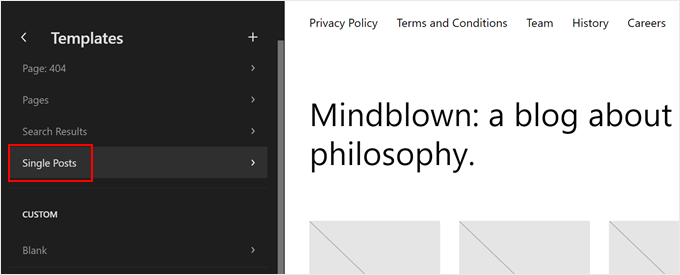
Then, find the individual post template for the theme.
It can be named "Single Post" or something similar.
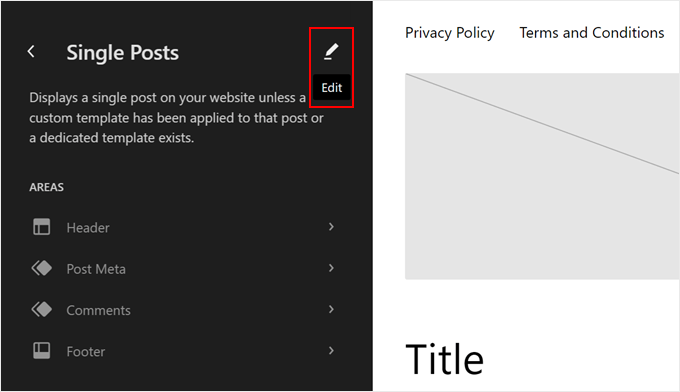
Next, click the pencil "compiler"Button.
will open the block editor for that template.
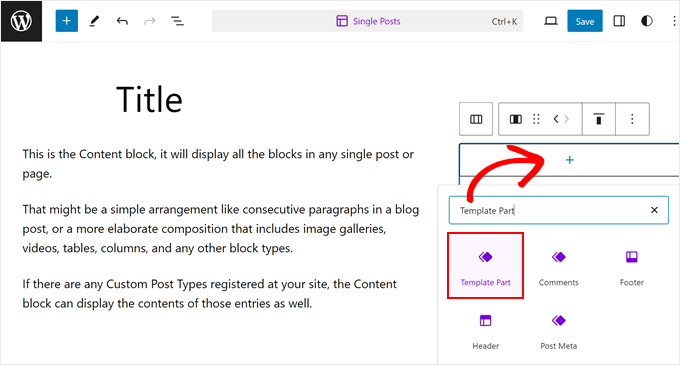
Go ahead and click anywhere in the template on the "+ Add Block"Button.
Select "Template section".
Next, two options will be seen:"option"or"Start blank".
Select the first option.
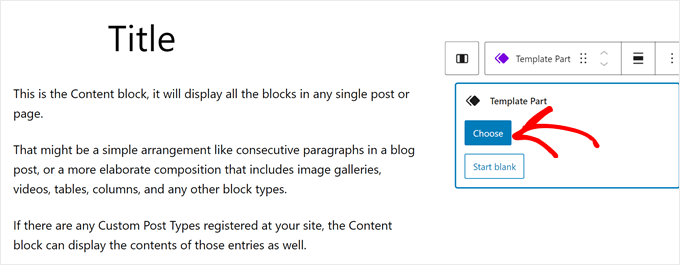
The existing template section of the theme should now be visible.
Go ahead and click on the one you just created.
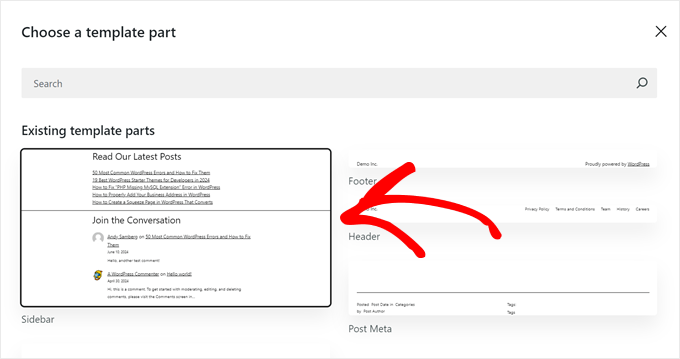
The layout of the template can now be rearranged to fit the new sidebar.
When you're done, click "save (a file etc) (computing)".
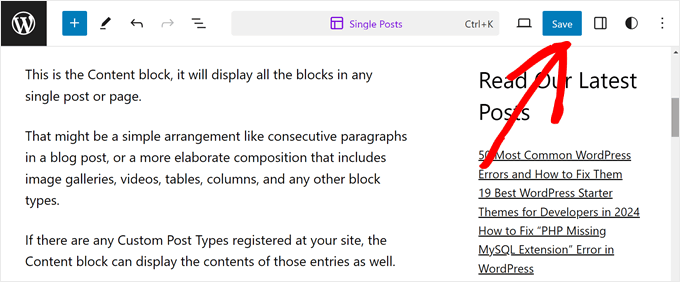
When previewing blog posts on the site, there is now a sidebar template section.

Link to this article:https://www.361sale.com/en/18953The article is copyrighted and must be reproduced with attribution.






















![Emoji[wozuimei]-Photonflux.com | Professional WordPress repair service, worldwide, rapid response](https://www.361sale.com/wp-content/themes/zibll/img/smilies/wozuimei.gif)

![Emoticon[baoquan] - Photon Wave Network | Professional WordPress Repair Services, Worldwide Coverage, Rapid Response](https://www.361sale.com/wp-content/themes/zibll/img/smilies/baoquan.gif)


 简体中文
简体中文  English
  日本語
日本語  Français
  Español


No comments