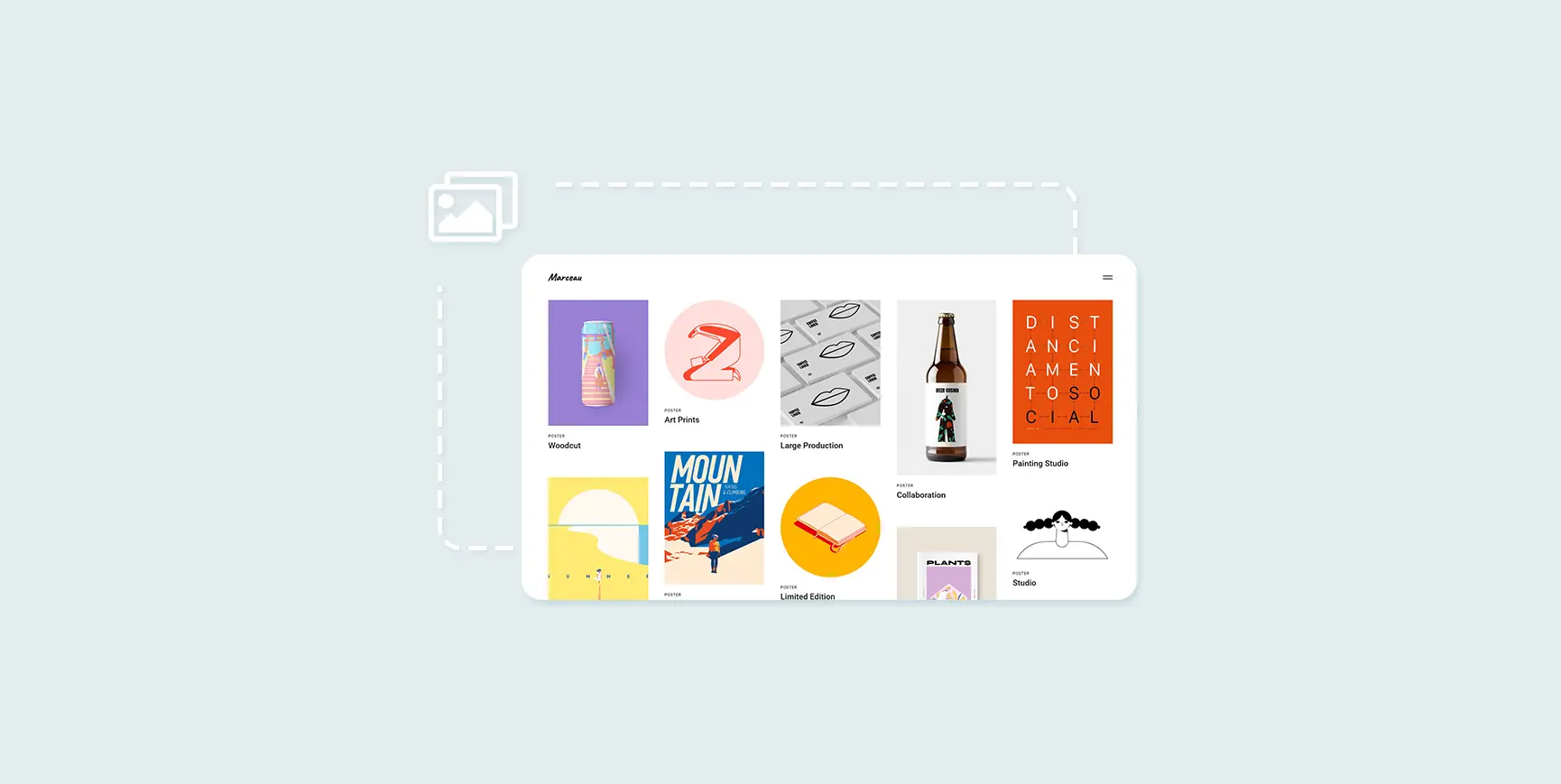





Gutenberg stock photo block (Gallery (Block) is a popular WordPress tool for photographers, artists, bloggers and businesses that makes creating galleries easy, intuitive and requires no coding knowledge. If you're looking to enhance your website's visuals and user experience with professional, stylish galleries, then this article will provide you with a comprehensive guide from the basics to the advanced.
What is WordPress Gallery Block?
Gallery Block Yes WordPress The Gutenberg editor has a built-in gallery tool that has been available since WordPress 5.0. It allows users to easily create compelling gallery layouts on pages or posts. Whether you'reShowcase Portfolio,Product PicturesorAdding Visuals to the Blog(math.) genusGallery Blocks can efficiently display multiple images in a grid format, making websites look more attractive.
![Image[1]-How to Create and Optimize Gallery in WordPress with Gutenberg Gallery Block - Photon Fluctuation Network | Professional WordPress Repair Service, Global Coverage, Fast Response](https://www.361sale.com/wp-content/uploads/2024/10/2024103006220347.png)
Advantages of using Gutenberg Gallery Block
- user-friendly: The intuitive drag-and-drop functionality makes it easy for anyone to use, even without any technical background.
- Diverse Layout: Multiple layout styles are supported, including grid and tiled layouts, making it easy to choose a display style that matches the aesthetics of the site.
- fully responsive: Adapts to all devices and displays beautifully whether on a phone, tablet or desktop computer.
- No plug-ins required: As part of the core WordPress functionality, Gallery Block requires no additional plugins, eliminating compatibility and security issues.
- performance optimization: Gallery Block handles image optimization and compression to ensure that your gallery loads quickly.
- SEO Friendly: Easily add headings and alternative text to improve SEO and accessibility.
- Built-in image editor: Crop, rotate and adjust images without external software.
How to Add Gallery Block in WordPress
- Access to the block editor
- Log in to your WordPress dashboard and select the gallery you need to add to yourweb pagemaybecardThe
- Go to the editor and click on "+"button, search for "Gallery" or browse the image categories to find the gallery block and insert the page.
![Image [2] - How to Create and Optimize Gallery in WordPress with Gutenberg Gallery Block - Photon Fluctuation Network | Professional WordPress Repair Service, Global Coverage, Fast Response](https://www.361sale.com/wp-content/uploads/2024/10/2024103003245413.png)
- Upload or select an image
- You can upload new images from your computer or select existing images from the media library, supporting batch selection of multiple images.
- Drag and drop images directly into the Gallery Block and they will be automatically uploaded and added to the gallery.
![Image [3] - How to Create and Optimize Gallery in WordPress with Gutenberg Gallery Block - Photon Fluctuation Network | Professional WordPress Repair Service, Global Coverage, Fast Response](https://www.361sale.com/wp-content/uploads/2024/10/2024103003255647.png)
- Adjustment of layout and number of columns
- GalleryOne of the most useful features of the block is that it is not only possible to add multiple photos to a WordPress page or post at the same time. It also allows you to choose the number of columns to display (usually 1 to 6) after uploading your images in order to control the number of images per row.
- groundthematicExplore different layout styles (such as grid or masonry layouts) to match the overall style of the site.
![Image [4] - How to Create and Optimize Gallery in WordPress with Gutenberg Gallery Block - Photon Fluctuation Network | Professional WordPress Repair Service, Global Coverage, Fast Response](https://www.361sale.com/wp-content/uploads/2024/10/2024103003350276.png)
- Setting Gallery Alignment
In the galleryblock's toolbar, you can click on theline up in correct ordericon to change the position of the gallery on the page. It will be set by default according to your gallery, but you can move the block to the right or center of the page:
![Image[5]-How to Create and Optimize Gallery in WordPress with Gutenberg Gallery Block - Photon Fluctuation Network | Professional WordPress Repair Service, Global Coverage, Fast Response](https://www.361sale.com/wp-content/uploads/2024/10/2024103006103726.png)
- Add captions and alternative text for each image
- Each image can be captioned and alternative text can be set to provide visitors with background information while enhancing SEO and accessibility.
![Image [6] - How to Create and Optimize Gallery in WordPress with Gutenberg Gallery Block - Photon Fluctuation Network | Professional WordPress Repair Service, Global Reach, Fast Response](https://www.361sale.com/wp-content/uploads/2024/10/2024103003401147.png)
- Preview & Release
- Use"previews" function to see how the gallery will appear on different devices, make sure the layout responds well and then click "post".
![Image [7] - How to Create and Optimize Gallery in WordPress with Gutenberg Gallery Block - Photon Fluctuation Network | Professional WordPress Repair Service, Global Coverage, Fast Response](https://www.361sale.com/wp-content/uploads/2024/10/2024103003491631.png)
IV. Advanced customization settings
- Customize image alignment and spacing
- In the Style settings on the right, adjust the image spacing and alignment to create a uniform or compact visual effect for the gallery.
- It is also possible to useCropping imagesGuaranteed picture uniformity.
![Image[8]-How to Create and Optimize Gallery in WordPress with Gutenberg Gallery Block - Photon Fluctuation Network | Professional WordPress Repair Service, Global Coverage, Fast Response](https://www.361sale.com/wp-content/uploads/2024/10/2024103005523717.png)
![Image [9] - How to Create and Optimize Gallery in WordPress with Gutenberg Gallery Block - Photon Fluctuation Network | Professional WordPress Repair Service, Global Coverage, Fast Response](https://www.361sale.com/wp-content/uploads/2024/10/2024103006172773.png)
- Personalized Layout Style
- Different layout styles, such as waterfall layout (masonry), can be chosen to enhance the hierarchy and uniqueness of the image arrangement.
- Adding Image Links
- Each image in the gallery can be selected to add a link that directs the user to a specific page, product detail, or other related resource.
![Image [10] - How to Create and Optimize Gallery in WordPress with Gutenberg Gallery Block - Photon Fluctuation Network | Professional WordPress Repair Service, Global Coverage, Fast Response](https://www.361sale.com/wp-content/uploads/2024/10/2024103005561934.png)
- Using CSS and Theme Styles
- If you are familiar with CSS, you can further optimize the gallery with custom styles.exterior conditionrespond in singingopening (chess jargon), making it more compatible with the overall style of the site.
- Integration with other modules
- Use Gallery Block in combination with buttons, text and other media modules to create more engaging page layouts.
![Image [11] - How to Create and Optimize Gallery in WordPress with Gutenberg Gallery Block - Photon Fluctuation Network | Professional WordPress Repair Service, Global Coverage, Fast Response](https://www.361sale.com/wp-content/uploads/2024/10/2024103005592494.png)
V. Common Problems and Troubleshooting
- Incorrect image display
- rationale: It may be that the file size or format is not supported.
- cure: Compress image files to less than 1MB, using JPEG or PNG format. Clear the cache and check media settings to ensure smooth loading.
- Slow image loading
- rationale: Gallery images are too large or too numerous.
- cure: Use TinyPNG or JPEGmini to compress images, enable delayed loading, and control the number of images in a single gallery.
- Responsive layout display issues
- rationale: Theme or custom style conflicts.
- cure: inOn different devicesTest the gallery, adjust the columns to fit the small screen, and make sure to use a responsive theme.
- Image alignment and spacing issues
- rationale: Improper style settings or CSS conflicts.
- cure: Adjust the spacing and alignment in the Gallery Block settings and check that no custom CSS is interfering with the layout.
Summary:
Gutenberg Gallery Block is a powerful and user-friendly tool for creating professional gallery layouts in WordPress without any coding knowledge. With simple drag-and-drop operations, rich layout options and built-in image optimization features, it helps users display multiple images quickly and efficiently while ensuring responsive design and SEO-friendliness. Whether it's photography, product displays, or blog post graphics, Gallery Block enhances the visual appeal and user experience of your website.

Link to this article:https://www.361sale.com/en/22509The article is copyrighted and must be reproduced with attribution.


















![Emoji[wozuimei]-Photonflux.com | Professional WordPress repair service, worldwide, rapid response](https://www.361sale.com/wp-content/themes/zibll/img/smilies/wozuimei.gif)

![Emoticon[baoquan] - Photon Wave Network | Professional WordPress Repair Services, Worldwide Coverage, Rapid Response](https://www.361sale.com/wp-content/themes/zibll/img/smilies/baoquan.gif)


 简体中文
简体中文  English
  日本語
日本語  Français
  Español


No comments