





You are using the WordPress The process of the website sometimes encounters 403 Forbidden Error issue. This error not only affects the site owner's operational experience, but may also interrupt normal user access.
This article will provide an in-depth analysis of 403 Forbidden The causes of the errors, solutions and how to prevent such problems to help you get your website back up and running quickly.
![Image[1]-How to Fix WordPress 403 Forbidden Error: Detailed Troubleshooting and Solutions](https://www.361sale.com/wp-content/uploads/2025/01/20250111150336420-1736579010008.png)
What is WordPress 403 Forbidden Error?
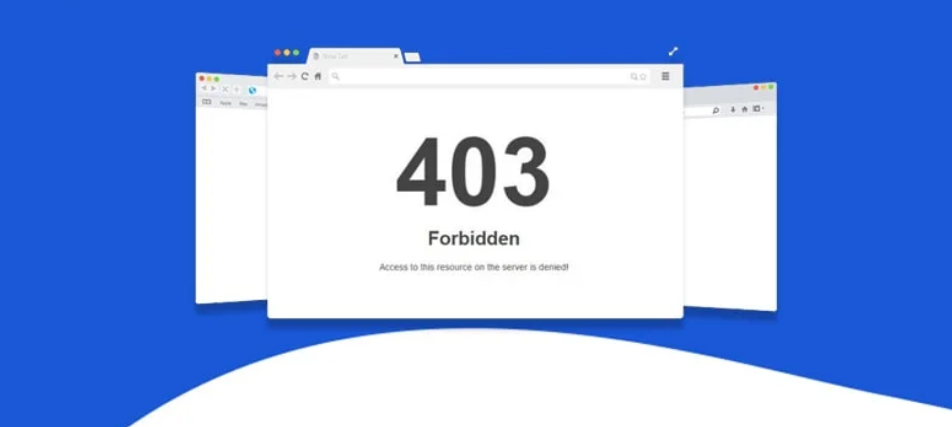
The 403 Forbidden error is an HTTP status code that indicates that the server recognized the client's request but refused to grant access to the requested resource. In other words, the server prohibits the display of page content when you or your user tries to access the website.
This error is usually accompanied by the following message:
- “403 Forbidden - You don't have permission to access this resource.“
- “403 Forbidden - Access denied.“
![Image [2] - How to Fix WordPress 403 Forbidden Error: Detailed Troubleshooting and Solutions](https://www.361sale.com/wp-content/uploads/2025/01/20250111150454534-image.png)
Common Causes of 403 Forbidden Errors
- File permission error
Incorrectly set file and directory permissions are the most common cause. The server may not be able to read or execute certain files, resulting in denial of access. - Plugin or theme conflicts
Incompatibility with WordPress plugins or themes may trigger the 403 Error, especially after the update. - Corrupt .htaccess file
.htaccess file is used to define server behavior. If this file is misconfigured or tampered with by malware, access may be blocked. - Firewalls or security plug-ins block
Some overly strict security rules may incorrectly flag legitimate requests, resulting in prohibited access. - Server settings or DNS issues
A server misconfiguration or Domain Name System (DNS) configuration problem may also cause a 403 error. - IP address blocking
If a server firewall or security plug-in blocks certain IP addresses, users may see a 403 Forbidden error.
How to Fix WordPress 403 Forbidden Error?
Before resolving the 403 error, it is recommended that you back up your website data in case during the operationProblems with accidents. Here are the detailed steps to fix it:
Checking file permissions
File permissions determine who can read, write, and execute files and directories on the server. Incorrect permissions may restrict access.
Restoration Steps:
Change permissions via cPanel:
- Log in to your hosting account and open cPanel.
- locate file manager and navigate to the WordPress root directory (usually the
public_html(folder). - Right-click on a file or directory and select Change PermissionsThe
- Set the following permissions:
- catalogs:: 755
- file::
644
![Image [3] - How to Fix WordPress 403 Forbidden Error: Detailed Troubleshooting and Solutions](https://www.361sale.com/wp-content/uploads/2025/01/20250111151054493-1736579420331.png)
- Save the changes and refresh the page.
Changing permissions via an FTP client:
- Using FTP software (e.g.
FileZilla) to connect to your server. - Right-click on the folder or file and select file permissionsThe
![Image [4] - How to Fix WordPress 403 Forbidden Error: Detailed Troubleshooting and Solutions](https://www.361sale.com/wp-content/uploads/2025/01/20250111151733402-image.png)
- Set permissions according to the above criteria and ensure that they are applied recursively to all sub-files and folders.
Reset .htaccess file
.htaccess fileis an important configuration file for WordPress websites that controls URL rewriting and access permissions. If the file is corrupted or incorrectly set, a 403 error may be triggered.
Restoration Steps:
- Navigate to the root directory of your WordPress website using an FTP client or cPanel file manager.
- locate
.htaccessfile, rename it to.htaccess_oldThe - Log in to your WordPress dashboard and go to Settings > Fixed Links, click Save to generate a new
.htaccessDocumentation.
![Image [5]-How to Fix WordPress 403 Forbidden Error: Detailed Troubleshooting and Solutions](https://www.361sale.com/wp-content/uploads/2025/01/20250111151906493-image.png)
- If the error is resolved, state
Problems with old .htaccess files . It is possible to step-by-step check the correctness of custom rules in older files.
Deactivate plugins to troubleshoot conflicts
Plugin conflicts can be the root cause of 403 Forbidden errors, especially with theSecurity-relatedThe plug-in.
Restoration Steps:
- Log in to your WordPress dashboard and go to Plugins > Installed PluginsThe
- Deactivate all pluginsThe
![Image [6] - How to Fix WordPress 403 Forbidden Error: Detailed Troubleshooting and Solutions](https://www.361sale.com/wp-content/uploads/2025/01/20250111152320197-image.png)
- Check if the site is working properly. If the error disappears, enable the plugins one by one to find out the problematic ones.
- If you are unable to log into the dashboard, you can navigate through the FTP client to the
wp-content/pluginsfolder, rename the plug-in folder to something else to disable all plug-ins.
Switch to default theme
Theme incompatibility or obsolescence may trigger access errors.
Restoration Steps:
- In the WordPress dashboard, go to Appearance > ThemesThe
- Activate the default theme (e.g. Twenty Twenty-Three).
![Image [7] - How to Fix WordPress 403 Forbidden Error: Detailed Troubleshooting and Solutions](https://www.361sale.com/wp-content/uploads/2025/01/20250111152840898-image.png)
- If the error disappears, there may be a problem with your theme. Contact the theme developer for support or to replace the theme.
Check firewall and security plugin settings
Overly strict firewall rules or security plug-ins may incorrectly block legitimate requests.
Restoration Steps:
- Disable all security plug-ins (such as
Wordfence). - Check if an IP address is listedblacklists, and remove it from the block list.
- Make sure that your server's firewall rules do not restrict the access required by WordPress.
Clearing Browser Cache and Cookies
Cached and expired cookie data may cause an error page to load.
![Image [8]-How to Fix WordPress 403 Forbidden Error: Detailed Troubleshooting and Solutions](https://www.361sale.com/wp-content/uploads/2025/01/20250111153200423-image.png)
Restoration Steps:
- Open your browser settings.Clearing Cache and CookiesThe
- Refresh the page and check if the error is resolved.
Checking DNS Configuration and Server Settings
Ensure that your domain name correctly points to the IP address of the server. If the DNS is misconfigured, access may fail.
![Image [9]-How to Fix WordPress 403 Forbidden Error: Detailed Troubleshooting and Solutions](https://www.361sale.com/wp-content/uploads/2025/01/20250111153506822-1736580890622.png)
Restoration Steps:
- Log in to your domain registrar's control panel and check that the A record is pointing correctly to your server.
- If you are not familiar with DNS configuration, contact your hosting provider for support.
How to Avoid WordPress 403 Forbidden Error?
Prevention is always better than cure. Here are some effective preventive measures:
- Regular Updates to WordPress Core, Plugins and Themes
Updated versions usually contain security patches and compatibility improvements. - Utilize quality hosting services
Choose a reliable hosting provider to ensure a stable server configuration. - Correct profile permissions
Make sure the file permissions are644The directory permissions are755, to avoid conflicts of authority. - Using the Backup Plugin
Regularly back up your website data to ensure quick recovery from unexpected errors. - Monitor security settings
Configure reasonable firewall rules to avoid overly strict restrictions. - Remove unnecessary plugins and themes
Deactivate and remove unused plugins and themes to minimize the possibility of conflicts.
summarize
WordPress 403 Forbidden error is not very complicated, but it can be easily resolved with a systematic approach to troubleshooting and fixing the problem. Whether it's checking file permissions, resetting the .htaccess file, or deactivating conflicting plugins, all the steps are designed to help you get to the root of the error and get your site back up and running.

Link to this article:https://www.361sale.com/en/28725The article is copyrighted and must be reproduced with attribution.


















![Emoji[wozuimei]-Photonflux.com | Professional WordPress repair service, worldwide, rapid response](https://www.361sale.com/wp-content/themes/zibll/img/smilies/wozuimei.gif)

![Emoticon[baoquan] - Photon Wave Network | Professional WordPress Repair Services, Worldwide Coverage, Rapid Response](https://www.361sale.com/wp-content/themes/zibll/img/smilies/baoquan.gif)


 简体中文
简体中文  English
  日本語
日本語  Français
  Español


No comments