






If you want to expand your website to a global audience, the website increases the number of
![Image [1] - Easily Build Multilingual WordPress Websites with the TranslatePress Plugin](https://www.361sale.com/wp-content/uploads/2025/03/20250312103605609-image.png)
Introduction to TranslatePress Plugin
TranslatePress is a powerful WordPress plugin that makes it easy to create multilingual websites. It provides an intuitive visual translation interface that translates entire pages directly from the front-end, including text, images, forms, and content generated using shortcodes and page builders.
Key Features:
- Full Translation Support: TranslatePress supports translation of all content on a website, including dynamically generated strings,WooCommerce Products, images and media files.
- Automatic and manual translation: Optionally, you can use the built-in automatic translation function (integrated Google Translate respond in singing DeepL) Quickly translate content or manually edit translations to ensure accuracy and consistency.
- Compatible with various tools: the plugin is compatible with all themes and plugins, including popular page builders Elementorand WooCommerce.
- SEO Optimization: TranslatePress supports the translation of SEO metadata such as page titles, descriptions and URLs to improve search engine ranking and visibility.
- Multiple language switcher options: Different language switcher styles can be selected, such as floating language switcher, menu item or short code, so that users can easily switch languages.
![Image [2] - Easily Build Multilingual WordPress Websites with the TranslatePress Plugin](https://www.361sale.com/wp-content/uploads/2025/03/20250312103718542-image.png)
How to use the TranslatePress plugin
Step 1: Install the TranslatePress Plugin
- Login to your WordPress site: Ensure secure access to your WordPress control panel.
- Go to "Plug-ins" > "Add new plugin "The
- In the search box type "TranslatePress"and click on "Installation"The plugin.
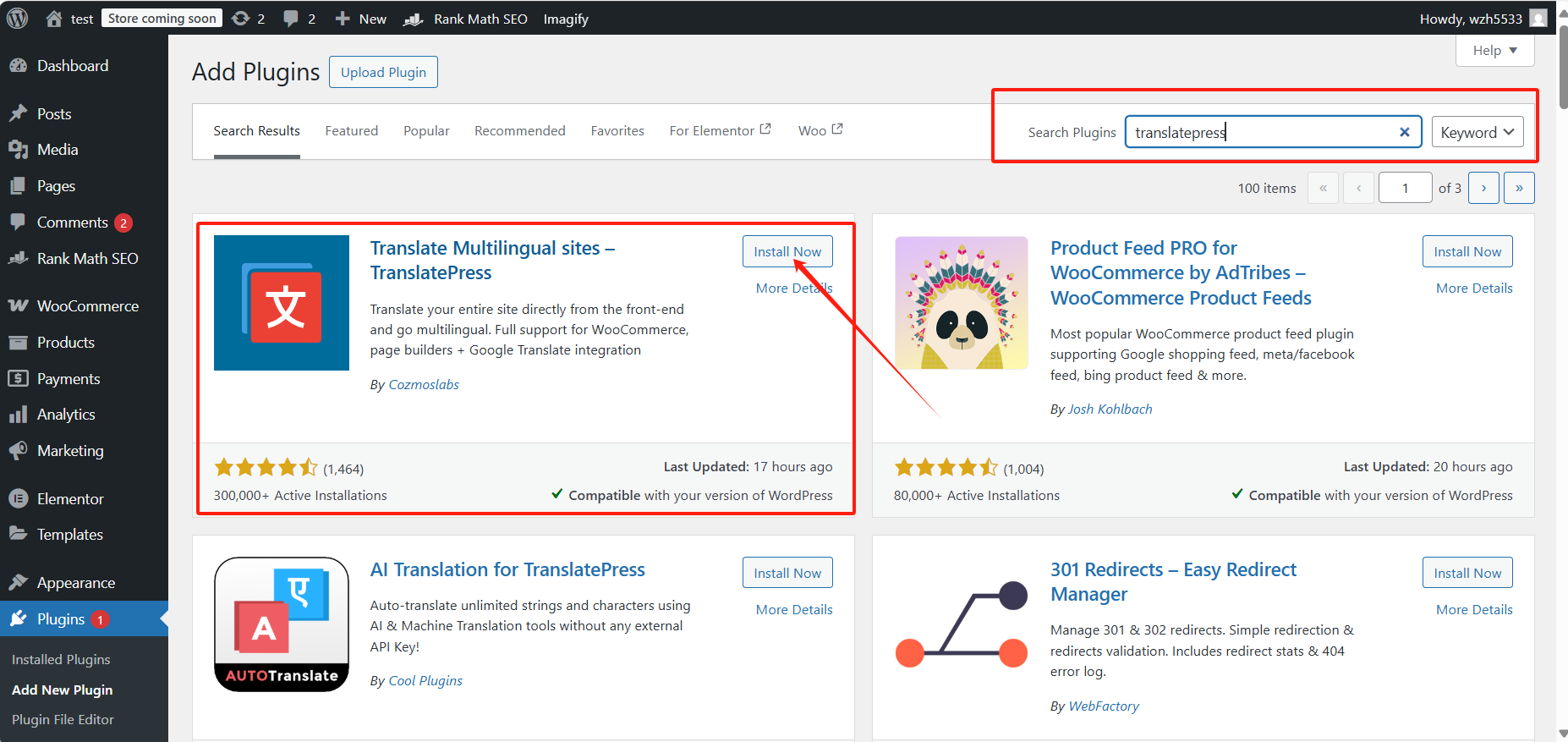
Step 2: Setting the Default and Target Languages
The plugin is activated:
- go into TranslatePress SettingsThe

- set up default language(e.g., English).
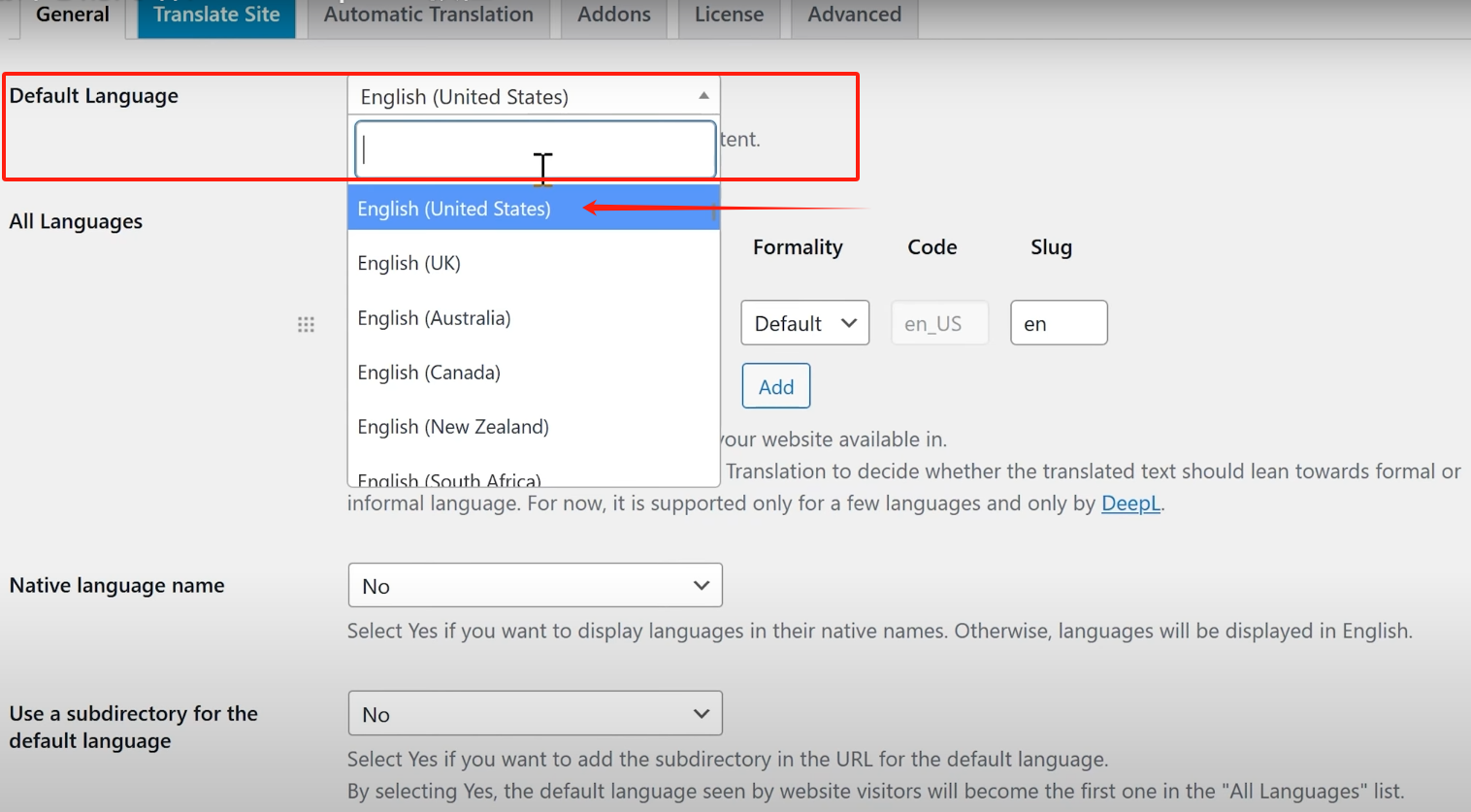
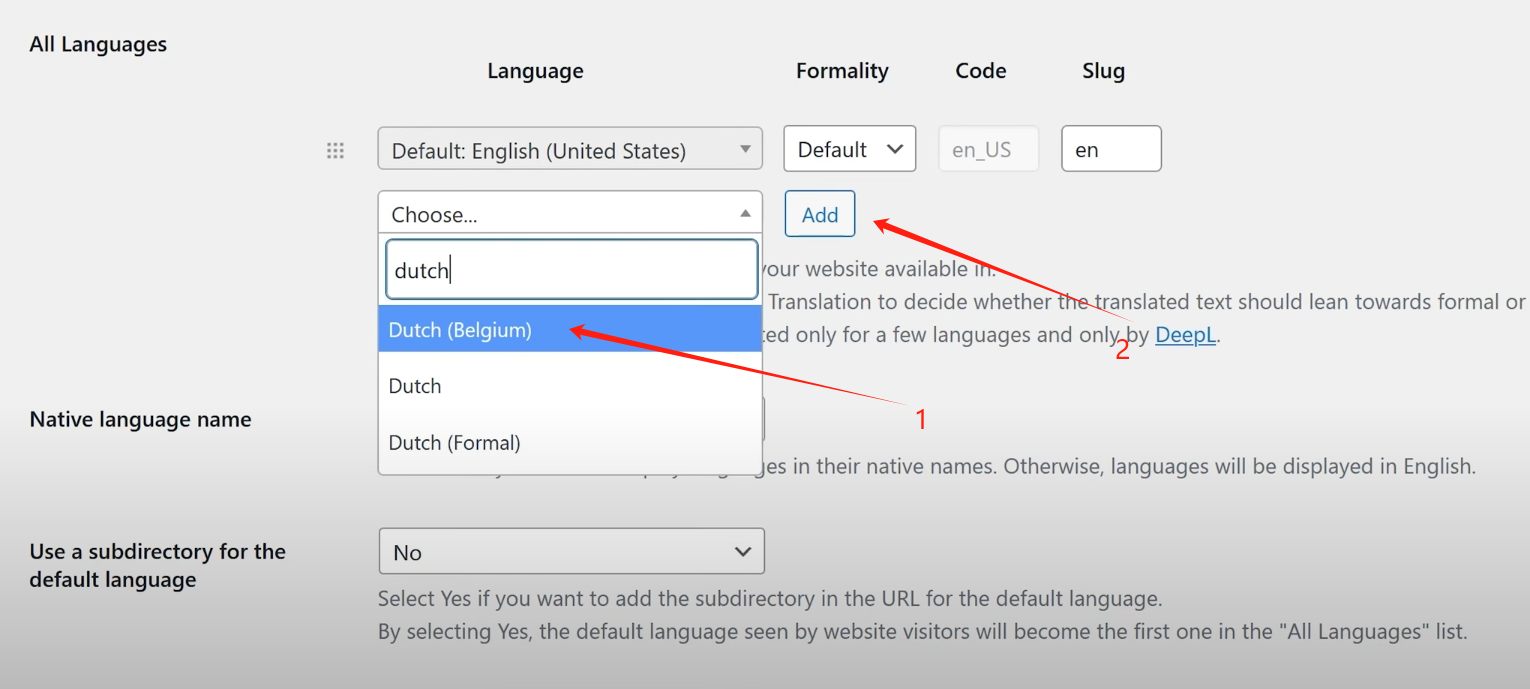
- Select what you want to translate into target language(this tutorial uses Dutch as an example), click "increase" to add the language.
- set up Name of mother tongueIf you select "Yes" will then generate the language name of the native language at the navigation bar (for example:Chinese-(Chinese)
![Image [7] - Easily Build Multilingual WordPress Websites with the TranslatePress Plugin](https://www.361sale.com/wp-content/uploads/2025/03/20250312100123639-image.png)
Step 3: Customizing the Language Switcher
TranslatePress allows you to customize the way visitors switch languages on your site. Below are a few options:
- short code: You can use a shortcode to display a language switcher on a page.
- menu item: Add the language switcher directly to your website menu.
- float selector: You can add a floatinglanguage selectorThe user can use it to select their favorite language.
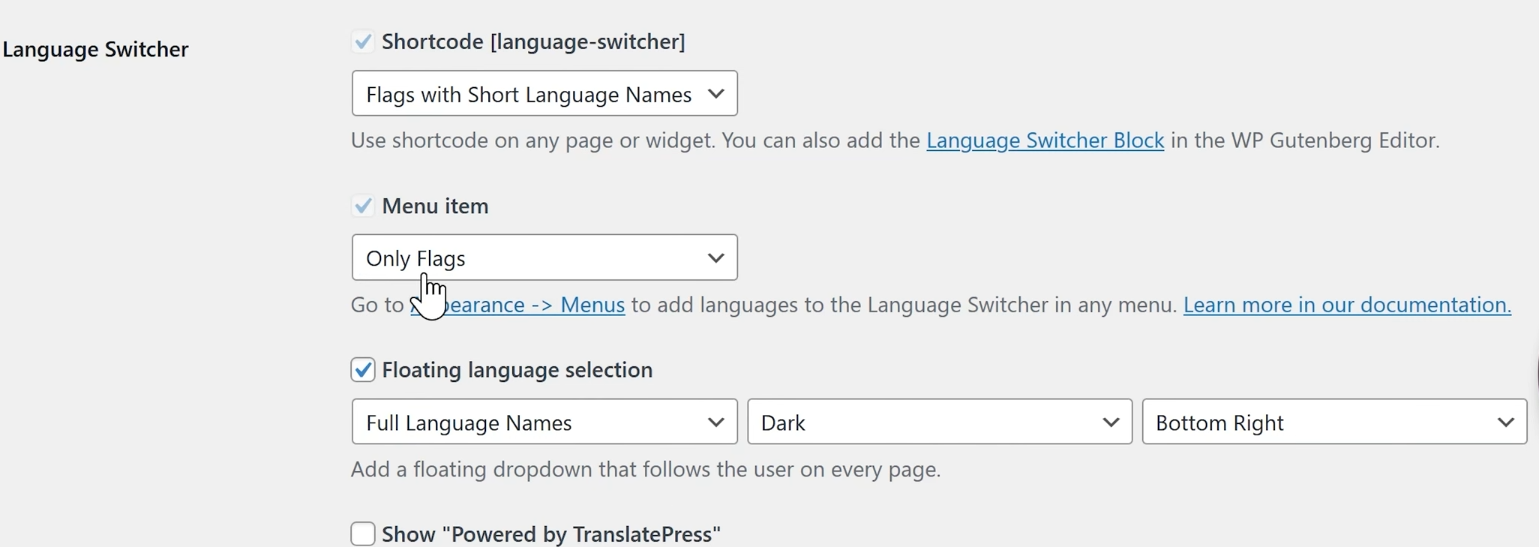
You can also choose whether to display Language Name,ensign, or a combination of both.
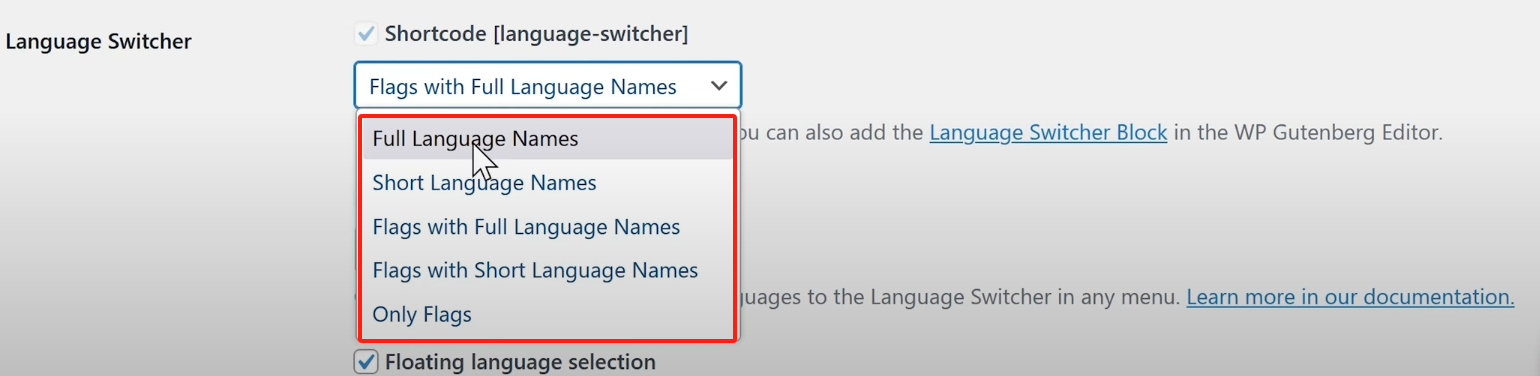
Step 4: Begin translation
Once the plugin is set up, you can start translating:
- exist TranslatePress Settings clicking on Translation websiteThe

- Hover over any content on the site and you'll see translation options.
- For example, to translate "Free Shipping" into Dutch, simply click on the text, type in the translation and click on save (a file etc) (computing)The
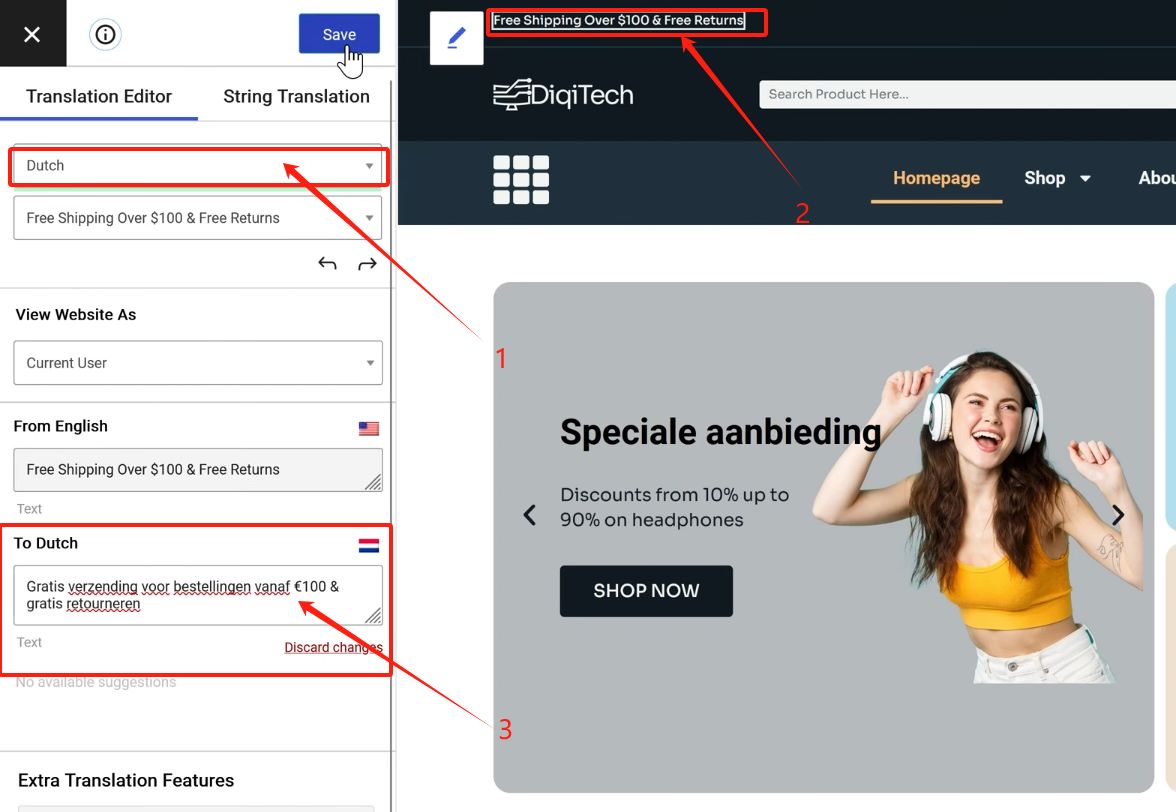
Step 5: Advanced Translation Features (Paid Version)
with regards toTranslatePressMore advanced translation options, which require upgrading to thePremium version of the packageNow, the advanced translation options are as follows:
- user language detection: Automatically detects the language of the user's location and automatically generates the native language of the user visiting the site, eliminating the need to manually select a language and making it more user-friendly for the visiting user.
- Automatic translation:Integrate the translation function of Google Translate and DeepL, no need to manually translate the options as above, this function can support one-click automatic translation.
- SEO Plugin: TranslatePress provides an SEO plugin that translates paths (slugs), titles, and meta descriptions in URLs to optimize websites for multiple language versions in search engines.
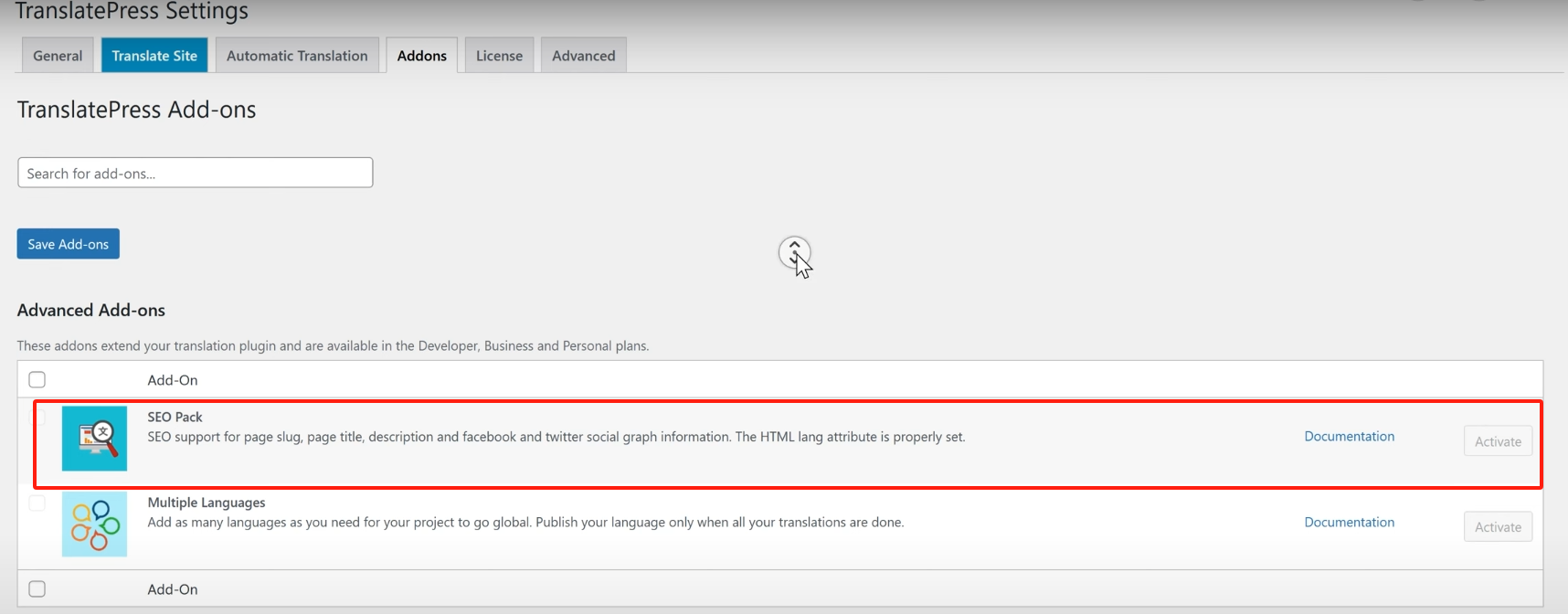
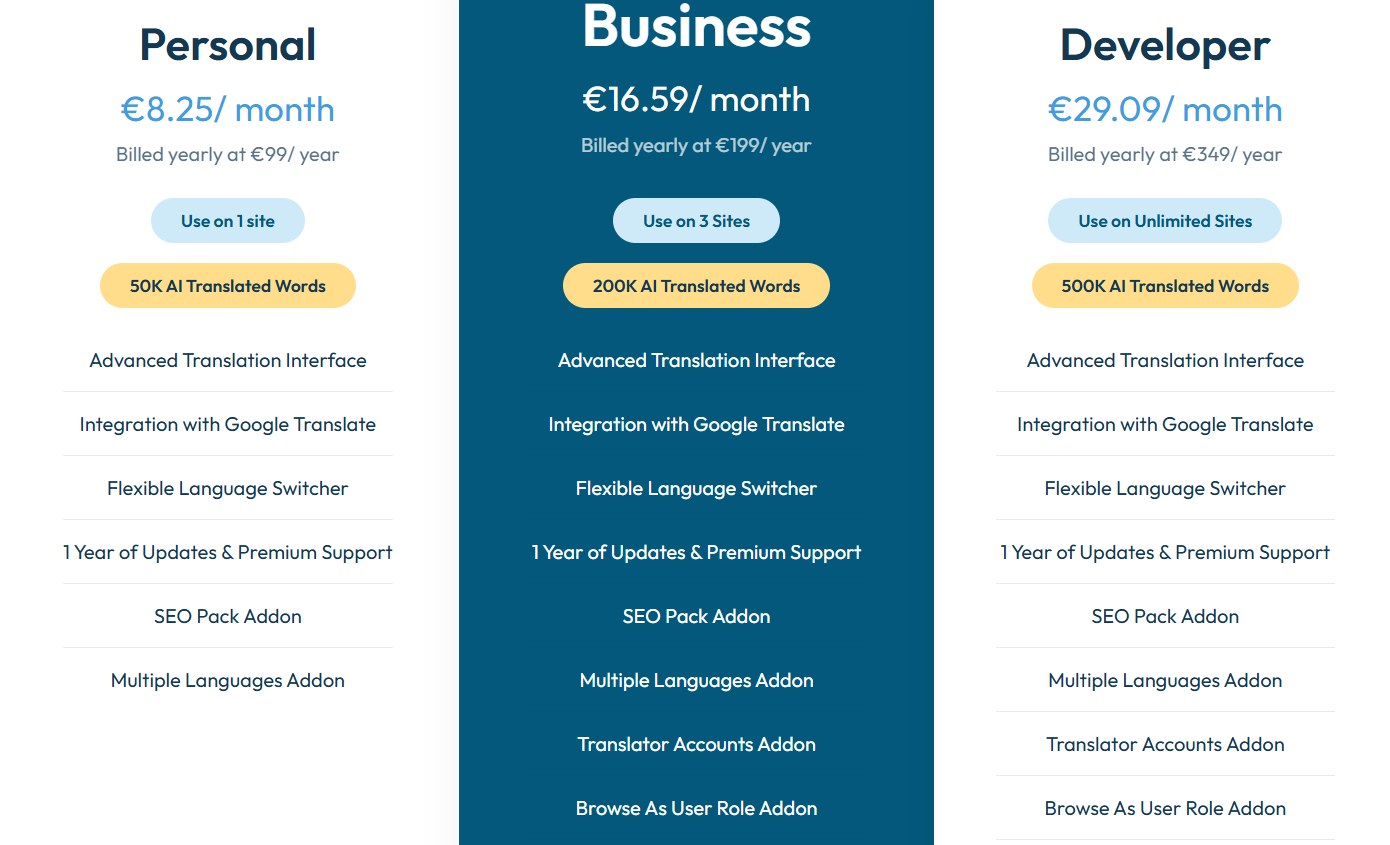
Paid Version Price List
summarize
Using the TranslatePress plugin to extend your WordPress website to a multi-language platform can significantly improve the global accessibility and user experience of your website, improve SEO optimization, and bring more exposure and traffic to your website, I hope that this post can help you, if there is aTranslatepressorWordPressRelated questions, or the operation of this post is not clear, welcome to the message below, I will patiently answer.

Link to this article:https://www.361sale.com/en/37387The article is copyrighted and must be reproduced with attribution.


















![Emoji[wozuimei]-Photonflux.com | Professional WordPress repair service, worldwide, rapid response](https://www.361sale.com/wp-content/themes/zibll/img/smilies/wozuimei.gif)

![Emoticon[baoquan] - Photon Wave Network | Professional WordPress Repair Services, Worldwide Coverage, Rapid Response](https://www.361sale.com/wp-content/themes/zibll/img/smilies/baoquan.gif)


 简体中文
简体中文  English
  日本語
日本語  Français
  Español


No comments