






For many sites, it helps webmasters to customize the map and display multiple locations, selecting theGoogle Maps is a common choice, but the Avada theme's OpenStreetMap Element provides an open source and flexible alternative. In this article, we will describe how to use Avada's OpenStreetMap Elementand how to add, edit, andCustomized Mapsposition on your website for a more efficient user experience.

What is Avada's OpenStreetMap element?
OpenStreetMap(OSM) is an open-source mapping service that provides similar functionality to Google Maps, but with data shared and maintained by users around the world.Avada's OpenStreetMap Element OSM maps can be embedded in the page to support displaying multiple locations, adjusting the map style and customizing the content as required. This element is not only suitable for displaying geographic locations, but also meets the needs of different users with a high degree of customization options.
Usage Scenarios
- Multi-location presentation: Ideal for displaying multiple offices, stores, or other locations to help customers find locations quickly.
- Showcase office locations: Display map locations of different office locations in your corporate website to enhance your company image and user trust.
- Tour or attraction introduction: fortouristsor attraction websites displaying multiple destinations or attraction locations.
- Local Merchant Showcase: Shows multiple locations of local stores or service providers to help users understand service coverage.
How to use Avada's OpenStreetMap element
Here's how to use it in Avada OpenStreetMap Element The detailed steps to help you guys easily add and customize maps.
Step 1: Add the OpenStreetMap element
- Open the Avada Editor, select the page where you want to add the map.
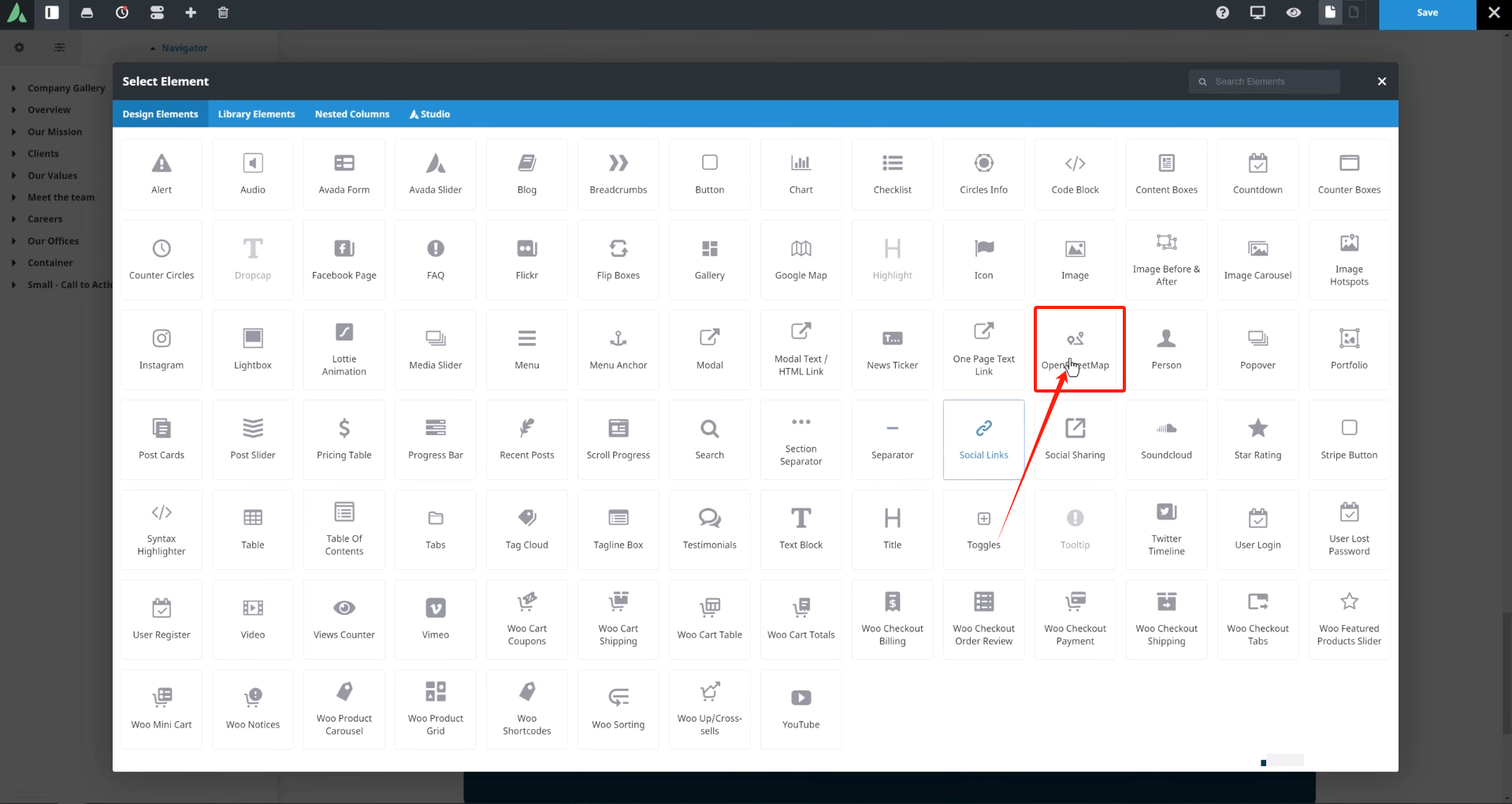
- In the Elements panel, search for "OpenStreetMap" element and drag it to the appropriate place on the page.
Step 2: Add Location
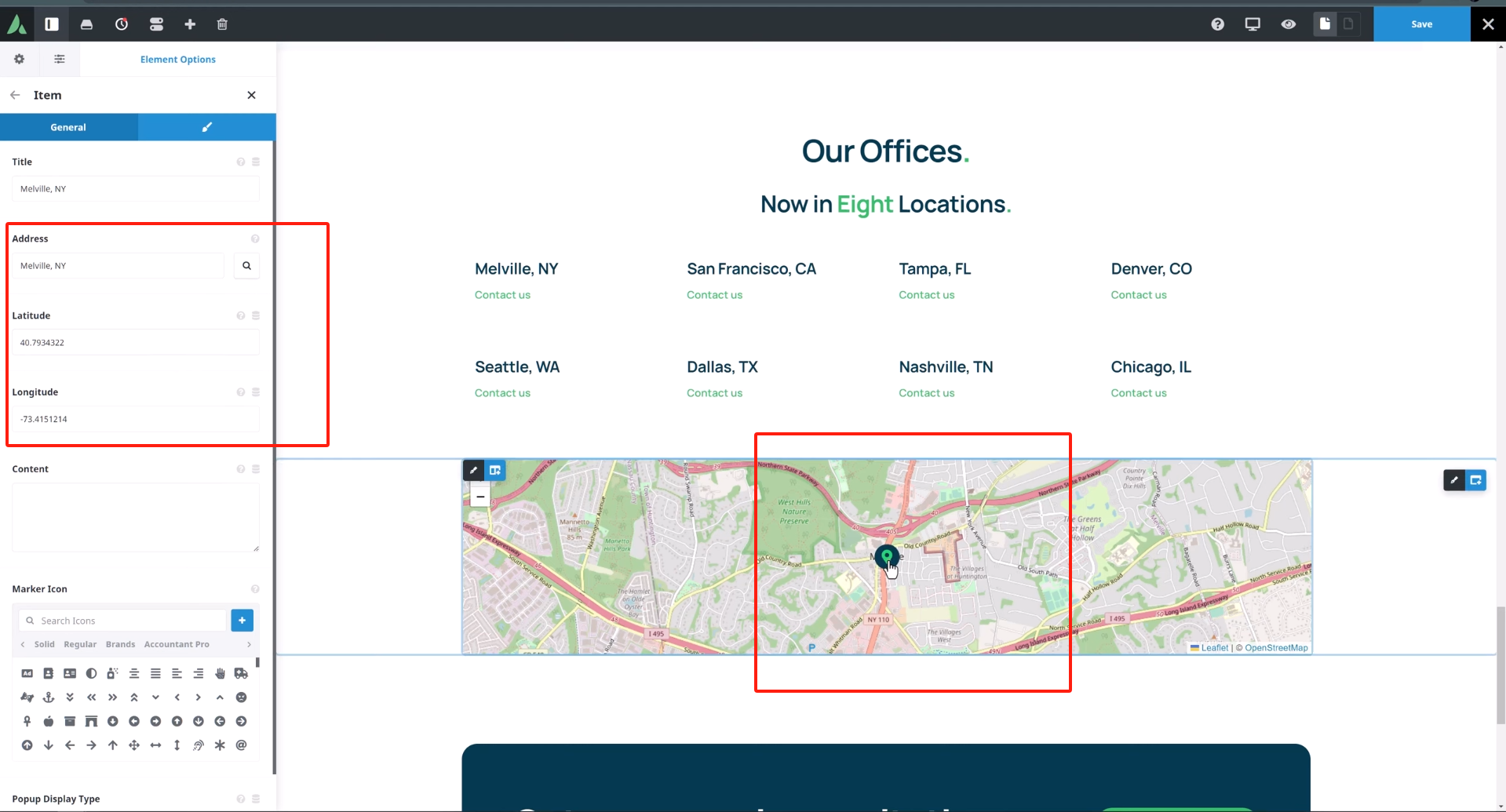
- option Editorial position, click to enter the edit screen.
- exist caption Enter a location name in the field. For example, you can use the "Melville, NY" to name the location.

- importation Latitude and longitude of the locationTheOpenStreetMap Support search by address, it is recommended to use precise latitude and longitude data to ensure the accuracy of the location, you can enter an address in the address bar, it will be automatically converted to latitude and longitude data, you can click on the map of the marking and drag it to adjust the position.
Step 3: Customize Marker Icons
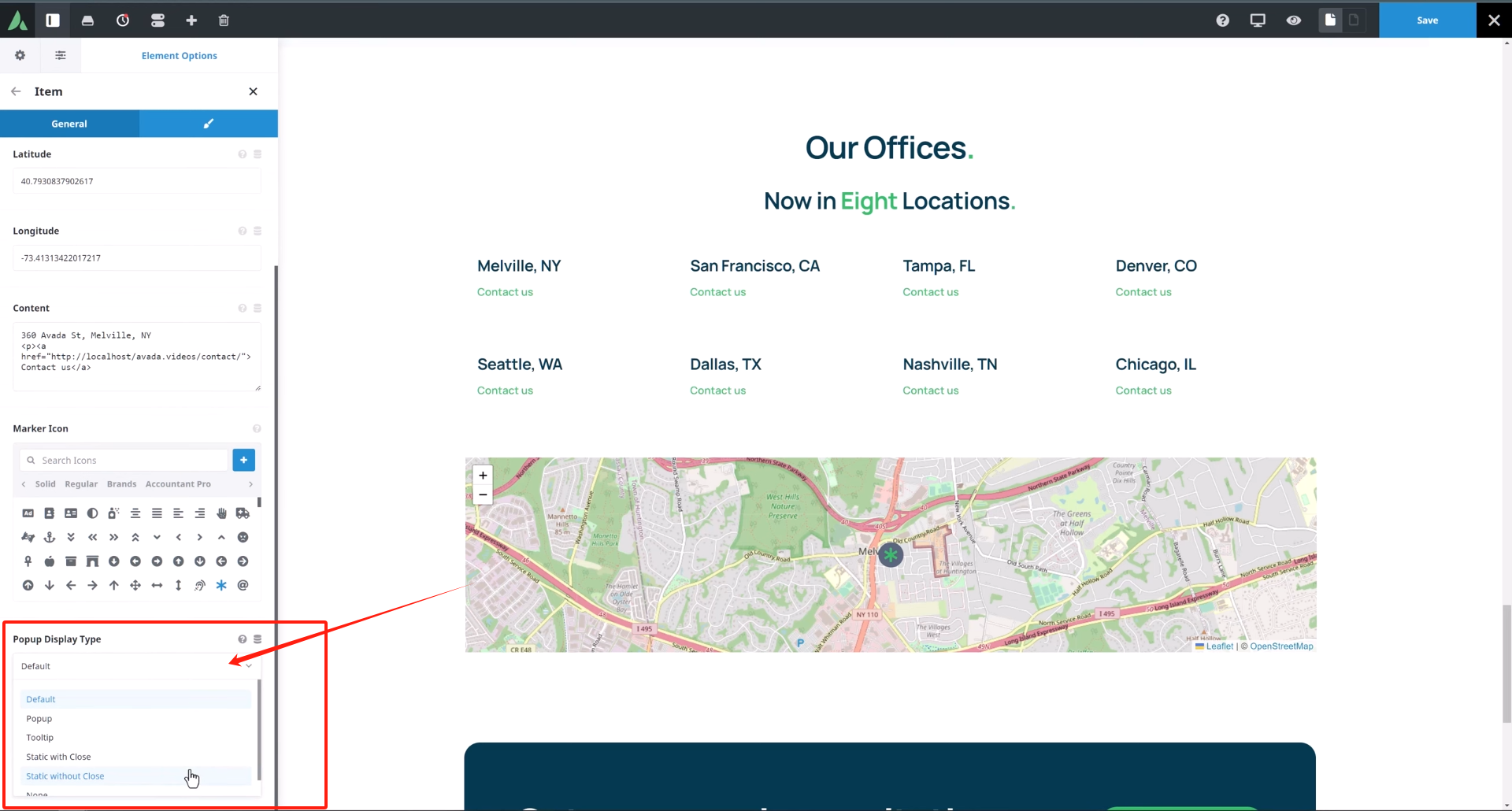
- exist tag icon option allows you to select a marker icon for each location. In most cases, you want to use the same marker icon for multiple locations. If you need to personalize the markers, you can choose from the icon library or use SVG icons instead of the default markers.

- selectable Popup display typeIf you want the marker to be displayed as a pop-up message window when you click on it, or if you want it to display a message when the mouse is hovering over it, you can set the marker to be displayed as a pop-up message window when the mouse is hovering over it.
Step 4: Map Style and Settings
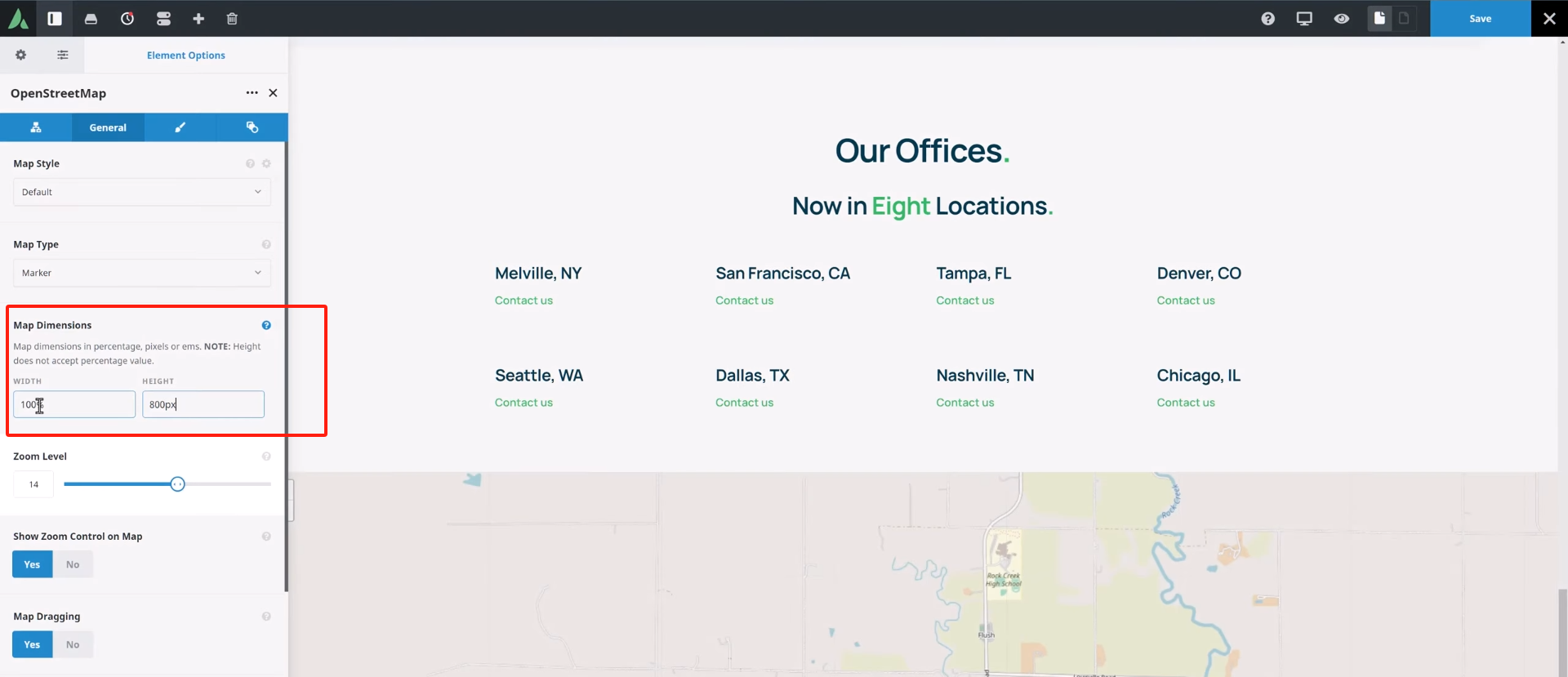
- switch to General Settings tag, which sets the map's typeAvada offers a variety of map styles to choose from, with different styles available to match the overall design of the site. For more advanced styles (such as Mapbox), you need to get and enter the Access tokens for MapboxThe

- set up Size of the mapFor example, set the width to 100% and the height to 800px to ensure that the map occupies the appropriate area.
- set up zoom levelFor multiple location displays, it is recommended to set the zoom level to a lower value (e.g., 5) in order to display more areas.
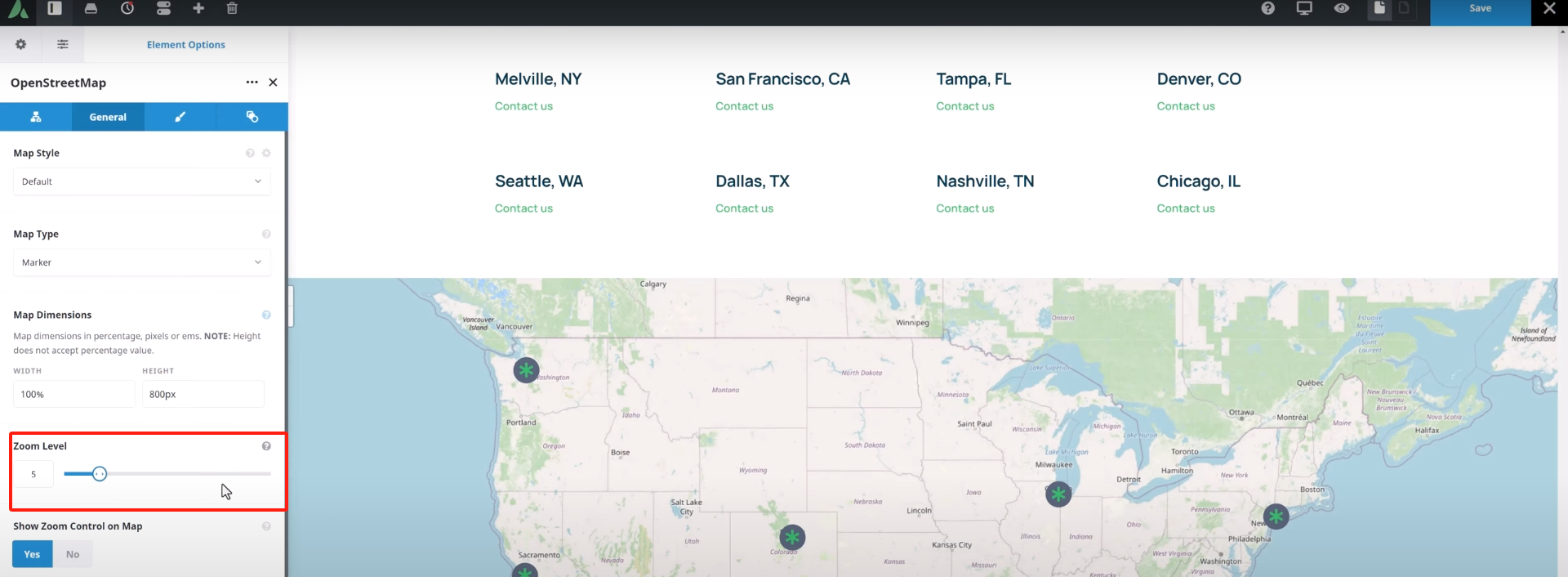
- exist Popup display type In the Tool Tips maybe static displayIt depends on how you wish to present the information.

Step 5: Customize Marker and Popup Window Styles
- exist devise Under the tab, you can further customize the tag icon styles, such as setting the markup size, color, andanimation effect(e.g. pulsation animation).
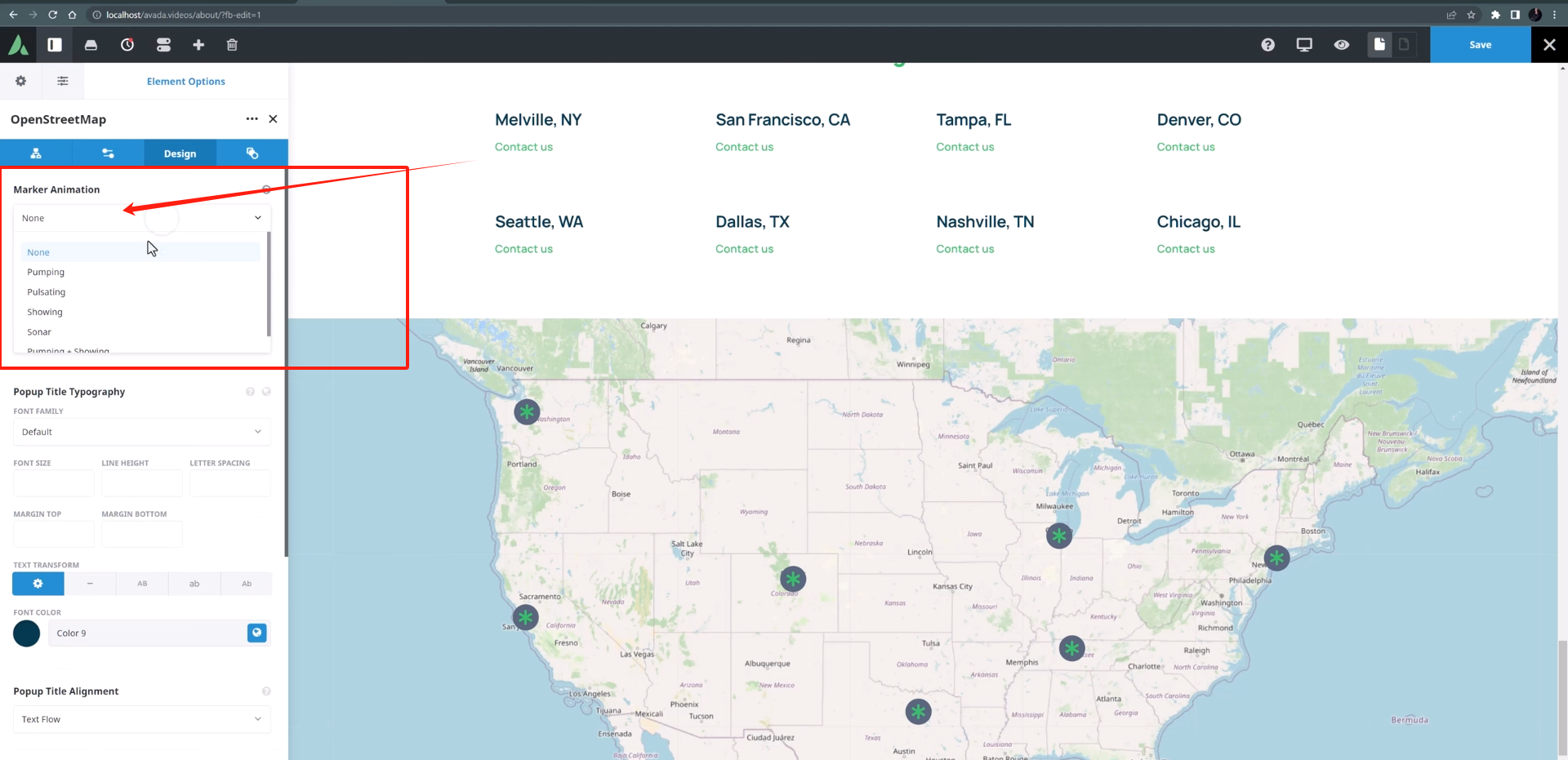
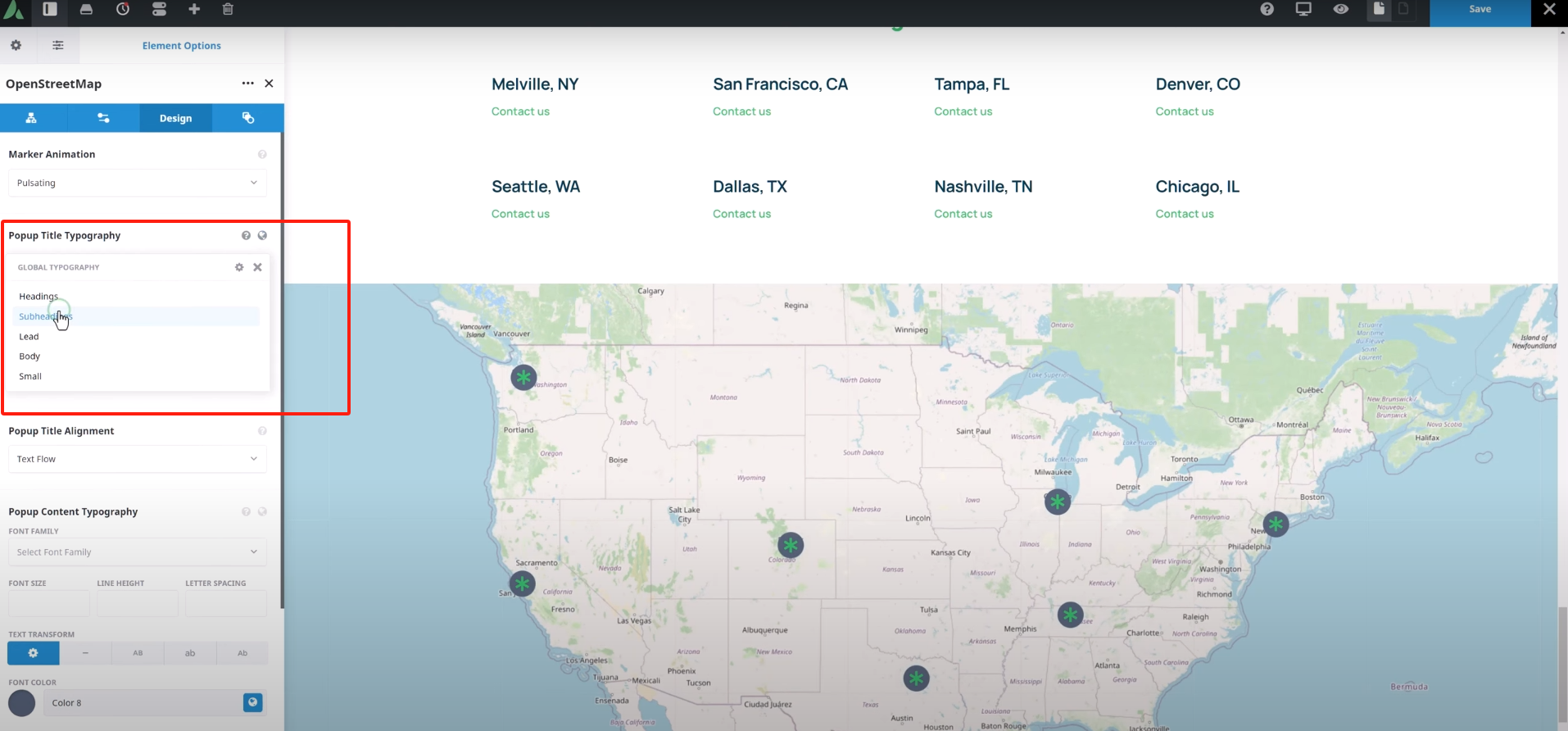
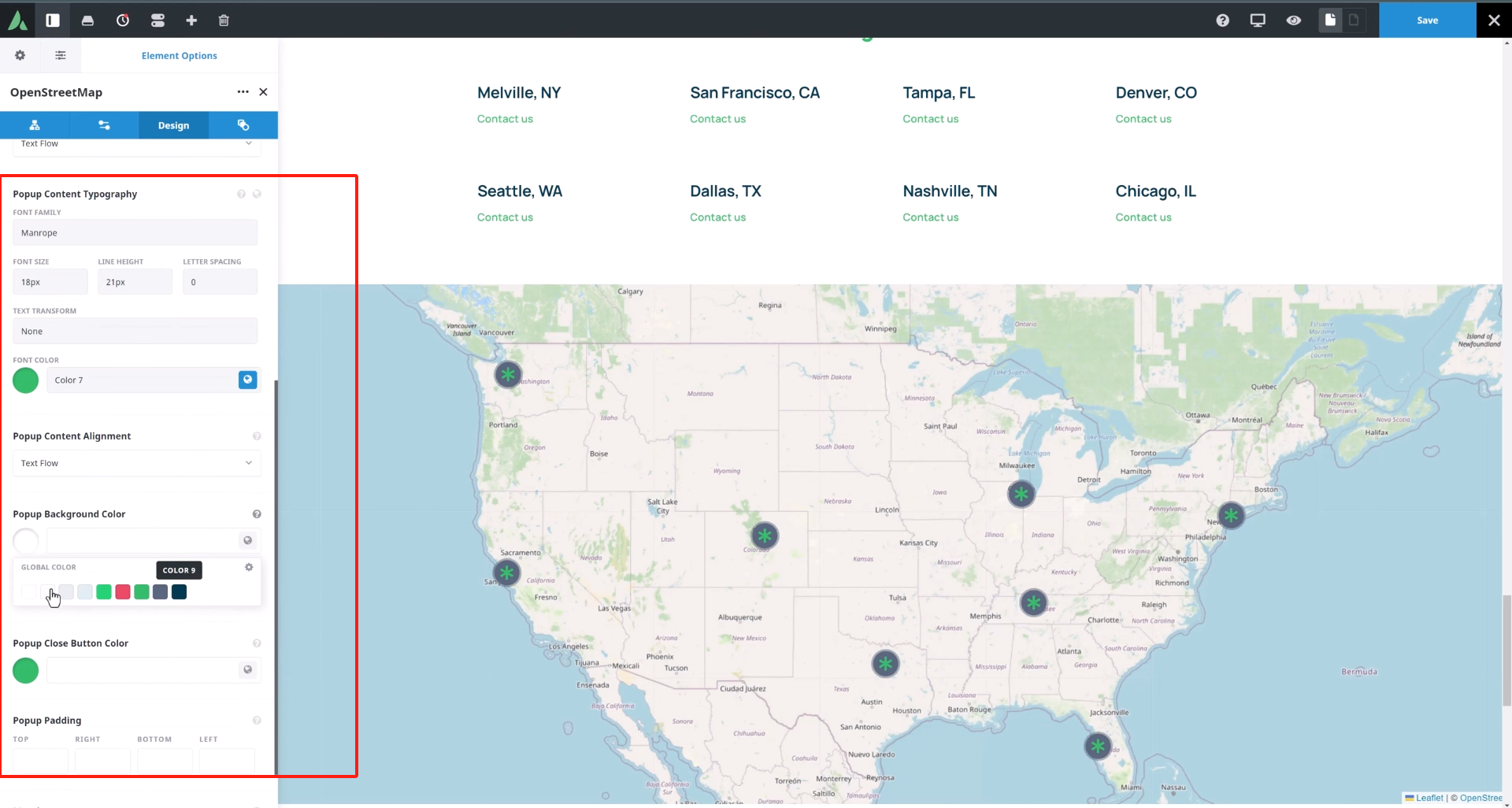
- because of pop-up window Set the typography, fonts, background colors, etc. for headings and content to ensure they are consistent with the overall style of the site.
- adapt Margins and inner margins of popup windows, making it more coordinated with the page layout.
summarize
Avada's OpenStreetMap Element is a very powerful and flexible tool for presenting locations in a variety of scenarios. With the steps in this article, it's easy to put OpenStreetMap Element Add it to your website to enhance the user experience and interactivity of your website. For more WordPress related tutorials and information, follow thePhoton fluctuation network, has the most comprehensive WordPress tutorials and the most activeWordPress Exchange CommunityThe

Link to this article:https://www.361sale.com/en/49304The article is copyrighted and must be reproduced with attribution.















![Emoji[wozuimei]-Photonflux.com | Professional WordPress repair service, worldwide, rapid response](https://www.361sale.com/wp-content/themes/zibll/img/smilies/wozuimei.gif)

![Emoticon[baoquan] - Photon Wave Network | Professional WordPress Repair Services, Worldwide Coverage, Rapid Response](https://www.361sale.com/wp-content/themes/zibll/img/smilies/baoquan.gif)


 简体中文
简体中文  English
  日本語
日本語  Français
  Español


No comments