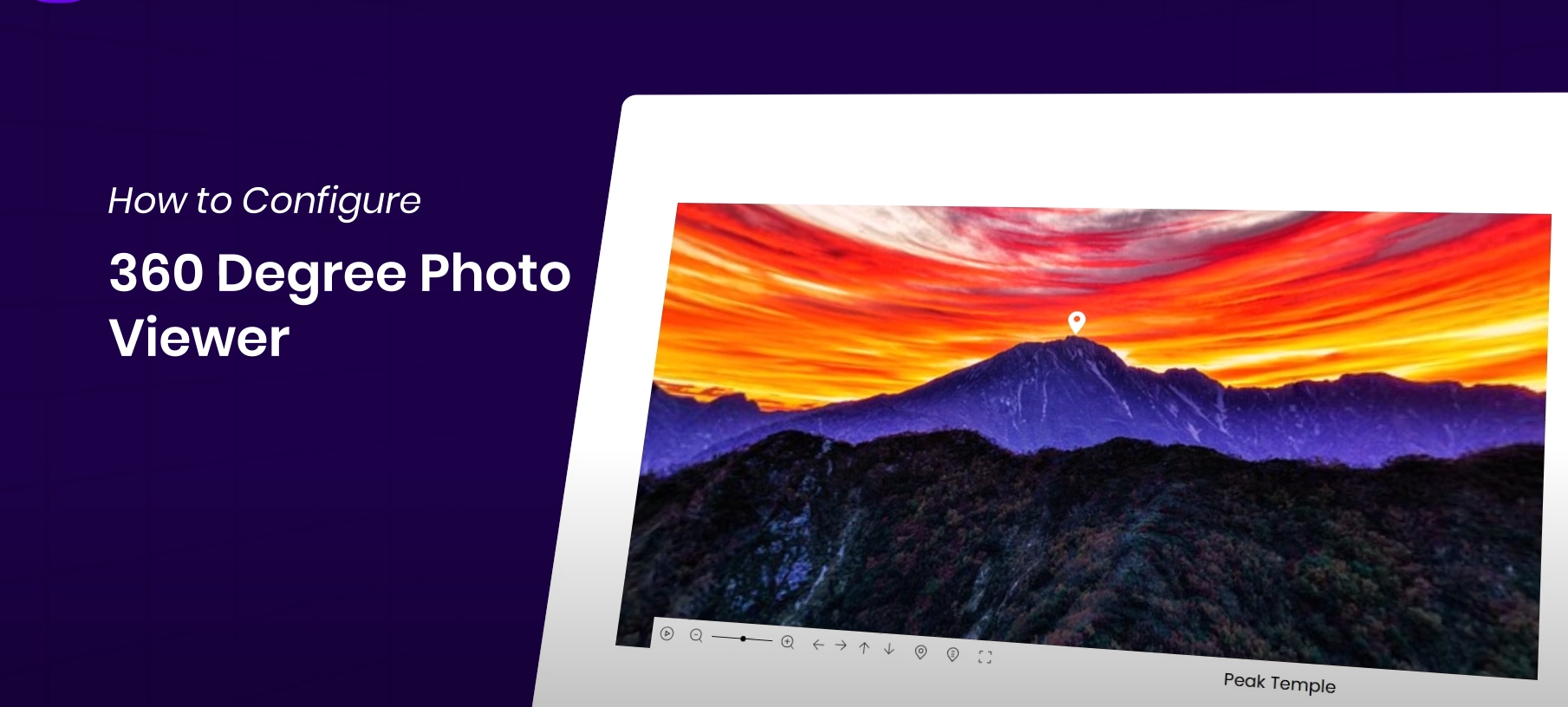






In modern website design, 360° images provide a more interactive browsing experience for users. If you want to create a 360° image in Elementor 360° images are displayed on the website.Essential Addons Addons provide a simple and powerful tool. This article will detail how to configure and display 360° images with the Essential Addons plugin.
![Images [1] - How to Display 360° Panoramic Images in Elementor Website for a Highly Interactive Website with Images](https://www.361sale.com/wp-content/uploads/2025/04/20250422141813176-image.png)
Why display 360° panoramic images on your website?
Displaying 360° panoramic images on your website can greatly enhance the user experience, providing a more vivid and interactive visual effect. Compared to traditional static images, 360° images allow users to explore content from multiple perspectives, increasing interactivity and engagement, and are particularly suitable fore-commerceReal estate andtouristsand other industries. In this way, users not only get a more complete picture of a product or scenario, but also improve buying confidence and decision-making efficiency. 360° images also enhance the professional and modern feel of a website, boost conversions, and provide a consistent and smooth experience on mobile devices, which improves user satisfaction and drives website growth.
![Images [2] - How to Display 360° Panoramic Images in Elementor Website for a Highly Interactive Website with Images](https://www.361sale.com/wp-content/uploads/2025/04/20250422141713864-4月22日.gif)
Installing and Configuring the Essential Addons Plug-in
Before starting the configuration, make sure that the Elementor and Essential Addons Pro plugins are installed and activated on your WordPress site. Below are the installation steps:
- Installation of plug-ins::
- Log in to your WordPress dashboard, go to the "Plugins" page, and click "Add New Plugin".
- Search and install Elementor respond in singing Essential Addons Plug-ins.
- Activation Plugin::
- After installing the plugins, make sure they are activated.
![Images [3] - How to Display 360° Panoramic Images in Elementor Website for a Highly Interactive Website with Images](https://www.361sale.com/wp-content/uploads/2025/04/20250422134255366-image.png)
Configuration 360° picture display function
Enable 360° Image Viewer Widget::
- In the WordPress dashboard, navigate to Essential AddonsEnter Elements Tab.
![Images [4] - How to Display 360° Panoramic Images in Elementor Website for a Highly Interactive Website with Images](https://www.361sale.com/wp-content/uploads/2025/04/20250422134632487-image.png)
- look for sth. 360° Photo Viewer Widget, enable the feature and save the settings.
![Images [5] - How to Display 360° Panoramic Images in Elementor Website for a Highly Interactive Site with Images](https://www.361sale.com/wp-content/uploads/2025/04/20250422134700236-image.png)
Adding a 360° Image Viewer to an Elementor Page::
- Open the page where you want to add the 360° image, and in the Elementor editor, select where you want to place the image viewer.
- Search in the search box in the left panel EA 360° Photo Viewer gadget, drag the gadget to the target location on the page.
![Images [6] - How to Display 360° Panoramic Images in Elementor Website for a Highly Interactive Site with Images](https://www.361sale.com/wp-content/uploads/2025/04/20250422134738558-image.png)
Select or upload images::
- In Widget Settings, select the 360° image to display. You can select an existing image from the Media Library or upload a new one.
- Ensure that the uploaded file supports 360° views.
![Images [7] - How to Display 360° Panoramic Images in Elementor Website for a Highly Interactive Site with Images](https://www.361sale.com/wp-content/uploads/2025/04/20250422135728786-image.png)
Custom 360° image viewer
- Adjust height and zoom::
- In the Settings panel, you can customize the height and zoom level of the image viewer to fit your design needs.
![Images [8] - How to Display 360° Panoramic Images in Elementor Website for a Highly Interactive Site with Images](https://www.361sale.com/wp-content/uploads/2025/04/20250422135828784-image.png)
- Enable fisheye effect::
- If you want the user to experience a unique visualization, you can enable theFisheye effect (fisheye effect)The
![Images [9] - How to Display 360° Panoramic Images in Elementor Website for a Highly Interactive Site with Images](https://www.361sale.com/wp-content/uploads/2025/04/20250422135851583-image.png)
- Enable auto-rotation::
- With auto-rotate enabled, images will automatically start rotating after the page loads, providing a smoother interactive experience.
![Images [10] - How to Display 360° Panoramic Images in Elementor Websites for Highly Interactive Websites with Images](https://www.361sale.com/wp-content/uploads/2025/04/20250422135914214-image.png)
- Add Marker::
- Position markers can be added to images to highlight specific points in the image. You can customize the content of the markers, tooltips, pointer style and adjust the position of the markers.
![Images [11] - How to Display 360° Panoramic Images in Elementor Websites for a Highly Interactive Site with Images](https://www.361sale.com/wp-content/uploads/2025/04/20250422135945109-image.png)
- Customized navigation bar::
- In the navigation bar settings, unused items can be deleted, or by clicking the Add Item Add new navigation options and select the appropriate type of navigation.
![Images [12] - How to Display 360° Panoramic Images in Elementor Websites for a Highly Interactive Website with Images](https://www.361sale.com/wp-content/uploads/2025/04/20250422140137375-image.png)
- Custom Styles::
- In Style Settings, you can adjust the visibility, color, alignment, font, and other style settings of the navigation bar to be consistent with the overall style of the site.
![Images [13] - How to Display 360° Panoramic Images in Elementor Websites for a Highly Interactive Website with Images](https://www.361sale.com/wp-content/uploads/2025/04/20250422140244173-image.png)
- Advanced Design Settings::
- go into Advanced tab to further fine-tune the image viewer's margins, padding, alignment, and other design details so that it fully adapts to the site's design.
![Images [14] - How to Display 360° Panoramic Images in Elementor Websites for a Highly Interactive Site with Images](https://www.361sale.com/wp-content/uploads/2025/04/20250422140318580-image.png)
Completed and released
When all customizations are complete, click Publish button to save and publish the page. The page can now be viewed to see that the user is able to interactively view the 360° image and easily explore from all angles.
![Images [15] - How to Display 360° Panoramic Images in Elementor Websites for a Highly Interactive Site with Images](https://www.361sale.com/wp-content/uploads/2025/04/20250422140611997-image.png)
Introduction to the Essential Addons Package
Essential Addons offers Elementor users several powerful feature packages that can be customized to meet different needs.
Below is the official package price list:
| product or service package (e.g. for a cell phone subscription) | prices | length of time | Website activation | Support & Updates | gadget | Extended functionality | Templatley PRO Free Access |
|---|---|---|---|---|---|---|---|
| Lifetime Unlimited | $199.98 |
limitless | ✔ | ✔ | 85+ gadgets | 15 extensions | ✔ |
| Unlimited | $79.98 |
1 year | ✔ | ✔ | 85+ gadgets | 15 extensions | ✔ |
| 1 Website | $39.98 |
1 year | ✔ | ✔ | 85+ gadgets | 15 extensions | ✔ |
You can see that the official Unlimited package is $79, the price is still relatively expensive, due to our website and Essential Addons official cooperation promotion, get the official discount price, please click on thethis linkInquiries and purchases.
![Images [16] - How to Display 360° Panoramic Images in Elementor Websites for a Highly Interactive Site with Images](https://www.361sale.com/wp-content/uploads/2025/04/20250422141951853-image.png)
summarize
With the Essential Addons plugin and Elementor, it's easy to implement 360° image viewing on your website to enhance the user experience. The steps above allow you to quickly add and customize a 360° image viewer to provide users with an interactive, immersive browsing experience. For more WordPress related tutorials and information, stay tuned!Photon fluctuation network, has the most comprehensive WordPress tutorials and the most activeWordPress Exchange CommunityThe

Link to this article:https://www.361sale.com/en/51203The article is copyrighted and must be reproduced with attribution.
















![Emoji[wozuimei]-Photonflux.com | Professional WordPress repair service, worldwide, rapid response](https://www.361sale.com/wp-content/themes/zibll/img/smilies/wozuimei.gif)

![Emoticon[baoquan] - Photon Wave Network | Professional WordPress Repair Services, Worldwide Coverage, Rapid Response](https://www.361sale.com/wp-content/themes/zibll/img/smilies/baoquan.gif)


 简体中文
简体中文  English
  日本語
日本語  Français
  Español


No comments