






Want to boost your online store sales and conversions? A powerful smart shopping cart plugin can help you do that. It makes the shopping process smoother, reduces customer churn, and even increases repurchase rates. For those who are new toWooCommerceFor the newbies, this article will explain the role of the Smart Cart plugin, how to select it and the installation steps.
![Image [1]-WooCommerce Smart Cart Plugin: Installation Tutorial for Boosting Sales](https://www.361sale.com/wp-content/uploads/2025/11/20251108145419545-image.png)
First, what is the smart shopping cart plug-in
Smart Cart plugin is an extension that enhances the WooCommerce shopping experience. It can automatically calculate offers, recommend matching products, display inventory changes, or react to customer behavior. In short, it makes the shopping cart "smart" - not only as an ordering tool, but also as an assistant to improve sales efficiency.
Common features include:
- Automatic Discount Calculation: Offers are automatically applied based on the number of purchases, amount or activity.
- Shopping cart pop-up alerts: Alerts appear when a customer adds or leaves, increasing the chances of placing an order.
- Recommended Products: Suggest similar or related products based on items that have been added to the shopping cart.
- Multi-step checkout optimization: Shorten the checkout process and reduce abandoned orders.
These features are great for those just starting out in businessWooCommerceVery useful for newcomers to the store.
Second, choose the right smart shopping cart plug-in
There are many WooCommerce shopping cart plugins available in the market, and newbies can consider the following aspects when picking one:
- compatibility
The plugin needs to be compatible with the currentWooCommerceVersion compatibility and update frequency should be stable. You can check the "Last Updated" time and the compatibility statement on the plugin page first. - core functionality
Start by listing the features you need the most, such as automatic discounts, coupon display or sidebar shopping cart, and then filter the plugins. This will avoid having too many features and affecting the loading speed. - simple interface
Plugins with a clear interface and simple operation are more suitable for beginners, such as plugins that use drag-and-drop or visual setup methods. - Customer testimonials and support
View user ratings and reviews for post-installation stability and developer responsiveness. - Performance Impact
Some plugins are powerful but large and may slow down the site. It is recommended to test the page loading time after installation.
Common plugin recommendations:
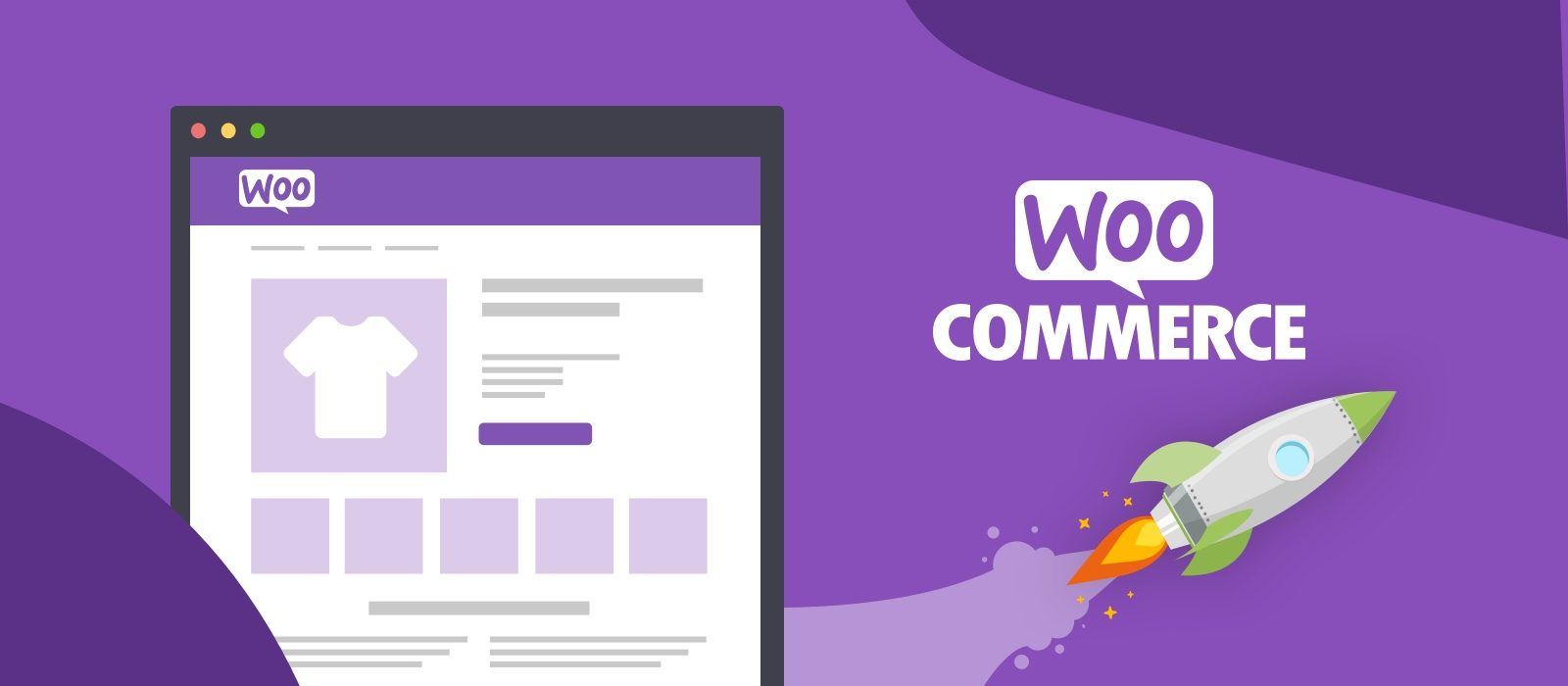
- WooCommerce Cart Abandonment Recovery: Can automatically salvage unfilled orders.
![Image [2]-WooCommerce Smart Cart Plugin: Installation Tutorial for Boosting Sales](https://www.361sale.com/wp-content/uploads/2025/11/20251108145600134-image.png)
- Smart Cart for WooCommerce: Provides automatic discounts and recommendations.
![Image [3]-WooCommerce Smart Cart Plugin: Installation Tutorial for Boosting Sales](https://www.361sale.com/wp-content/uploads/2025/11/20251108145649538-image.png)
- Side Cart WooCommerce: Add a slide-out side shopping cart to improve interactivity.
![Image [4]-WooCommerce Smart Cart Plugin: Installation Tutorial for Boosting Sales](https://www.361sale.com/wp-content/uploads/2025/11/20251108150158143-image.png)
Third, the steps to install the smart shopping cart plug-in
1. Access to the background plug-in center
log inWordPressbackend, click on the left-hand menu in the Plugins → Install Plugins. Enter the name of the target plugin in the search box, for example "Smart Cart for WooCommerce".
2. Install and enable the plug-in
Once you have found the plugin, click mounting button, and when the installation is complete, click the start using. At this point the plugin has been added to the site system.
3. Open the plug-in settings page
When enabled, new menu items or setting entries usually appear in the backend, such as Smart Cart → SettingsThe
In the settings you can enable different features according to the store's needs, such as auto-recommendation, shopping cart pop-ups or discount logic.
![Image [5]-WooCommerce Smart Cart Plugin: Installation Tutorial to Boost Sales](https://www.361sale.com/wp-content/uploads/2025/11/20251108153058310-image.png)
4. Configure the shopping cart display style
Most smart shopping cart plugins support custom styles. You can adjust button colors, pop-up text, animation style, etc. It is recommended to choose a style that is consistent with the overall design of your website so that it feels natural when customers browse.
5. Conducting tests
Once the installation is complete, open the store in the frontend and try to add items to the cart. Check if any referral messages, pop-ups or discount alerts appear. If everything is fine, you can officially use it online.
IV. Tips to enhance the shopping experience
While plugins can bring a lot of convenience, it's just as critical to set them up wisely. Here are a few tips to help you get the most out of your features:
- Show real-time offers
Showing the discounted amount or remaining full threshold in the shopping cart will incentivize customers to buy more. - Add countdown function
A shopping cart countdown creates a sense of urgency and is often used for promotions or limited time offers. - Setting the free shipping threshold
existcartIn the prompt "buy another full XX yuan can be free shipping", can effectively improve the average unit price. - Optimize mobile display
Many customers shop from their phones and check that the plugin is well laid out and the buttons are easy to click on mobile. - Integrated Email Alerts
Pair it with an email marketing plugin that sends reminder emails to customers who have abandoned their carts to increase retention rates.
V. Common problems and solutions
![Image [6]-WooCommerce Smart Cart Plugin: Installation Tutorial for Boosting Sales](https://www.361sale.com/wp-content/uploads/2025/11/20251108151039126-image.png)
1. Shopping cart not loading after plugin installation?
Possible conflict with cache or other plugins. Clear cache or deactivate tests one by one to find conflicting plugins.
2. Abnormal display of pop-up windows?
Check the theme CSS style, sometimes the theme overrides the plugin style, need to be adjusted manually.
3. Shopping cart recommended products do not match?
Verify that the plugin's recommendation logic is set up correctly, such as matching based on categories or tags.
4. Website slowdown?
Turn on performance analysis to troubleshoot plugin load times. Can be paired with caching or CDN services to improve speed.
5. Multi-language or multi-currency support?
Some plug-ins need to work withWPMLor Currency Switcher to display multi-language and multi-currency prices properly.
VI. Summary
The Smart Cart plugin enablesWooCommerceStores process orders more efficiently and increase conversions. It reduces repetitive actions and makes the shopping process smoother. Newbies can quickly enable it by simply choosing the right plugin and simply testing it.
If you want to further improve your performance, pair it with email alerts or inventory management tools to create a more efficient e-commerce system. This way, the store runs smoother and retains customers better.

Link to this article:https://www.361sale.com/en/80329/The article is copyrighted and must be reproduced with attribution.
















![Emoji[wozuimei]-Photonflux.com | Professional WordPress repair service, worldwide, rapid response](https://www.361sale.com/wp-content/themes/zibll/img/smilies/wozuimei.gif)

![Emoticon[baoquan] - Photon Wave Network | Professional WordPress Repair Services, Worldwide Coverage, Rapid Response](https://www.361sale.com/wp-content/themes/zibll/img/smilies/baoquan.gif)


 简体中文
简体中文  English
  日本語
日本語  Français
  Español


No comments