




The archive template has been created and the layout designed, yet the front-end category or archive pages show no changes whatsoever?This is not Elementor the bug, but rather Archive templates themselves have strict trigger logic and priority rules.If even one condition is not met, the template will "appear to fail." Below is a systematic breakdown from theory to practice. 5 Most Common Yet Easily Overlooked ReasonsThe
![Image[1] - Elementor Archive Template Not Working? 90% Users Overlook These 5 Key Reasons](https://www.361sale.com/wp-content/uploads/2025/12/20251216101537807-image.png)
1. The Archive template has not set or incorrectly set the "Display Conditions".
this is The most common reason, and the top oneTheElementor The Archive template does not take effect automatically.You must use Display Conditions to tell the system: on which pages this template should be applied.The
Common mistakes include:
- The Archive template has been created, butNo display conditions have been added.
- The display condition was set to the wrong type (e.g., Single was selected).
- Only one category was selected, but the actual page accessed belongs to another category.
The correct logic is:
- Blog Archive Page: Select "Include → All Archives" or "Category"
- Product Category Page: Select "Product Archives" or a specific Product Category
![Image[2] - Elementor Archive Template Not Working? 90% Users Overlook These 5 Critical Reasons](https://www.361sale.com/wp-content/uploads/2025/12/20251216102750687-image.png)
If the display conditions do not match, the template will definitely not take effect.
2. Theme-provided archive templates have higher priority.
Many users overlook a crucial fact:Elementor The Archive template is "takeover-style" rather than a forced override.
If you're using themes such as Astra, WoodMart, Blocksy, etc.:
- Built-in mandatory category page templates
- Or a custom archive layout has been enabled in the theme settings.
Then the theme templateMay take precedence over Elementor in displayThis causes the Elementor Archive to appear completely non-functional.
Approaches to solving the problem include:
- Disable Archive / Blog Layout in Theme Settings
![Image[3] - Elementor Archive Template Not Working? 90% Users Overlook These 5 Critical Reasons](https://www.361sale.com/wp-content/uploads/2025/12/20251216111325163-image.png)
- Let Elementor handle the layout
- Avoid controlling the same page type simultaneously in both the theme and Elementor.
3. The page you are visiting is not the actual "Archive page."
It's aConceptual errors, yet extremely commonThe
The Archive template only applies to the following pages:
- Article Category Page
- tabs
- Product Category Page
- Author Page, Date Archive Page
However, many people access the following URL during testing:
- Manually created pages
- Custom URL Page
- Elementor Page Template Page
If the page being accessed is not a system-generated archive page, then Archive templates will never be triggered.The
The method of determination is quite simple:
- Does the URL contain category, tag, or product-category?
![Image[4] - Elementor Archive Template Not Working? 90% Users Overlook These 5 Key Reasons](https://www.361sale.com/wp-content/uploads/2025/12/20251216111648411-image.png)
- Is this a list page automatically generated by WordPress?
4. The Archive template does not utilize the "Dynamic Content Component."
Even if the template is called correctly, if there are issues with its internal structure, it will appear as though it "isn't working."
The most common question is:
- Used plain text and image components
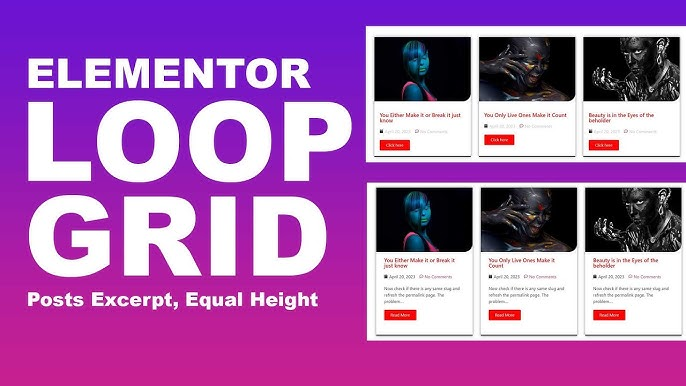
- No use of archive-specific components such as Loop Grid, Posts, or Archive Title
![Image[5] - Elementor Archive Template Not Working? 90% Users Overlook These 5 Key Reasons](https://www.361sale.com/wp-content/uploads/2025/12/20251216111913959-image.png)
The core of the Archive template is Dynamic output content, rather than a static layout.
A proper Archive template should at least include:
- Archive Title
- Loop Grid or Posts
- Pagination
If the template contains no dynamic content components, the page may appear blank.
V. Caching or build methods causing the frontend not to refresh
After ruling out all of the above issues, if it still doesn't work, it's usually a problem with the caching layer.
Common scenarios include:
- The cache plugin was used but not cleared.
- Server-level cache has not been refreshed.
- CDN caching is still in effect.
- Elementor files have not been regenerated.
Recommended Standard Troubleshooting Sequence:
- Clear Elementor → Tools → Regenerate Files
- Clear plugin cache
- Clear the server or CDN cache
- Revisit using Incognito mode
summarize
Elementor Archive template "not working"It's almost never because Elementor itself has a problem.but rather one of the following five points:
- Display condition settings are incorrect or missing.
- Theme Template Priority Override
- Invalid page type
- The template is missing dynamic components.
- Caching prevents the frontend from updating.
As long as you troubleshoot each item in this order,All issues with the 99% Archive template can be identified and resolved.The

Link to this article:https://www.361sale.com/en/83060The article is copyrighted and must be reproduced with attribution.



















![Emoji[wozuimei]-Photonflux.com | Professional WordPress repair service, worldwide, rapid response](https://www.361sale.com/wp-content/themes/zibll/img/smilies/wozuimei.gif)

![Emoticon[baoquan] - Photon Wave Network | Professional WordPress Repair Services, Worldwide Coverage, Rapid Response](https://www.361sale.com/wp-content/themes/zibll/img/smilies/baoquan.gif)


 简体中文
简体中文  English
  日本語
日本語  Français
  Español


No comments