






In WordPress websites, archive pages help visitors quickly find the content they want to see and are a key factor influencing overall SEO. Using Elementor Theme Builder allows even beginners to create professional-grade archive pages with visual consistency, clear structure, and a genuinely enhanced browsing experience. This guide will start with foundational concepts and walk you step-by-step through the entire process—from adding templates to live deployment.
![Image[1] - Effortlessly Create the Perfect Archive Page! The Ultimate Elementor Guide for Beginners to Upgrade Your Website!](https://www.361sale.com/wp-content/uploads/2025/12/20251209095840474-maxresdefault.jpg)
1. What is the Elementor Archive template? What is its purpose?
Archive templates are page templates in WordPress used to display lists of posts or collections of content. Common archives include:
- Category Archives
- Tag Archive
- Author Archive
- Date Archive
- Custom Post Type Archive (CPT Archive, e.g., Product List)
- Search Results Page
![Image[2] - Easily Create the Perfect Archive Page! Elementor Beginner's Complete Guide: Power Up Your Website!](https://www.361sale.com/wp-content/uploads/2025/12/20251209101111868-image.png)
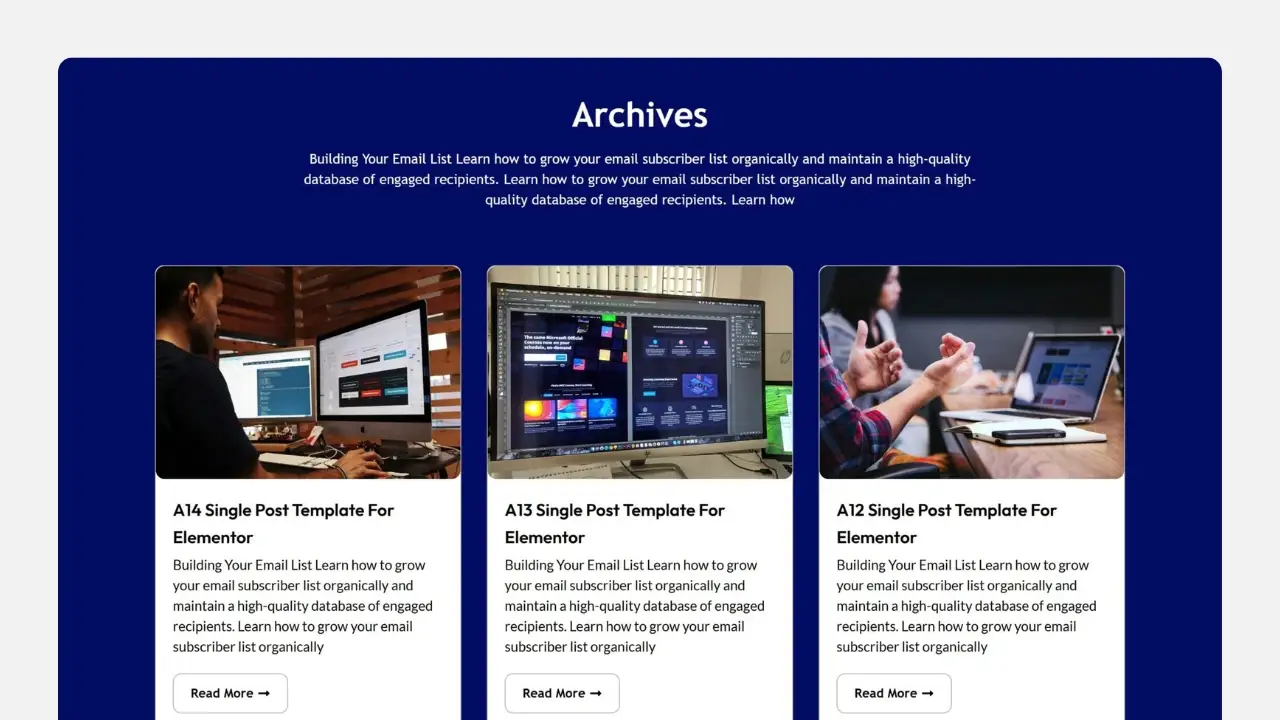
Undesigned default archive pages typically appear monotonous and lack a clear hierarchical structure. After adding an Archive template using Elementor, you can:
- Modify page layout
- Customize Post List Style
- Add dynamic content
- Adjust pagination, titles, and descriptions
- Unify website design style
For content-driven websites, blogs, online stores, and news portals, the Archive template is just as important as the homepage and article pages.
2. Tools and Prerequisites for Adding an Archive Template in Elementor
Before you begin creating, please ensure you have the following:
2.1 Install the Elementor Plugin
![Image[3] - Effortlessly Create the Perfect Archive Page! The Ultimate Elementor Guide for Beginners to Upgrade Your Website!](https://www.361sale.com/wp-content/uploads/2025/12/20251209144007697-image.png)
The free version can be used for basic design, but creating an Archive template requires the paid version. Elementor ProBecause Archive is part of the Theme Builder feature.
2.2 Using Themes That Support Theme Builder
Most themes are compatible, but we recommend:
- Hello Elementor (The Cleanest Theme)
- Astra
- GeneratePress
- Blocksy
- Kadence
These topics are related to Elementor Most stable when assembled.
2.3 Enable Permalinks
Settings → Permalinks → Select "Post Name". This helps ensure Archive pages display correctly.
![Image[4] - Easily Create the Perfect Archive Page! The Ultimate Elementor Guide for Beginners to Upgrade Your Website!](https://www.361sale.com/wp-content/uploads/2025/12/20251209144242680-image.png)
3. How to Add an Archive Template in Elementor (Complete Steps)
The following steps are suitable for complete beginners. Simply follow them in order to create an archive page template.
3.1 Access the Elementor Theme Builder
- Open the WordPress backend
- locate Elementor → Templates
- strike (on the keyboard) Theme Builder
![Image [5] - Effortlessly Create the Perfect Archive Page! The Ultimate Beginner's Guide to Elementor, Powering Up Your Website!](https://www.361sale.com/wp-content/uploads/2025/12/20251209144604334-image.png)
Theme Builder is your website template hub, allowing you to manage all structural templates including Header, Footer, Archive, Single, and more.
3.2 Create a New Archive Template
- Select in Theme Builder Archive
- Click on the upper right corner Add New Template
- The page will prompt you to select a template type → Select Archive
![Image[6] - Easily Create the Perfect Archive Page! Elementor Beginner's Complete Guide to Boost Your Website!](https://www.361sale.com/wp-content/uploads/2025/12/20251209144939136-image.png)
- Give the template a clear and memorable name, such as:Blog Archive Layout – 2025
3.3 Choose an official template or start from scratch
Elementor will provide multiple official Archive templates:
- With grid layout
- Card-style list
- Features a left and right sidebar design
You can choose one of them as a foundation, or start from scratch. blank canvas Start.
Recommendation:Beginners choose official templates → Further modificationsThis saves a significant amount of time.
4. Detailed Steps for Designing Archive Pages Using Elementor
The core of the Archive template is the Archive Posts Widget. Below is the detailed editing logic.
4.1 Add Page Title (Archive Title)
Insert on the editing canvas:
- Archive Title Dynamic Widget
![Image[7] - Easily Create the Perfect Archive Page! The Ultimate Elementor Guide for Beginners to Upgrade Your Website!](https://www.361sale.com/wp-content/uploads/2025/12/20251209150504735-image.png)
- Supports automatic display of category names, tag names, author names, etc.
- No manual input required—each archive page will change automatically.
You can customize the font, size, and alignment, and even add a background block to make the title stand out.
4.2 Add Archive Description
Certain categories or tags come with built-in descriptions, which you can also call using the dynamic description tool. Applicable scenarios:
- SEO Description
- Category Introduction
- Label Usage Instructions
![Image [8] - Effortlessly Create the Perfect Archive Page! The Ultimate Elementor Guide for Beginners to Upgrade Your Website!](https://www.361sale.com/wp-content/uploads/2025/12/20251209152912419-image.png)
It is recommended to use a smaller font size and keep the text concise.
4.3 Insert Archive Posts (Post List Widget)
This is the core of the entire template. Enter. Elementor Gadgets → Search Archive PostsDrag it onto the canvas.
![Image[9] - Easily Create the Perfect Archive Page! The Ultimate Elementor Guide for Beginners to Upgrade Your Website!](https://www.361sale.com/wp-content/uploads/2025/12/20251209151329701-image.png)
You can choose:
- List Layout
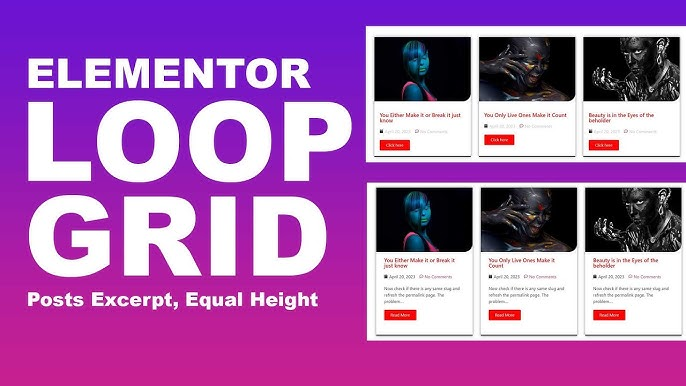
- Grid Layout (2-column or 3-column)
- Image Card Layout
- Masonry Layout
Customizable content within each card:
![Image[10] - Effortlessly Create the Perfect Archive Page! The Ultimate Elementor Guide for Beginners to Upgrade Your Website!](https://www.361sale.com/wp-content/uploads/2025/12/20251209151242612-image.png)
- Thumbnail size
- header level
- Is author information displayed?
- Date Display
- Read more button
- Abstract Length
- Category Tags
Adjustable via the Styles panel:
- Card spacing
- Shadow
- rounded corner
- font
- Thumbnail aspect ratio
4.4 Adding Pagination
Pagination is crucial for long lists of content.Elementor Offer:
![Image[11] - Easily Create the Perfect Archive Page! The Ultimate Elementor Guide for Beginners to Upgrade Your Website!](https://www.361sale.com/wp-content/uploads/2025/12/20251209151459228-image.png)
- numeric pagination
- Previous/Next
- Infinite scrolling (requires third-party plugin)
It is generally recommended to use digital pagination combined with a minimalist style to enhance user experience.
4.5 Add Breadcrumb Navigation
Breadcrumb navigation is highly beneficial for SEO and user orientation. Supported options:
![Image[12] - Effortlessly Create the Perfect Archive Page! The Ultimate Beginner's Guide to Elementor, Powering Up Your Website!](https://www.361sale.com/wp-content/uploads/2025/12/20251209151619647-image.png)
- Rank Math Breadcrumb
- Yoast Breadcrumb
- Elementor includes built-in breadcrumbs
It is recommended to place it below the page header at the top of the page.
5. Set display conditions (key step)
After completing the design, click the bottom-right corner. Publish The system will ask you:Which pages should the Archive template be applied to?
Common scenarios:
![Image[13] - Effortlessly Create the Perfect Archive Page! The Ultimate Elementor Guide for Beginners to Upgrade Your Website!](https://www.361sale.com/wp-content/uploads/2025/12/20251209200922247-206e9ba7-6648-4954-b642-f93ad4f7d3e2.png)
- All Archives(most commonly used)
- Categories Only
- Tags only
- Specify the category, such as: Category → "News"
- Specify article type archives (e.g., Product Archive)
If you wish to "apply this template to all category pages," please select Include → All Category Archives
If you only want to apply blog post type archives: Please select Include → All Posts → Archives
After setting up, click Save and closeThe
6. Adjustment and Testing: Ensure the template functions properly.
After completing the design, please visit the website frontend to review:
What to inspect:
- Does the category page display the new Archive template?
- Is the tab page functioning properly?
- Are the pagination links clickable?
- Is the article list aligned?
- Is the thumbnail aspect ratio appropriate?
- Are the breadcrumbs displayed correctly?
- Is the title dynamically changing?
If a template fails to take effect, it is usually due to:
- Cache plugin has not been refreshed
- The theme used overrides the Archive template.
- Incorrect condition settings
- No Featured Image has been set for this article.
Conclusion: Use Elementor to create professional-looking archive pages that enhance your website's structure and clarity.
Archive pages serve as a crucial entry point for visitors to browse content and are also an important reference structure for search engines. Through Elementor Add the Archive template to gain complete control over the appearance, layout, and content logic of your archive pages, ensuring your entire website presents content in a clearer, more aesthetically pleasing, and unified manner.

Link to this article:https://www.361sale.com/en/82342/The article is copyrighted and must be reproduced with attribution.















![Emoji[wozuimei]-Photonflux.com | Professional WordPress repair service, worldwide, rapid response](https://www.361sale.com/wp-content/themes/zibll/img/smilies/wozuimei.gif)

![Emoticon[baoquan] - Photon Wave Network | Professional WordPress Repair Services, Worldwide Coverage, Rapid Response](https://www.361sale.com/wp-content/themes/zibll/img/smilies/baoquan.gif)


 简体中文
简体中文  English
  日本語
日本語  Français
  Español


No comments