







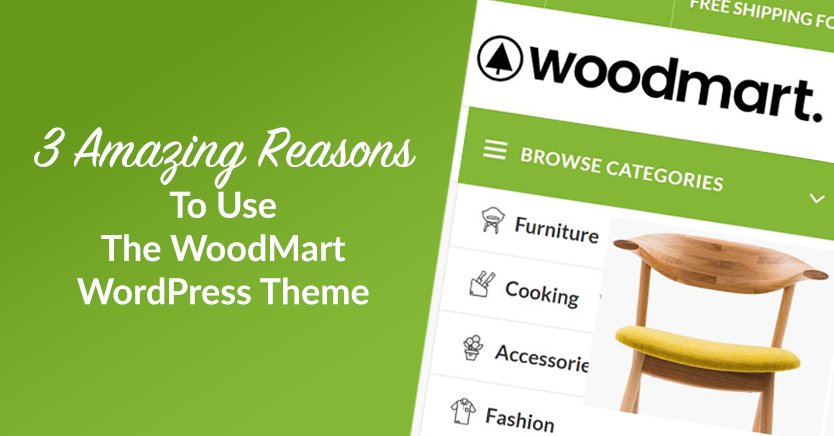
Woodmart be WooCommerce A highly popular advanced theme among users, its Compare feature significantly enhances users' understanding of product differences, helping them make purchasing decisions more quickly. This tutorial will guide you step by step through enabling and optimizing the Compare feature.
![Image[1] - How to Enable and Optimize the Compare Feature in the Woodmart Theme](https://www.361sale.com/wp-content/uploads/2025/12/20251209111746152-image.png)
I. Enabling the Woodmart Compare Feature
Woodmart comes with a built-in Compare feature that can be enabled in just a few simple steps.
Open the Compare settings location
Go into the background:
Woodmart → Theme Settings → Shop → Compare
Enable Compare Feature
Enable in the interface Enable Compare Switch.
Upon completion, the theme will automatically provide comparison capabilities for products.
![Image[2] - How to Enable and Optimize the Compare Feature in the Woodmart Theme](https://www.361sale.com/wp-content/uploads/2025/12/20251209111831392-image.png)
II. Setting Up the Compare Page and Shortcode
The Compare page displays information about products users have selected for comparison.
![Image [3] - How to Enable and Optimize the Compare Feature in the Woodmart Theme](https://www.361sale.com/wp-content/uploads/2025/12/20251209112021558-image.png)
Select the Compare page
exist Compare Page In the field, select the page you wish to use as the comparison result.
Add comparison shortcode
Woodmart will provide a dedicated shortcode. Simply place it on the page to display the product comparison.formsThe
![Image [4] - How to Enable and Optimize the Compare Feature in the Woodmart Theme](https://www.361sale.com/wp-content/uploads/2025/12/20251209112053541-image.png)
III. Set the fields to display in the Compare table
You can decide which product attributes to display in the Compare table, making it easier for users to compare items.
Optional Display Fields
Common fields include:
- Product Image
- Product Title
- prices
- Material
- sizes
- color
- SKU
- Inventory, etc.
![Image [5] - How to Enable and Optimize the Compare Feature in the Woodmart Theme](https://www.361sale.com/wp-content/uploads/2025/12/20251209112137391-image.png)
Preview Comparison Effect
Add two or more items to Compare to access the Compare page and view the final display results.
![Image [6] - How to Enable and Optimize the Compare Feature in the Woodmart Theme](https://www.361sale.com/wp-content/uploads/2025/12/20251209112210317-image.png)
4. Set up placeholder text for the empty Compare page
When the Compare page contains no products, the system will display a prompt.
Editor's note
exist Empty Compare Text Enter the content you want to display, for example:
No items are currently added to the comparison. Please select a product first.
![Image [7] - How to Enable and Optimize the Compare Feature in the Woodmart Theme](https://www.361sale.com/wp-content/uploads/2025/12/20251209112301970-image.png)
V. Configuring the Display Style of the Compare Button
The Compare button serves as a crucial entry point for user actions, and Woodmart offers multiple button behavior settings.
Display the Compare button in the product grid
opens Show button on product grid After that, the button will appear on allProduct ListIn the product box.
![Image [8] - How to Enable and Optimize the Compare Feature in the Woodmart Theme](https://www.361sale.com/wp-content/uploads/2025/12/20251209112510790-image.png)
Save button state
start using Save button state after adding After adding items to the comparison list, the "View Comparison" status will be displayed.
![Image [9] - How to Enable and Optimize the Compare Feature in the Woodmart Theme](https://www.361sale.com/wp-content/uploads/2025/12/20251209112712730-image.png)
VI. Enable Compare by Category
Woodmart supports displaying comparison lists grouped by category, an essential feature for stores with extensive product inventories.
Enable Category Comparison
start using Compare by Category Afterward, items within the same category will be automatically grouped.
![Image[10] - How to Enable and Optimize the Compare Feature in the Woodmart Theme](https://www.361sale.com/wp-content/uploads/2025/12/20251209112745524-image.png)
Show "More Products in This Category" button
opens Show Compare More Products After that, the system will display buttons to navigate to the corresponding categories.
![Image[11] - How to Enable and Optimize the Compare Feature in the Woodmart Theme](https://www.361sale.com/wp-content/uploads/2025/12/20251209112822666-image.png)
test function
Add products from different categories to see the grouping effect on the front-end Compare page.
![Image[12] - How to Enable and Optimize the Compare Feature in the Woodmart Theme](https://www.361sale.com/wp-content/uploads/2025/12/20251209112910528-image.png)
7. Setting the Compare Button Style in Header Builder
Woodmart's Header Builder supports highly customizable Compare button appearance.
Enter the Header Builder and edit the Compare element.
Path:
Woodmart → Header Builder → Compare
![Image [13] - How to Enable and Optimize the Compare Feature in the Woodmart Theme](https://www.361sale.com/wp-content/uploads/2025/12/20251209112957353-image.png)
Select Compare Icon Style
You can choose:
- Icon Style
- Icon size
- Background Shape
- color scheme
- Is the quantity badge displayed?
![Image [14] - How to Enable and Optimize the Compare Feature in the Woodmart Theme](https://www.361sale.com/wp-content/uploads/2025/12/20251209113027279-image.png)
Display category dropdown menu (optional)
Can be enabled in the Extra options:
- Display Categorypull-down menu(Enable Compare by Category)
Allows users to view comparison categories directly at the top, making operations more convenient.
![Image [15] - How to Enable and Optimize the Compare Feature in the Woodmart Theme](https://www.361sale.com/wp-content/uploads/2025/12/20251209114142994-image.png)
summarize
Through this tutorial, you have learned how to Woodmart Enable and optimize the Compare product comparison feature in the theme.
The Compare feature not only enhances the shopping experience but also increases users' interest in comparing products, thereby boosting conversion rates. You can flexibly configure page layouts, field styles, and button designs to tailor them to your store's specific needs.

Link to this article:https://www.361sale.com/en/82383/The article is copyrighted and must be reproduced with attribution.
















![Emoji[wozuimei]-Photonflux.com | Professional WordPress repair service, worldwide, rapid response](https://www.361sale.com/wp-content/themes/zibll/img/smilies/wozuimei.gif)

![Emoticon[baoquan] - Photon Wave Network | Professional WordPress Repair Services, Worldwide Coverage, Rapid Response](https://www.361sale.com/wp-content/themes/zibll/img/smilies/baoquan.gif)


 简体中文
简体中文  English
  日本語
日本語  Français
  Español


No comments