







WooCommerce 支付集成最怕的不是插件装不上,而是“看起来能收款,上线后却一堆订单对不上”。比如客户手机端跳到 Stripe Checkout 后放弃、Stripe webhook 没有把付款成功回写到订单、Airwallex WooCommerce plugin 的币种与到账账户不一致,或者平台业务临时才发现普通 Stripe 插件根本解决不了分账问题。
这篇文章不再重复“哪个支付插件更好”这种泛泛比较,而是按上线体检的思路,把 Stripe Connect、Airwallex WooCommerce plugin、WooPayments、stripe checkout mobile friendly 和 stripe webhook 放到同一条流程里看。你可以在正式收第一笔订单前,按本文逐项检查;如果已经出现支付异常,也可以用它反向定位问题。
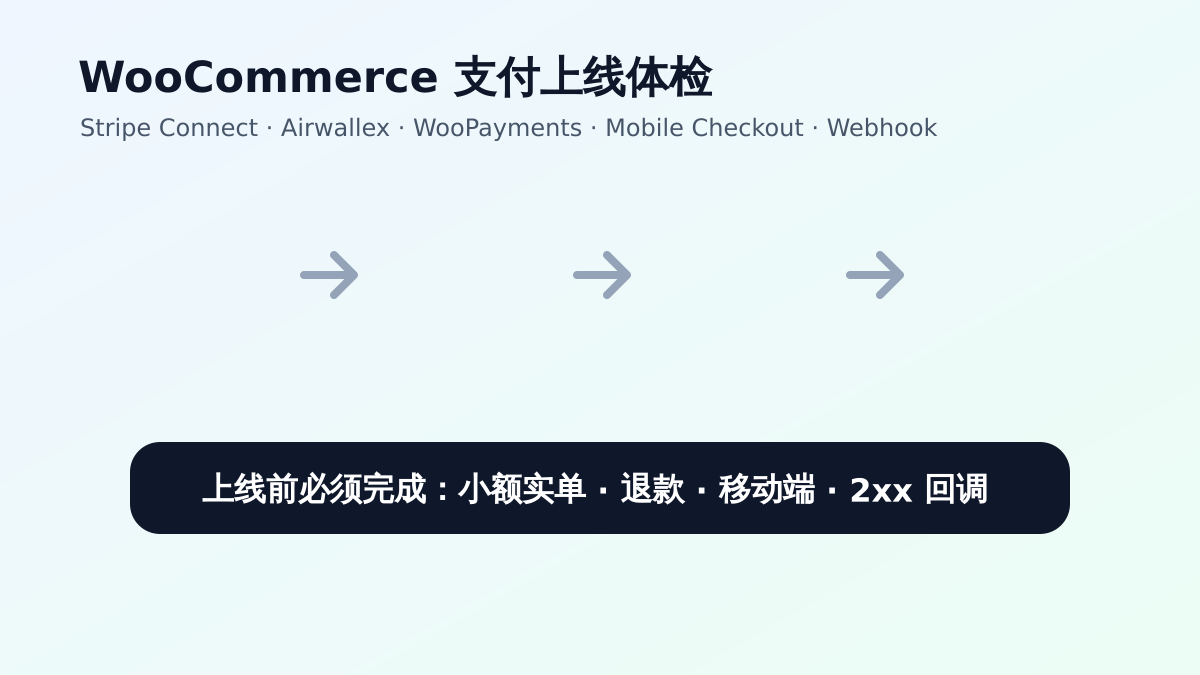
一、先定收款模型:插件选择要服从业务流程
很多站长一开始会问:“WooCommerce 用 Stripe、Airwallex 还是 WooPayments?”这个问题本身没错,但顺序稍微早了。支付方案应该先回答三个问题:钱由谁收、订单由谁履约、退款和拒付由谁承担。只有这三个答案清楚,插件选择才不会变成反复试错。
- 普通品牌独立站:订单、发货、售后都由同一家公司处理,优先关注 WooPayments 或标准 Stripe 插件的稳定性。
- 平台或多商户业务:平台要抽佣、卖家要入驻、资金要分账,重点评估 Stripe Connect,而不是只看信用卡表单是否好看。
- 跨境多币种独立站:客户来自多个地区,财务需要外币账户或换汇,Airwallex WooCommerce plugin 的币种、到账和对账能力更重要。
- 订阅、会员、数字产品:付款成功后要自动开通权限,stripe webhook 的可靠性比前台按钮样式更关键。
如果你还在做方案初选,可以先参考站内的 WooCommerce 支付集成配置路线图;本文则更适合已经准备上线、需要逐项核对的阶段。
二、Stripe Connect:平台分账先设计账务,再谈插件
Stripe Connect 不是“更高级的 Stripe Checkout”,它解决的是平台与子商户之间的资金归属。比如一个预约平台向用户收款后,需要把服务费留在平台账户,把剩余金额转给服务商;或者一个多供应商商城要让不同卖家分别收款。这类业务如果只接普通 Stripe,后期可能要靠人工转账和表格对账,成本会迅速失控。
上线前要确认的 5 件事
- 账户类型是否选对:Standard 省开发但体验分散,Express 更适合平台统一管理,Custom 灵活但合规责任更重。
- WooCommerce 插件是否明确支持 Connect,不要把“支持 Stripe”误认为“支持 Stripe Connect 分账”。
- 测试订单里能否看到 application fee、transfer、connected account 与 WooCommerce 订单号的对应关系。
- 退款从哪里扣款、平台手续费是否退回、部分退款是否影响转账,都要提前跑一遍。
- 卖家 KYC 未完成、账户受限、拒付争议出现时,WooCommerce 后台要能留下可追踪记录。
如果只是单一公司收款,短期内没有卖家入驻和抽佣需求,不建议为了“看起来专业”强行上 Connect。支付系统越复杂,后期维护、合规和客服解释成本就越高。
三、Airwallex WooCommerce plugin:跨境站重点查币种和到账
Airwallex WooCommerce plugin 适合跨境收款场景,但它的核心价值不只是给结账页增加一个按钮。真正需要检查的是:前台显示什么币种、WooCommerce 订单保存什么币种、支付网关扣什么币种、财务最终到账什么币种。如果这四个环节没对齐,运营看订单会觉得正常,财务月底对账时才会发现手续费、汇率和退款记录对不上。
配置时按这个顺序做
- 从官方渠道下载插件,并确认版本兼容当前 WooCommerce 与 PHP 版本。
- 在 Airwallex 后台确认商户审核、可用支付方式、结算账户和目标市场是否都已开通。
- 分别保存 sandbox 与 production 的 API 信息,不要把测试密钥留在正式环境。
- 如果使用多币种插件,分别用不同国家 IP 或无痕窗口测试价格、运费、税费和最终扣款金额。
- 至少测试成功支付、取消支付、失败支付、全额退款、部分退款,并记录交易 ID 与 WooCommerce 订单备注。
这里有一个实用小技巧:上线前建一张简单表格,把“订单号、客户看到的金额、网关扣款金额、到账金额、手续费、退款状态”列出来。只要这张表能在测试阶段填清楚,后期客服和财务沟通会轻松很多。
四、WooPayments:后台体验好,但别和 Stripe 插件打架
WooPayments 的优点是和 WooCommerce 后台结合紧密。很多站长喜欢它,是因为退款、交易、争议和账户提醒可以直接在 WordPress 后台处理,不用在多个平台之间来回切换。对中小型独立站来说,这确实能降低维护成本。
但 WooPayments 也有适用地区、行业审核和账户限制。更重要的是,不要同时启用多个 Stripe 类插件,让结账页出现两个类似信用卡入口。重复加载支付脚本可能导致按钮不显示、字段校验异常、移动端卡顿,甚至订单备注里出现多个网关事件,排查起来非常麻烦。
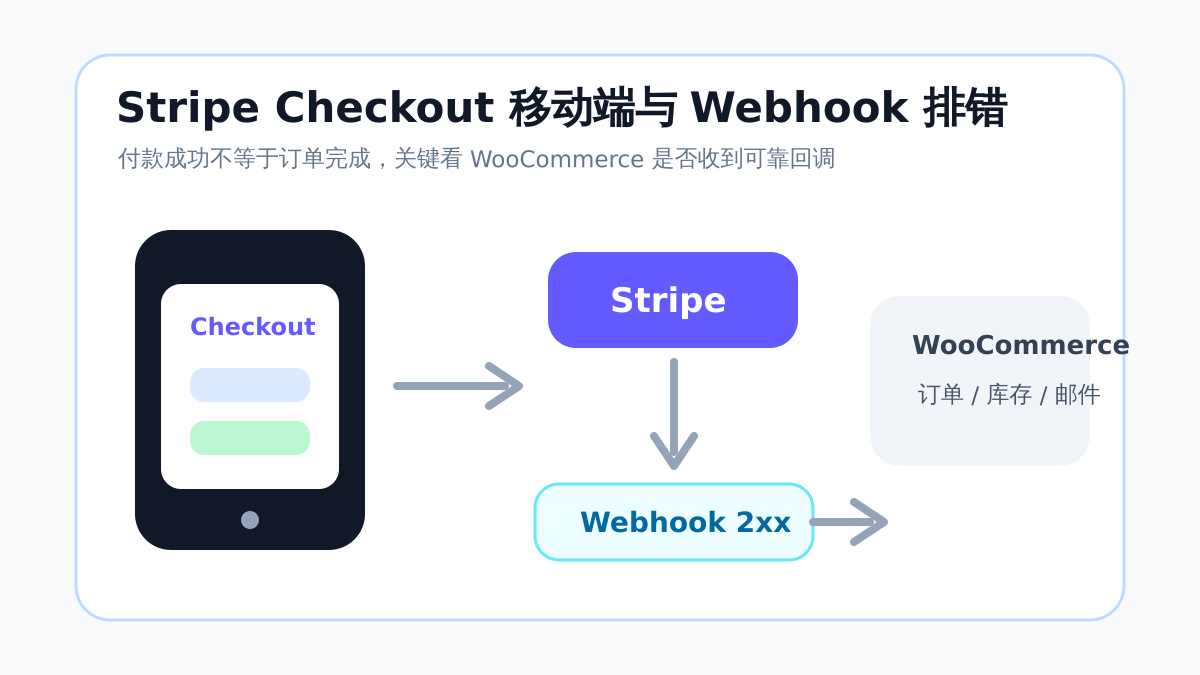
五、Stripe Checkout mobile friendly:不要只用电脑缩小窗口测试
stripe checkout mobile friendly 不是一句营销话术,而是独立站转化率的基本要求。很多支付流失发生在手机端:优惠券框把按钮挤到很下面、地址字段太多、弹窗遮挡支付按钮、跳转后店铺名称和金额让客户不放心,都会让用户退出。
移动端测试清单
- 用真实 iPhone Safari 和 Android Chrome 测试,不要只依赖桌面浏览器响应式模式。
- 从商品页、购物车、checkout 到支付完成页完整走一遍,观察每一步加载速度。
- 检查 Stripe Checkout 页面里的店铺名称、Logo、金额、币种、语言是否与 WooCommerce 一致。
- 测试 Apple Pay、Google Pay、Link 等快捷支付入口是否按设备和地区正常出现。
- 关闭或排除会影响 checkout 的弹窗、延迟加载、JS 合并、强缓存规则。
如果你正在做性能优化,建议把 cart、checkout、my-account、order-received 和支付回调相关地址加入缓存排除。站内的 WordPress 插件教程 里也有不少缓存与插件冲突排查文章,可以配合检查。
六、Stripe webhook:付款成功后订单能否自动完成,关键看这里
stripe webhook 是支付集成里最容易被忽视的环节。客户付款成功后,Stripe 会把事件发送回你的 WooCommerce 网站,插件再根据事件更新订单状态、扣库存、发送邮件或开通权限。如果 webhook 被安全插件、Cloudflare、防火墙、服务器规则或缓存拦住,客户可能已经付款,但后台订单仍显示“待付款”。
Webhook 配置步骤
- 在 WooCommerce 支付插件设置页复制 webhook endpoint URL,常见形式可能是 /?wc-api=wc_stripe,也可能是插件自定义路径。
- 进入 Stripe Dashboard 的 Developers → Webhooks,新增 endpoint 并粘贴该地址。
- 按插件文档选择事件,常见包括 checkout.session.completed、payment_intent.succeeded、payment_intent.payment_failed、charge.refunded。
- 复制 Signing secret,填写回 WooCommerce 插件设置,避免伪造回调。
- 发送测试事件或下测试订单,确认 Stripe 后台返回 2xx,并在 WooCommerce 订单备注里看到对应记录。
排错时先看响应码:403 多数是安全规则拦截;404 常见于固定链接或 endpoint 写错;500 要看 PHP 错误日志;超时则要检查主机性能、DNS、防火墙和插件冲突。遇到 Cloudflare 或服务器报错,可以参考站内 常见 WordPress 故障修复 分类的排查思路。
七、上线当天建议这样验收
支付上线不要只点一次“测试付款成功”就结束。更稳妥的做法,是把支付当成一次发布验收:先测试模式,再低金额真实订单,再观察日志。尤其是订阅、课程、会员、数字下载类产品,付款后的交付动作和支付本身一样重要。
- 只保留本次主支付插件,暂时关闭重复的 Stripe、支付表单或实验性网关。
- 清缓存后用无痕窗口完成一笔测试订单,记录订单号和交易 ID。
- 用手机真实网络再完成一笔低金额订单,确认 checkout mobile friendly 没有被弹窗或脚本影响。
- 执行全额退款和部分退款,观察 WooCommerce、Stripe、Airwallex 或 WooPayments 后台是否同步。
- 上线后 24 小时重点查看 webhook 日志、失败支付、待付款订单和客户邮件发送情况。
总结:稳定支付=清晰模型+少插件+强验证
WooCommerce 支付集成不应该靠“多装几个网关”来增加安全感。真正稳定的做法,是先确定收款模型:平台分账看 Stripe Connect,跨境多币种看 Airwallex WooCommerce plugin,普通独立站可优先评估 WooPayments 或标准 Stripe。然后再把移动端 Stripe Checkout 和 stripe webhook 当成上线必测项。前台支付顺、后台订单准、退款对账清楚,这套支付系统才算真正可以承接订单。
延伸阅读

Link to this article:https://www.361sale.com/en/87944/The article is copyrighted and must be reproduced with attribution.








 简体中文
简体中文  English


0
Now definitely still do SEO, just play changed. Previously rely on heaps of content, heaps of keywords can have traffic, and now pay more attention to the quality of content + brand trust + user experience. In addition to relying solely on SEO is actually more and more difficult, a lot of good basically SEO + social media + content marketing + private domain conversion to do together. SEO is still a long-term customer acquisition channel, but can no longer be taken as the only channel.Hehe is working.
March 11, 10:540
Normal, included only on behalf of Google to see the page, does not mean that the ranking immediately, "has been included but not ranked" usually because: Keyword competition, page weight is low, the content is not strong enough, the page is relatively new. Continue to optimize the long-tail keywords, content quality and internal chain, usually takes a little time, the ranking will slowly come out!Amelia Foster March 6, 16:200
Do you have a screenshot?lit. even a son who is not a fish knows the joy of fish March 6, 09:230
Don't pile on the optimization plugins first, locate the bottlenecks first: Use Query Monitor to see slow SQL, slow hooks. Pause all plugins for comparison, then turn them on one by one. Check autoload is too big (options table). Check database indexes with large table queries. Tackle host/database performance first if server TTFB is high.Hehe is working.
March 3, 16:470
Hi Windjammer, there's really no need to mess with complicated local environments, regular people follow these steps and the update basically won't crash the site 👇 First, backup the whole site, files + database are prepared, this is the bottom line, out of the problem can be a key to go back. Don't change the whole thing in one click, change it in batches, change the unimportant plug-ins first, and then change the core ones. Immediately after the update, clear the cache, go to the foreground to check the home page, article page, buttons, forms, these key positions. It is best to install a plug-in that supports version rollback, in case of a crash, cut back to the old version in a second. To summarize: backup first, change in batches, check after changing, leave a way back, stable ✅😎 Hope this helps!bugbang March 2, 09:550
Usually it's not that the payment didn't work, but that the callback (webhook) didn't write back the order status. Troubleshooting steps: WooCommerce → Status → Logs: see if the payment gateway has webhook error / signature error / timeout Check if the site is blocked by WAF (Cloudflare, Pagoda Firewall, security plugins) Check if "Cache checkout pages/interface paths" is enabled (checkout pages and callback interfaces should not be cached) Look at the server error logs for 500/fatal errors that interrupt the callback execution. Solution: Release wp-json, wc-api, payment gateway callback URLs (configure as per gateway documentation) Disable cache and JS merge compression test on checkout page once If using Cloudflare: set no-challenge, no-block rules for callback URLsUlla Nala Zhenhuan (18嬛嬛嬛) January 31st, 09:360
1) Determine whether it is "Normal Waiting" or "Abnormally Stuck". You can first look at 3 signals: whether the page release time is within 7-14 days, whether there are only a small number of pages with this status, and whether the page has appeared in the XML Sitemap. If all three are satisfied, most likely belong to the normal crawling and evaluation stage, do not need to do it immediately. 2) Under what circumstances is it useless to "wait"? The following cases will not be solved automatically by time: the page has almost no internal links (isolated page), the content is highly similar to the existing pages on the site, canonical points to other URLs, and too many similar articles are published on the same topic for a short period of time. In this case, Google has been crawled, but judged that "it is not worth entering the index". 3) The most effective way of manual intervention (no tossing) Prioritize these 3 things: add internal links, link to the page from related old articles or columns, and enhance the density of information on the first screen. The first 2-3 paragraphs directly answer the user's question, avoid too much padding, confirm canonical as self-referential, avoid being judged as a duplicate page, and then go to GSC to request reindexing after doing so. 4) What "intervention actions" are counterproductive? It is not recommended: frequent deletion and re-posting, clicking "request to index" several times in a row, forcing keywords to be stacked for the sake of indexing, changing URLs or titles arbitrarily. These operations will allow Google to reassess the stability of the page, but slow down the inclusion. 5) a practical judgment standard If an article: has been crawled, there is no noindex / robots problem, there are at least 1-2 related internal links, the content obviously solves an independent problem, then it is included, just a matter of time, not a plug-in problem.Post Porter January 30th 10:000
The new station does not do external links can be completely, the first content and station structure to do a good job more stable. Only rely on the content can generally get included and part of the long-tail word rankings, but the amount of high competition will be slow. It is recommended to wait for the site stable inclusion, 30-50 quality content, keywords began to enter the top 20/30, and then a small amount of external links, priority brand words/naked chain/citation type, do not come up to chase the number. 👍