




![Image [1] - FAVAS template suite: perfect WooCommerce website design for businesses and startups!](https://www.361sale.com/wp-content/uploads/2024/12/20241213161402847-12-single-blog.webp)
![Image [2] - FAVAS template suite: perfect WooCommerce website design for businesses and startups!](https://www.361sale.com/wp-content/uploads/2024/12/20241213161403465-11-contact.webp)
![Image [3] - FAVAS template suite: perfect WooCommerce website design for businesses and startups!](https://www.361sale.com/wp-content/uploads/2024/12/20241213161404179-13-single-product.webp)
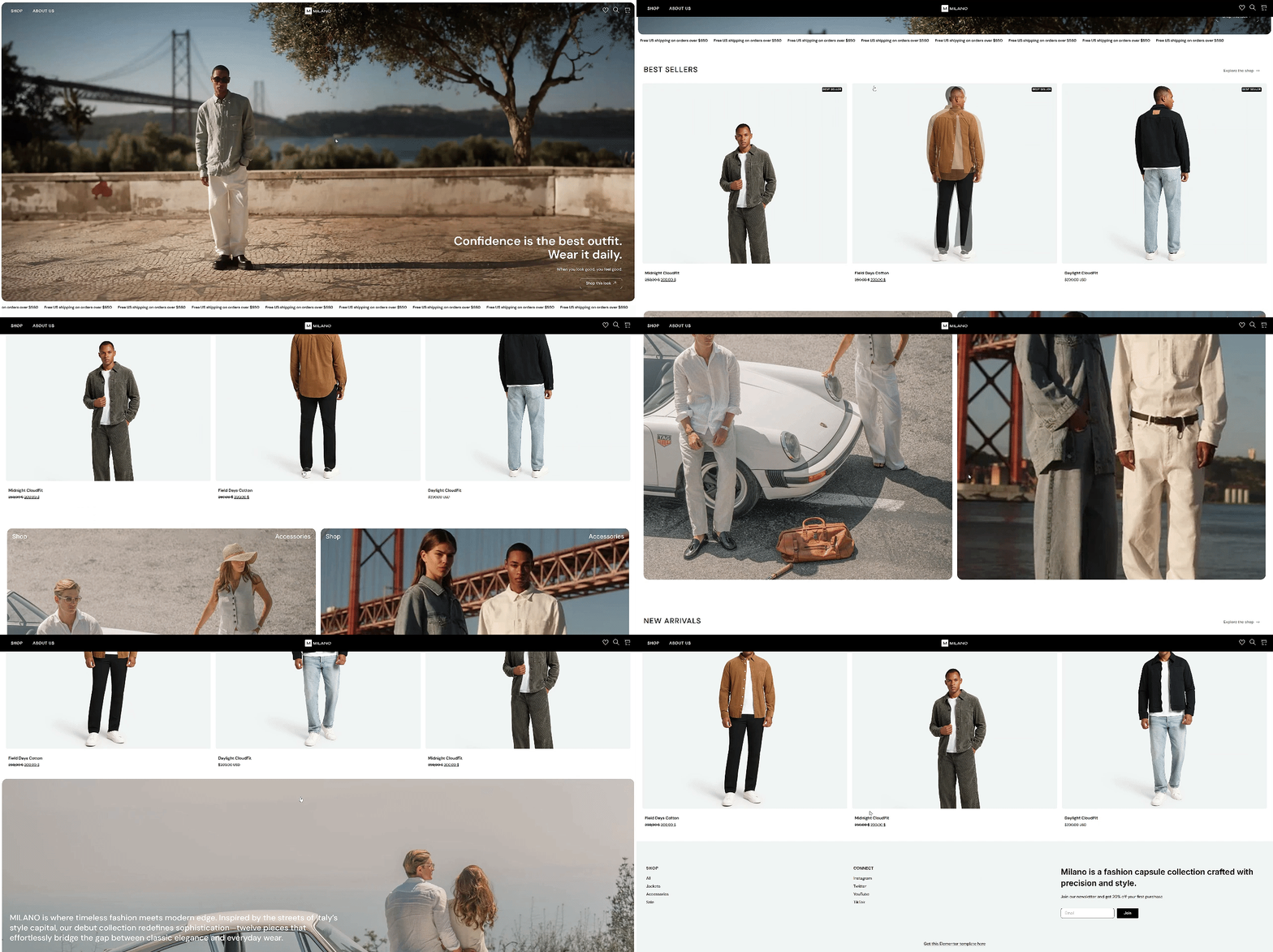
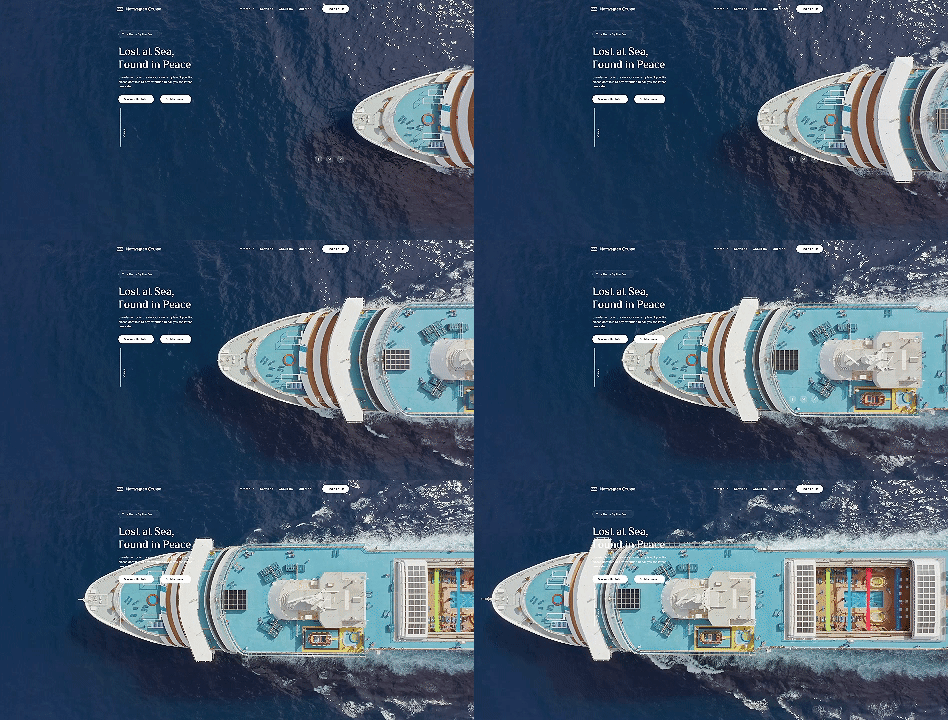
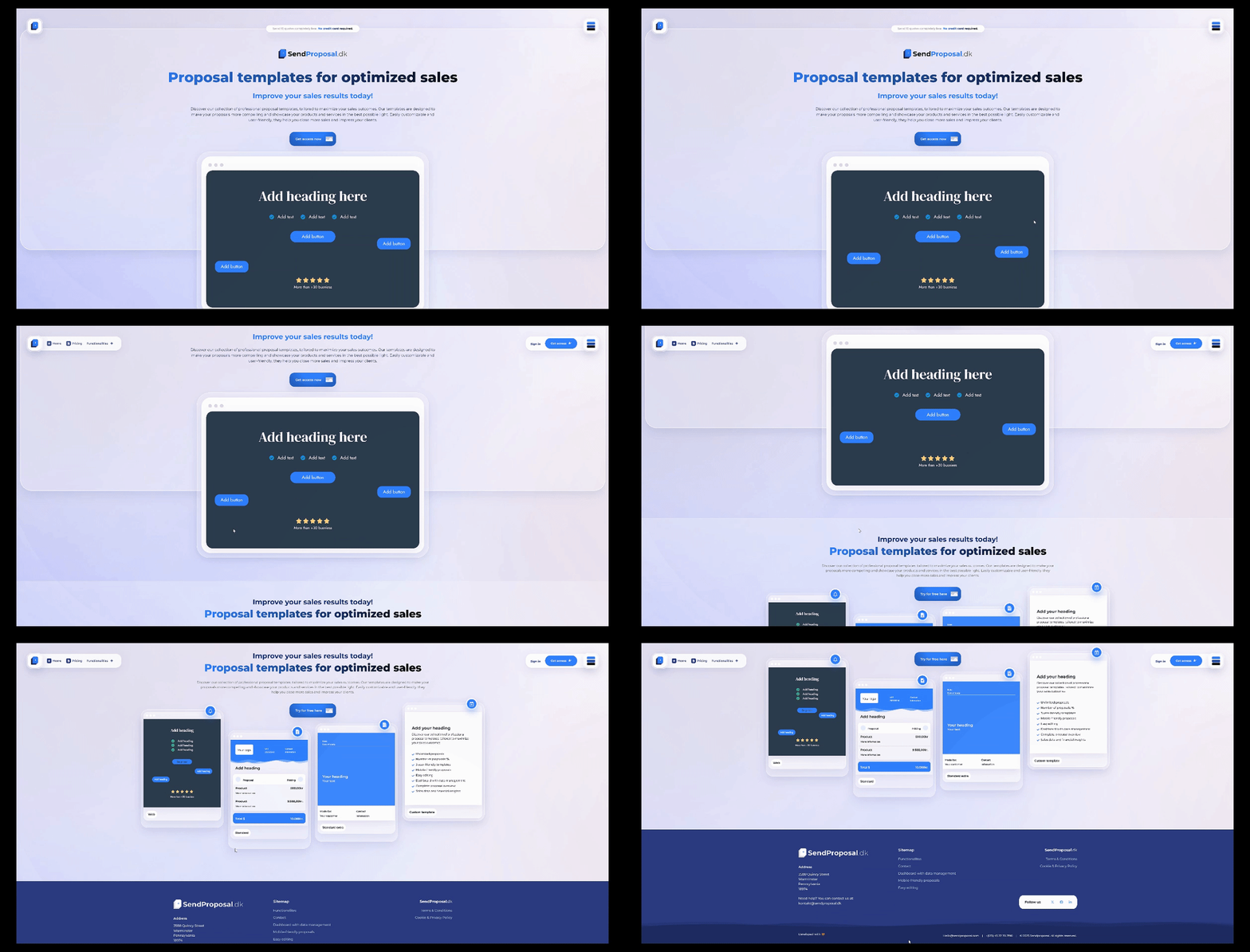
The FAVAS template suite is designed for businesses and entrepreneurs who need a beautiful layout to support their WooCommerce online store. Whether it's a boutique, a fashion blog, a spa, a beauty salon, a yoga class, a women's magazine, or any other type of website, FAVAS has you covered. It features elegant fonts and clean, modern layouts to help you quickly create professional-grade websites.
Template Included Pages
- fig. beginning
- About Us
- service
- histories
- teams
- blog (loanword)
- collection
- store
- common problems
- Contact Us
- product page
- Single Blog Page
- header section
- footer
core functionality
- 10+ pages: Includes home page, service page, store page, etc. Suitable for a variety of purposes
- Simple and modern design: Showcase the brand's unique style
- WooCommerce Integration: Includes a store page and supports e-commerce functionality
- Single Product & Single Blog Support: It's easier to display individual products or publish articles.
- Fully customizable: colors, fonts, layout, etc. can be adjusted according to needs
- responsive design: Ensure that the website displays well on a variety of devices
Required plug-ins (automatic installation)
- Elementor
- Basic Add-ons for Elementor
- Contact Form 7
- WooCommerce
- Elementor - Headers, Footers and Blocks
- Jeg Elementor kit
- WooLentor - WooCommerce Elementor Plugin + Builder
Installation Guide
1. Installation of the Envato Elements plug-in
- Go to Plugins > Add New Plugin in the WordPress backend.
- Search for and install the "Envato Elements" plugin.
- Activate the plugin after installation (no need to unzip the template file).
2. Importing templates
- Open the "Envato Elements" menu and select "Installed Packages".
- Click the "Upload Template Kit" button.
- Before importing the template, click on the "Installation Requirements" button to automatically activate the necessary plug-ins.
- take note of: To avoid conflicts, do not import more than one template at a time.
3. Editing pages with Elementor
- Create a new page and click Edit with Elementor.
- Click on the gear icon in the lower left corner to set the page to "Elementor Full Width" and hide the page title.
- Click on the gray folder icon to access the My Templates tab and select and import the template you want to customize.
4. Setting up headers and footers
- Import Templates: Go to Appearance > Header & Footer and click the Add New button.
- To add a title to the new header, select "Header" and "Show throughout site" and publish.
- To edit with Elementor, click the gray folder icon to import the appropriate header template.
- Repeat the above steps, set the footer template.
5. Setting up single product templates
- Go to WooLentor > Settings and select the WooCommerce Templates tab.
- Select the previously imported single product template in the Single Product Template field.

© Reprint statement
Author: xiesong
Link to this article:https://www.361sale.com/en/28818The article is copyrighted and must be reproduced with attribution.
THE END















![Emoji[wozuimei]-Photonflux.com | Professional WordPress repair service, worldwide, rapid response](https://www.361sale.com/wp-content/themes/zibll/img/smilies/wozuimei.gif)

![Emoticon[baoquan] - Photon Wave Network | Professional WordPress Repair Services, Worldwide Coverage, Rapid Response](https://www.361sale.com/wp-content/themes/zibll/img/smilies/baoquan.gif)


 简体中文
简体中文  English
  日本語
日本語  Français
  Español


No comments