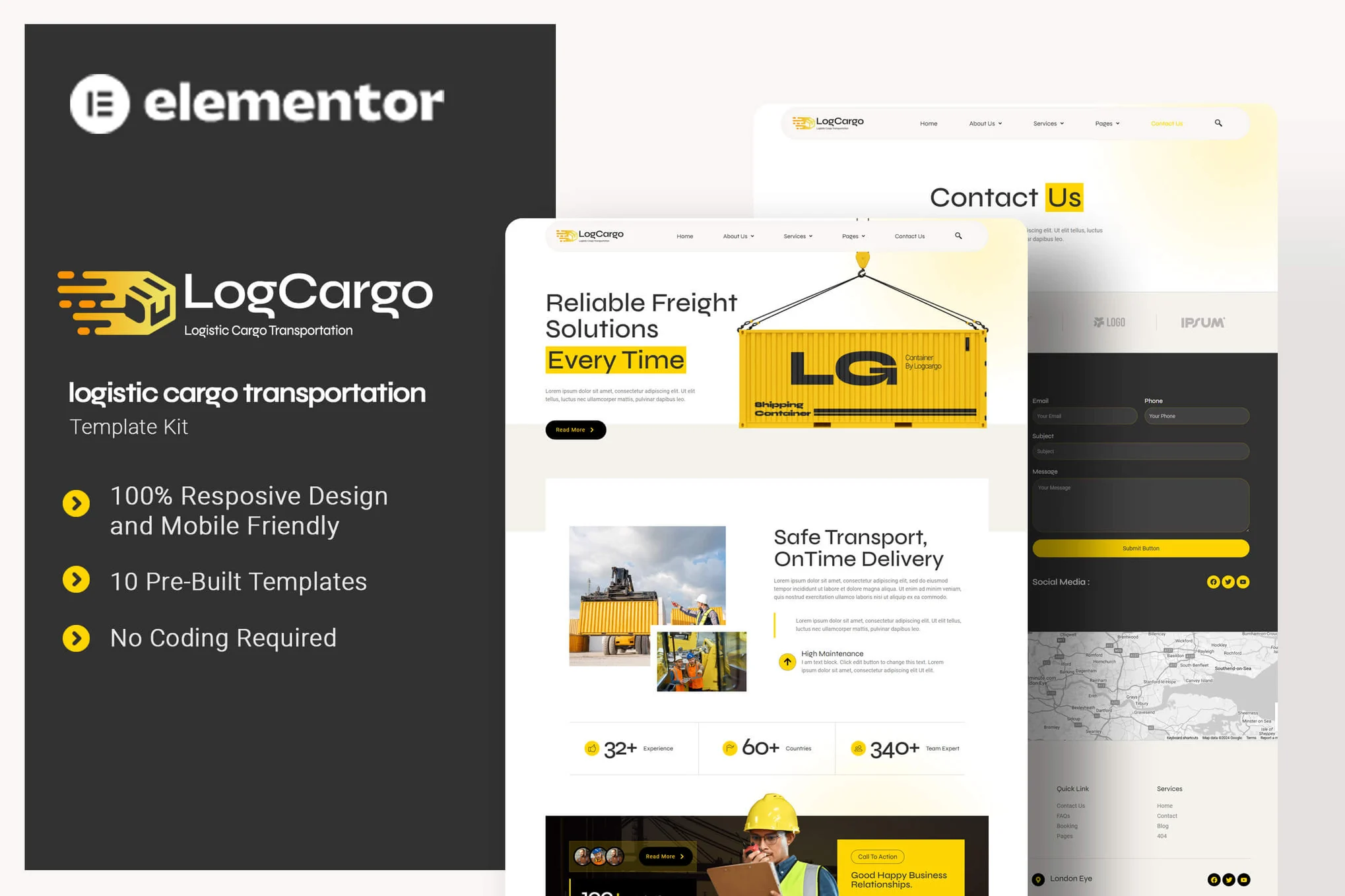






descriptive
LogCargo is an Elementor template package designed for businesses looking to build a strong online presence in the logistics and cargo transportation industry. It is ideal for freight forwarding companies, shipping service providers, and businesses that specialize in efficient cargo solutions, especially for those who are committed to providing reliable, secure, and innovative logistics services.LogCargo uses free elements, so you don't need to worry about any costs for using this template pack. LogCargo offers several page templates, including Home, About Us, Team, Services, Individual Services, Pricing, FAQ, Blog, 404 page and Contact Us page.
![Image[1]-LogCargo - Logistics Freight Transportation Elementor Template Pack - Photon Flux | Professional WordPress repair service, worldwide, fast response!](https://www.361sale.com/wp-content/uploads/2025/03/20250313152810260-1741850849497.png)
![Image [2]-LogCargo - Logistics Freight Transportation Elementor Template Pack - Photon Flux | Professional WordPress repair service, worldwide, fast response!](https://www.361sale.com/wp-content/uploads/2025/03/20250313152810841-1741850854864.png)
![Image [3]-LogCargo - Logistics Freight Transportation Elementor Template Pack - Photon Flux | Professional WordPress repair service, worldwide, fast response!](https://www.361sale.com/wp-content/uploads/2025/03/20250313152810153-1741850861441.png)
Template Included:
- fig. beginning
- About Us
- teams
- service
- single service
- set a price
- common problems
- blog (loanword)
- 404 Page
- Contact Us
Font Usage:
- Syne
- Roboto
Plugin Dependencies:
- Elementor
- ElementsKit Lite
- The Plus Addons
- Metform
- Ultimate Addons for Elementor Lite
How to use the template package:
This template pack is not a WordPress theme. The template pack contains only Elementor design data and is installed via the Envato Elements plugin or directly via Elementor.
Elementor template packages are installed using the Envato Elements plugin.
How to import Metform:
If you have Elementor Pro, skip the Metform and form block installations.
- Import Metform block templates.
- Import the page template containing the form and right-click to enable the navigator.
- Locate and select the Metform widget and click Edit Form. Select the newly built, then click Edit Form and the builder will be displayed.
- Click on the Add Template gray folder icon.
- Click on the My Templates tab.
- Select your imported Metform template and click "Insert" (click on Page Setup and select "No").
- Once the template is loaded, make any desired customizations and click "Update and Close". The form will be displayed in the template.
- strike (on the keyboard) updateThe
Set the global header and footer (if you are using Elementor Pro):
- switch to UAE > Bottom of headClick additional Button.
- Name the header, select "Show on entire site" and click on the postThe
- strike (on the keyboard) Editing with ElementorThe
- Click the gray folder icon to access the My Templates tab, select the header template you want to import and click the updateThe
- Repeat these steps for the bottom template.

Link to this article:https://www.361sale.com/en/39815The article is copyrighted and must be reproduced with attribution.














![Emoji[wozuimei]-Photonflux.com | Professional WordPress repair service, worldwide, rapid response](https://www.361sale.com/wp-content/themes/zibll/img/smilies/wozuimei.gif)

![Emoticon[baoquan] - Photon Wave Network | Professional WordPress Repair Services, Worldwide Coverage, Rapid Response](https://www.361sale.com/wp-content/themes/zibll/img/smilies/baoquan.gif)


 简体中文
简体中文  English
  日本語
日本語  Français
  Español


No comments