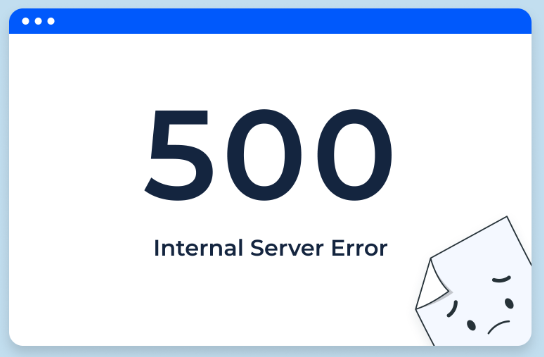






come across 500 Internal server error It is one of the common problems in WordPress website management, especially when you see something like "500 Internal Server Error" or "HTTP 500 Internal Server Error" when you visit the website. prompt. This error means that the server has encountered an unprocessed situation, but it doesn't provide any further details, thus complicating the troubleshooting.
This article will step-by-step introduce effective ways to solve this problem, to help you quickly restore the normal operation of the site.
![Image [1] - How to Fix 500 Internal Server Error in WordPress: Detailed Step-by-Step Guide](https://www.361sale.com/wp-content/uploads/2025/04/20250422100941543-image.png)
Step 1: Check and repair corrupt .htaccess file
.htaccess file is a WordPress configuration file that controls the redirection, caching, etc. of your website. If the file is corrupted or incorrectly set, it may result in a 500 error. Here are the steps to fix the issue:
- pass (a bill or inspection etc) FTP client maybe CPanel File Manager Access to website documents.
![Image [2] - How to Fix 500 Internal Server Error in WordPress: Detailed Step-by-Step Guide](https://www.361sale.com/wp-content/uploads/2025/04/20250422094327127-image.png)
- go into public_html folder, find the
.htaccessFile. If you do not see the file, go to the Settings option and select the Show hidden filesThe
![Image [3] - How to Fix 500 Internal Server Error in WordPress: Detailed Step-by-Step Guide](https://www.361sale.com/wp-content/uploads/2025/04/20250422094508425-image.png)
- commander-in-chief (military)
.htaccessRename the file to.htaccess_oldThis will allow WordPress to automatically generate a new file.
![Image [4] - How to Fix 500 Internal Server Error in WordPress: Detailed Step-by-Step Guide](https://www.361sale.com/wp-content/uploads/2025/04/20250422094553958-image.png)
- Go back to your WordPress backend and click the Settings > Fixed LinksIf you want to make a change, just click on the "Sava Change" button without making any changes. WordPress will then regenerate a new
.htaccessDocumentation.
![Image [5] - How to Fix 500 Internal Server Error in WordPress: Detailed Step-by-Step Guide](https://www.361sale.com/wp-content/uploads/2025/04/20250422094646963-image.png)
Once this is done, visit the website and see if the problem is resolved. If the site works properly, the problem is in the old .htaccess Documentation.
Step 2: Increase PHP Memory Limit
WordPress may be experiencing 500 errors due to insufficient PHP memory. Increasing the PHP memory limit can effectively solve this problem.
- Access the WordPress root directory via FTP or file manager.
![Image [6] - How to Fix 500 Internal Server Error in WordPress: Detailed Step-by-Step Guide](https://www.361sale.com/wp-content/uploads/2025/04/20250422094930812-image.png)
- locate wp-config.php file, right-click and select compilerThe
![Image [7] - How to Fix 500 Internal Server Error in WordPress: Detailed Step-by-Step Guide](https://www.361sale.com/wp-content/uploads/2025/04/20250422095055429-image.png)
- Find the following code in the file: Add the following code at the top of the line:
define('WP MEMORY LIMIT', '64M');![Image [8] - How to Fix 500 Internal Server Error in WordPress: Detailed Step-by-Step Guide](https://www.361sale.com/wp-content/uploads/2025/04/20250422095122904-image.png)
- Save and upload the file.
This step increases the amount of memory used by WordPress to ensure that it can handle more complex requests.
Step 3: Deactivate all plugins
Certain plugins may cause WordPress to not function properly, thus triggering a 500 error. Check if a plugin issue is causing the error by disabling all plugins:
- Through an FTP client or file manager, go to the wp-content Folder.
![Image [9] - How to Fix 500 Internal Server Error in WordPress: Detailed Step-by-Step Guide](https://www.361sale.com/wp-content/uploads/2025/04/20250422095446702-image.png)
- locate plugins folder, rename it to plugins_oldThis will temporarily disable all plugins.
![Image [10] - How to Fix 500 Internal Server Error in WordPress: Detailed Step-by-Step Guide](https://www.361sale.com/wp-content/uploads/2025/04/20250422095511579-image.png)
- Visit the website and check if it returns to normal. If the site comes back up, it means that the problem was caused by one of the plugins.
- commander-in-chief (military) plugins_old Rename the folder back to its original name plugins, then enable the plug-ins one by one until you find the problem plug-in.
Step 4: Switch to Default Theme
If the problem persists, it may be due to a theme compatibility issue. This can be ruled out by switching to the WordPress default theme (e.g. Twenty Twenty-One).
- Through an FTP client or file manager, go to the wp-content/themes Folder.
![Image [11] - How to Fix 500 Internal Server Error in WordPress: Detailed Step-by-Step Guide](https://www.361sale.com/wp-content/uploads/2025/04/20250422095641562-image.png)
- Rename the current theme folder to theme_oldThe
![Image [12] - How to Fix 500 Internal Server Error in WordPress: Detailed Step-by-Step Guide](https://www.361sale.com/wp-content/uploads/2025/04/20250422095613220-image.png)
- WordPress automatically enables default themes (such as Twenty Twenty-One).
- Visit your site and if the problem goes away, it means that the theme is causing the error.
Step 5: Re-upload WordPress Core Files
If none of the above resolves the issue, try re-uploading the WordPress core files to make sure there are no missing or corrupted files.
- interviews WordPress Official WebsiteDownload the latest version of WordPress.
![Image [13] - How to Fix 500 Internal Server Error in WordPress: Detailed Step-by-Step Guide](https://www.361sale.com/wp-content/uploads/2025/04/20250422095904922-image.png)
- Unzip the downloaded file.
- Via an FTP client the wp-admin respond in singing wp-includes folder uploaded to the WordPress root directory, replacing the existing file.
![Image [14] - How to Fix 500 Internal Server Error in WordPress: Detailed Step-by-Step Guide](https://www.361sale.com/wp-content/uploads/2025/04/20250422100036106-image.png)
Best Practices for Preventing 500 Internal Server Errors
To minimize the risk of encountering similar problems in the future, the following precautions can be followed:
- Back up your website regularly: Use plug-ins such as UpdraftPlus Regularly back up your website files and database to prevent data loss.
- Update WordPress, themes and plugins: Keep all components up-to-date to avoid compatibility issues.
- Use reliable plugins and themes: Choose plugins and themes from reputable developers and avoid using code that is not fully tested.
- Monitor server performance: Regularly check the health of your servers and upgrade hosting services as needed.
summarize
tackle 500 Internal server error This can be done by following these steps: check and fix .htaccess files, increase the PHP memory limit, deactivate plugins or switch themes to troubleshoot conflicts, and finally re-upload the WordPress core files. If the problem persists, regular backups, updates of plugins and themes, and the use of reliable resources can be effective in preventing such errors. If you still can't fix it on your own, you can contact ourOfficial Customer Service, to help you solve your problems one-on-one.

Link to this article:https://www.361sale.com/en/51155The article is copyrighted and must be reproduced with attribution.


















![Emoji[wozuimei]-Photonflux.com | Professional WordPress repair service, worldwide, rapid response](https://www.361sale.com/wp-content/themes/zibll/img/smilies/wozuimei.gif)

![Emoticon[baoquan] - Photon Wave Network | Professional WordPress Repair Services, Worldwide Coverage, Rapid Response](https://www.361sale.com/wp-content/themes/zibll/img/smilies/baoquan.gif)


 简体中文
简体中文  English
  日本語
日本語  Français
  Español


No comments