






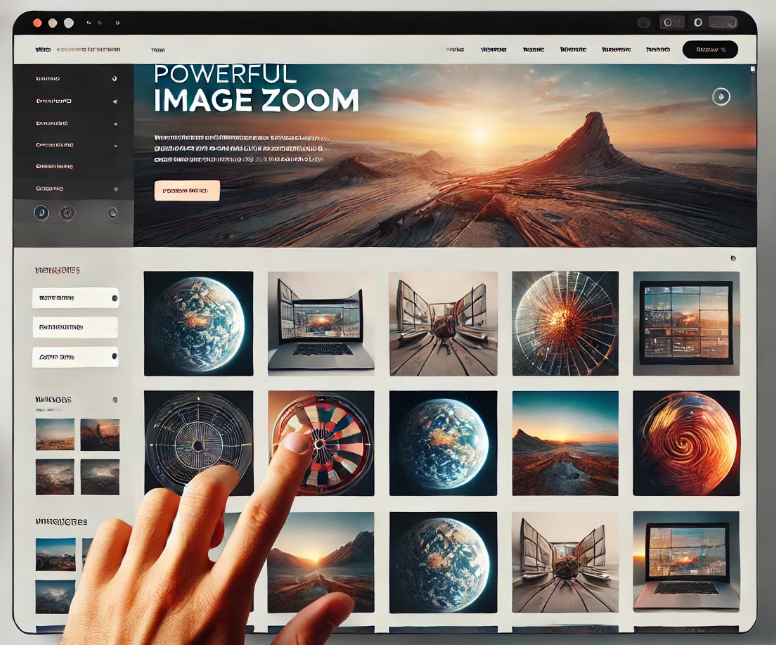
In modern website design, image galleries are a key element in presenting visual content. In order to improve the user experience, theEssential Blocks PluginProvides a dedicatedImage Gallery BlockAdd image galleries with filters and searches to your WordPress website with ease. This article will detail how to configure and display filterable image galleries using the Essential Blocks plugin.
![Images [1] - How to Create Filterable Image Galleries in WordPress Website with Essential Blocks Plugin](https://www.361sale.com/wp-content/uploads/2025/04/20250422152230512-image.png)
Installation and activation of the Essential Blocks plug-in
Before starting the configuration, make sure that the Essential Blocks plugin is installed and activated. If more advanced gallery layouts are required, it is recommended to install the Essential Blocks Pro version.
- Installation of plug-ins::
- Log in to your WordPress dashboard and go to "plug-in (software component)" page, click "Add New Plugin".
- Search and install Essential Blocks Plug-ins.
![Images [2] - How to Create Filterable Image Galleries in WordPress Website with Essential Blocks Plugin](https://www.361sale.com/wp-content/uploads/2025/04/20250422150013998-image.png)
- Activation Plugin::
- After installing the plugin, make sure it is activated.
Configure filterable image galleries
Enable filtered image gallery blocks::
- In the WordPress dashboard, navigate to Essential Blocks plug-in, go to Blocks Tab.
![Images [3] - How to Create Filterable Image Galleries in WordPress Website with Essential Blocks Plugin](https://www.361sale.com/wp-content/uploads/2025/04/20250422150157975-image.png)
- Enable in the list Filterable Gallery block and save the settings.
![Images [4] - How to Create Filterable Image Galleries in WordPress Website with Essential Blocks Plugin](https://www.361sale.com/wp-content/uploads/2025/04/20250422150219277-image.png)
Add filtered image gallery block::
- Open the page or post to which you need to add an image gallery in the Elementor EditorIn , select the area in which you wish to insert the gallery.
- Click on the plus icon to search for Essential Blocks Filterable Gallery block and drag it to the page.
![Images [5] - How to Create Filterable Image Galleries in WordPress Website with Essential Blocks Plugin](https://www.361sale.com/wp-content/uploads/2025/04/20250422150404947-image.png)
Selecting templates and adding images::
- strike (on the keyboard) Choose button to start customizing the screening gallery.
![Images [6] - How to Create Filterable Image Galleries in WordPress Website with Essential Blocks Plugin](https://www.361sale.com/wp-content/uploads/2025/04/20250422150451294-image.png)
- Choose a suitable template, for example, I chose theFlipbook Gallerytemplate, click "click to insert"
![Images [7] - How to Create Filterable Image Galleries in WordPress Website with Essential Blocks Plugin](https://www.361sale.com/wp-content/uploads/2025/04/20250422150601506-image.png)
- In the right panel of the Gallery Items section, uploading the images one by one, adding a title and description for each image.
![Images [8] - How to Create Filterable Image Galleries in WordPress Website with Essential Blocks Plugin](https://www.361sale.com/wp-content/uploads/2025/04/20250422150820613-image.png)
Customized image galleries
Update layout and image settings::
- exist General In the tab, update the layout, select the preset image size, and adjust the number of columns and image spacing (in pixels).
![Images [9] - How to Create Filterable Image Galleries in WordPress Website with Essential Blocks Plugin](https://www.361sale.com/wp-content/uploads/2025/04/20250422152430798-image.png)
- There are also options to turn off the display of titles and descriptions, enable lightbox effects and customize links.
![Images [10] - How to Create Filterable Image Galleries in WordPress Website with Essential Blocks Plugin](https://www.361sale.com/wp-content/uploads/2025/04/20250422150957841-image.png)
Filter Settings::
- exist Filter section, enable the filters and search bar, and name each filter. Filters can be dragged to rearrange their position.
![Image [11] - How to Create Filterable Image Galleries in WordPress Website with Essential Blocks Plugin](https://www.361sale.com/wp-content/uploads/2025/04/20250422151154817-image.png)
- exist Default Selected Filter drop-down menu to assign the created filters and assign the corresponding filters to the image items.
![Image [12] - How to Create Filterable Image Galleries in WordPress Website with Essential Blocks Plugin](https://www.361sale.com/wp-content/uploads/2025/04/20250422151645880-image.png)
Custom Styles::
- exist Style tab to adjust the image's height, width, border style, color, width, rounded corners, and other properties.
![Image [13] - How to Create Filterable Image Galleries in WordPress Websites with Essential Blocks Plugin](https://www.361sale.com/wp-content/uploads/2025/04/20250422151731613-image.png)
- It can also be modified Action Styles,Content Styles,Caption Styles,Description Styles,Search and Filter Styling as well as Typography Style.
![Image [14] - How to Create Filterable Image Galleries in WordPress Websites with Essential Blocks Plugin](https://www.361sale.com/wp-content/uploads/2025/04/20250422151754122-image.png)
Load more button styles::
- exist Load More Button section, select the font, hover color for the text,background colorand other styles.
![Images [15] - How to Create Filterable Image Galleries in WordPress Websites with Essential Blocks Plugin](https://www.361sale.com/wp-content/uploads/2025/04/20250422151826128-image.png)
Advanced Settings::
- exist Advanced tab to further customize advanced settings such as margins, padding, position, CSS, and more.
![Image [16] - How to Create Filterable Image Galleries in a WordPress Website with Essential Blocks Plugin](https://www.361sale.com/wp-content/uploads/2025/04/20250422151846411-image.png)
Publish and view results
After completing all customizations, click Publish button to publish the page. The page can be viewed to see a gallery of filterable images based on the selected settings and custom styles.
![Image [17] - How to Create Filterable Image Galleries in WordPress Website with Essential Blocks Plugin](https://www.361sale.com/wp-content/uploads/2025/04/20250422152133192-4月22日.gif)
summarize
With the Essential Blocks plugin, it's easy to create a feature-rich filtered image gallery for your WordPress website. Whether it's for e-commerce, artwork showcase or any page that needs to display a large number of images, filtered galleries help users quickly find what they're interested in while improving the interactivity and user experience of the site.
For more WordPress related tutorials and information, please follow thePhoton fluctuation network, has the most comprehensive WordPress tutorials and the most activeWordPress Exchange CommunityThe

Link to this article:https://www.361sale.com/en/51253The article is copyrighted and must be reproduced with attribution.















![Emoji[wozuimei]-Photonflux.com | Professional WordPress repair service, worldwide, rapid response](https://www.361sale.com/wp-content/themes/zibll/img/smilies/wozuimei.gif)

![Emoticon[baoquan] - Photon Wave Network | Professional WordPress Repair Services, Worldwide Coverage, Rapid Response](https://www.361sale.com/wp-content/themes/zibll/img/smilies/baoquan.gif)


 简体中文
简体中文  English
  日本語
日本語  Français
  Español


No comments