





expense or outlay WooCommerce When selling online, using a multi-language mode can make it easier for users to browse and purchase products.WooCommerce can realize the language switching function by working with a multi-language plugin such as Polylang. In the next section, we will explain step-by-step how to set up the front-end language in WooCommerce using Polylang.

I. Install and activate the language plug-in
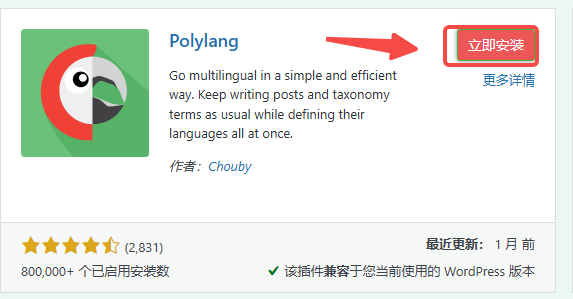
- mounting Polylang Plug-ins (recommended)
- Log in to the WordPress backend of your website.
- go into Plugin , then click Add PluginThe
![Image [2]-WooCommerce Multi-Language Setup Tutorial](https://www.361sale.com/wp-content/uploads/2025/07/20250721190122233-image.png)
- look for sth. Polylang plugin, click Install and Enable.
II. Setting the language
Polylang Setting Language
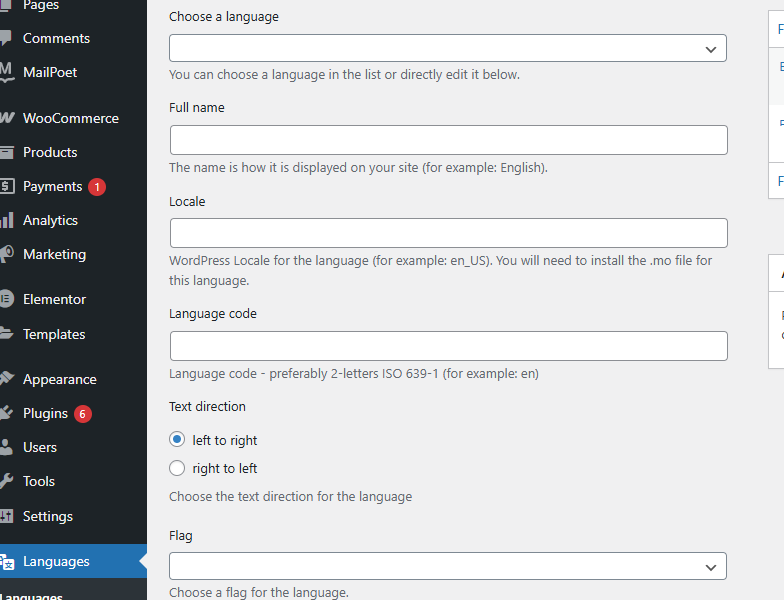
- go into Settings - LanguageThe
- exist Language Settings page, click Add new languageThen select the desired language for the website and click Save.
Configuring the WooCommerce Language
- Translation Products
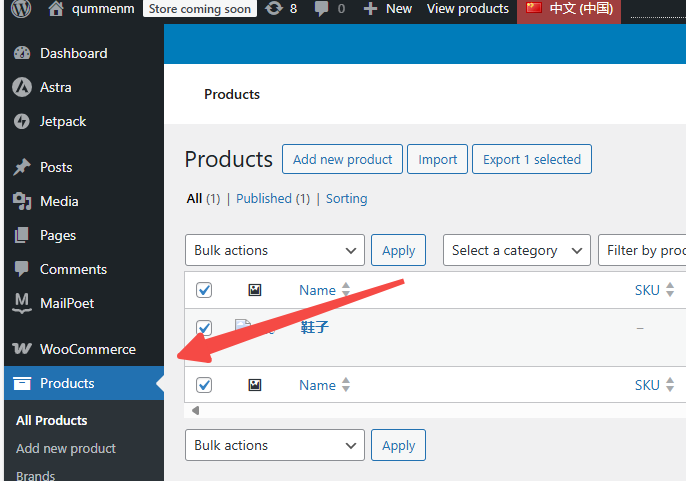
- In the backend of WooCommerce, select the products that need to be translated.
- Use the translation interface provided by Polylang to create different language versions for each product.
- Translation Product Categories
- go into Products - CategoriesIn addition, you can add names and descriptions for each category in different language versions.
- Translate other WooCommerce pages
- WooCommerce automatically provides default pages (e.g. shopping cart, checkout page, etc.). Make sure these pages are translated as well.
IV. Adding a language switcher
- Polylang Language Switcher
- go into Appearance -- WidgetsThe
- commander-in-chief (military) language switcher Gadgets are dragged to an available gadget area, such as thea side-bar (in software)or footer.
- Configure the style and functionality of the language switcher and click Save.
![Image [6]-WooCommerce Multi-language Setup Tutorial](https://www.361sale.com/wp-content/uploads/2025/07/20250721162533904-image.png)
V. Checking front-end effects
- Test Language Switching
- Visit the front end to ensure that the language switcher is working properly and that users can switch between languages as needed.
- Validating Translated Content
- Check that pages, products, categories and shopping flows in different languages have been successfully translated.
VI. Precautions
- SEO Settings: Ensure that each language version of the page is properly indexed by search engines.
- Cache Settings: If you use a caching plugin (e.g. W3 Total Cache or WP Super Cache), make sure to configure separate caches for each language to avoid cache conflicts.
- Payment gateways and shipping methods: Some payment gateways and shipping methods may require additional configuration based on the language settings to allow them to display correctly according to the language.
By following the steps above, you can configure and manage front-end language settings in your WooCommerce store to provide a more personalized and localized shopping experience.

© Reprint statement
Author: liuyan
Link to this article:https://www.361sale.com/en/68946The article is copyrighted and must be reproduced with attribution.
THE END











![Emoji[wozuimei]-Photonflux.com | Professional WordPress repair service, worldwide, rapid response](https://www.361sale.com/wp-content/themes/zibll/img/smilies/wozuimei.gif)

![Emoticon[baoquan] - Photon Wave Network | Professional WordPress Repair Services, Worldwide Coverage, Rapid Response](https://www.361sale.com/wp-content/themes/zibll/img/smilies/baoquan.gif)


 简体中文
简体中文  English
  日本語
日本語  Français
  Español


No comments