






Chrono is a whole site template suite based on Elementor Pro with a modern, professional design style to quickly build complete sites for all types of business websites.
- Perfectly compatible with Hello Elementor Free Theme
- Selected image materials and systematic design system
- Fast loading, great responsiveness, no extra bloat code
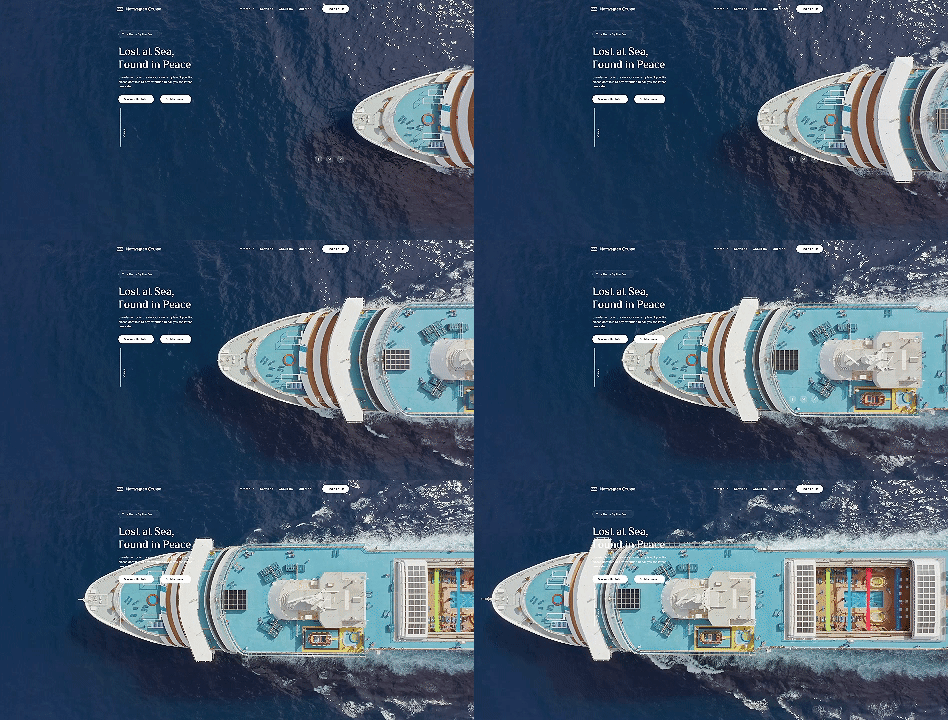
![Image [1]-Chrono - Watches Service Elementor Template Kit - Photon Flux Network | Professional WordPress repair service, worldwide, fast response!](https://www.361sale.com/wp-content/uploads/2025/07/20250724143517459-product.avif)
![Image [2] - Chrono - Watches Service Elementor Template Kit - Photon Flux | Professional WordPress repair service, worldwide, fast response!](https://www.361sale.com/wp-content/uploads/2025/07/20250724143517427-blog.avif)
Template Inclusion Page
- Home
- About Us
- Contact Us
- Service
- Product
- Single Product
- Team
- FAQ (Frequently Asked Questions)
- Blog (blog page)
- 404 (error page)
Using Fonts
- Prata (font for headings)
- Roboto (body font)
Installed recommended plugins (used with the template)
- Elementor
- ElementsKit Lite
- Metform
- Header, Footer & Blocks Template
How to Use
1. Installation of the template plug-in
Path: WordPress Backend → Plugins → Add New Plugin
Search and install Envato Elements plugin and activate it.
2. Uploading the template package
- downloading
.zipTemplate package files (do not unzip) - Go to Elements → Installed Kits
- Click on "Upload Template Kit" to upload the file.
Or click "Connect Account" to connect directly to your Envato account to import online.
3. Installation of dependent plug-ins
- Orange bar at the top of the page after uploading
- Click Install Requirements to install the required plug-ins
4. Importing template content
Click Import Templates in the following order:
- Global Kit Styles
- Templates for each page (imported one by one)
Imported templates can be found in Elementor → Templates → Saved Templates
Create page and insert template
- New Page → Editing with Elementor
- Gear icon in the lower left corner → Page Layout select Elementor Full Width and hide the page title
- Click on the gray folder icon → select "My Templates"
- Insert the page template you need to customize
Steps to Edit a Metform Form
- Importing Metform Form Templates
- Open the page template containing the form and right-click to enable Navigator
- Locate the Metform component and click Edit Form → New → Edit Form
- Click on the gray folder icon → My Templates
- Inserting imported form templates
- Customize the content and click Update & Close
- Return to the page and click Update to save it
Instructions for using the images
This template uses demo images from Envato Elements.
For commercial use, please purchase an image license or replace with your own.

© Reprint statement
This article was written by: thieves will be rats and mice courage
Link to this article:https://www.361sale.com/en/69917The article is copyrighted and must be reproduced with attribution.
THE END





















![Emoji[wozuimei]-Photonflux.com | Professional WordPress repair service, worldwide, rapid response](https://www.361sale.com/wp-content/themes/zibll/img/smilies/wozuimei.gif)

![Emoticon[baoquan] - Photon Wave Network | Professional WordPress Repair Services, Worldwide Coverage, Rapid Response](https://www.361sale.com/wp-content/themes/zibll/img/smilies/baoquan.gif)


 简体中文
简体中文  English
  日本語
日本語  Français
  Español


No comments