






WooCommerce's default checkout process, while sound, still falls short in terms of user experience, flexibility, and personalization.Flexible Checkout Fields As one of the most popular checkout optimization plugins, you can make the checkout process more in line with your business needs to improve the smoothness of checkout.
The following will cut through WooCommerce's shortcomings to provide Ten Practical Methods for Flexible Checkout FieldsOptimize the checkout process:
1. Streamline WooCommerce Default Checkout Fields
WooCommerce's Shortcomings
WooCommerce default fields are too long for some industries, such as address line 2, company name, order notes, etc. Non-required fields for all users can cause "information overload" visual stress, prolonging fill-in time and increasing abandonment rates.
Optimization of Flexible Checkout Fields
Hiding unneeded fields reduces user fill-in time and significantly improvesWooCommerce checkout completion rateThe
Operational Steps:
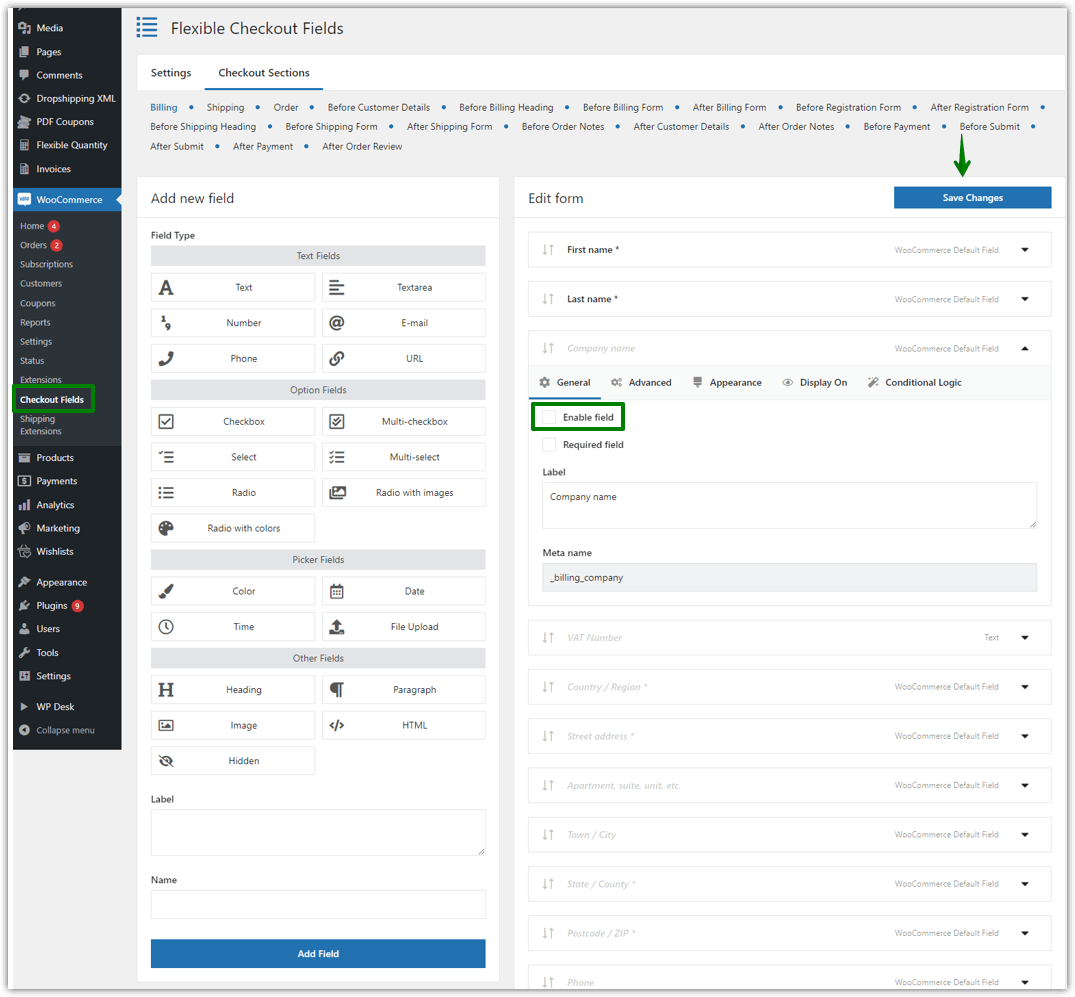
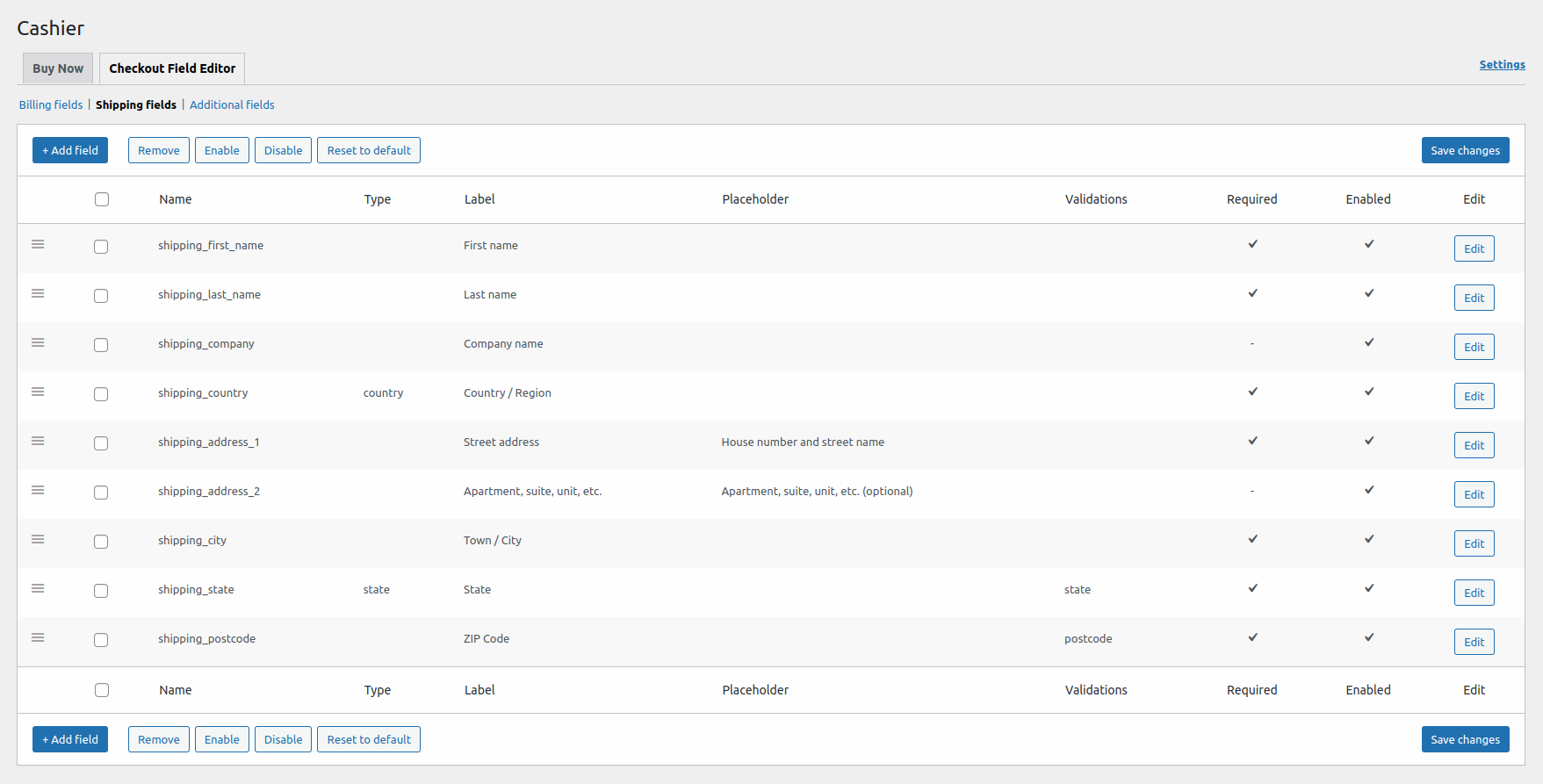
- go into WooCommerce → Flexible Checkout Fields
- Select Billing / Shipping / Additional area
- Find unwanted default fields → turn off the "Enable" switch
- Save to hide fields
Applicable Scenarios:
- Fashion items (the fewer fields the higher the conversion)
- Electronics (no company information required)
2. Adding Custom Fieldsto gather more necessary information
WooCommerce's Shortcomings
By default, WooCommerce can only provide limited field types, which can't satisfy different business requirements, for example: no date selection, no file upload, no customized dropdown form, no interactive fields like "invoice required".
Optimization of Flexible Checkout Fields
Multiple field types are supported, including text, date, drop-down options, checkboxes, and more, allowing you to create more business-compliantCustomized checkout fieldsThe
Operational Steps:
- WooCommerce → Flexible Checkout Fields
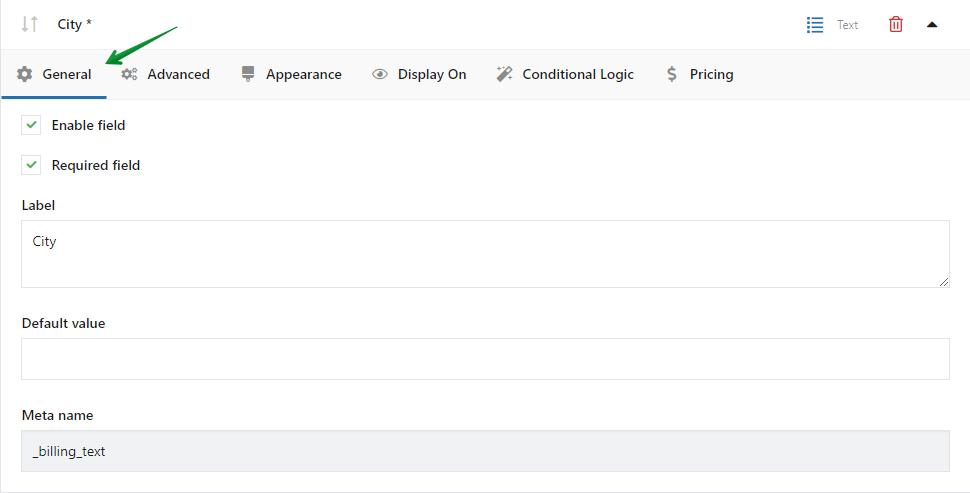
- Click on "Add Field
- Select field types: text, date, checkbox, dropdown, checkbox
- Custom field labels, placeholders, validation methods
- Select field display location (checkout, mail, order backend)
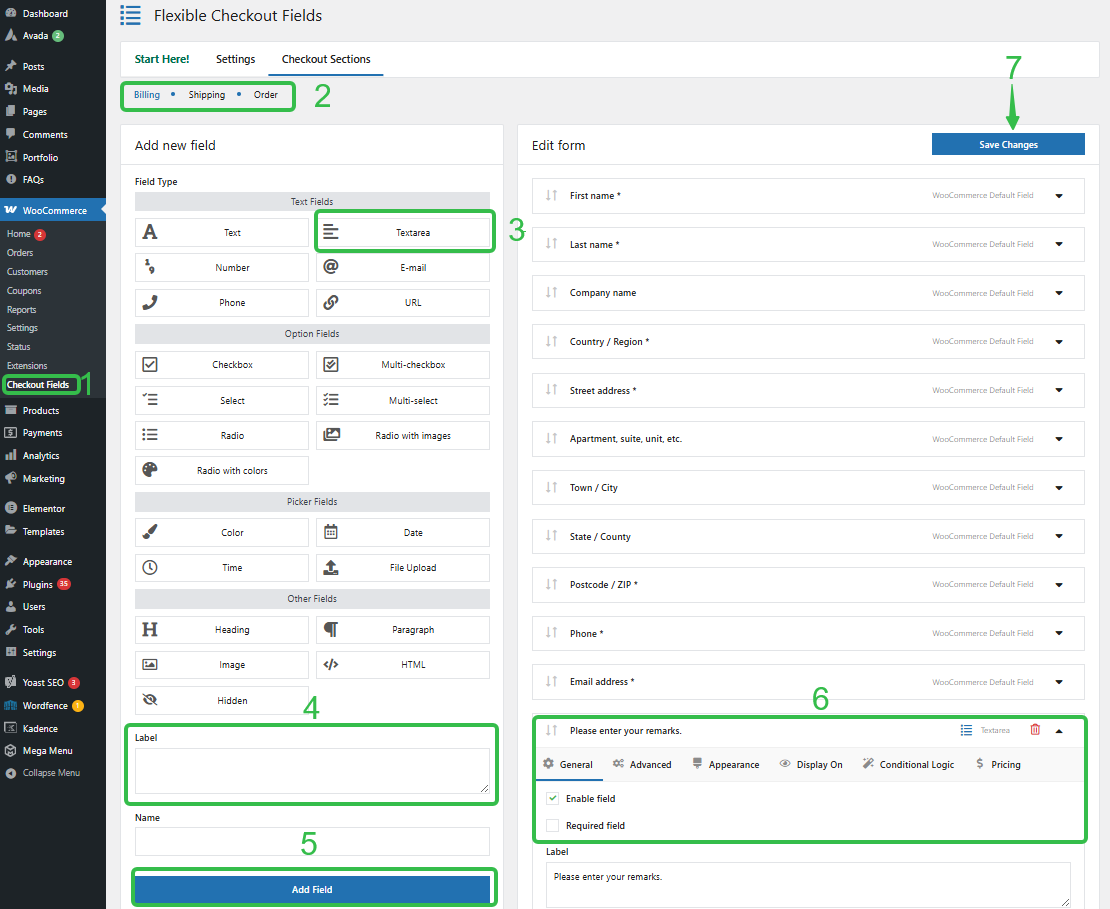
Example Fields:
"Select delivery date"
"Fill in the invoice header"
"Please select color/size for additional information"
WooCommerce's Shortcomings
3. Use conditional logic to make checkout smarter
Default WooCommerce Inability to dynamically display fields based on user selectionThis leads to: all fields are displayed at once, users need to fill in information that is not relevant to them, and the experience is complicated and difficult.
Optimization of Flexible Checkout Fields
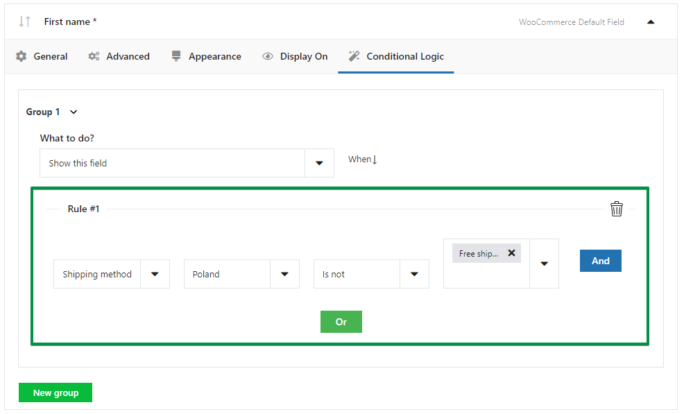
switch modes or data streams"Conditional Logic"feature makes the WooCommerce checkout page smarter and cleaner, preventing users from seeing unnecessary fields and improving the user experience.
Operational Steps:
- Navigate to the tab field you want to edit
- Switch to Conditional Logic
- Setup Rules:
- (coll.) fail (a student) User selects "Corporate Invoice" → Show "Tax ID" field
- (coll.) fail (a student) User selects "pickup at store" → Show "Store Selection" field
- Save for dynamic display
4. Adjust the order of fields for a smoother checkout processsmooth and easy
WooCommerce's Shortcomings
The default field order is fixed and not reasonable, e.g. "Address 2" is first, phone and email are not in the same place, important fields are too far back, etc.
Optimization of Flexible Checkout Fields
Change the order of fields by dragging and dropping to improve the smoothness of the filling path and reduce users' filling troubles.
Operational Steps:
- Go to the list of fields
- Drag and drop fields directly to change position
- You can put "Phone", "Email" and "Delivery time" on top.
- Saving the adjusted sort
![Image [7]-WooCommerce Checkout Process Optimization: Top 10 Flexible Checkout Fields Plugin Tips](https://www.361sale.com/wp-content/uploads/2025/11/20251117112026582-20251117110335687-20251117110239_rec_.gif)
Best Alignment Suggestion:
- Contact information in advance (to minimize filling in errors)
- Grouping of shipping addresses in the center
- Invoices and notes at the end
5. Add description tips for fields to reduce filling errors
WooCommerce's Shortcomings
WooCommerce is unable to provide: field prompt text, help descriptions, placeholder content, resulting in users not knowing exactly how to fill them out.
Optimization of Flexible Checkout Fields
Change the "Label" of the field to the clearer "Street Address" and fill in the "Placeholder" text with examples (e.g. "e.g. People's Rd. 123"). Clear guidelines will minimize user confusion and errors when filling out the form.
Operational Steps:
- Edit any field
- Add:
- Placeholder
- Description
- Tooltip
- Click Save
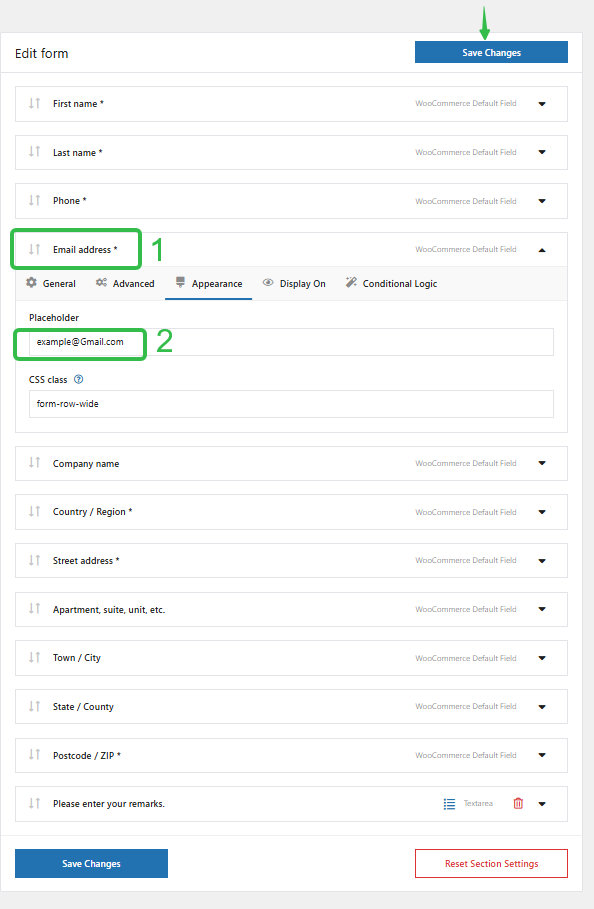
Example:
- Phone: Please enter a cell phone number where you can be reached.
- Delivery time: express delivery does not support the designation of the exact time
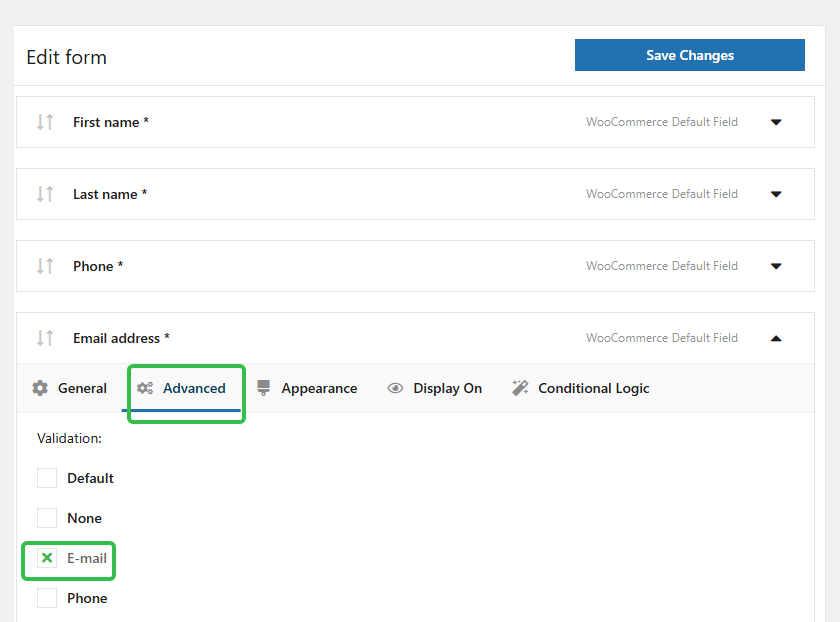
6. EnablingField Validation FunctionsAvoiding Order Error Messages
WooCommerce's Shortcomings
The default WooCommerce validation rules are very limited and can only detect "required" or email formats. Unable to detect: phone format, character limit, numeric/alphabetic validation, specific formatting requirements.
Optimization of Flexible Checkout Fields
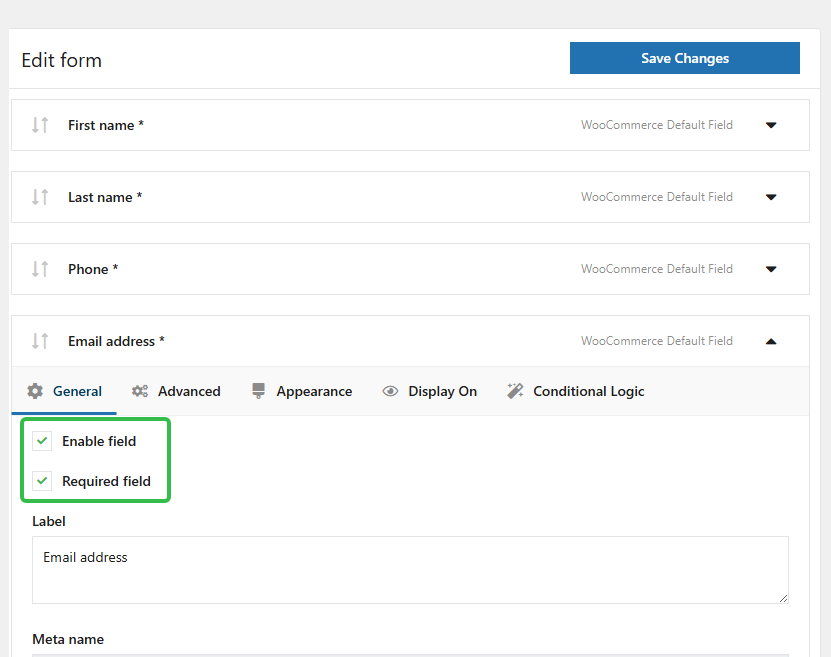
In the plugin settings, find the key fields (e.g. "Billing Phone") and check them as "Required". This ensures that every order you collect contains the information necessary for subsequent contact or verification, effectively reducing the cost of subsequent manual changes to orders.
Operational Steps:
- Edit field → switch to "Verify
- Select the type of validation, for example:
- digital format
- Mailbox format
- length limit
- Regular expressions (advanced validation)
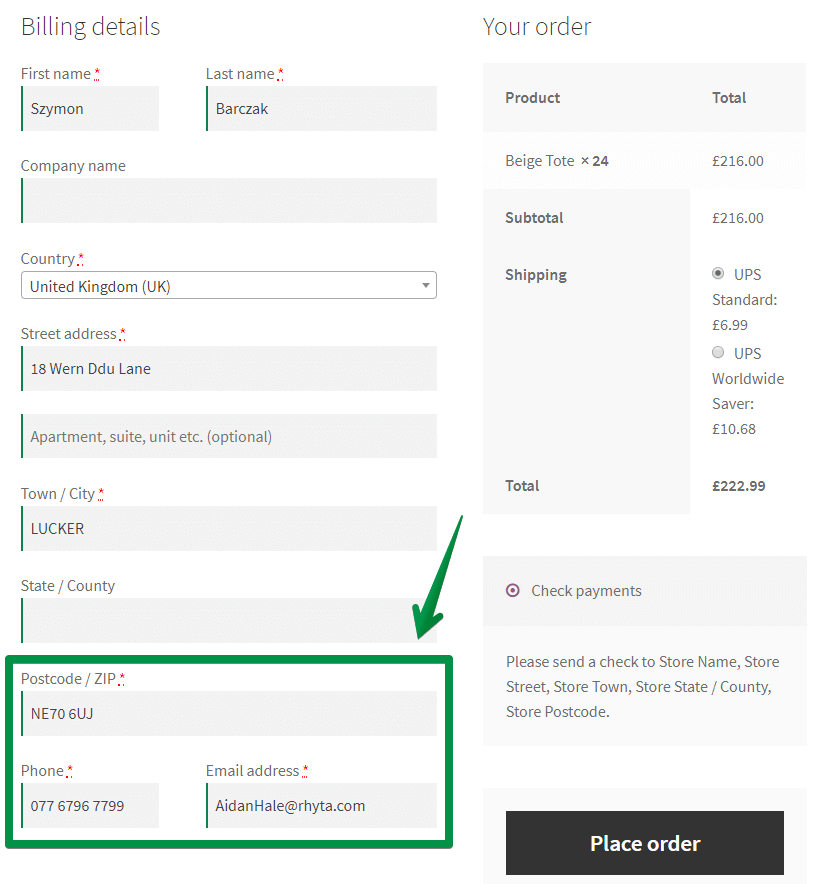
- Automatically prompts an error message at checkout after saving
7. Display different fields by user role (B2B required)
WooCommerce can't differentiate between different customer groups, for example: B2C only needs name and address, B2B needs invoice header, tax ID, company name, VIP needs to fill in the membership information, etc. These default uniform fields will affect the experience.
Optimization of Flexible Checkout Fields
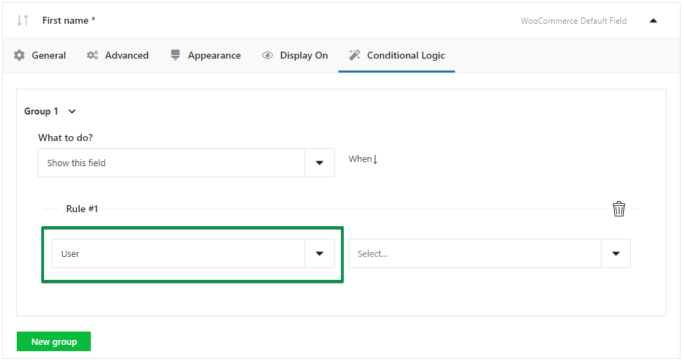
You can use the "User Role Conditions" feature to display specific fields to enhance the personalized experience of the checkout process.
Operational Steps:
- edit a field
- Open Conditional Logic
- Select "User Role" as the trigger condition.
- Setting up display and hiding logic
- Save to enable differentiated checkout processes by user group
8. Control fields to be displayed in mailings and orders (to avoid missing information)
WooCommerce's Shortcomings
By default WooCommerce does not allow custom fields to appear in the Manage Order Details, User Order Email, User Order Completion pages, etc. which can easily lead to missing information.
Optimization of Flexible Checkout Fields
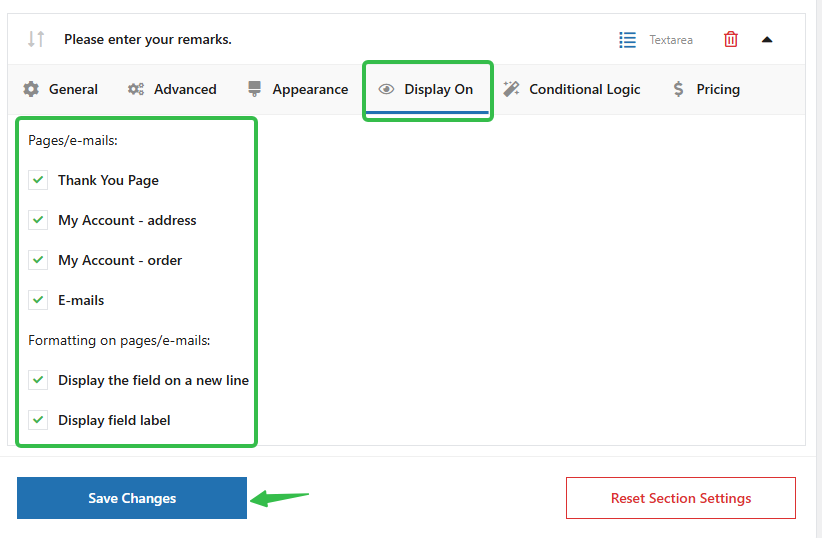
After adding custom fields, you can choose the display location (administrator order details, user email notification, order completion page), etc., which helps to grasp complete customer information and improve customer communication efficiency.
Operational Steps:
- edit a field
- Tick:
- Show in emails
- Show in order details
- It will automatically appear in the following location after saving:
- Manage Order Back Office
- Customer Order Email
- Order View Page
Applicable Scenarios:
- User Notes Requirements
- Invoice Information
- Distribution date
9. Optimize fields for mobile filling experience
WooCommerce's Shortcomings
The default field pairs mobile Not friendly enough, for example:
- Too many fields make sliding difficult
- Field types not suitable for cell phone input
- Insufficient field descriptions
Optimization of Flexible Checkout Fields
Providing good field compatibility ensures a smooth checkout form experience on mobile.
Operational Focus:
- Remove useless fields (reduce slide length)
- Use field types that are more appropriate for cell phones:
- Scroll down → Enter text instead of the user
- Date picker → avoid manual entry
- Using short tags with Placeholder
- Top "Required Fields"
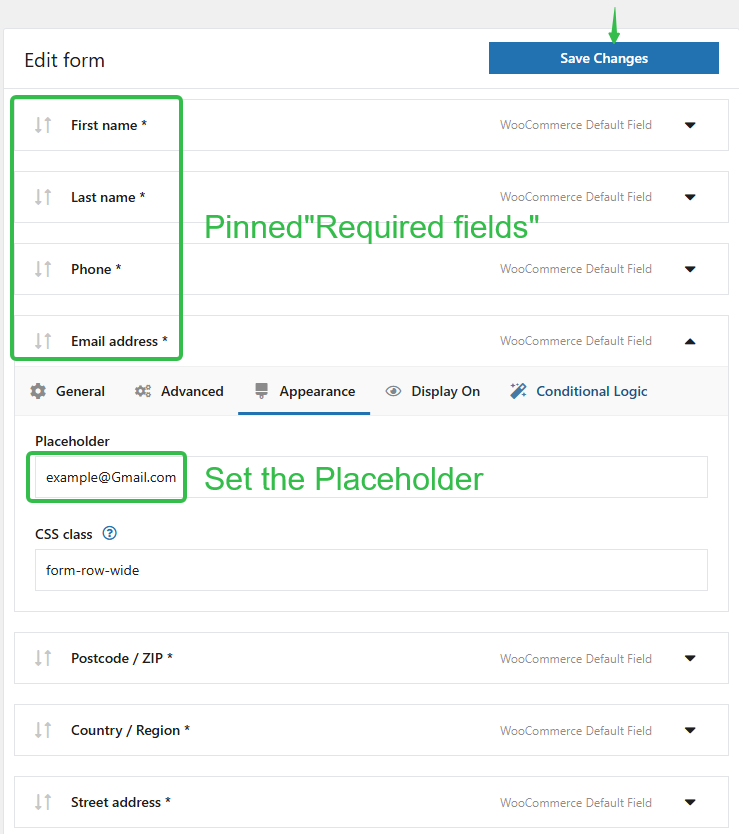
Applicable Scenarios:
- Adjustment of field types
- grouping field
- optimization sequence
10. Work with SEO optimization to make the checkout process a conversion booster
WooCommerce's Shortcomings
WooCommerce checkout page by default loads slowly, has many fields and high bounce rate. Also unnecessary fields slowing down loading, users leaving resulting in poor interaction signals, and low checkout page experience scores can affect SEO.
Optimization of Flexible Checkout Fields
Improve page load speed (hide redundant fields), reduce bounce rate, increase checkout completion rate (one of the most important SEO metrics), and more to indirectly improve the overall ranking performance of your WooCommerce store. To achieveSmoother WooCommerce Checkout Flow → Higher Conversions → Better SEO SignalsBenign closure.
Optimize the process:
- Hide unneeded fields → Increase page speed
- Reducing the number of fields through conditional logic
- Optimize field layout for mobile
- Enhance user fill-in accuracy → Reduce duplicate submissions
- Increase checkout completion rate → Helps SEO scores
The above ten optimization schemes are summarized in the table below:
| serial number | WooCommerce Shortcomings | Flexible Checkout Fields Solution | procedure | Optimization results |
|---|---|---|---|---|
| 1 | Too many fields | Hide default fields | Go to WooCommerce → Flexible Checkout Fields → select Billing/Shipping → close redundant fields (company name, address line 2, order notes, etc.) | Faster checkout |
| 2 | Restricted field types | Adding Custom Fields | Click "Add Field" → select field type (text, date, dropdown, checkbox) → set validation and display location (checkout page/email/backoffice) | More complete data |
| 3 | unconditional logic | Adding Dynamic Forms | Edit field → open "Conditional Logic" → set trigger conditions (e.g. select Enterprise → show tax code; select Pickup → show store) | Smarter Forms |
| 4 | Field order is not controllable | drag race | Go to the list of fields → use drag and drop to adjust the order of the fields (e.g., move phone, email forward) | Reduces user skipping of important fields and improves overall filling efficiency |
| 5 | Fill in the error-prone | Add a Tip | Edit Fields → Add Placeholder, Description, Tooltip | Improvement of filling in the correct rate |
| 6 | Insufficient validation | Enhanced validation rules | Edit Fields → Open "Validation" → Set validation type: numeric, alphabetic, length limit, regular validation | Avoiding Wrong Orders |
| 7 | User layering is not supported | Show fields by role | Edit fields → "Conditional logic" → Select "User roles" as the display condition. | B2B/B2C: A Clearer Distinction |
| 8 | Fields do not show up in the mail | Enable mail display | Edit field → check "Show in emails" "Show in order details". | Easier to manage |
| 9 | Poor cell phone experience | Optimizing Field Types and Order | Delete unnecessary fields → Optimize to a field type more suitable for the phone (dropdown, date) → Adjust field order | Conversion rate increase on mobile |
| 10 | SEO Affected | Streamline fields + increase completion rates | Streamline fields through plugins, use conditional logic to reduce displays, and optimize mobile fill experience | Reduced checkout bounce rate, SEO enhancements |
Conclusion: Flexible Checkout Fields are a powerful enabler of the WooCommerce checkout experience!
Flexible Checkout Fields provides field management, conditional logic, user role control, validation features, email/order display control, mobile optimization, etc. In this article, we have used the above 10 tips for using Flexible Checkout Fields to better address the many limitations of WooCommerce's default checkout. In this article, the above 10 tips to use Flexible Checkout Fields can better solve the many limitations of WooCommerce default checkout.

Link to this article:https://www.361sale.com/en/80737/The article is copyrighted and must be reproduced with attribution.
















![Emoji[wozuimei]-Photonflux.com | Professional WordPress repair service, worldwide, rapid response](https://www.361sale.com/wp-content/themes/zibll/img/smilies/wozuimei.gif)

![Emoticon[baoquan] - Photon Wave Network | Professional WordPress Repair Services, Worldwide Coverage, Rapid Response](https://www.361sale.com/wp-content/themes/zibll/img/smilies/baoquan.gif)


 简体中文
简体中文  English
  日本語
日本語  Français
  Español


No comments