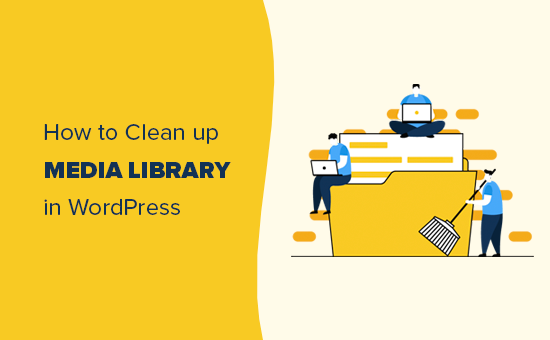






As the hours of operation increase, theWordPress Media LibraryThe accumulation of images, video and audio files in your WvordPress media library can lead to degradation of site performance and slow page loads. Regularly cleaning and optimizing your WvordPress media library saves server space and improves your site's responsiveness and user experience.
Why should I clean up my WordPress media library?
![Images[1] - How to clean up your WordPress media library: the best way to optimize and manage images, videos and attachments](https://www.361sale.com/wp-content/uploads/2025/04/20250417202055868-image.png)
As the content of the site grows, so do the files in the media library. These files include uploaded images, videos, audio files, and other attachments. Not only do too many unused files take up valuable storage space, they can also affect the performance of your website, leading to the following problems
- Waste of storage space: Unused media files take up server storage space and add unnecessary storage costs.
- Slow page load: A large number of invalid media files may slow down database queries and affect page loading speed.
- Search and management difficulties: When there are too many files in the media library, it becomes more difficult to find and manage files, especially if you need to delete a file.
How to Clean Up Your WordPress Media Library
Cleaning up your media library can be done in several ways:Manual deletion of unused files,Optimize existing documentsandAutomate cleanup with pluginsProcess.
1. Delete unused media files manually
The most straightforward method is to manually delete files in your media library that are no longer in use. These files are usually old pictures, videos or other attachments. Here are the steps to manually clean up your media library:
- Login to WordPress Backend: Go to your WordPress dashboard.
- Access to the media library: Click on the "Media" option in the left menu to enter the media library.
![Images[2] - How to clean up your WordPress media library: the best way to optimize and manage images, videos and attachments](https://www.361sale.com/wp-content/uploads/2025/04/20250417151810520-image.png)
3.Viewing and deleting files::
- In the Media Library, click each file to view its details.
- Check if these files are still in use by looking at the image links in the post or page to determine if they need to be kept.
- If you are sure that a file is no longer in use, you can click in the upper right corner of the file on the "removing" button to remove it from the media library.
![Images [3] - How to clean up your WordPress media library: the best way to optimize and manage images, videos and attachments](https://www.361sale.com/wp-content/uploads/2025/04/20250418172956707-image.png)
2. Deleting Trimmed Images in the Media Library
WordPress automatically generates copies of each uploaded image in multiple sizes, such as thumbnail, reduced, and original. If certain image sizes are no longer in use, you can delete these "trimmed" images to minimize storage space.
Manual deletion method:
- You can use the
FTP or file management tool to access the server and view thewp-content/uploads/folder to manually delete unwanted copies of images.
3. Optimized images
Uploaded image files, especially unoptimized images, can be very large, which can affect page loading speed. Optimizing images then is a very important step.
Manual optimization methods:
- Use tools like Photoshop, GIMP, etc. to compress and optimize images.
![Images[4] - How to clean up your WordPress media library: the best way to optimize and manage images, videos and attachments](https://www.361sale.com/wp-content/uploads/2025/04/20250417153552349-image.png)
- This can be done using online tools such as TinyPNG or ImageOptim compressed images.
Plugin optimization methods:
- use a tool like Smush maybe ShortPixel Plugins like this to automatically optimize all images in your media library. They not only automatically compress images on upload, but also batch optimize existing images.
4. Delete metadata for attachments
Every file uploaded to the media library comes with some sort ofmetadata, such as image size, upload date, EXIF data, and so on. Over time, this metadata may accumulate and cause the database to swell. You can periodically purge this metadata to reduce the size of the database.
Plugin Methods:
- use a tool like WP-Optimize maybe aa A plugin like this can help you clean up unnecessary database entries, including attachment metadata.
5. Batch delete unused media files
If you delete images or media files from certain pages or posts in WordPress, these files will still remain in the media library. Using a plugin can help you quickly find and delete these unused media files.
Plugin Methods:
- Media Cleaner The plugin scans your media library to check which files are not being used in posts, pages or custom content and then deletes them in bulk.
![Images[5]-How to clean up WordPress media library: the best way to optimize and manage images, videos and attachments](https://www.361sale.com/wp-content/uploads/2025/04/20250417201923476-image.png)
Media library management using plug-ins
While manually cleaning up your media library can be effective, for larger sites it can become very tedious to manage manually. Therefore, using plugins to automate this process is a much more efficient solution toWP-OptimizeAs an example.
1. Installation and activation of the WP-Optimize plugin
- In the WordPress backend, go to Plugins > Install PluginsSearch WP-Optimizeand then click mounting respond in singing activateThe
![Images [6] - How to clean WordPress media library: the best way to optimize and manage images, videos and attachments](https://www.361sale.com/wp-content/uploads/2025/04/20250418174113418-image.png)
2. Open the WP-Optimize setting
- Once you have installed and activated the plugin, go to the WordPress backend to the WP-Optimize Menu.
3. Go to the Media Cleanup Tool
- In the WP-Optimize menu, click the "Pictures." option, using the
Advanced Features Clean up unused images from the media library.
4. Selecting media files that are no longer used
- WP-Optimize automatically scans the media library and identifies media files that are not referenced by articles, pages or other content. You can view and select files to delete from this page.
![Images [7] - How to clean up your WordPress media library: the best way to optimize and manage images, videos and attachments](https://www.361sale.com/wp-content/uploads/2025/04/20250418184614364-image.png)
5. Perform cleanup operations
- After confirming the selection of media files to be deleted, click on the Cleanup button to delete those media files that are no longer in use.
Here are some plugins that are recommended for cleanup use:
1. Smush
- Smush is a popular image optimization plugin that helps you automatically compress and optimize images, reducing the size of image files and thus increasing page load speed.Smush also supports batch optimization, which is convenient and efficient.
![Images [8] - How to clean up WordPress media library: the best way to optimize and manage images, videos and attachments](https://www.361sale.com/wp-content/uploads/2025/04/20250417161825700-image.png)
2. Media Cleaner
- Media Cleaner plugin scans your entire media library, automatically detects files not used in any content and provides options for deletion. It helps you keep your media library tidy and efficient.
![Images [9] - How to clean up WordPress media library: the best way to optimize and manage images, videos and attachments](https://www.361sale.com/wp-content/uploads/2025/04/20250417161959860-image.png)
summarize
Cleaning up your WordPress media library is an important maintenance task that helps improve your site's performance, save storage space, and provide a better user experience. With the help of tools like WP-Optimize,Media Cleaner and other plugins, you can easily automate this process and further improve management efficiency.

Link to this article:https://www.361sale.com/en/50541The article is copyrighted and must be reproduced with attribution.

















![Emoji[wozuimei]-Photonflux.com | Professional WordPress repair service, worldwide, rapid response](https://www.361sale.com/wp-content/themes/zibll/img/smilies/wozuimei.gif)

![Emoticon[baoquan] - Photon Wave Network | Professional WordPress Repair Services, Worldwide Coverage, Rapid Response](https://www.361sale.com/wp-content/themes/zibll/img/smilies/baoquan.gif)


 简体中文
简体中文  English
  日本語
日本語  Français
  Español


No comments