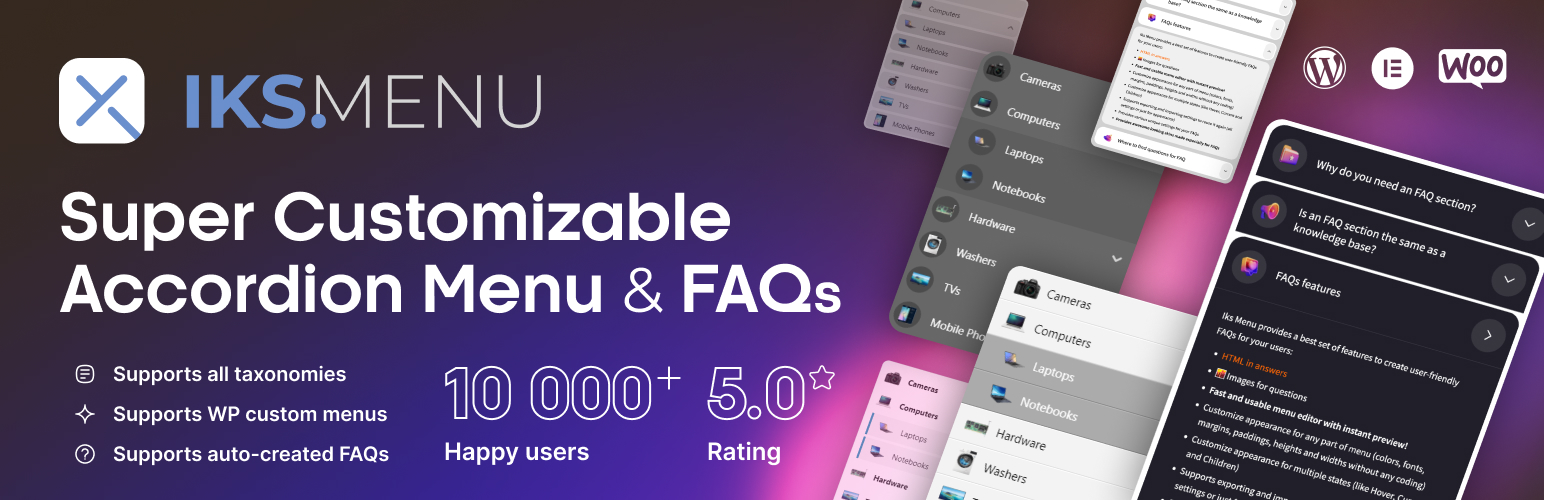






In website design, the Accordion Menu is ideal for many websites due to its compactness and ease of navigation. The Accordion Menu is the preferred menu format for many websites. It is effective in saving page space and also provides an intuitive navigation experience for customers. This article will explore how to use the lKS Menu plug-in (software component) Create a powerful WordPress accordion menu.
What is IKS Menu plugin?
lKS Menu is a menu plugin designed for WordPress websites with powerful customization features that help customers easily createAccordion Menu, drop-down menus, Frequently Asked Questions (FAQ), and many other interactive elements.
![Image [1]-How to Create Dynamic WordPress Accordion Menu Using KS Menu Plugin | Full Tutorial](https://www.361sale.com/wp-content/uploads/2025/04/20250424101459374-image.png)
Why choose the Accordion Menu?
The beauty of the accordion menu is that itcompactnessrespond in singingDynamic Expansion Function. It collapses multiple menu items into a single area, and when a customer clicks on a menu item, the related content is expanded and displayed.
Advantages of the accordion menu:
- space-saving: Ideal for situations where there is a lot of content but you want to keep the page simple.
- Highly interactive: Users can interact directly with the menu and expand more content when clicked.
- Enhanced navigation experience: By folding it, users are able to quickly find the section they are interested in.
- responsive design: Accordion menus fit a variety of screen sizes and automatically adjust to fit mobile devices.
Step 1: Install IKS Menu plugin
Installation of IKS Menu Plugin. The following are the installation steps:
- Log in to the WordPress backend.
- Go to "Plugins" > "Install Plugins".
- Type I in the search boxKS Menu, find the plugin and click "Install Now".
- Once the installation is complete, click the "Enable" button to activate the plugin.
![Image [2] - How to Create Dynamic WordPress Accordion Menu Using KS Menu Plugin | Full Tutorial](https://www.361sale.com/wp-content/uploads/2025/04/20250424102524328-image.png)
Step 2: Create a new menu
After installing and enabling the IKS Menu plugin, you can start creating accordion menus. Here are the exact steps:
- In the WordPress backend, click the IKS Menu Options.
- strike (on the keyboard) Add new menu Button.
- Name your menu in the "Menu Name" field.
![Image [3] - How to Create Dynamic WordPress Accordion Menu Using KS Menu Plugin | Full Tutorial](https://www.361sale.com/wp-content/uploads/2025/04/20250424104557373-image.png)
Step 3: Customize the menu style
A good accordion menu is functionally presented and visually appealing.IKS Menu plugin provides a variety of customization options to help you design a menu that matches the style of your website.
- On the menu edit page, click type Tab.
- You can choose from different themes orCustom CSS code to modify the appearance of the menu.
- Select a preset theme: The plugin offers a variety of preset theme styles (e.g. classic, clean, modern, etc.) that you can directly choose fromThe
- Custom Styles: If you have some knowledge of CSS, you can customize CSS to change the background color, font, icon, etc. of the menu!
- For example, to change the unfolding animation of the accordion menu, you can add the following code to your custom CSS:
.Iks-menu .Iks-menu-item { transition: all 0.3s ease; }
- For example, to change the unfolding animation of the accordion menu, you can add the following code to your custom CSS:
![Image [4] - How to Create Dynamic WordPress Accordion Menu Using KS Menu Plugin | Full Tutorial](https://www.361sale.com/wp-content/uploads/2025/04/20250424105637313-image.png)
Step 4: Enable Dynamic Effects
With IKS Menu plugin, you can add smooth expanding and collapsing effects to the menu. The steps are as follows:
- In the edit page of the menu, switch to dynamic effect Tags.
- Select the animation effect you want (e.g., slide to expand, fade in and out, etc.).
- You can also set the speed at which each menu item expands and whether to enable automatic closing of other menu items.
Using smooth transition animations gives customers a smoother and more satisfying experience when they click.
![Image [5] - How to Create Dynamic WordPress Accordion Menu Using KS Menu Plugin | Full Tutorial](https://www.361sale.com/wp-content/uploads/2025/04/20250424105953997-image.png)
Step 5: Add the menu to the website
Once the menu is designed, the next step is to add it to your website. You can do this in several ways:
- Use of gadgets: in exterior condition > gadget in
IKS Menu
![Image [6] - How to Create Dynamic WordPress Accordion Menu Using KS Menu Plugin | Full Tutorial](https://www.361sale.com/wp-content/uploads/2025/04/20250424172300400-image.png)
- Using short codes: The shortcode generated by the plugin can be embedded directly into a page or post. Simply copy and paste the shortcode into the page editor.
Example:
[Iks_menu id="123"]
Step 6: Test and optimize
After creating the menu, be sure to test it to make sure it works across devices and browsers. You can try to see how the menu displays on different screen sizes to ensure a smooth user experience.
![Image [7] - How to Create Dynamic WordPress Accordion Menu Using KS Menu Plugin | Full Tutorial](https://www.361sale.com/wp-content/uploads/2025/04/20250424112146512-image.png)
summarize
Using IKS Menu Plugin Creating a dynamic WordPress accordion menu is a simple yet powerful way to dramatically improve the usability and aesthetics of your website. By customizing menu styles, dynamic effects, and responsive design, you can provide visitors with a more fluid and efficientnavigatorExperience. Whether you're looking to improve your website's user experience or want to reduce page clutter, accordion menus are a great option.

Link to this article:https://www.361sale.com/en/51615The article is copyrighted and must be reproduced with attribution.
















![Emoji[wozuimei]-Photonflux.com | Professional WordPress repair service, worldwide, rapid response](https://www.361sale.com/wp-content/themes/zibll/img/smilies/wozuimei.gif)

![Emoticon[baoquan] - Photon Wave Network | Professional WordPress Repair Services, Worldwide Coverage, Rapid Response](https://www.361sale.com/wp-content/themes/zibll/img/smilies/baoquan.gif)


 简体中文
简体中文  English
  日本語
日本語  Français
  Español


No comments