




For many WordPress webmasters, theWP-Live Chat PluginIt is a simple, practical and powerful online customer service solution. What's more, itInstallation is simple and setup is intuitive, even if you don't have any technical background!
In this article, we'll show you hands-on how toInstalling and using the WP-Live Chat plugin from scratchLet's get your WordPress websiteInstantly upgrade to a professional platform with real-time conversation support.
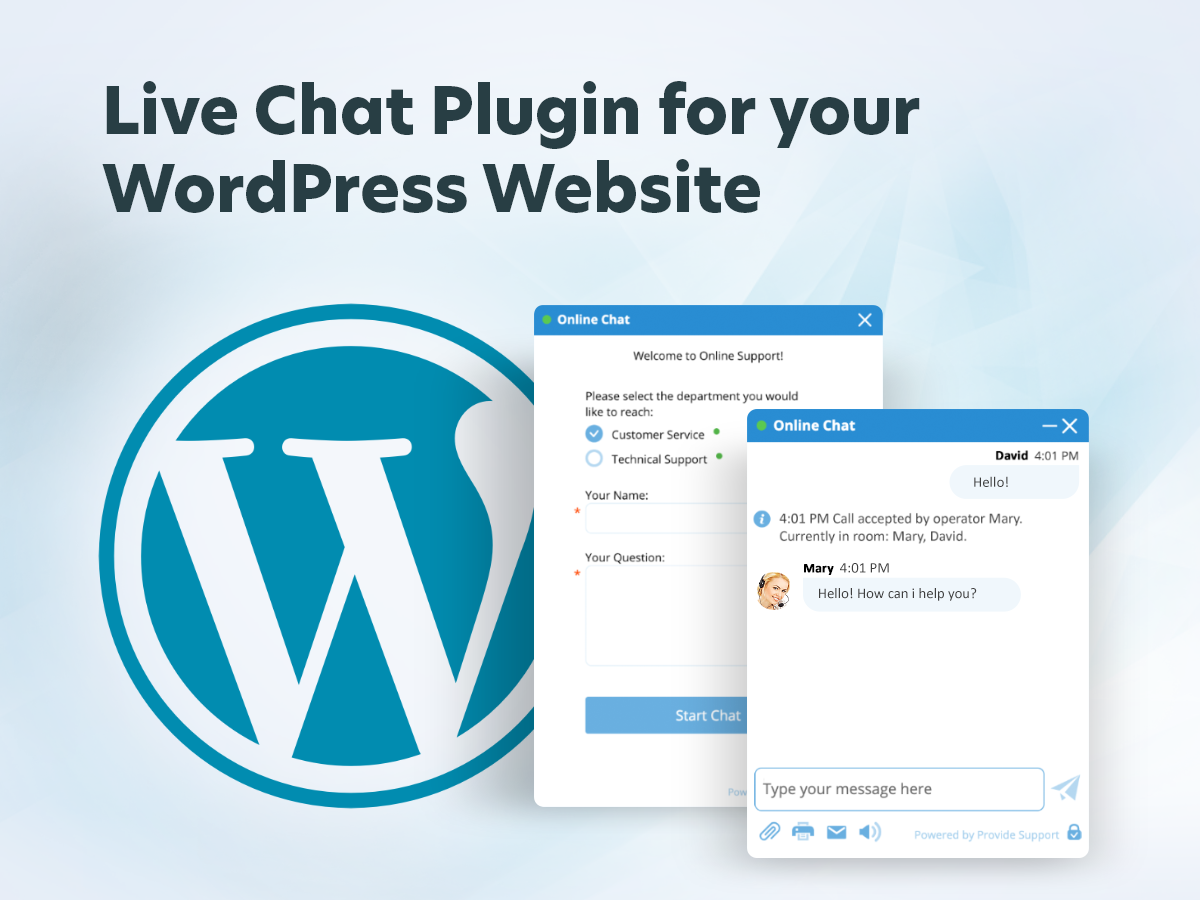
What is WP-Live Chat plugin?
WP-Live Chat It's a program for WordPress websitedesignerLive Chat Pluginthat allows website visitors to communicate with you or your customer service team in real time. Key benefits include:
- Free access to basic functions
- be in favor ofpolyglot
- Simple and clear back-end interface
- No impact on site performance
- Compatible with several plugins (e.g.WooCommerce)
II. Preparation: what do you need to have?
Before you start, make sure you do the following:
- You already have an installed WordPress website
- You have administrator rights to the backend of the site
- You can access it normally WordPress Plugin Library
If you don't have a WordPress site yet, complete thewebsite constructionOr consult a service provider.
Steps to install WP-Live Chat plugin (super simple)
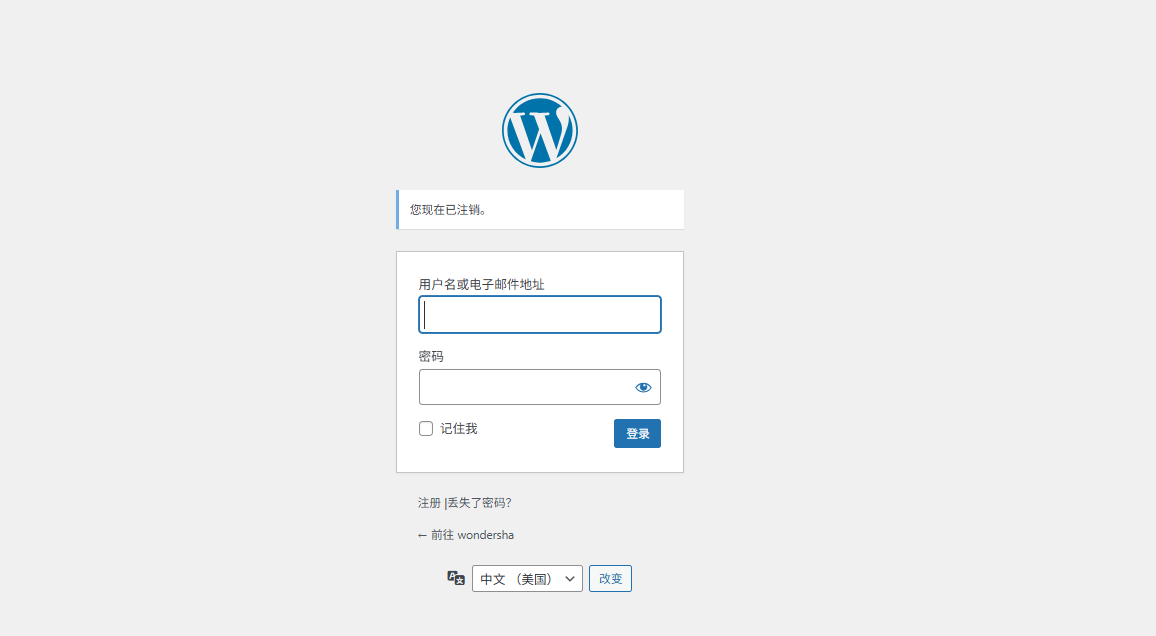
Step 1: Login to your WordPress Backend
In your browser, type https://你的域名/wp-admin, enter your username and password and go to the backend management page.
Step 2: Enter the plugin installation interface
Click in the left menu:Plugins > Install Plugins
Type in the search box:WP-Live Chat by 3CX(or just search for "Live Chat")
![Picture [3]-Zero basic can handle! WP-Live Chat plugin installation and setup complete tutorial!](https://www.361sale.com/wp-content/uploads/2025/05/20250514164248933-image.png)
Step 3: Click on the "Install Now" button
Once you have found the correct plugin, click "Install Now" and wait a few seconds for the installation to complete.
Then click on "start using" button to activate the plugin.
![Picture [4]-Zero basic can handle! WP-Live Chat plugin installation and setup complete tutorial!](https://www.361sale.com/wp-content/uploads/2025/05/20250514164522437-image.png)
Step 4: Complete the Quick Setup Wizard (recommended)
After enabling the plugin, the system usually leads you to a setup wizard:
- Set customer service nicknames (e.g. "Online Customer Service")
- Customize chat window color, welcome message
- Set customer service online status (working hours can be set)
With instructions for every step of the way.Follow the prompts and click "Next".The
![Picture [5]-Zero basic can handle! WP-Live Chat plugin installation and setup complete tutorial!](https://www.361sale.com/wp-content/uploads/2025/05/20250514182044738-image.png)
Step 5: Test the Chat Feature
Open your site's home page and you'll see a bottom-right corner appearing with achat windowThe
![Picture [6]-Zero basic can handle! WP-Live Chat plugin installation and setup complete tutorial!](https://www.361sale.com/wp-content/uploads/2025/05/20250514193111284-image.png)
You can click on it to test if it works. At this point, if you are logged into the backend, you will see messages from visitors in the backend.
![Picture [7]-Zero basic can handle! WP-Live Chat plugin installation and setup complete tutorial!](https://www.361sale.com/wp-content/uploads/2025/05/20250514193209670-image.png)
IV. Common problems and solutions
| concern | prescription |
|---|---|
| Chat window not showing? | Check if the plugin is enabled or if it conflicts with your theme or cache plugin. Try clearing the cache or temporarily disabling other plugins to test. |
| How do I implement multi-customer support? | WP-Live Chat supports multiple customer service accounts, roles can be added and assigned in the settings. |
V. Summary
The WP-Live Chat plugin lets you add powerful online customer service features to your WordPress website without writing code or setting up a server.From installation to use, the whole process does not take more than 10 minutesIt's easy for even first-time WordPress users to get started.
🎯 Recommended for:
- Small and medium-sized enterprise owners
- e-commerce seller
- Blogger/Content Creator
- Educational platform operators
In just a few steps, you can make your visitors feel more professional and attentive. Do it now and try it out!

Link to this article:https://www.361sale.com/en/54318The article is copyrighted and must be reproduced with attribution.














![Emoji[wozuimei]-Photonflux.com | Professional WordPress repair service, worldwide, rapid response](https://www.361sale.com/wp-content/themes/zibll/img/smilies/wozuimei.gif)

![Emoticon[baoquan] - Photon Wave Network | Professional WordPress Repair Services, Worldwide Coverage, Rapid Response](https://www.361sale.com/wp-content/themes/zibll/img/smilies/baoquan.gif)


 简体中文
简体中文  English
  日本語
日本語  Français
  Español


No comments