




Want to give your website a new look? Changing fonts is an easy and effective way to do so. Whether you're new to WordPress This post will teach you three practical ways to change WordPress fonts, each step of which is easy to understand and suitable for the zero-basic operation.
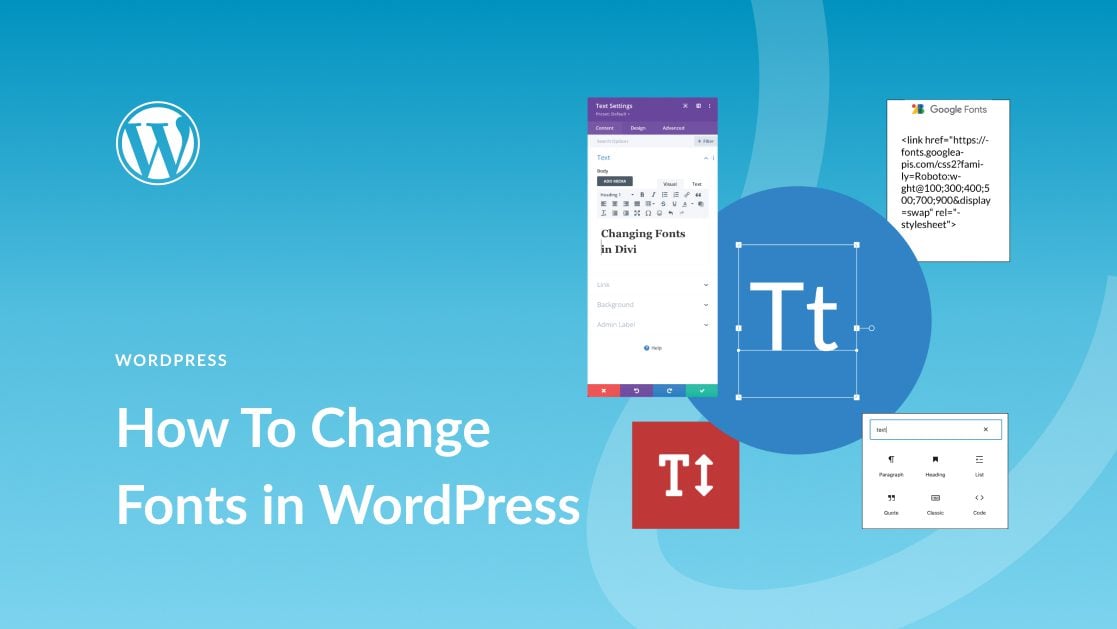
Method 1: Use the theme comes withfont settingFunctions (simplest)
Suitable for: novice users with modern themes
A lot of modern WordPress Themes(e.g. AstraThe font setting feature is built-in in all of them (e.g., GeneratePress, OceanWP, etc.).
The steps are as follows:
- Log in to your WordPress backend;
- click on Appearance > Customization.;
![Image [2] - Three Practical Ways to Easily Change WordPress Website Fonts (for Beginners)](https://www.361sale.com/wp-content/uploads/2025/05/20250514182929482-image.png)
- locate Typography maybe Fonts.;
- Choose your favorite fonts for "Body", "Title", "Menu" and other options;
- Preview the effect instantly and click on it when you are satisfied post Just save it.
![Image [3] - Three Practical Ways to Easily Change WordPress Website Fonts (for Beginners)](https://www.361sale.com/wp-content/uploads/2025/05/20250514143051953-image.png)
![Image [4] - Three Practical Ways to Easily Change WordPress Website Fonts (for Beginners)](https://www.361sale.com/wp-content/uploads/2025/05/20250514143215216-image.png)
vantage: simple and intuitive, no code required
limitation: only the font styles provided by the theme can be used
Method 2: Install the font setting plug-in (better adaptability)
Suitable for people who want to use more fonts and the theme does not support font replacement
Recommended Plugins:Easy Google Fonts
![Image [5] - Three Practical Ways to Easily Change WordPress Website Fonts (for Beginners)](https://www.361sale.com/wp-content/uploads/2025/05/20250514143435277-image.png)
Installation Steps:
- Go to the WordPress backend and click Plugins > Install Plugins.;
- look for sth. Easy Google Fonts and click mounting.;
- After the installation is complete click start using Plug-ins.
Steps to use:
- return to Appearance > Customization.;
- Find new menu items Typography.;
- Set the type of font you want to modify (e.g. paragraph, heading 1, heading 2, etc.);
- Choose the Google Fonts font you want in the drop-down menu to adjust the font size, thickness, etc;
- strike (on the keyboard) post Apply changes.
![Image [6] - Three Practical Ways to Easily Change WordPress Website Fonts (for Beginners)](https://www.361sale.com/wp-content/uploads/2025/05/20250514144204403-image.png)
vantage: More choices of fonts, Google fonts support for more themes!
limitation: relies on external plug-ins to load Google Fonts possible impactDomestic access speed
Method 3: Customize fonts via CSS (advanced but freer)
Suitable for people who have some basic knowledge of HTML/CSS and want to use local fonts or fully customize their styles.
Operational Steps:
- Prepare the font file (recommended format:
.woffmaybe.ttf); - Upload the font files to the theme directory under
/fontsfolder (using FTP or a file manager); - show (a ticket) Appearance > Customization > Extra CSS, add the following code example: '
@font-face {
    font-family: 'MyCustomFont';
    src: url('/wp-content/themes/your-theme-name/fonts/your-font.woff') format('woff');
}

body {
    font-family: 'MyCustomFont', sans-serif; }
}![Image [7] - Three Practical Ways to Easily Change WordPress Website Fonts (for Beginners)](https://www.361sale.com/wp-content/uploads/2025/05/20250514163627451-image.png)
- Save and publish to take effect.
vantage: Fully customizable, local fonts can be used to avoid external link loading
limitation: Hands-on with files and a little bit of code
Summary:
| methodologies | operating difficulty | Font Selection | Suitable for newcomers |
|---|---|---|---|
| Theme comes with features | ⭐ | ★★★ | ✅✅ |
| Font plug-ins | ⭐⭐⭐⭐⭐⭐⭐ | ★★★★ | ✅✅ |
| Custom CSS | ⭐⭐⭐⭐⭐⭐⭐⭐ | ★★★★★ | ✅ (slightly higher) |
For most users, it's easiest to start with method one if your theme supports custom fonts. For a richer font experience, try plugins. If you're after advanced customization, using method three will make your site unique.

Link to this article:https://www.361sale.com/en/54218The article is copyrighted and must be reproduced with attribution.














![Emoji[wozuimei]-Photonflux.com | Professional WordPress repair service, worldwide, rapid response](https://www.361sale.com/wp-content/themes/zibll/img/smilies/wozuimei.gif)

![Emoticon[baoquan] - Photon Wave Network | Professional WordPress Repair Services, Worldwide Coverage, Rapid Response](https://www.361sale.com/wp-content/themes/zibll/img/smilies/baoquan.gif)


 简体中文
简体中文  English
  日本語
日本語  Français
  Español


No comments