





What are WooCommerce Discount Rules?
WooCommerce Discount Rule is a powerful plugin that allows merchants to WooCommerce Store to create various types of discounts and dynamic pricing strategies. With this plugin, you can create a dynamic pricing strategy based on theNumber of products,user role,Total Shopping Cart,Purchase HistoryWe have the flexibility to set up discount rules to attract customers and increase sales under a variety of conditions.
Core Features and Benefits
1. Diversified types of discounts
The plugin supports multiple discount types, including:
- Bulk Discount (Bulk Discount): Available based on quantity purchasedtiered discount, encouraging customers to buy more and save more.
- Percentage Discount (Percentage Discount): Percentage discounts are offered on specific products, categories, or storewide.
- Fixed Discount (Fixed Amount Discount): Subtract a fixed amount from the shopping cart and apply it to the promotion.
- Buy One Get One Free (BOGO) Offer: Set up a free product or discounted product with the purchase of a specified product.
- User Role Discounts: Exclusive discounts for specific user roles such as wholesalers, VIP customers, etc.
- Shopping Cart Discount: Automatically apply discounts based on cart total, number of items, and other conditions.
![Image [1] - WooCommerce Discount Rule Setting: The Best Strategy and How-to Guide to Boost Sales](https://www.361sale.com/wp-content/uploads/2025/05/20250519174431473-image.png)
2. Flexible conditionality
You can flexibly set up discount rules based on the following conditions:
- Product Properties: e.g. color, size, etc.
- product category: e.g. electronics, clothing, etc.
- user role: e.g. regular users, wholesalers, etc.
- Total Shopping Cart: If full $100 minus $10.
- Purchase HistoryAdditional discounts are offered to customers who spend a total of $1000 or more.
3. Intuitive presentation
In order to improve the customer experience, the plugin offers a variety of ways to display discount information:
- Product Page Discount Table: Display information about discounts corresponding to different purchase quantities.
- Shopping cart and checkout pages: Show original and discounted prices to highlight the amount customers save.
- Promotional badges: Display "Sale" or "Discount" logo on product thumbnails.
How do I set up discount rules?
Step 1: Install the plugin
In the WordPress backend, navigate to "Plugins" → "Install Plugins" and search for "Discount Rules for WooCommerce". Search for "Discount Rules for WooCommerce", click "Install" and activate the plugin.
![Image [2] - WooCommerce Discount Rule Setting: The Best Strategy and How-to Guide for Boosting Sales](https://www.361sale.com/wp-content/uploads/2025/05/20250520175315708-image.png)
Step 2: Create a new rule
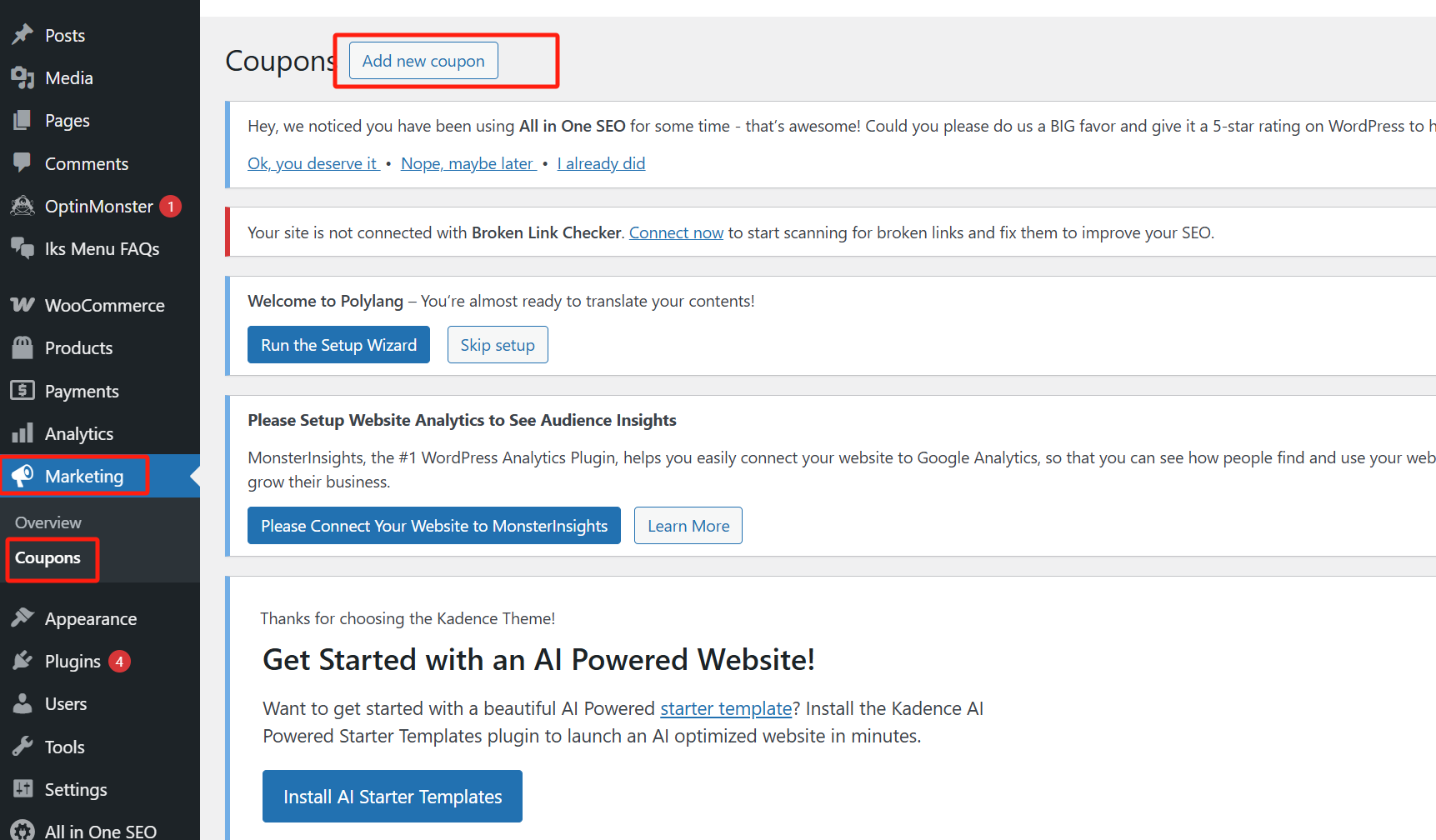
After activating the plugin, navigate to "WooCommerce" → "Discount Rules" and click "Add New Rule".
![Image [3] - WooCommerce Discount Rule Setting: The Best Strategy and How-to Guide to Boost Sales](https://www.361sale.com/wp-content/uploads/2025/05/20250520175240749-image.png)
Step 3: Configure rule details
On the new rules page, you need to:
- Select Discount Type: e.g., volume discounts, percentage discounts, etc.
- Setting the applicable conditions: e.g. applicable products, categories, user roles, etc.
- Defining discount values: Enter a percentage or fixed amount for the discount.
- Setting Display Options: Choose whether or not to display the discount information on the product page.
![Image [4] - WooCommerce Discount Rule Setting: The Best Strategy and How-to Guide to Boost Sales](https://www.361sale.com/wp-content/uploads/2025/05/20250520175703340-image.png)
Step 4: Save and enable the rule
After completing the configuration, click "Save and Enable" button, the discount rule will take effect immediately.
![Image [5] - WooCommerce Discount Rule Setting: The Best Strategy and How-to Guide to Boost Sales](https://www.361sale.com/wp-content/uploads/2025/05/20250519174459208-image.png)
Advanced Features (PRO version)
Upgrading to the PRO version allows you to unlock more advanced features:
- Combo Discount: Set up discounts on the purchase of specific product combinations.
- First time buyer discount: Exclusive offer for first time customers placing an order.
- Discounts based on zip code: Set up regional discounts based on the customer's shipping address.
- Coupon Activation Discount: Activate the corresponding discount rules by entering a specific coupon code.
concluding remarks
With the WooCommerce Discount Rules plugin, you have the flexibility to create a variety of promotional strategies to boost customer satisfaction and increase sales. Whether it's a simple store-wide discount or a complex combination of conditions, the plugin can meet your needs. It is recommended to make a reasonable setting of discount rules to maximize the marketing effect.

Link to this article:https://www.361sale.com/en/55226The article is copyrighted and must be reproduced with attribution.

















![Emoji[wozuimei]-Photonflux.com | Professional WordPress repair service, worldwide, rapid response](https://www.361sale.com/wp-content/themes/zibll/img/smilies/wozuimei.gif)

![Emoticon[baoquan] - Photon Wave Network | Professional WordPress Repair Services, Worldwide Coverage, Rapid Response](https://www.361sale.com/wp-content/themes/zibll/img/smilies/baoquan.gif)


 简体中文
简体中文  English
  日本語
日本語  Français
  Español


No comments