





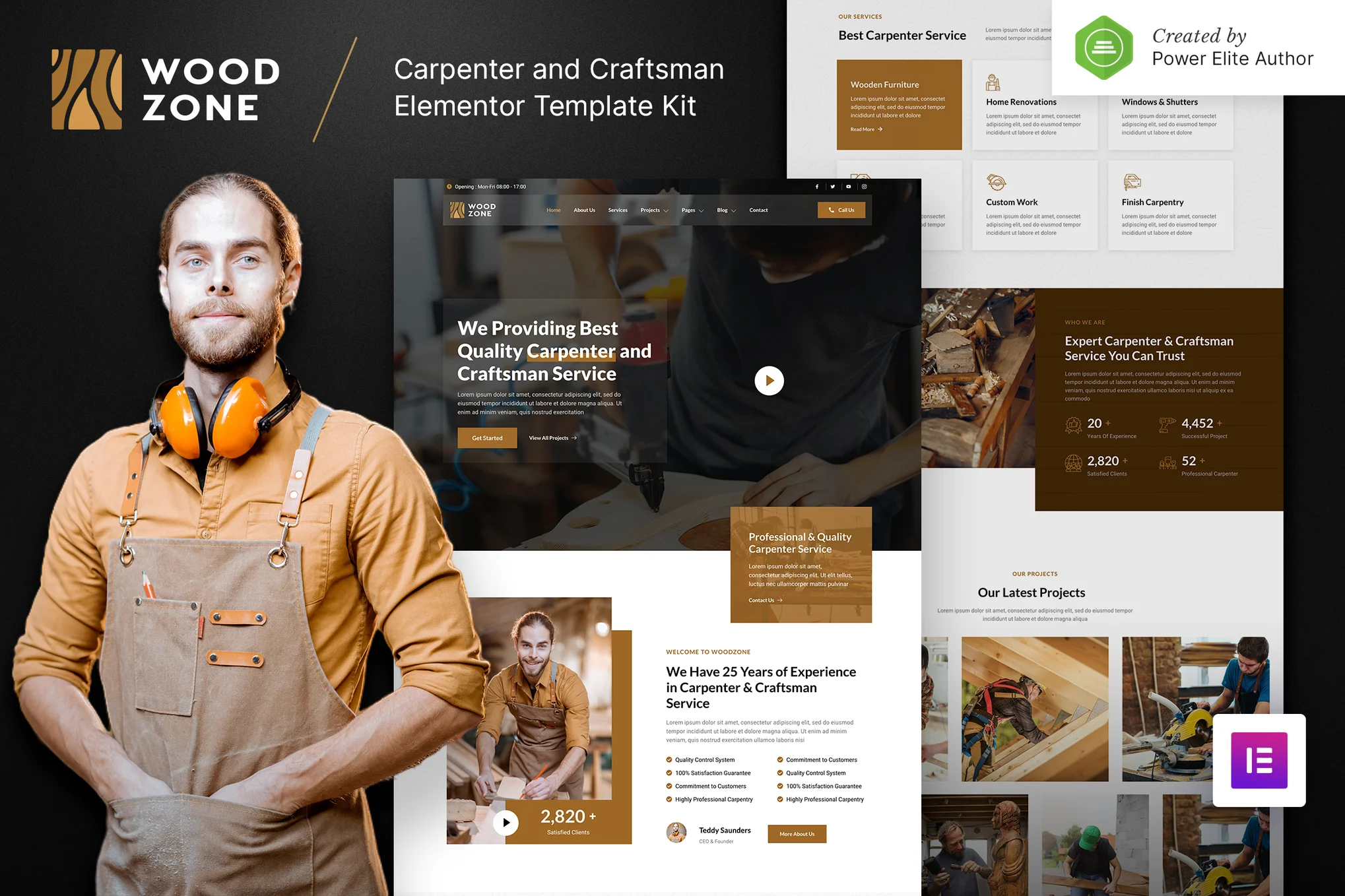
For those of you who use WordPress to build your website, theElementor PagebuilderIt is by far the most popular tool.
In the actual development process, you will encounter some browsers under theStyles are messed up,Component not displayed,interaction failureand other issues.Elementor Safe Mode (Safe Mode) It is possible to troubleshoot these problems.
![Image [1]-Elementor Safe Mode × Cross-Browser Compatibility: A Key Strategy for Improving Website Stability and User Experience](https://www.361sale.com/wp-content/uploads/2025/06/20250617153105275-image.png)
I. What is Elementor Safety Mode?
Safe Mode is a debugging environment provided by Elementor that allows the front-end of a website to be run in isolation without affecting visitors to the site.Excluding topics orplug-in conflict, helping developers pinpoint problems.
Key features of the security model:
- Website visitors continue to see normal pages
- The developer accesses a clean "no plugin conflicts" page in the backend.
- For debugging issues such as styles not loading, modules not working, etc.
- No need to change any code, easy to operate
How to turn on Safe Mode:
- Login to WordPress Backend → Elementor → Tools
- Switch to the "Safe Mode" tab
- Click "Enable" to start debugging.
![Image [2]-Elementor Safe Mode × Cross-Browser Compatibility: A Key Strategy for Improving Website Stability and User Experience](https://www.361sale.com/wp-content/uploads/2025/06/20250617153031628-image.png)
Second, why is cross-browser compatibility still important?
Browsers tend to be standardized, but there are still the following challenges:
Chrome ,Safari ,Firefox ,Edge There are still subtle differences in the way they are rendered
![Image [3]-Elementor Safe Mode × Cross-Browser Compatibility: A Key Strategy for Improving Website Stability and User Experience](https://www.361sale.com/wp-content/uploads/2025/06/20250617155729182-image.png)
- Mobile browsers such as
Samsung Internet ,QQ Browser ,UC Browser Differences in support capacity, etc. - certain (things) CSS Functionality, JS animations or font loading are inconsistent on some browsers
- The probability of users accessing the site with older browsers still exists
Good cross-browser compatibilityYou can ensure that your design is presented uniformly across any platform, improving user satisfaction and retention.
How does Elementor Safe Mode assist compatibility debugging?
Safe Mode comes in handy when your page has the following problems with some browsers:
| Performance of the problem | Possible causes | Can safe mode help |
|---|---|---|
| Wrong page style | Plug-in or cache interference | You can troubleshoot for plugin conflicts |
| Module not displayed | JavaScript Conflicts | You can check if it conflicts with other JS plugins |
| Fonts, icons not displayed | Compatibility or CDN issues | Can isolate the source of the problem for testing |
| Responsive Layout Exception | CSS Priority/unit differences | Breakpoint logic can be tested in an interference-free environment |
Using Safe Mode can help you determine if these issues are caused by Elementor itself, or if they are interfered with by other plugins, themes, or caching mechanisms.
Best Practices for Ensuring Cross-Browser Compatibility of Elementor Pages
1. Use of standardized CSS units and layout systems
- Priority use
rem,%,vw/vhrather thanpx - Use Elementor Flexbox or Container Layout for greater compatibility!
- Avoid using experimental CSS properties or properties not handled by third-party style libraries
![Image [4]-Elementor Safe Mode × Cross-Browser Compatibility: A Key Strategy for Improving Website Stability and User Experience](https://www.361sale.com/wp-content/uploads/2025/06/20250617155636432-1750146936913.jpg)
2. Choose a stable font and icon scheme
- Use system fonts or the trusty Google Fonts
- Icons are recommended to be in SVG format instead of font icons (e.g. Font Awesome old version)
![Image [5]-Elementor Safe Mode × Cross-Browser Compatibility: A Key Strategy for Improving Website Stability and User Experience](https://www.361sale.com/wp-content/uploads/2025/06/20250617160010188-image.png)
3. Checking JavaScript animation and effects compatibility
- Using Elementor's own animations takes precedence over custom JS animations.
- Avoid complex CSS Filter or Blend Mode (not supported by some mobile)
4. Enable and configure responsive design
- Preview desktop, tablet, and mobile in the Elementor editor.
- Testing different browser window sizes when setting breakpoints
- Avoid using
overflow: hiddenProblems with content occlusion caused by
5. Utilizing third-party browser testing tools
- utilization BrowserStack maybe Lambdatest Conducting Browser Compatibility Tests
![Image [6]-Elementor Safe Mode × Cross-Browser Compatibility: A Key Strategy for Improving Website Stability and User Experience](https://www.361sale.com/wp-content/uploads/2025/06/20250617160325378-image.png)
- Local testing is recommended to cover at least the following browsers:
- Chrome (latest version)
- Safari (Mac/iOS)
- Firefox
- Edge
- Android browsers (e.g. Huawei, Xiaomi)
- WeChat/QQ Browser (China Region)
Common Elementor Cross-Browser Issues and Solutions
| concern | Possible Browsers | Suggestions for solutions |
|---|---|---|
| Font rendering jaggies | Windows Edge/Firefox | utilization font-smooth Or optimize font loading |
| Page loads blank | Safari | Checking for JS asynchronous loading or caching issues |
| Picture display is out of proportion | WeChat/UC Browser | mandatory setting object-fit with the width and height attributes |
| Page response failure | Older Android Browsers | Downgrade design or direct users to upgrade their browsers |
| Failure of scrolling animation | Firefox | Avoid using scroll-behavior: smooth |
Six, how to cooperate with the cache and CDN to maintain compatibility consistency
- Disable caching while in safe mode, debugging will work
- Clear your browser cache and CDN cache to make sure the latest files are loaded.
- Configure the CDN (e.g. Cloudflare) when turning off JS/CSS obfuscation compression (may cause code errors)
- Elementor Pro users can turn on File Generation Optimization to produce stable CSS/JS output.
![Image [7]-Elementor Safe Mode × Cross-Browser Compatibility: A Key Strategy for Improving Website Stability and User Experience](https://www.361sale.com/wp-content/uploads/2025/06/20250617163116228-image.png)
VII. Summary
| take | Elementor Security Model Value |
|---|---|
| When a page error occurs | Quickly troubleshoot plugin or theme interference |
| For cross-browser testing | Verify that the issue is coming from Elementor core |
| When style rendering differences | Independently restore the original layout for diagnostics |
| Federated CDN/Cache Debugging | Ensure compatibility debugging accuracy |
- Build the page in Chrome/Safari and enable responsive previews during the official development phase
- For every important component added, save and debug with safe mode
- After the page was built, it was previewed in 5 major browsers + 2 mobile browsers.
- After confirming that there are no errors, then deploy caching and CDN to improve performance
- Re-verify compatibility after each Elementor/plugin update

Link to this article:https://www.361sale.com/en/60278The article is copyrighted and must be reproduced with attribution.












![Emoji[wozuimei]-Photonflux.com | Professional WordPress repair service, worldwide, rapid response](https://www.361sale.com/wp-content/themes/zibll/img/smilies/wozuimei.gif)

![Emoticon[baoquan] - Photon Wave Network | Professional WordPress Repair Services, Worldwide Coverage, Rapid Response](https://www.361sale.com/wp-content/themes/zibll/img/smilies/baoquan.gif)


 简体中文
简体中文  English
  日本語
日本語  Français
  Español


No comments